00197475-01_IM_Traceability3.6_EN.pdf - 第22页
Installation of Trace Service and Monitor Trace Monitor 4.3.1 Installation of Trace Monito r 22 Installation Manual SIPLACE Traceability 3.6 The Welcome dialog will appear. ► Click on Next to continue the installation p …
Installation of Trace Service and Monitor
4.3.1 Installation of Trace Monitor Trace Monitor
Installation Manual SIPLACE Traceability 3.6 21
4.3
4.3 Trace Monitor
Trace Monitor
4.3.1
4.3.1 Installation of Trace Monitor
Installation of Trace Monitor
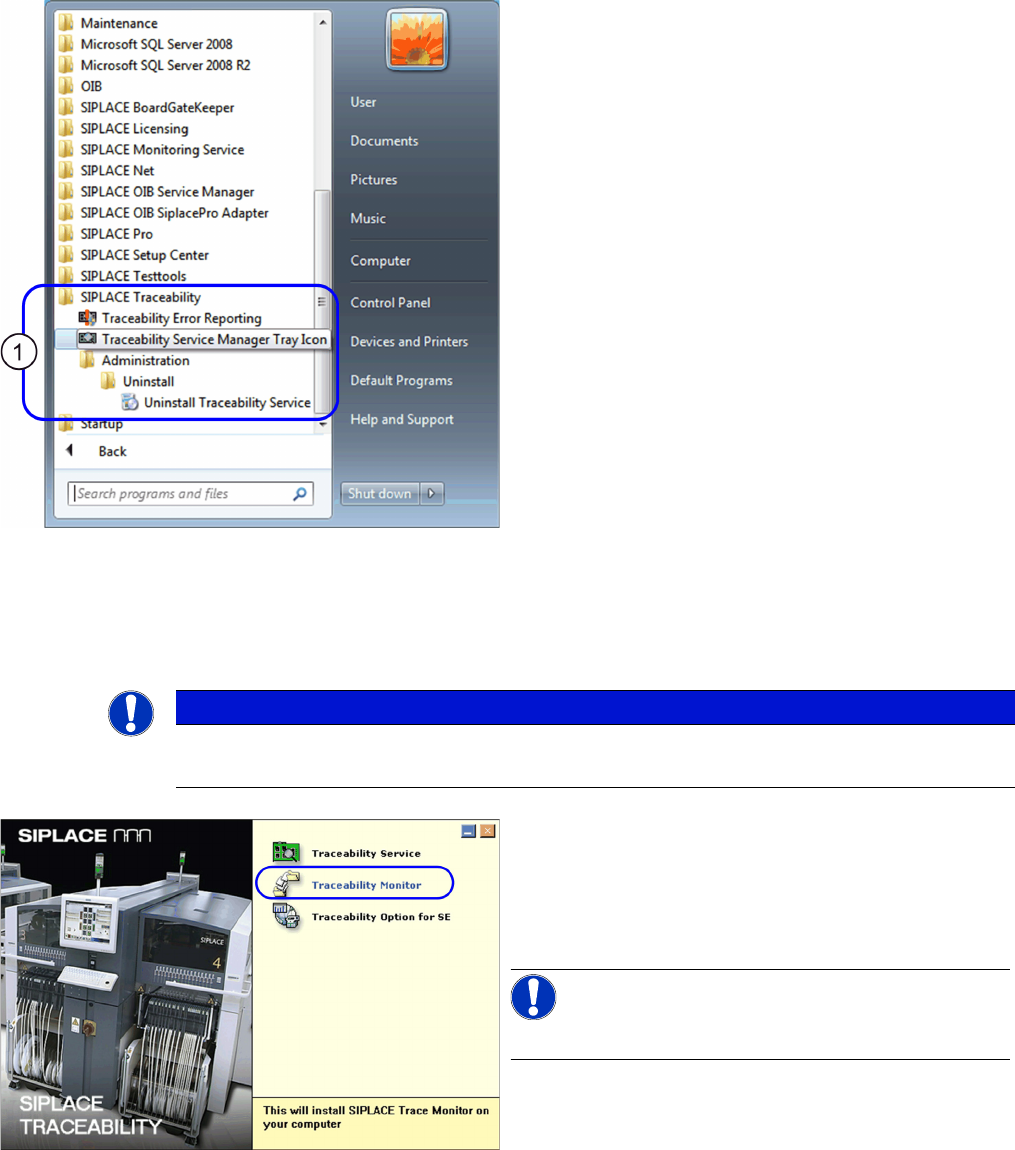
The SIPLACE Traceability program group with the pro-
grams and shortcuts was added to the Windows Start
menu (1):
▪ SIPLACE Traceability
– Traceability Error Reporting
– Traceability Service Manager Tray Icon
– Administration
– Uninstall Traceability Service
NOTICE
Upgrade
For upgrading an installed Trace Monitor software please see the section "6 Upgrade" [ ➙ 29].
► Place the SIPLACE Traceability CD into the CD-ROM
drive of your SIPLACE Pro computer. The start
screen will appear.
► Make sure that the software components available
from the Support Media DVD are already installed.
NOTICE!
SIPLACE Studio must be installed.
► Select Traceability Monitor. You will be guided
through the Trace Monitor installation procedure.
Installation of Trace Service and Monitor
Trace Monitor 4.3.1 Installation of Trace Monitor
22 Installation Manual SIPLACE Traceability 3.6
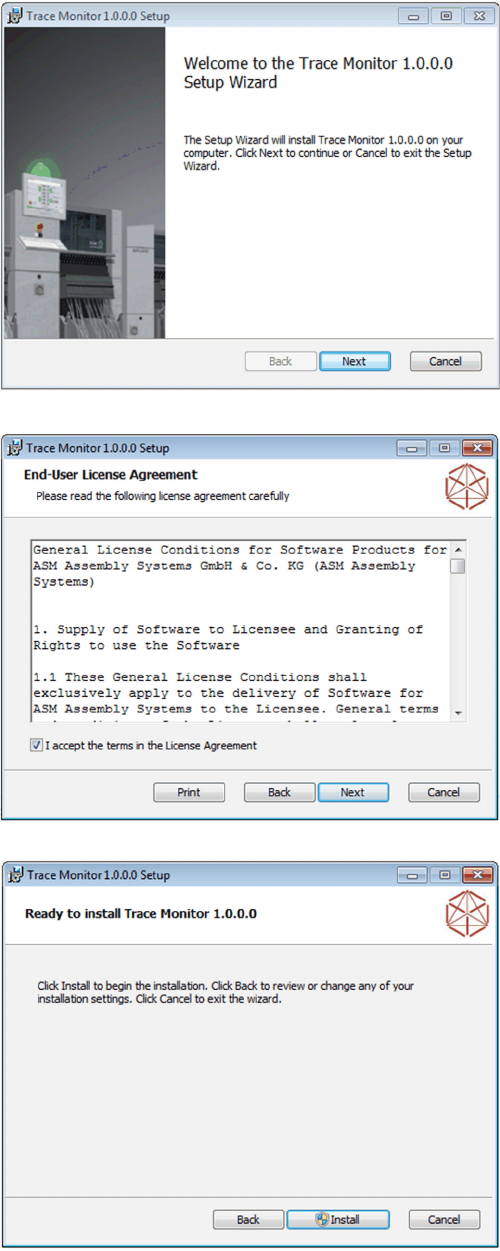
The Welcome dialog will appear.
► Click on Next to continue the installation procedure.
► Read the license agreement. If you agree with the
conditions, click on I accept the terms in the License
Agreement.
► Click on Next to continue the installation procedure.
► If you don`t agree, click Cancel and the installation
procedure will be terminated.
► Make sure that you have administrator rights.
► Start the installation by clicking on Install.
Installation of Trace Service and Monitor
4.3.1 Installation of Trace Monitor Trace Monitor
Installation Manual SIPLACE Traceability 3.6 23
4.3.1.1
4.3.1.1 Troubleshooting
Troubleshooting
Collation conflicts when restoring database backup
When restoring the database backup, the SQL Server must have the same collation as the database
backup. Otherwise run time errors and collation conflicts will occur when performing data query in Trace
Monitor.
► In case of collation conflicts we recommend you to recreate the SQL Server.
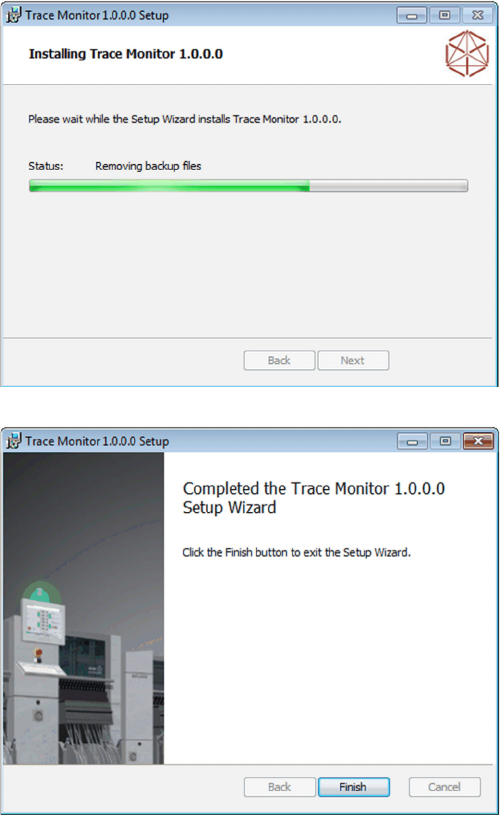
► The installation of Trace Monitor will begin.
► The installation is successfully finished.
► Click Finish to exit.
⇨ The Trace Monitor can be started within SIPLACE
Studio.