3OM-1343-008_w.pdf - 第141页
3-56 AKFEDT -ID T able 3C3-2 Cutting and storing the selected unit in memory When selected, this removes the selection (U data) and stores it in the Clipboard. Copying the selected unit When selected, this transfers the …
3-55
AKFEDT-ID
2.3 Icons
Described below is the meaning of each icon that will be used only in
the "Pattern Program" edit window.
Reference
Refer to "1.2 Basic Icons" in "Chapter 2" for the meaning of the basic icons.
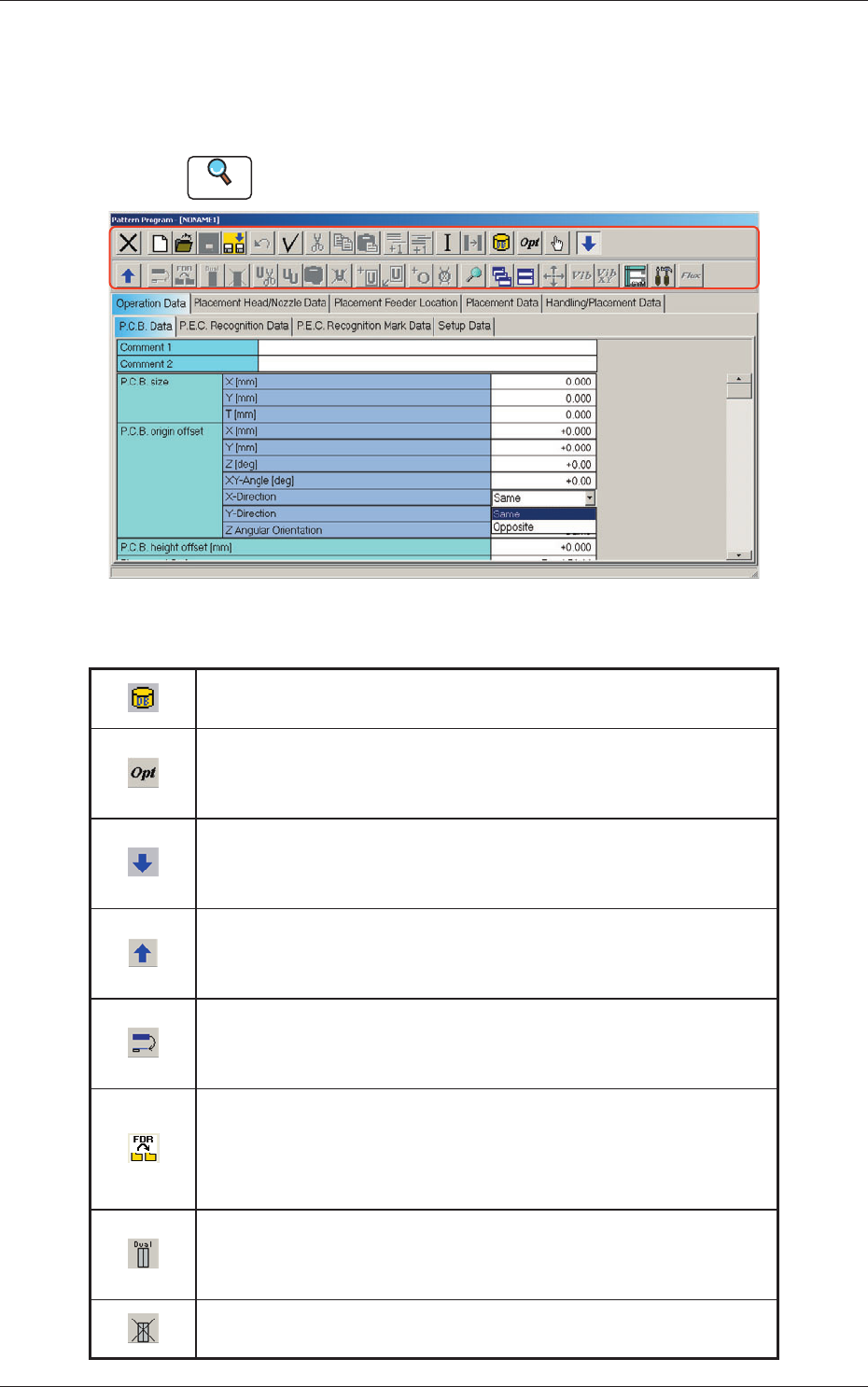
Fig. 3C44 "Pattern Program" Edit Window
Table 3C3-1
Component ID List Display
When selected, this opens the "Component ID List" window.
Optimization
When selected, this executes the optimization of the currently
opened pattern program.
Open 2nd. Toolbar
When selected, this opens the second toolbar.
The second toolbar is also provided with some icons.
Close 2nd. Toolbar
When selected, this closes the second toolbar.
The displayed icons become unavailable.
Transfer the selected step data
When selected, this transfers the placement feeder location data and
the placement data.
Transfer the selected placement feeder location data to
another fi le together with the placement data.
When selected, this transfers the placement feeder location data to
another fi le together with the placement data.
Setting up dual feeder
When selected, this sets up the successive placement feeder location
data for the dual feeder.
Releasing dual feeder
When selected, this releases the setting of the dual feeder.
0604-002
2.3 Icons
3-56
AKFEDT-ID
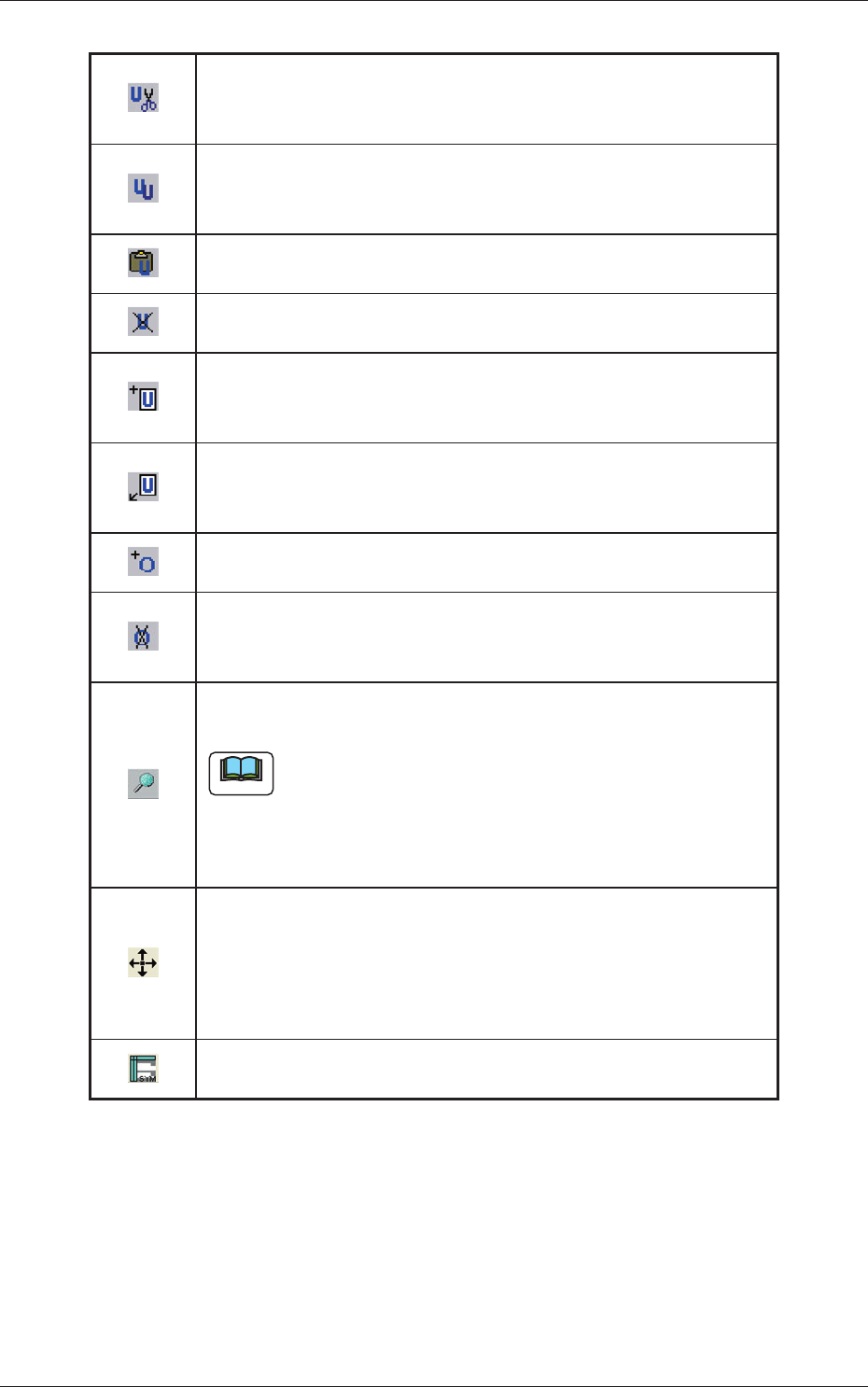
Table 3C3-2
Cutting and storing the selected unit in memory
When selected, this removes the selection (U data) and stores it in
the Clipboard.
Copying the selected unit
When selected, this transfers the selection (U data) to the Clipboard
without removing the selection.
Pasting the stored unit from clipboard
When selected, this pastes the cut or the copied U data.
Deleting the selected unit
When selected, this deletes the currently displayed U data.
Adding a new unit to the last one
When selected, this adds a tab (new U data) to the last one,
indicating that a new tab sheet is created.
Inserting a new unit before the selected one
When selected, this inserts a tab (new U data) before the currently
selected one, indicating that a tab sheet is inserted.
Adding the O-data to the selected unit
When selected, this adds the O data to the currently selected U data.
Delete O-data
When selected, this deletes the O data from the currently selected U
data.
Searching the data
When selected, this opens the "Search" dialog box.
Note
"*" (asterisk) and "?" (question mark) can be used as wild cards.
abc* : The search function retrieves the data which starts with
"abc".
a?c : The search function retrieves the data which starts with
"a" and contain "c" as the third character.
Enter the offset value in the selected line.
When selected, this makes it possible to collectively change the X, Y,
and Z values of the step No. selected in the placement data (P-data)
as much as the numerical values entered in the "Offset Entry"
window.
Open the "Symbol Data" window.
When selected, this opens the "Symbol Data" window.
0607-004
2.3 Icons
3-57
AKFEDT-ID
2.4 Allocation of Component IDs
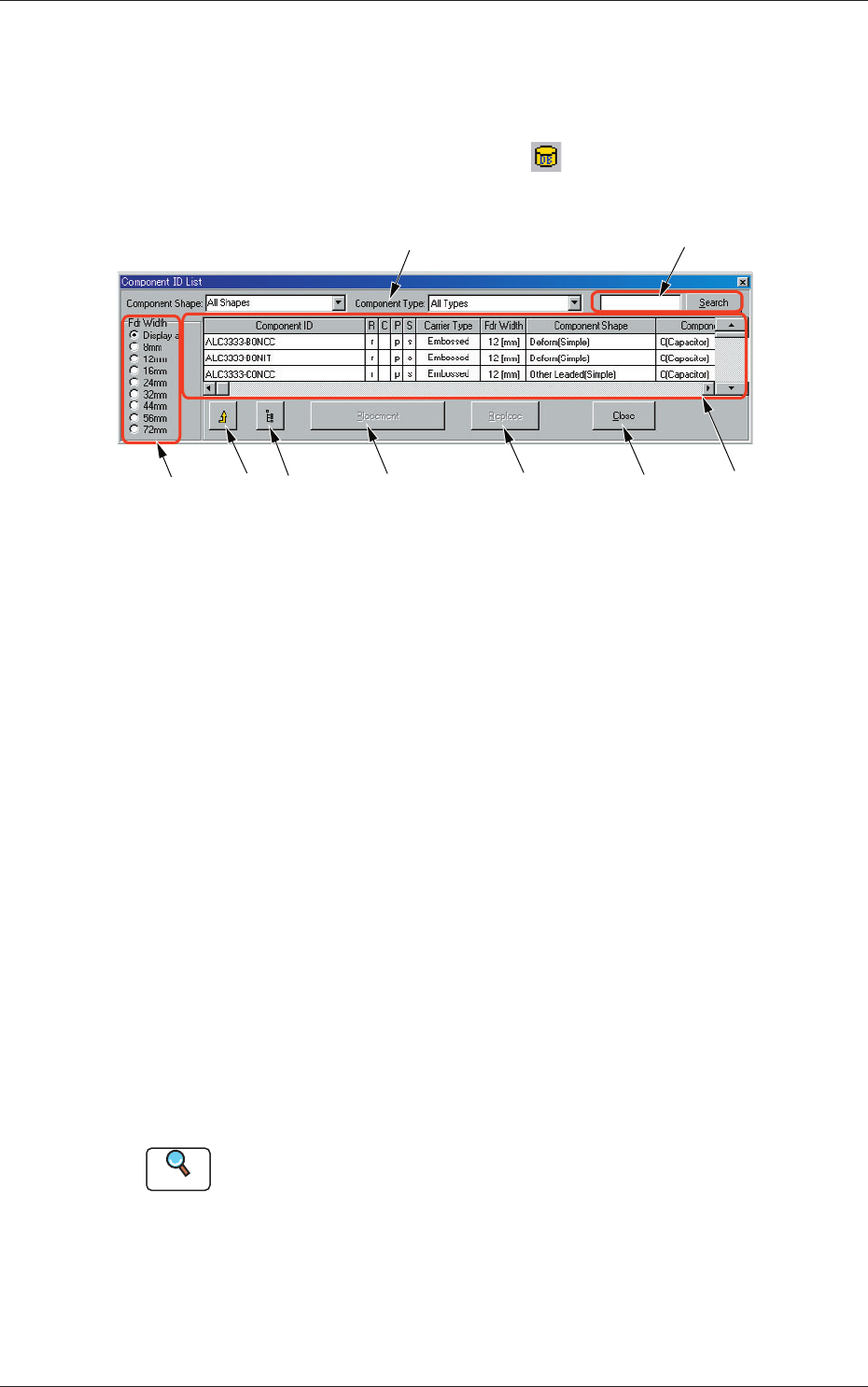
2.4.1 "Component ID List" Window
When the "Component ID List Display" icon ( ) is selected in the
"Pattern Program" window, the "Component ID List" window opens.
[2]
[9]
[3] [4]
[5] [6] [7] [8] [1]
Fig. 3C45 "Component ID List" Window
Shown is the window of the component library for your reference.
This window is mainly used when the placement feeder location data must
be created.
[1] "List of Component IDs" Pane
A list of component IDs is displayed.
[2] Component Shape and Type
Select the desired component shape and type from the drop-down lists.
When the component types corresponding to the selected data are listed
in [1].
[3] "Fdr Width" Group Box
When an option button is selected, the component IDs corresponding to
the selected feeder width are listed in [1].
[4] "Component Library" Edit Button
When pressed, this button opens a "Component Library" edit window,
making it possible to edit the component library data.
Reference
Refer to "Chapter 4 Component Library" for how to edit the component
library data.
0601-002
2.4 Allocation of Component IDs