TM2596.Functional Specification of Mount Group Number.pdf - 第5页
SMT Software En gineering Group IMOperations YAMAHAMOTORCO.,LTD. MD OC-SOFT50106 5/11 Note: Item name of the radio butto n and behavior of No zzle Interf erence Ch eck are according to which mac …
SMT Software Engineering Group
IMOperationsYAMAHAMOTORCO.,LTD.
MDOC-SOFT50106
4/11
4.2 Setting method of Mount Group Number in Optimizer
Please execute an optimization with the following procedure.
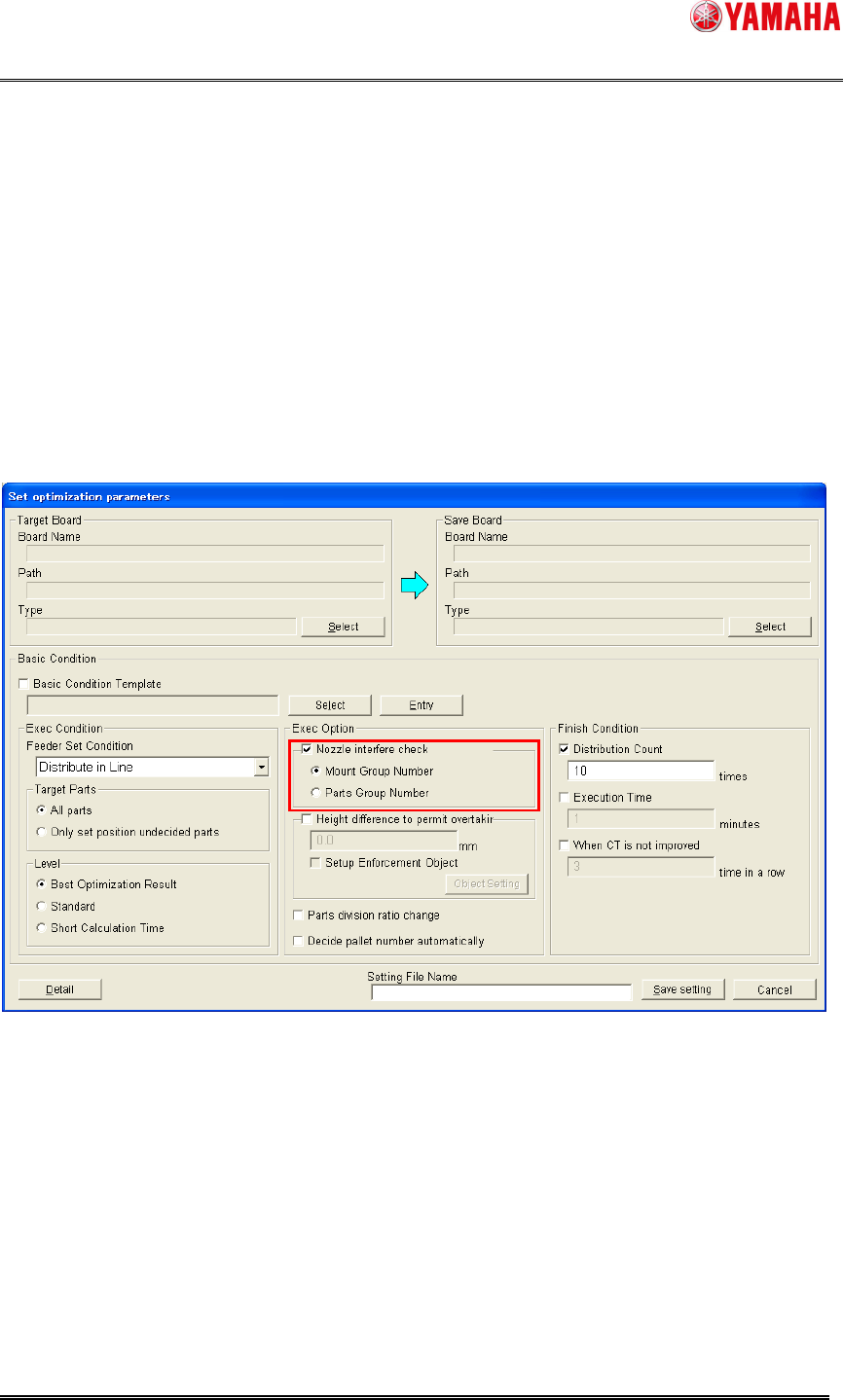
• [Basic Condition] – [Exec Option] – [Nozzle Interference Check] check the box and select
the radio button of “Mount Group Number” (or “Mount Group Number Preferentially”).
After executing an optimization with the above setting, [Board] – [Board] – [Mount Sequence
Method] is set with “Mount Group Number”, and [Mount] – [Group ID] and [Group Order] are set
automatically.
Please refer to “5. Additional item of Board Data” for detailed explanation of each item.
Fig4.2 Set optimization parameters dialog
SMT Software Engineering Group
IMOperationsYAMAHAMOTORCO.,LTD.
MDOC-SOFT50106
5/11
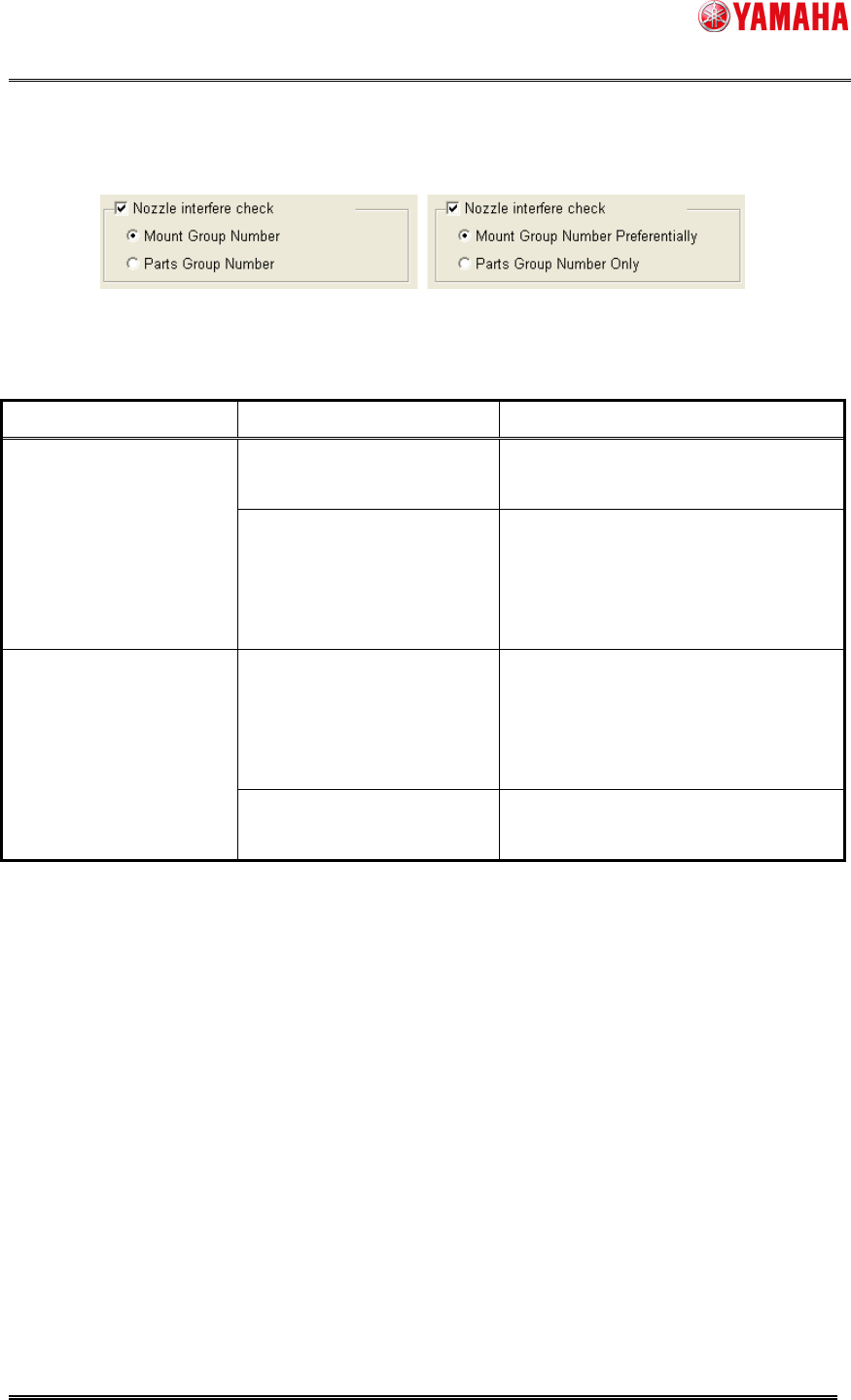
Note: Item name of the radio button and behavior of Nozzle Interference Check are according to
which machine was registered on the line. (Board Editor is the same)
Fig4.3 Setting of Nozzle Interference Check
Table4.1 Behavior of Nozzle Interference Check
Registered machines Radio button item name Nozzle Interference Check behavior
Mount Group Number “Group ID” and “Group Order” are set
to all machines.
Only compliant machines
with the “Mount Group
Number” function
(YS Series, YG12 Series,
YG300)
Parts Group Number “Parts Group Number” is set to all
machines.
Mount Group Number
Preferentially
“Group ID” and “Group Order” are set
to compliant machines, and “Parts
Group Number” is set to noncompliant
machines.
Both of compliant and
noncompliant machines
with the “Mount Group
Number” function.
Parts Group Number Only “Parts Group Number” is set to all
machines.
SMT Software Engineering Group
IMOperationsYAMAHAMOTORCO.,LTD.
MDOC-SOFT50106
6/11
4.3 Manual setting method of Mounting Order
When you use “Mount Group Number”, mounting order is automatically decided according to a
result of Nozzle Interference Check.
Please use “Parts Group Number”, if you want to set mounting order manually. (“Mount Group
Number” is not supported with manual setting of mounting order.)
Set [Board] - [Board] - [Mount Sequence Method] to “Parts Group Number”, and it becomes
possible to modify [Parts] - [Option] - [Parts. Group No.]
Note: With “Parts Group Number”, there is a possibility that the cycle time of optimization result
might be longer than when using “Mount Group Number”. Please refer to “6. Codicil: About
arranging Mounting Order” for detailed explanation.
4.4 Resetting method of Mounting Order
Please execute the following procedure, if you want to reset mounting order set by Nozzle
Interference Check. (Valid for both of “Mount Group Number” and “Parts Group Number”.)
1. Set “Parts Group Number” on [Board] – [Board] – [Mount Sequence Method]
(It becomes possible to modify [Parts] – [Option] – [Parts. Group No.].)
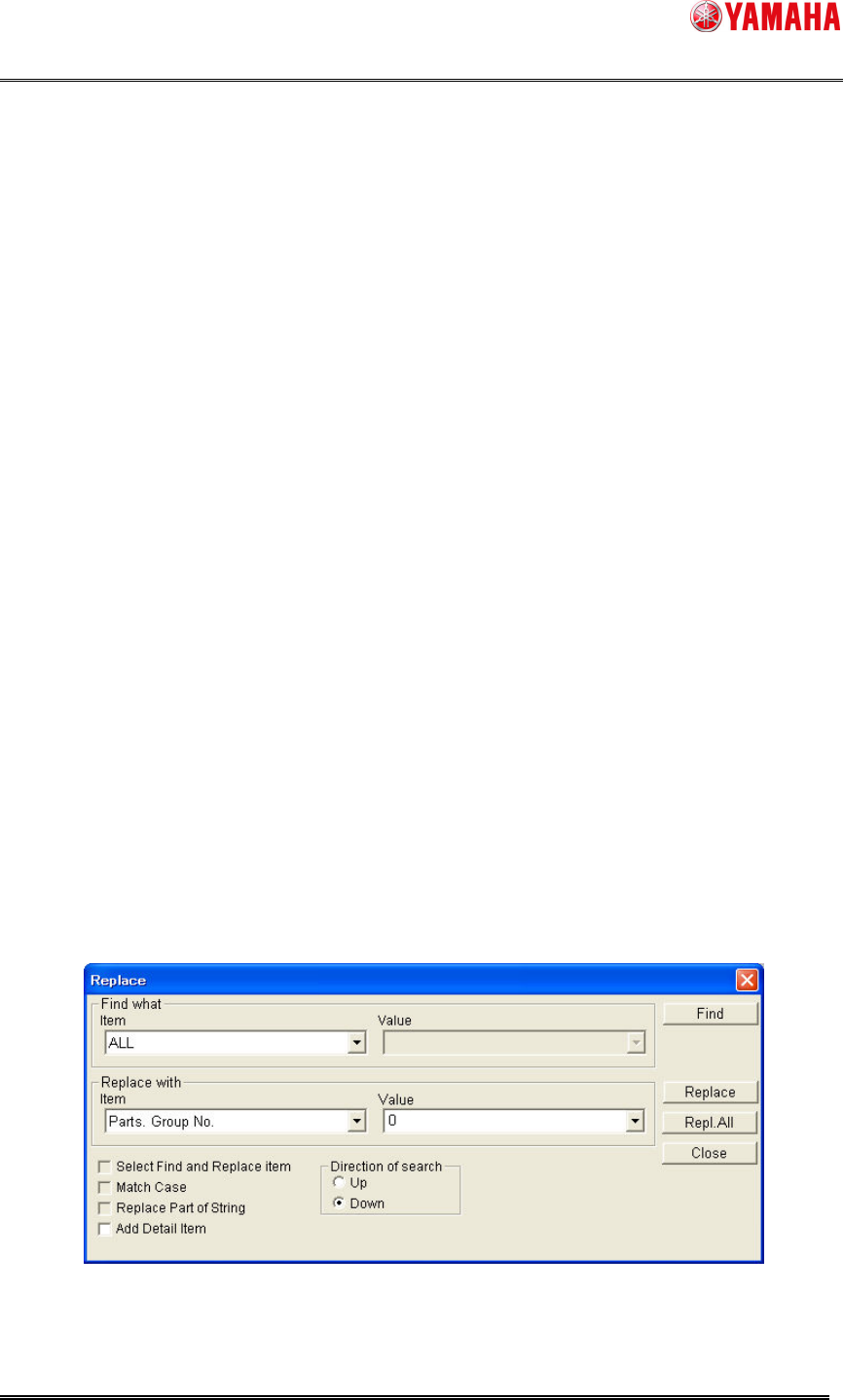
2. Select [Menu] – [Edit] – [Replace] on the [Parts] screen.
3. Set [Find what] – [Item] combo box to “All”, [Replace with] – [Item] combo box to “Parts.
Group No.”, and [Replace with] – [Value] combo box to “0”.
4. Click the [Repl. All] button.
Fig4.4 Replace dialog