TS550R-USER-GUIDE.pdf - 第6页
6 TO AIR S OURCE 1 5 2 3 6 4 TS570R 5. TO CONT ROL PNEUMATIC VALVE CAUTION: A 5-micron filter (TSD800-6) must be inst alled with the unit to ensure proper air filtration. Figure 2.0 5.1 Connecting the Unit: (Refer to Fig…
28
6. Wait until the system completes the software update from the USB drive
and the first touch-screen calibration is displayed
7. Remove the USB drive from the USB port before proceeding to the next
step
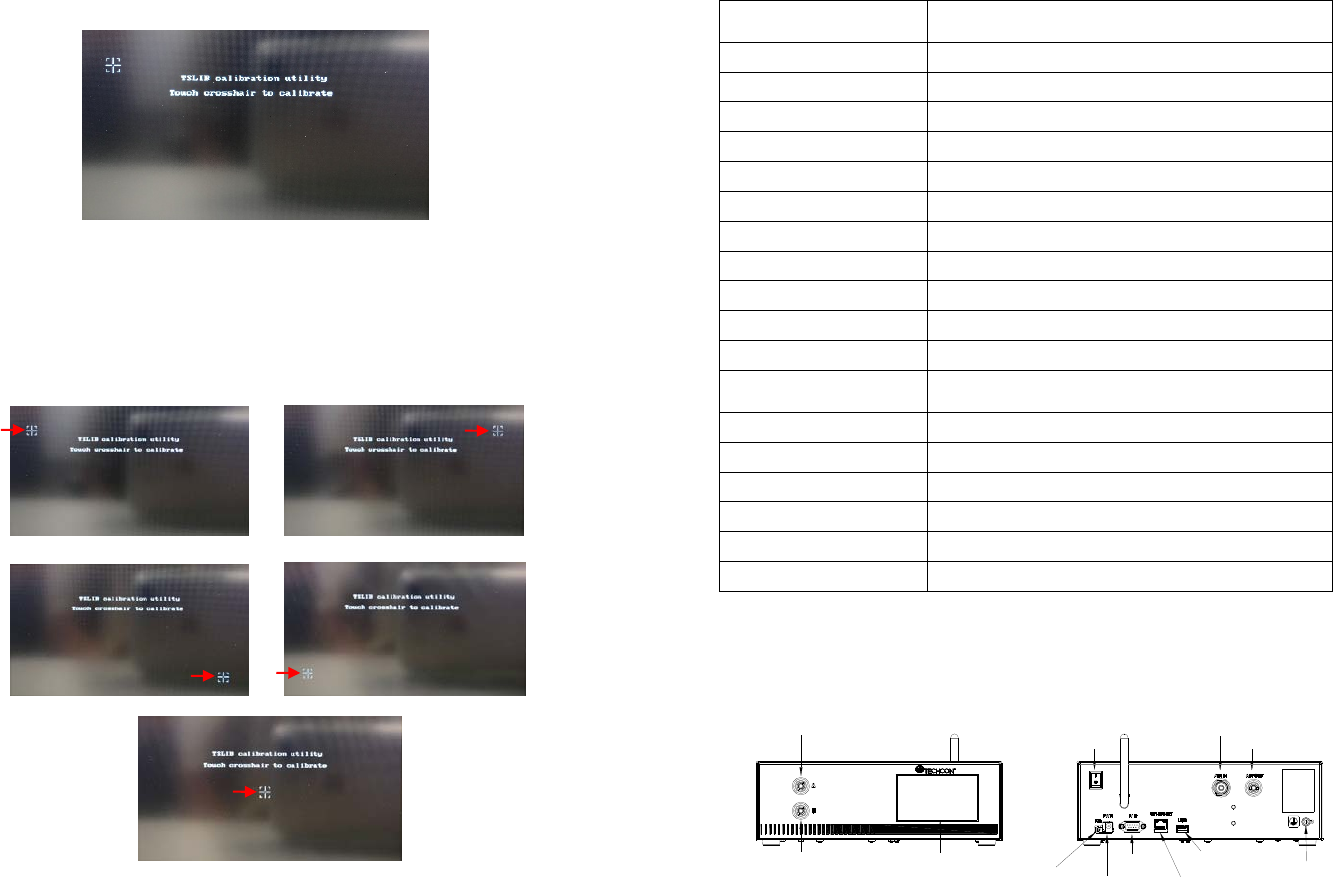
8. Follow the instructions on the display to calibrate the touch screen by
touching the crosshair at five different points. Note: In order to
accurately calibrate the touch screen, it’s recommended that the stylus
pen is used
9. Wait until the system completes the rebooting sequence and the home
screen is displayed
10. Repeat sections 5.1.1 and 5.1.2 to re-calibrate the air pressure
5
TOUCH
SCREEN
AIR OUTPUT B
AIR OUTPUT A
WIFI ANTENNA
POWER
SWITCH
AIR INLET
AIR OUTLET
UNREGULATED
FOOT
SWITCH
PORT
POWER
INLET
IO PORT
INTERNET
PORT
USB PORT
GROUNDING
TS560R
3. SPECIFICATIONS
4. FEATURES
Figure 1.0
Size
290mm x 212mm x 98mm
(
11.4” X 8.3” X 3.9”
)
Weight 3.1 kg (6.8lbs)
Input Voltage 24VDC
Output Voltage Range 0-24 VDC
Rated Power 15W
Air Input 100 psi (6.9 bars) Max.
Air Output 0-99.9 Psi (6.9 bar)
Pollution Degree II
Installation Category I
Indoor Use Altitude up to 2,000m (6,562ft)
Operating Temperature 0˚C to 50˚C (32˚F to 122˚F)
Storage Temperature -10˚C to 60˚C (14˚F to 140˚F)
Max. Relative Humidity
80% for temperature up to 31˚C (87.8˚F) Decreasing
linearl
y
to 50% relative humidit
y
at 40˚C
(
104˚F
)
Timer 0.008-99.99 seconds
Cycle Mode Timed, Interrupt, Teach, Purge
Timing Repeat Tolerance +/- 0.001%
Cycle Rate 900 cycles/min
Display Touch Screen, Resitive
Meets or exceed CE, TUV and NRTL
6
TO AIR SOURCE
1
5
2
3
6
4
TS570R
5. TO CONTROL PNEUMATIC VALVE
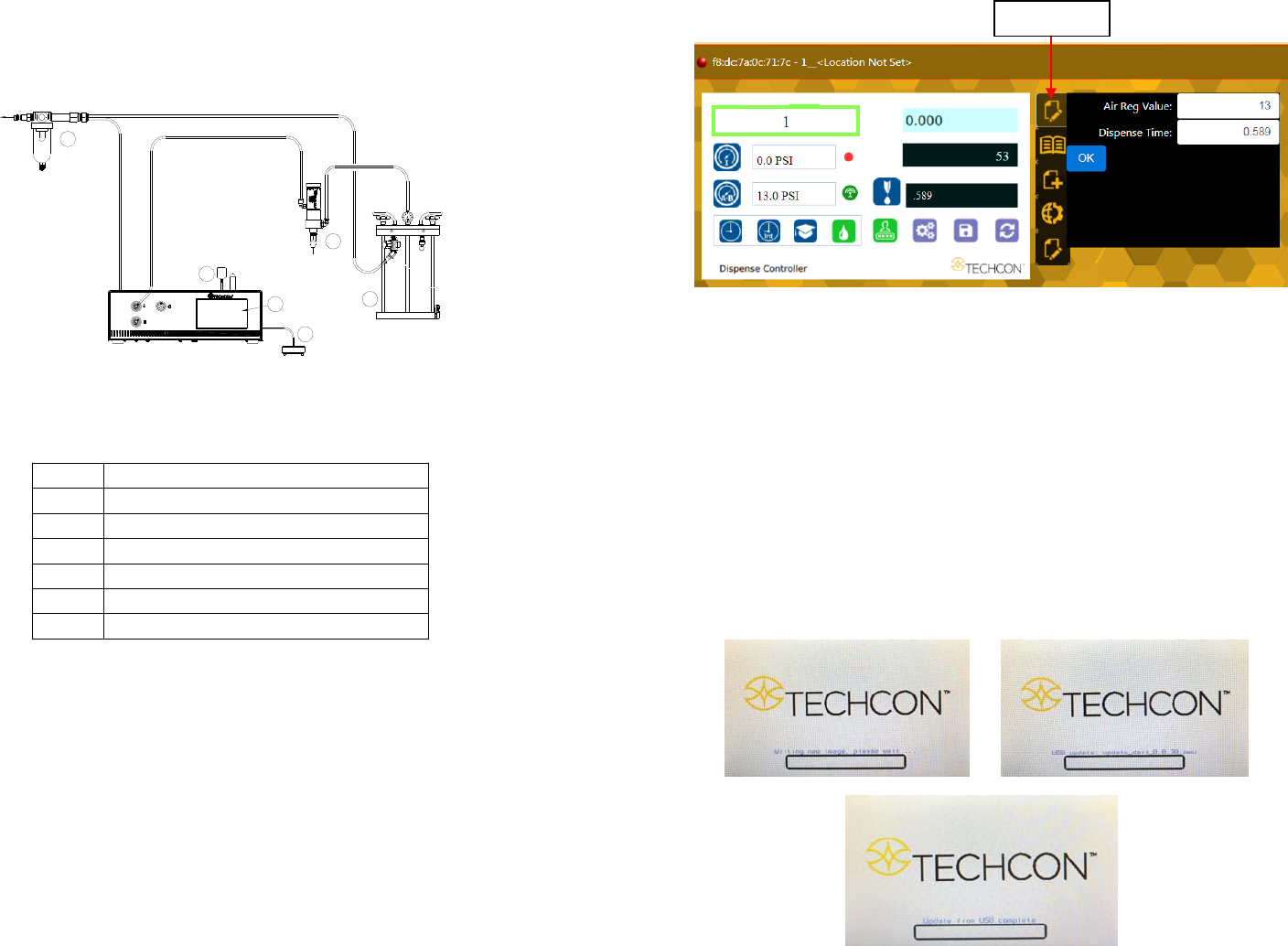
CAUTION: A 5-micron filter (TSD800-6) must be installed with the unit to ensure proper
air filtration.
Figure 2.0
5.1 Connecting the Unit: (Refer to Figure 1.0 and 2.0)
1. Connect the power cord, foot switch to the back of the unit.
2. Connect Valve air hose to either Port A or Port B
3. Press the Power switch to turn on the unit.
Items Description
1 Air Filter
2 Valve (not included)
3 Pressure Pot (not included)
4 Display
5 Power Adapter
6 Foot Switch
27
Proceed to make changes
Click “OK” button to save
The new parameters will be displayed on the controller
7. SOFTWARE UPGRADE
Note: For future software upgrade, follow the instructions below.
1. Download the latest software version from Techcon website and copy it to
a blank USB thumb drive. Note: Do not put the software file inside a
folder
2. Make sure that the unit is turned off
3. Insert the USB drive to the USB port located in the back of the unit
4. Turn on the unit
5. Wait while the system is loading the new software. This process can take
a few minutes
“Edit” icon
26
6.2 Making Parameters Adjustment from the websever
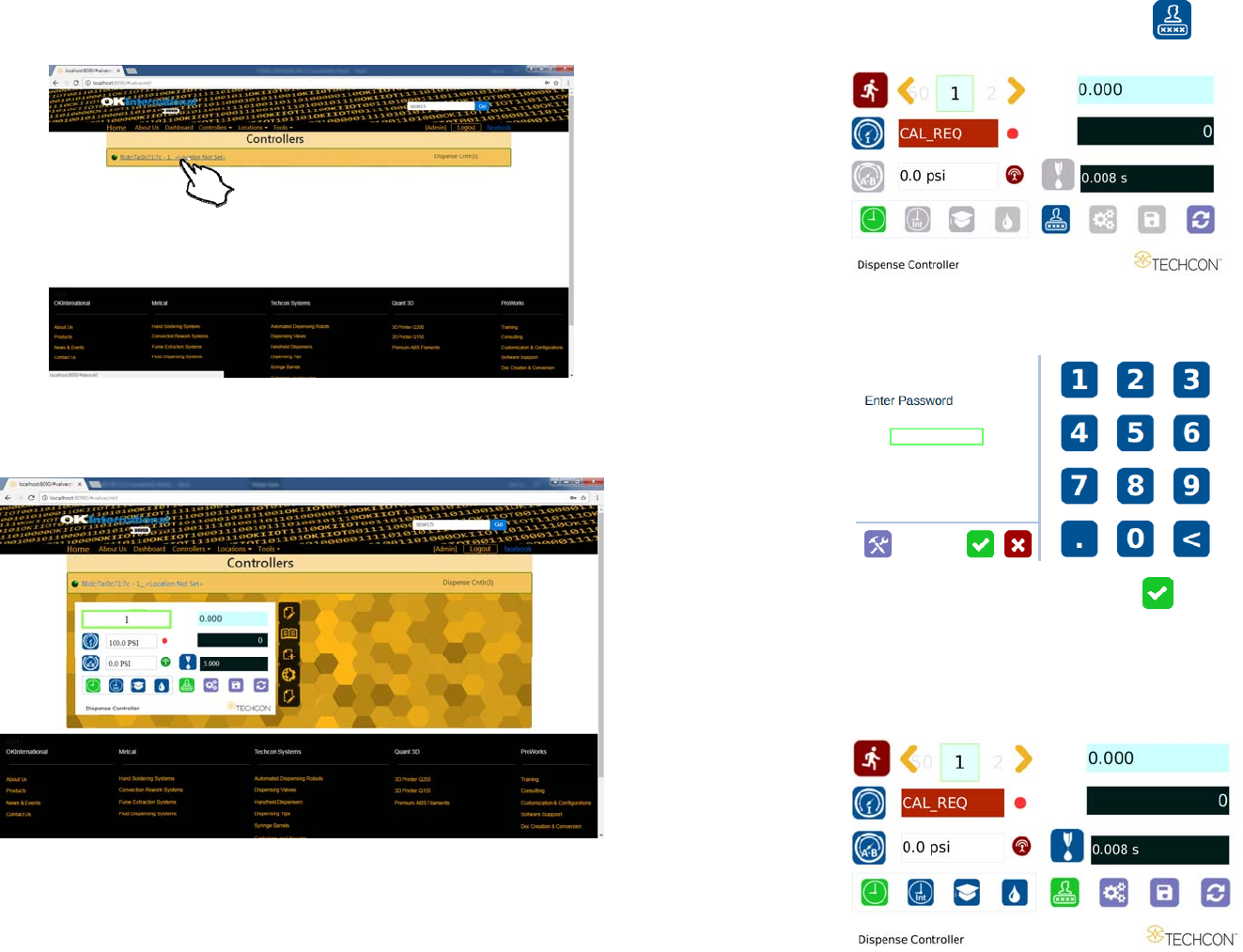
Go back to the webserver site and click on the “Controllers” menu.
Click on the active controller link
The controller screen will be displayed in the webserver as shown below.
The controller parameters such as pressure and dispense time can be adjusted
from the webserver.
Click on the “Edit” icon
The parameter screen will appear as shown below:
7
5.1.1 Login
1. Touch the Login icon to enter the login screen
2. Enter “0000” in Password window
3. Touch the Check Mark icon to save and exit
5.1.2 Pressure Calibration
Note: Pressure calibration must be performed when the unit is activated for
the first time.