00191921-01.pdf - 第42页
42 ’Flux applica tion’ menu Go to refill Go to the r efill position w hen you want to carry out t he following position activities: – Replace syringe – Refill flux – Maintena nce work on t he flux applic ator head The so…
41
Unclamp Z axis When you press this button an information box with the following
message is displayed on the screen:
Z axis clamping is open!
Close clamp?
OK
● When you click on OK the z axis will be clamped.
Vacuum on/off The vacuum will be switched on or off.
Forced air on/off The forced air will be switched on or off.
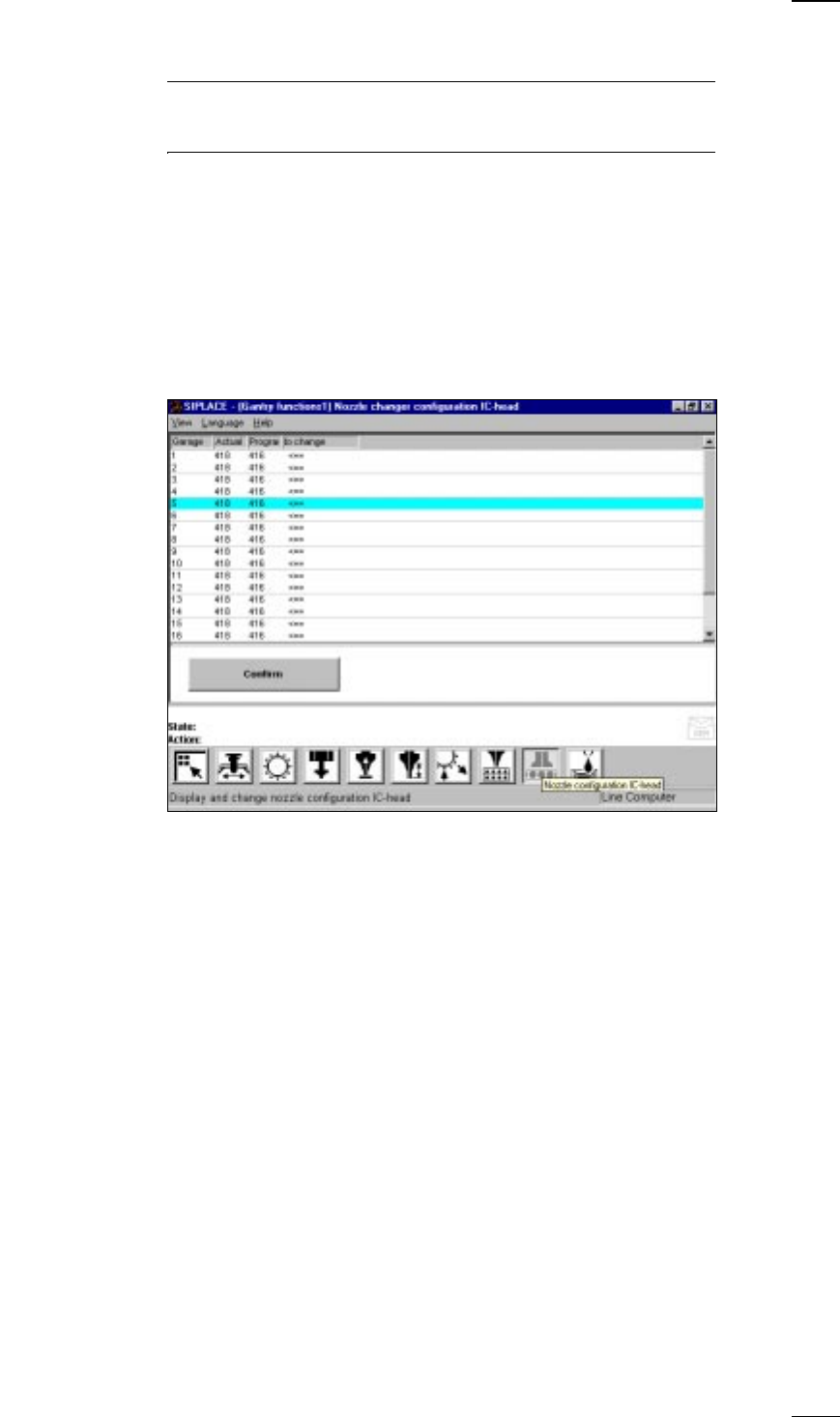
’Nozzle-changer configuration IC-head’ menu
↑ UM 5.2.9 This menu is used for
– Accessing nozzle types
– Check nozzles in the IC head and
– Changing nozzles in the IC head
Program Setup specified in the line computer
To change The arrow indicates that the nozzle has to be changed.
Actual Current value at the nozzle changer
Confirm • Change the nozzle in the corresponding nozzle garage.
• Mark the corresponding nozzle with the cyan bar in the list field.
• Click on the Confirm button.
The programmed and actual values have to be identical.
In this way you can define up to 20 nozzles which will need to be
confirmed individually.
42
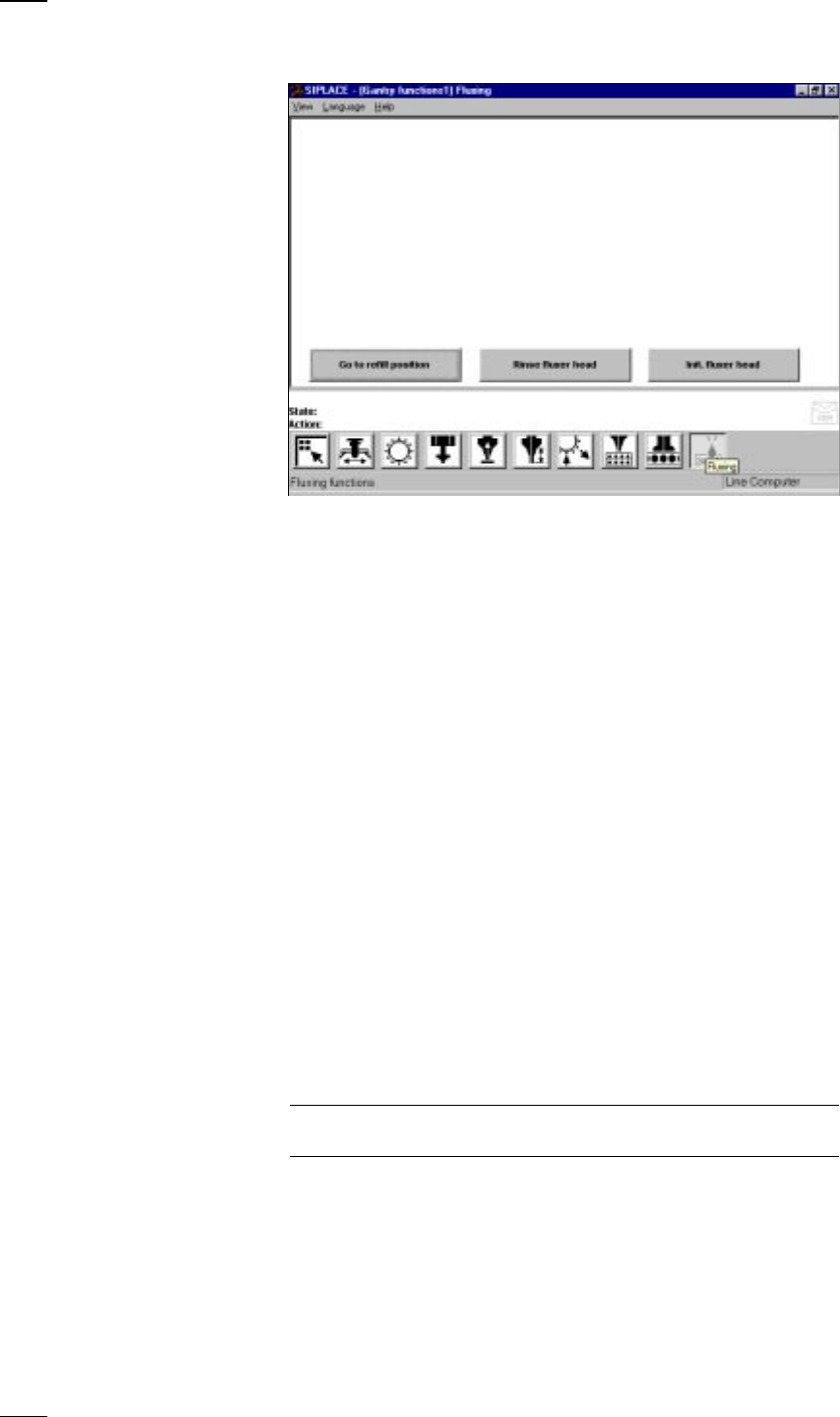
’Flux application’ menu
Go to refill Go to the refill position when you want to carry out the following
position activities:
– Replace syringe
– Refill flux
– Maintenance work on the flux applicator head
The soldering flux applicator head moves into the refill position when you
press the Start button
Rinse fluxer head Rinse the flux applicator head in order to remove any flux residues. This
will prevent hardening of the dispensing hose and the centering nozzle.
Init fluxer head The flux applicator head carries out a reference run.
’Feeders’ menu
↑ UM 4.3 The Feeders menu includes the following submenus for the 80F
4
place-
ment machines:
– Display empty tracks and set full (see page 23).
– Omit components (see page 23)
– Display trays and change inventory levels.
– Display linear feeders and vibrate (see page 24).
– Wafflepack changer
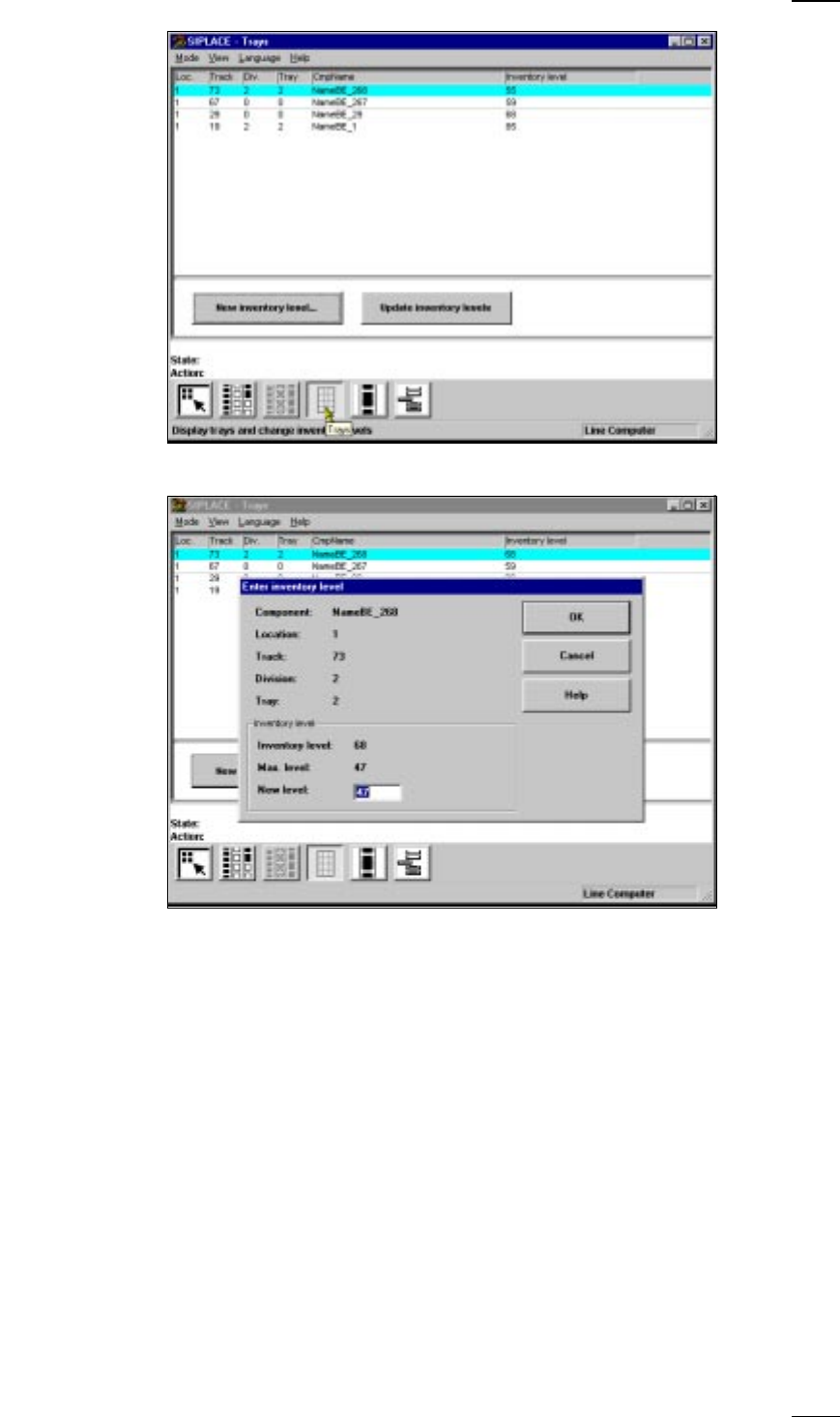
’Display trays and change inventory levels’ menu
↑ UM 4.3.3 In this menu you can display the inventory levels of flatpack magazines
and update the inventory levels of individual trays.
Update Click on this button and the current status of all flatpack magazines will be
inventory levels displayed.
NOTE
During the placement process itself the inventory levels are not updated.
↑ UM 5.2.10
43
New inventory level ...Mark the desired track in the list by moving the cyan bar over it. Click on
the New inventory level... button.
● Enter the current number of components into the New level field of the dia-
log box. The maximum permissible value for the number of components is
displayed in the Max. level field.
● Click on the OK button to confirm your entry.