TM2750.Squeegee_MachineSetup_Manual.pdf - 第4页
SMT Software En gineering Group IMOperations YAMAHAMOTORCO.,LTD. MDOC-SOFT50102 4/9 3.2. Machine settin g 3.2.1. Colla tion Squeegee You can ensure the squ eegee setup by checkin g the follow i ng items. - Check …
SMT Software Engineering Group
IMOperationsYAMAHAMOTORCO.,LTD.
MDOC-SOFT50102
3/9
3.1. SystemConfig setting
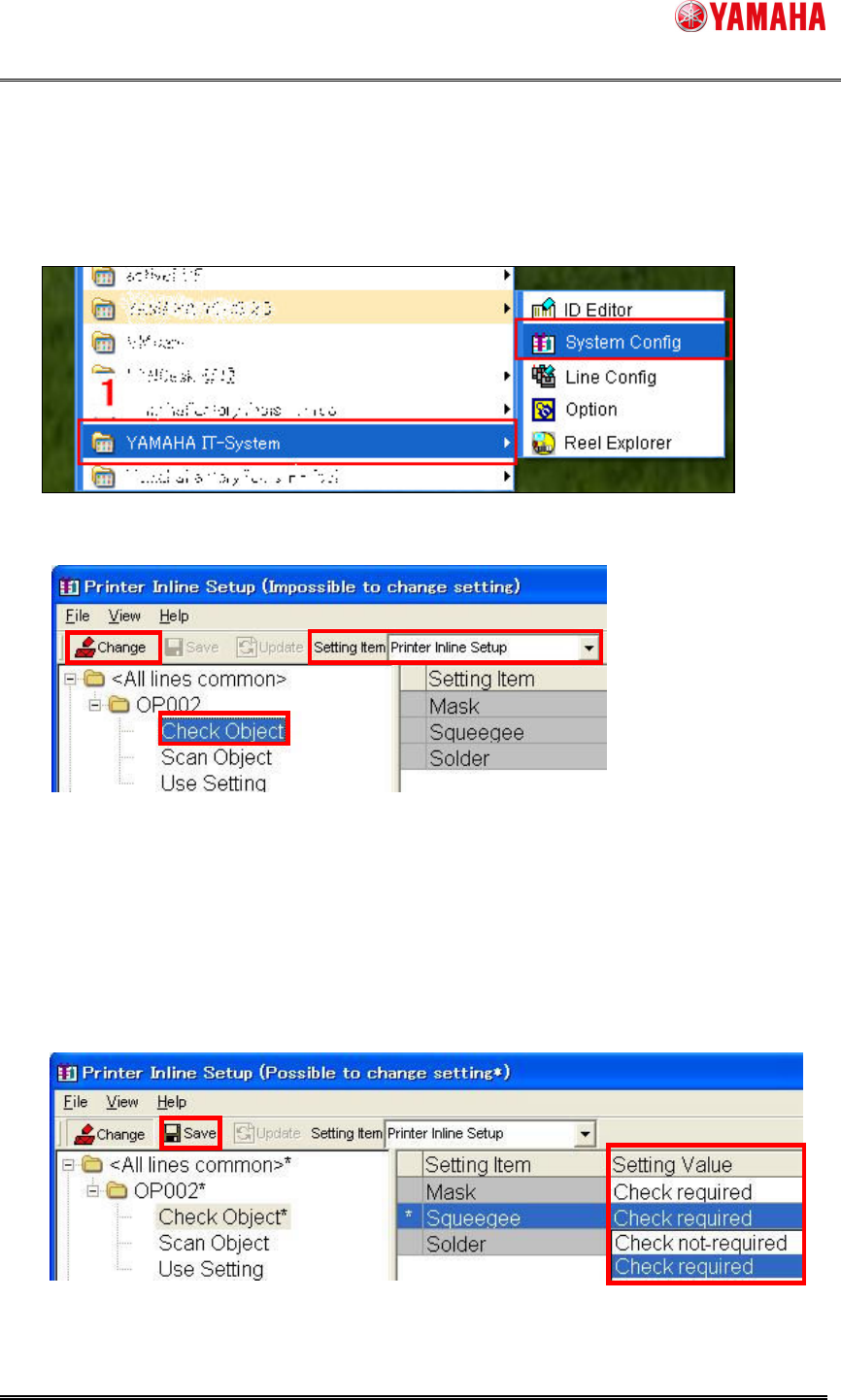
You can set up Squeegee through the following procedure.
Step1. On a PC containing YAMAHA IT-System,
1. Select [Start]-[Program]-[YAMAHA IT-System]-[System Config]
2. Select [Printer Inline Setup] from the combo box of [Setting Item] on the tool bar.
3. Select [OP002]-[Check Object] in the folder of <Line Unit>, which has the target
machine of this setting or <All line common>.
4. Click [Change]
5. Select [Check required] from the combo box of [Squeegee]-[Setting Value].
6. Click [Save] and finish.
4
2
3
6
5
SMT Software Engineering Group
IMOperationsYAMAHAMOTORCO.,LTD.
MDOC-SOFT50102
4/9
3.2. Machine setting
3.2.1. Collation Squeegee
You can ensure the squeegee setup by checking the following items.
- Check by "Squeegee Type".
- Check by "Squeegee Name".
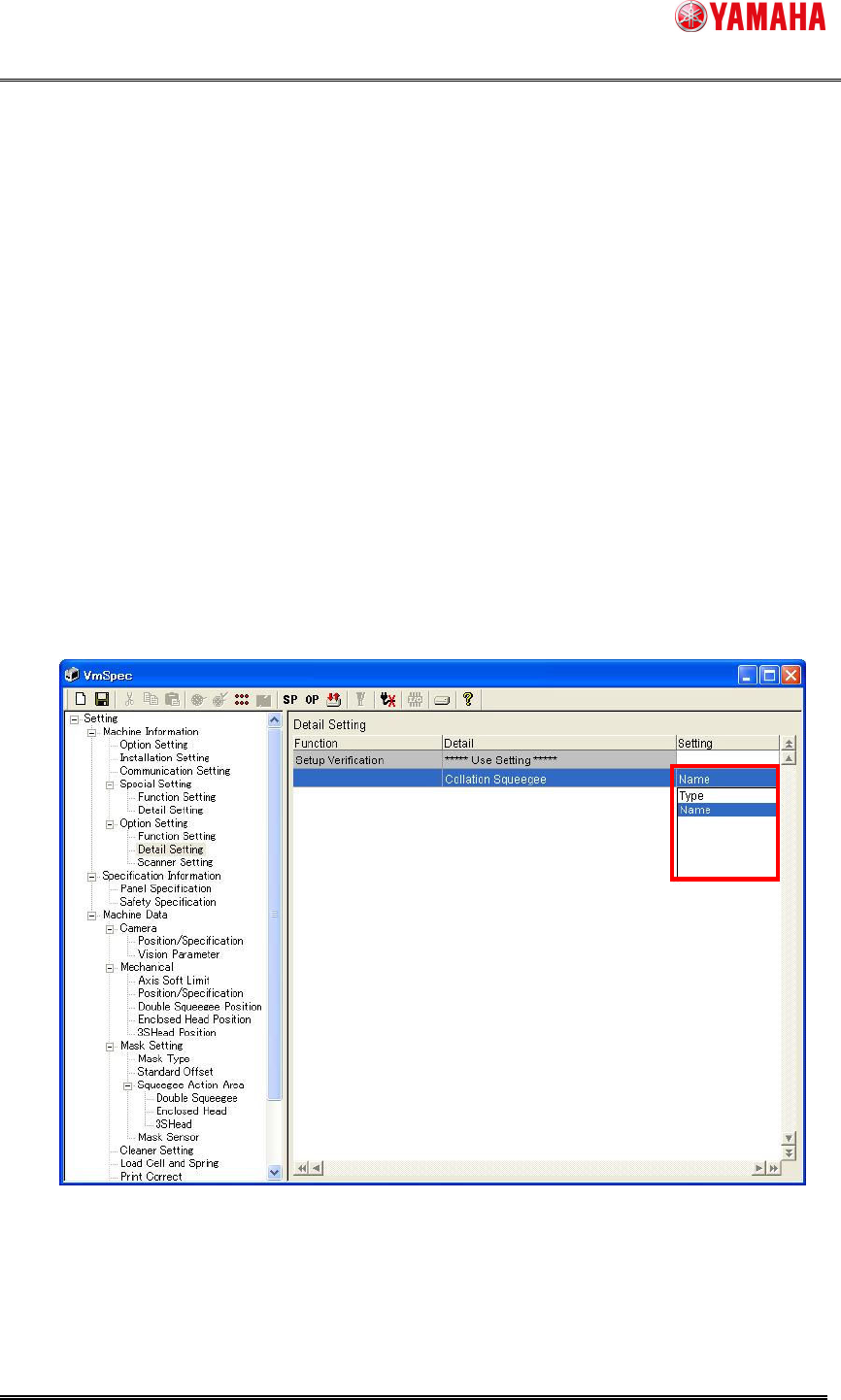
Set “Type" or “Name" in “Collation Squeegee” of [machine] – [setting] – [Machine
Information] – [Option Setting] – [Detail Setting]. (Refer to “Figure.3.2.1.1”)
“Type" Setup checking by “Squeegee Type” and “Squeegee Detail Type” of
[Print] – [Squeegee] in board data.
“Name” Setup checking by “Squeegee Name” of [Print] – [Squeegee] in board
data.
Figure3.2.1.1 Collation Squeegee
SMT Software Engineering Group
IMOperationsYAMAHAMOTORCO.,LTD.
MDOC-SOFT50102
5/9
4. Usage
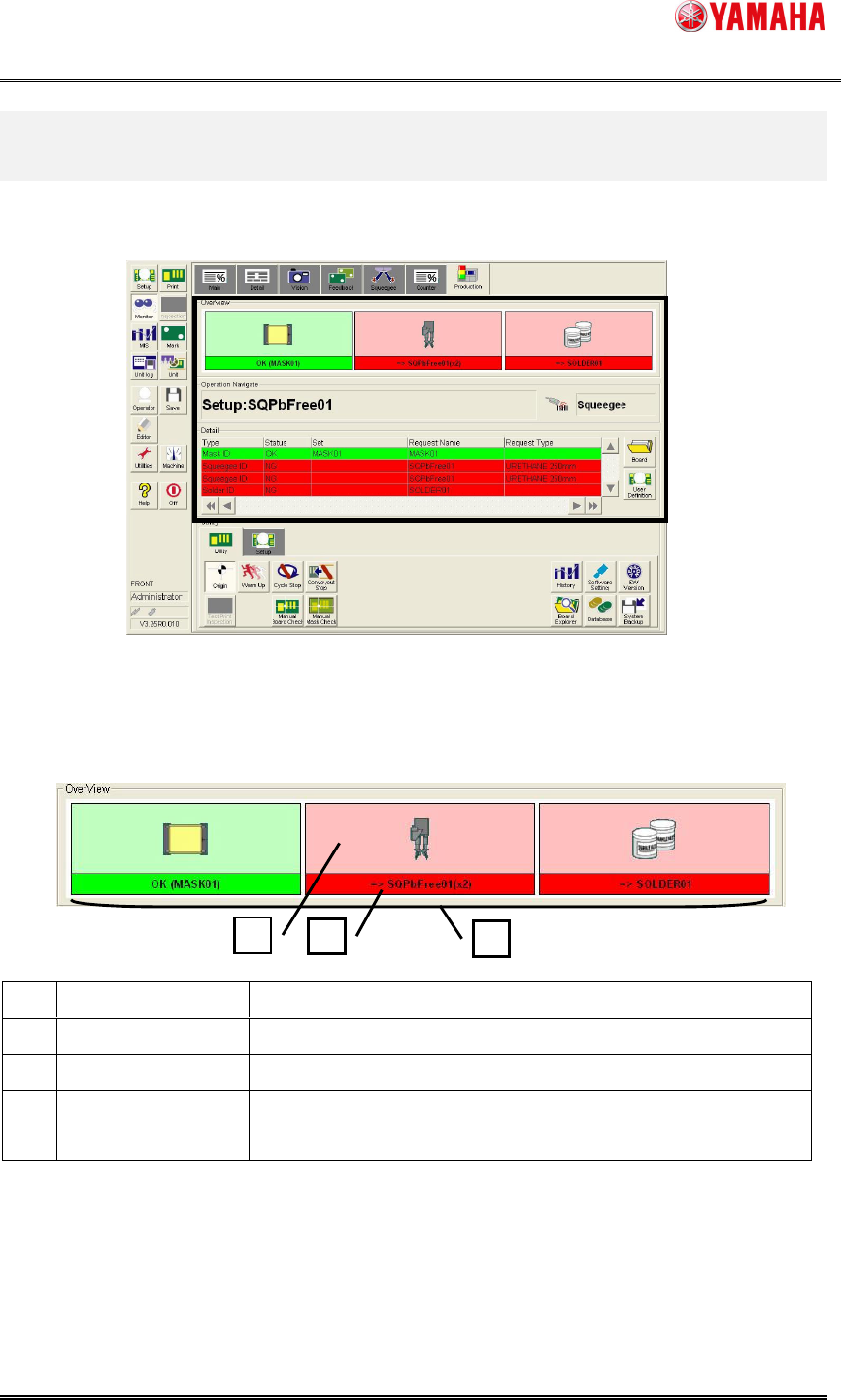
Confirm setup of insufficient “Squeegee” in [Monitor] – [Production].
Figure4.1 Production Monitor
4.1. Over View
The total situation of squeegee setup is displayed.
Figure4.1.1 OverView
No.
Item name Explanation
1 Squeegee Image The image of “Squeegee Type” is displayed.
2 Setup Information "Type" or "Name" of setup squeegee is displayed.
3 Setup Situation
"Setup OK" displays "Green" and "Setup NG" displays "Red"
and “No Use” displays “White”.
1
2
3