00197203-02_IM_Taceability_3.5_en.pdf - 第24页
Installation of Trace Service and Monitor Trace Monitor Installation 24 Installation Manual SIPLACE Traceability 3.5 ► Confirm the installa tion by clicking on Next . ► The installation of Tra ce Monitor will begin. ► Th…
Installation of Trace Service and Monitor
Installation Trace Monitor
Installation Manual SIPLACE Traceability 3.5 23
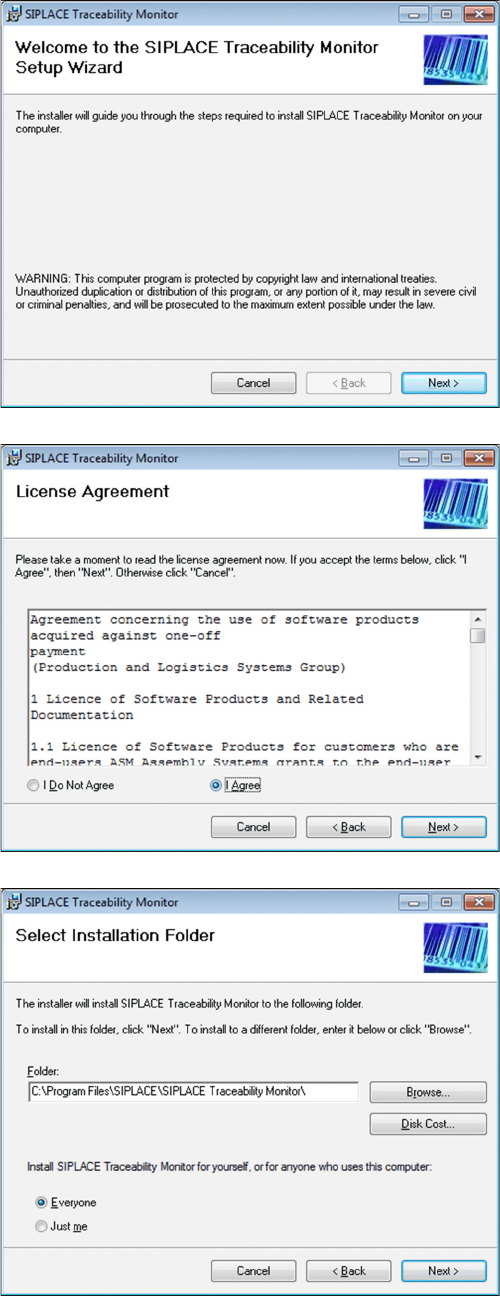
The Welcome dialog will appear.
► Click on Next to continue the installation procedure.
► Read the license agreement. If you agree with the
conditions, click on I Agree, otherwise click on I Do
Not Agree. If you select I Do Not Agree, the installa-
tion procedure will be terminated.
► Click on Next to continue the installation procedure.
► Now specify the folder in which you wish to install the
application. The default folder is C:\Program
Files\SIPLACE\SIPLACE Traceability Monitor\. You
can alter the default installation folder by using the
Browse… button.
Installation of Trace Service and Monitor
Trace Monitor Installation
24 Installation Manual SIPLACE Traceability 3.5
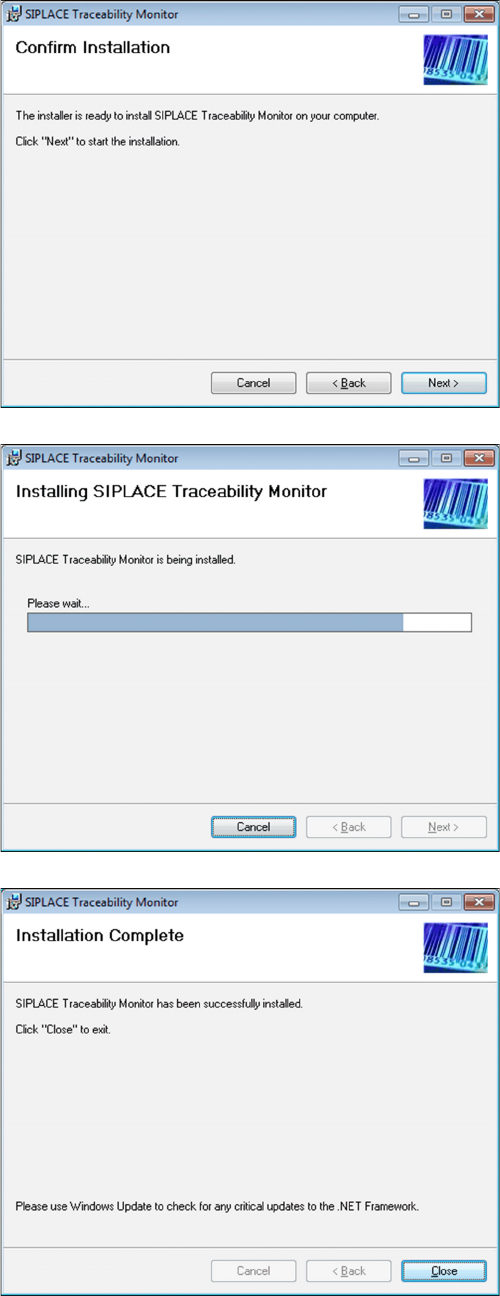
► Confirm the installation by clicking on Next.
► The installation of Trace Monitor will begin.
► The installation is successfully finished. Click Close
to exit.
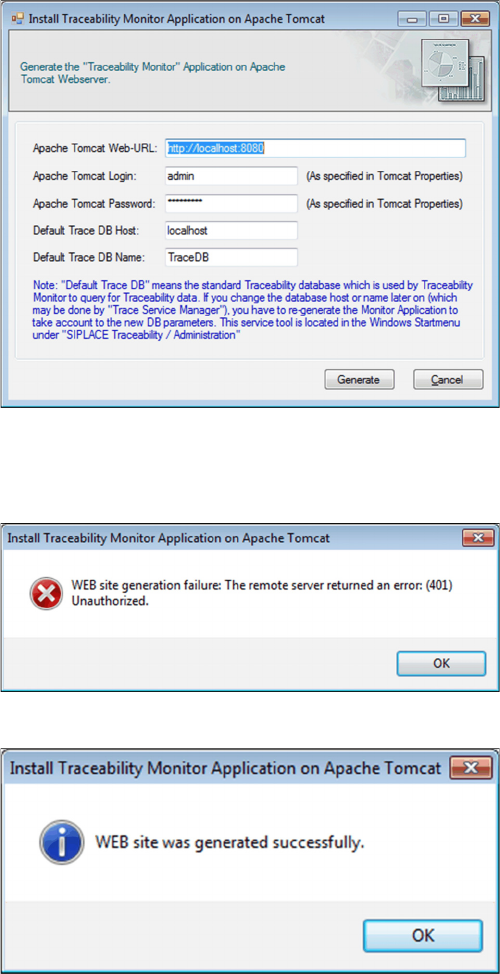
⇨ The Install Traceability Monitor Application on
Apache Tomcat dialog opens.
Installation of Trace Service and Monitor
Installation Trace Monitor
Installation Manual SIPLACE Traceability 3.5 25
► Enter the Apache Tomcat Web-URL (without suffix "/
monitor"). The web application will be available at
URL "<Apache URL>/monitor", e.g. http://local-
host:8080/monitor.
► Enter admin as Apache Tomcat Login.
► Enter the Apache Tomcat Password. If the Tomcat
was installed using the Support Media DVD, the de-
fault password is Siplace.1.
► Enter the Default Trace DB Host.
► In Default Trace DB Name specify database that will
be opened initially in Trace Monitor.
Refer to the Configure Traceability Database section
in the Traceability User Guide for a description of how
to create a database
► Click Generate.
⇨ The generation process for the Monitor web applica-
tion starts.
If the generation fails, a corresponding error message is
displayed.
After confirming the OK button the configuration dialog
appears again.
► Please correct the configuration parameters accord-
ing to the message shown in previous error dialog
and try again.
A success message is displayed after the Monitor appli-
cation has been generated without errors.
► Click OK.