00197203-02_IM_Taceability_3.5_en.pdf - 第26页
Installation of Trace Service and Monitor Trace Monitor Installation 26 Installation Manual SIPLACE Traceability 3.5 4.3.1.2 Traceability Option - Installation Procedure The Tr ace Monitor components can be started by se…
Installation of Trace Service and Monitor
Installation Trace Monitor
Installation Manual SIPLACE Traceability 3.5 25
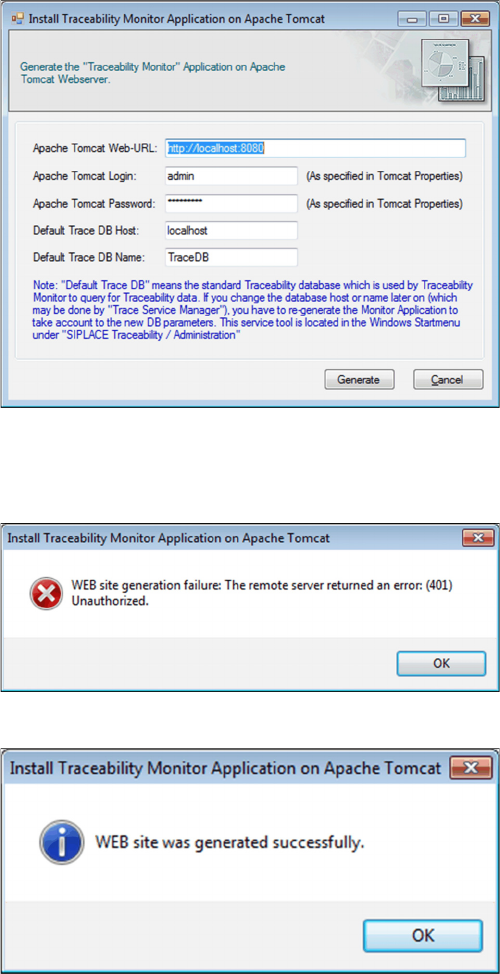
► Enter the Apache Tomcat Web-URL (without suffix "/
monitor"). The web application will be available at
URL "<Apache URL>/monitor", e.g. http://local-
host:8080/monitor.
► Enter admin as Apache Tomcat Login.
► Enter the Apache Tomcat Password. If the Tomcat
was installed using the Support Media DVD, the de-
fault password is Siplace.1.
► Enter the Default Trace DB Host.
► In Default Trace DB Name specify database that will
be opened initially in Trace Monitor.
Refer to the Configure Traceability Database section
in the Traceability User Guide for a description of how
to create a database
► Click Generate.
⇨ The generation process for the Monitor web applica-
tion starts.
If the generation fails, a corresponding error message is
displayed.
After confirming the OK button the configuration dialog
appears again.
► Please correct the configuration parameters accord-
ing to the message shown in previous error dialog
and try again.
A success message is displayed after the Monitor appli-
cation has been generated without errors.
► Click OK.
Installation of Trace Service and Monitor
Trace Monitor Installation
26 Installation Manual SIPLACE Traceability 3.5
4.3.1.2 Traceability Option - Installation Procedure
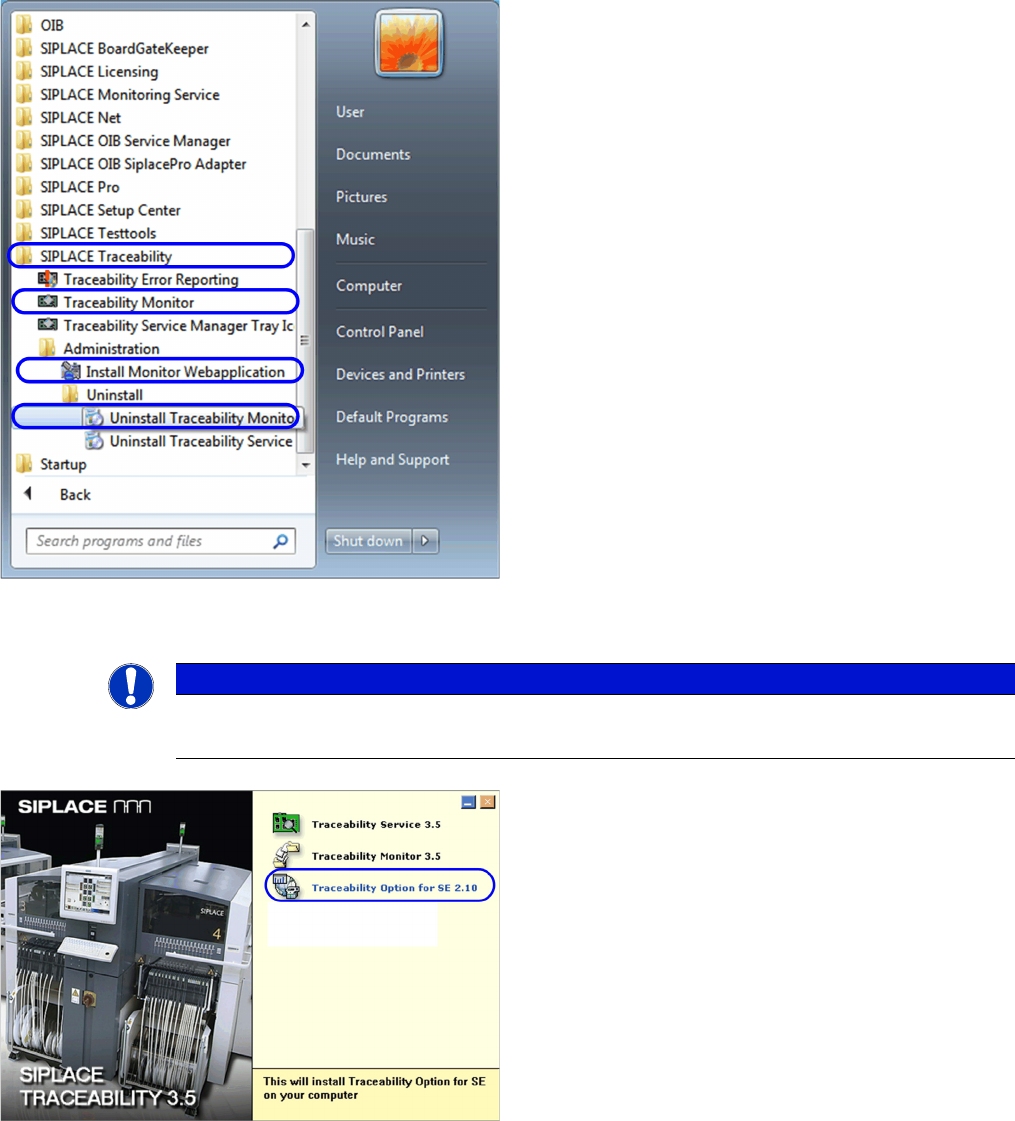
The Trace Monitor components can be started by select-
ing the SIPLACE Traceability program group -> Tracea-
bility Monitor from the Windows Start menu. The
following options are available in the SIPLACE Traceabil-
ity program group:
▪ Traceability Monitor
▪ Install Monitor Webapplication
▪ Uninstall Traceability Monitor
NOTICE
Requirement
You need administrator privilege for your operation system in order to perform this installation.
► Insert the SIPLACE Traceability CD into your CD-
ROM drive. You will see the Start screen:
► Select Traceability Option 3.4 for SE 2.10.
► You will now be guided through the installation proce-
dure for the SIPLACE Explorer Traceability option.
Installation of Trace Service and Monitor
Installation Trace Monitor
Installation Manual SIPLACE Traceability 3.5 27
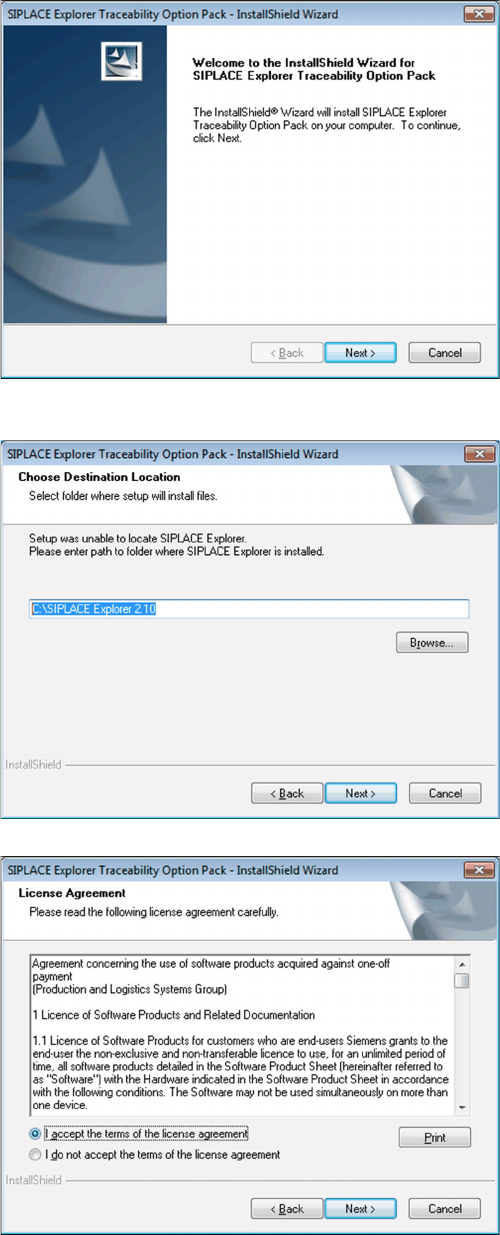
► Close all other programs and then click on Next to
continue.
► Before the SIPLACE Explorer Traceability Option can
be installed, Trace Monitor and SIPLACE Explorer
must be installed on your network environment. If
both of these applications are already installed, in-
stallation of the SIPLACE Explorer Traceability Op-
tion will begin automatically. The SIPLACE Explorer
Traceability Option must be installed on the same
computer as SIPLACE Explorer; Trace Monitor can
be installed on a different computer.
► If the SIPLACE Explorer Traceability Option installa-
tion procedure is unable to locate SIPLACE Explorer
on your computer, you will see the following dialog
box.
► Specify the SIPLACE Explorer installation folder
here. If SIPLACE Explorer has not yet been installed
on your computer, you can click on Cancel to termi-
nate the SIPLACE Explorer Traceability Option in-
stallation procedure.
► Install Trace Monitor and SIPLACE Explorer on your
network environment and then restart the SIPLACE
Traceability installation procedure.
► If Trace Monitor and SIPLACE Explorer are already
installed on your system, the installation procedure
will continue.
► Read the license conditions. Click on I accept ... to
accept and on I do not accept ... if you do not want to
accept. If you click on I do not accept ..., the installa-
tion procedure will be terminated.
⇨ The following dialog box will be shown: