00198015-01_IM_SQL_Server_2014_Express_EN.pdf - 第16页
SQL Server 2014 Ex press / Installation Manual 11/2015 Edition 16 ► Ensure that the f ollowing features are selecte d: – Database Engine Servi ces – Client Tools Connectivit y – Client Tools Backward s Compatibility – Ma…
SQL Server 2014 Express / Installation Manual 11/2015 Edition
15
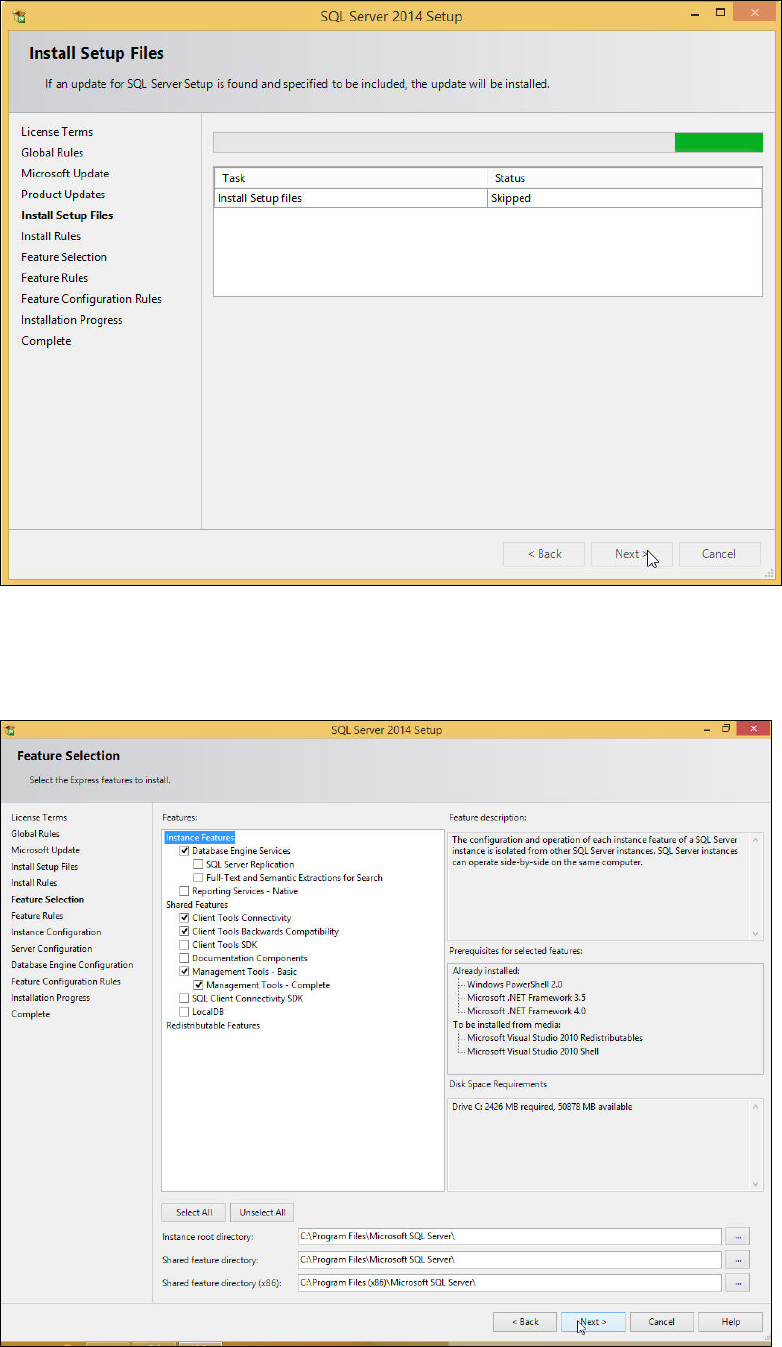
The Install Setup Files window is displayed.
Figure 4-8: SQL Setup installing Setup files
► Wait until SQL Setup has installed its setup files.
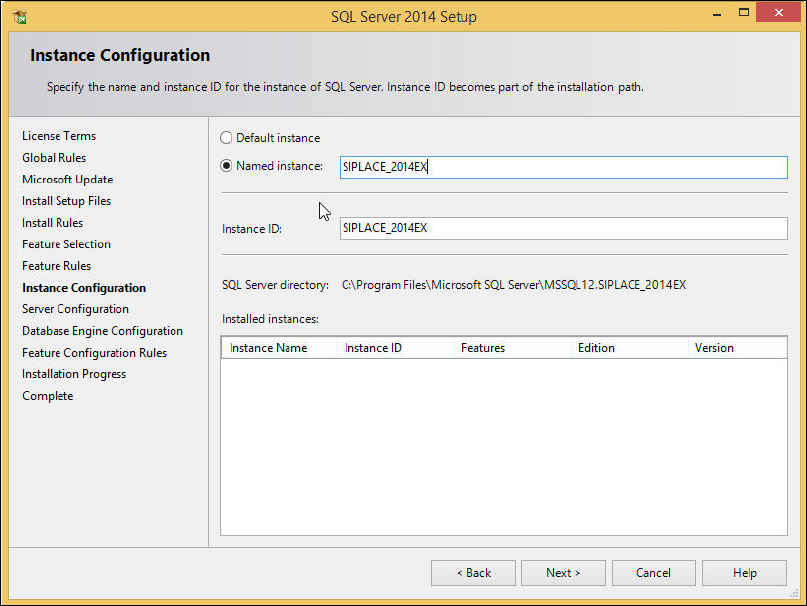
The window will be skipped automatically. The Feature Selection window is displayed.
Figure 4-9: Feature Selection window
SQL Server 2014 Express / Installation Manual 11/2015 Edition
16
► Ensure that the following features are selected:
– Database Engine Services
– Client Tools Connectivity
– Client Tools Backwards Compatibility
– Management Tools – Basic
– Management Tools - Complete
► Click the Next > button to continue.
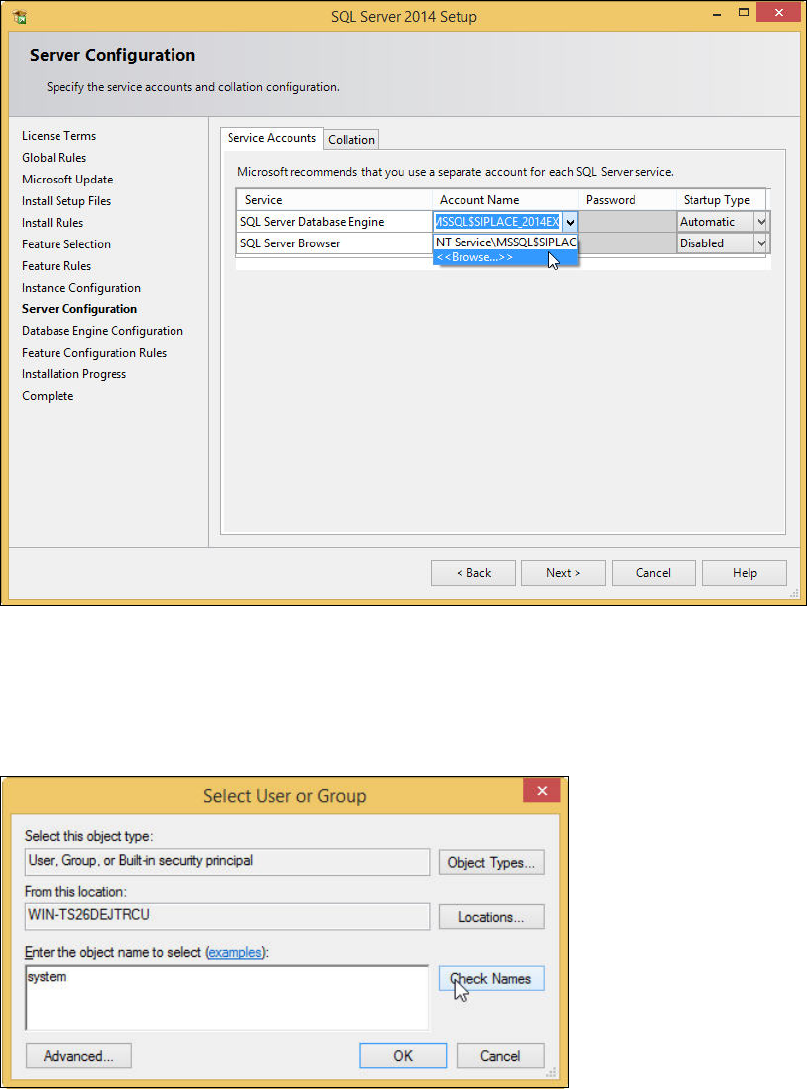
The Instance Configuration window is displayed.
Figure 4-10: Instance Configuration window
► Leave the Named Instance button selected.
► Enter the name for your SQL instance, e.g. SIPLACE_2014EX or leave the default entry.
► Click the Next > button to continue.
SQL Server 2014 Express / Installation Manual 11/2015 Edition
17
The Server Configuration window is displayed.
Figure 4-11: Server Configuration window
► Click the dropdown arrow besides Account Name in the first line of the table.
► Click the <<Browse…>> button.
The Select User or Group window is displayed.
Figure 4-12: Select User or Group window
► Ensure that the local computer name is selected under From this location: – otherwise you
have to select it using the Locations… button.
► Enter system and click the Check Names button.