00197184-01_IM_Celsius_W510_Windows7_EN.pdf - 第11页
Celsius W510 with Win dows 7 10/2011 Edition The regional settings dialog appe ars. Figure 3-4: Regional settings ► Select the appropriate country or re gion. ► Select the appropriate time and curren cy format. ► Select …
Celsius W510 with Windows 7 10/2011 Edition
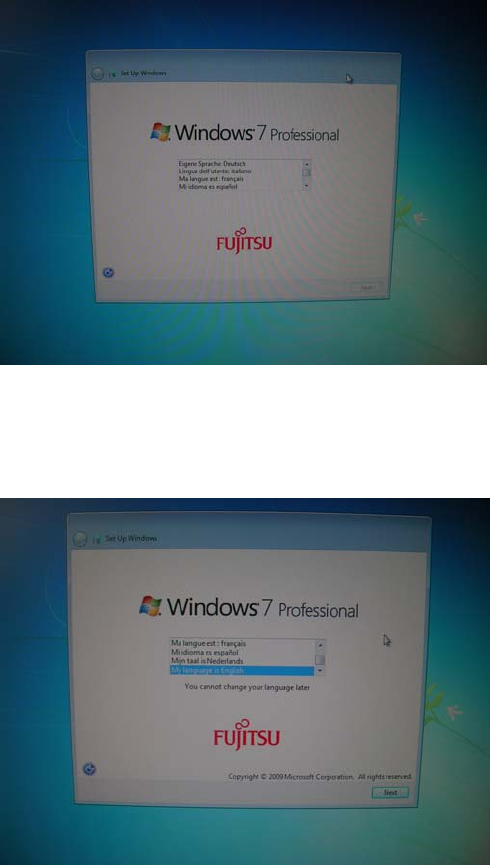
After some minutes, the first dialog appears.
Figure 3-2: Language selection dialog
► Select the appropriate language.
In this documentation, we select English.
Figure 3-3: Selecting English language
► Click the Next button to continue.
10
Celsius W510 with Windows 7 10/2011 Edition
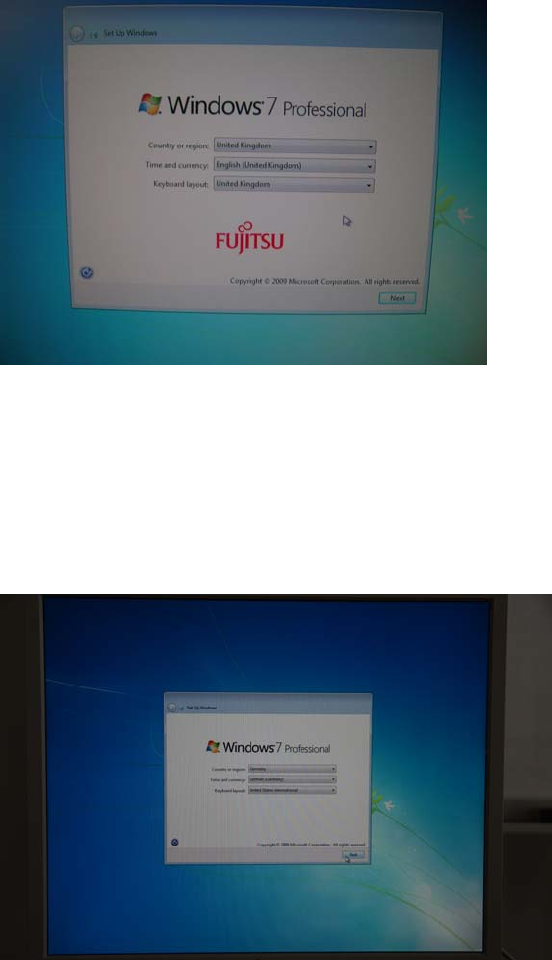
The regional settings dialog appears.
Figure 3-4: Regional settings
► Select the appropriate country or region.
► Select the appropriate time and currency format.
► Select the appropriate keyboard layout. For SIPLACE Line Computers, the default is US.
In this documentation, we use German for country and time/currency and United States for the
keyboard layout.
Figure 3-5: Customized Regional settings
► Click the Next button to continue.
11
Celsius W510 with Windows 7 10/2011 Edition
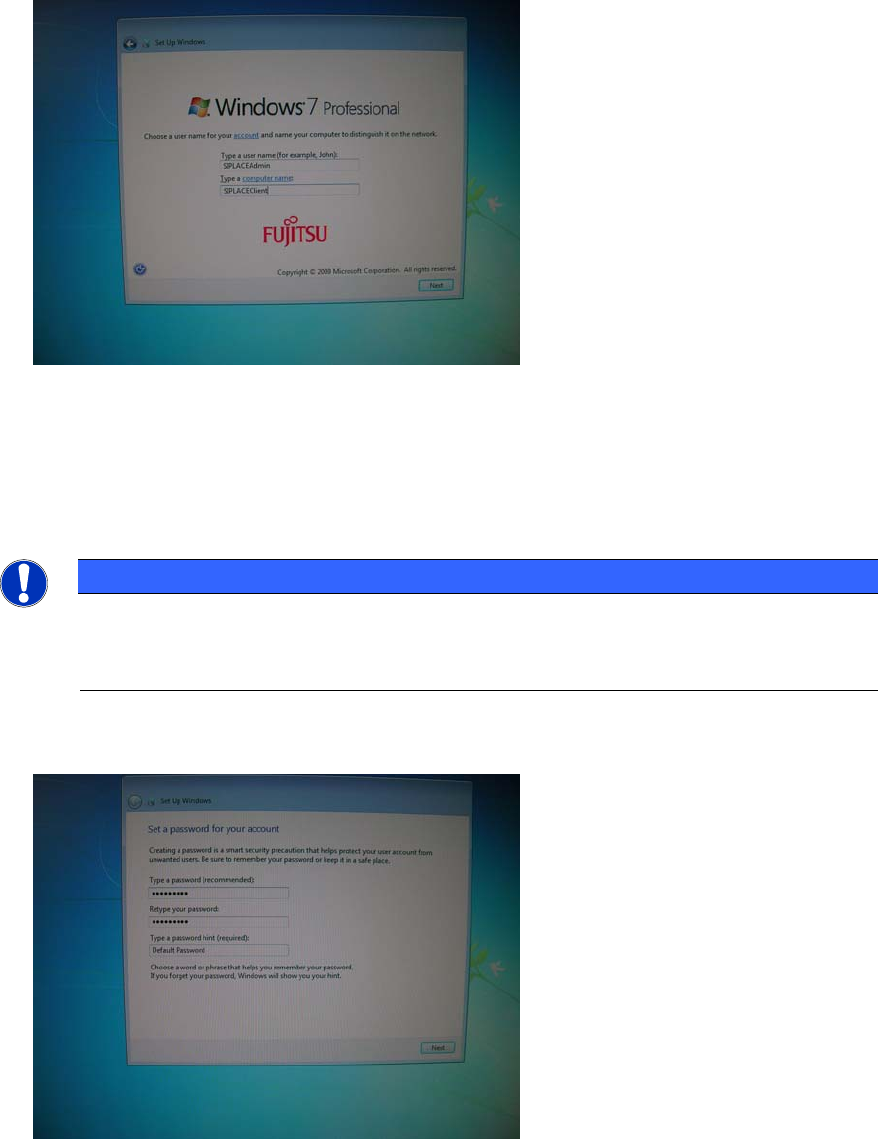
The next window appears.
Figure 3-6: Account- and Computername
► Enter the account name “SIPLACEAdmin”.
► Enter the name for the computer.
► Click the Next button to continue.
NOTICE
Ensure valid Computer Name
Please choose the computer name carefully. Some products, like SQL Server strongly
depend on the computer name and may stop working when you change it afterwards!
The next window appears.
Figure 3-7: Password for specified account
► Enter the password for the SIPLACEAdmin account as specified in the technical information
TI2008-04V08.
► Add a valid password hint, e.g. “Default password”.
12