00197184-01_IM_Celsius_W510_Windows7_EN.pdf - 第18页
Celsius W510 with Win dows 7 10/2011 Edition After preparation, you will see the following window. Figure 3-19: Fujtisu Options This tool provides you with links hel ping you to perform some common tasks. ► If you don’t …
Celsius W510 with Windows 7 10/2011 Edition
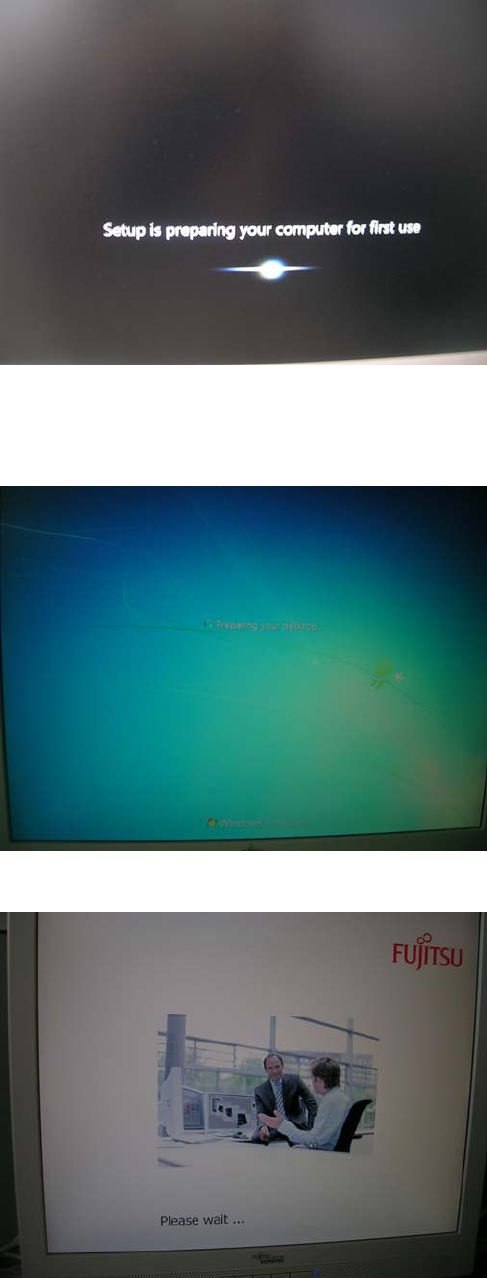
The computer will continue preparing for first use, as shown in the following picture.
Figure 3-16: Setup continues preparing for first use
After a while, the computer will reboot and automatically login and continue preparation (takes
some time).
Figure 3-17: Computer logging in automatically
Figure 3-18: Fujitsu “Please wait…” screen
17
Celsius W510 with Windows 7 10/2011 Edition
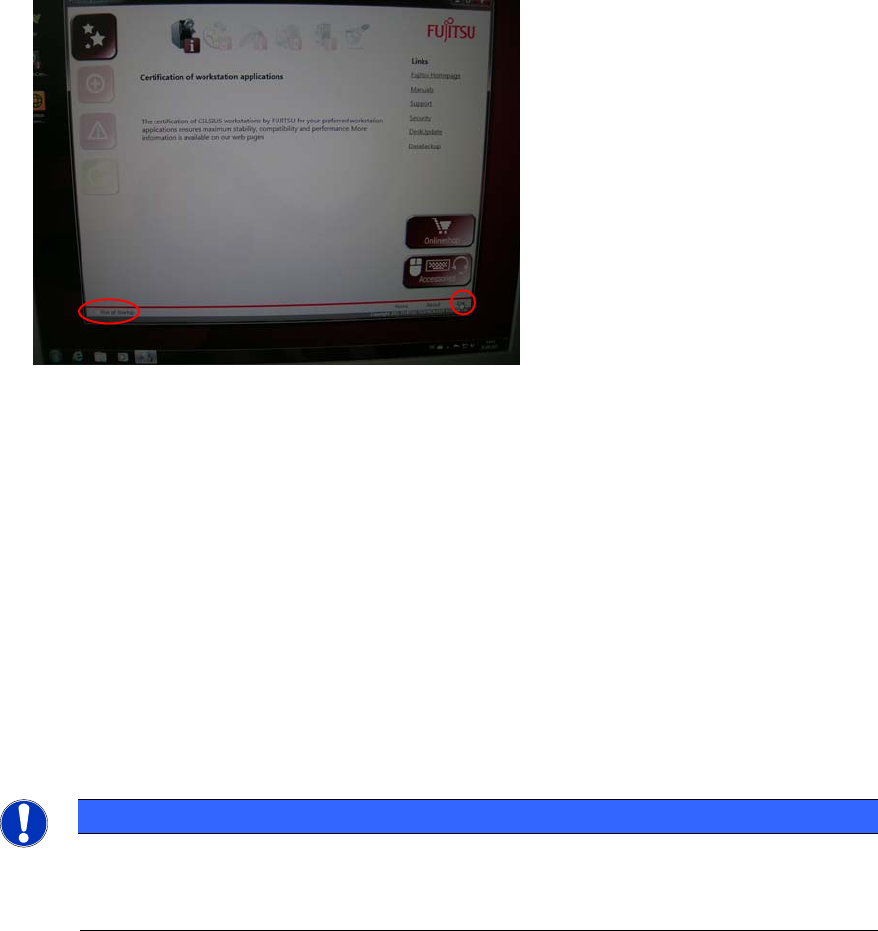
After preparation, you will see the following window.
Figure 3-19: Fujtisu Options
This tool provides you with links helping you to perform some common tasks.
► If you don’t want this tool to show again, ensure the checkbox besides Run at Startup in the
lower left corner isn’t selected.
► Click the Exit link in the lower right corner to close the tool.
► Continue with the next chapter
3.1 Uninstall unused Tools
In the pre-installed image, there are some tools not required by SIPLACE which we recommend to
uninstall before proceeding.
NOTICE
Security Tools might conflict with SIPLACE Software
Some anti-virus or firewall tools might conflict with SIPLACE software. We recommend
uninstalling them as described in this chapter.
18
Celsius W510 with Windows 7 10/2011 Edition
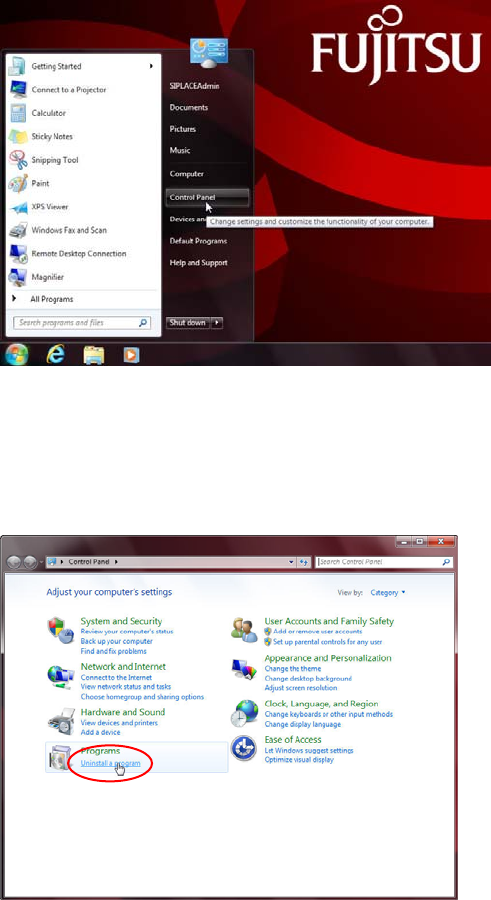
First, we have to navigate to the Add/Remove programs window.
Figure 3-20: Opening Control Panel
► Click the Windows button
► Click at Control Panel.
The Control Panel opens.
Figure 3-21: Calling Uninstall a program
► Click on Uninstall a program in the Programs group.
19