00197184-01_IM_Celsius_W510_Windows7_EN.pdf - 第41页
Celsius W510 with Win dows 7 10/2011 Edition The following window ap pears. Figure 4-35: Starting Scan for appropriate drivers ► Click the Scan syst em button to start the scan for missing drivers. After a short time, th…
Celsius W510 with Windows 7 10/2011 Edition
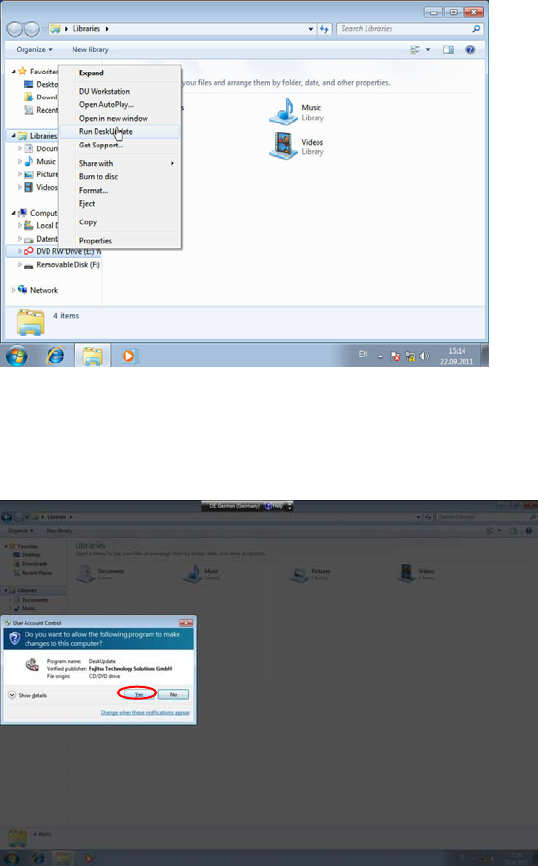
Figure 4-33: Selecting “Run DeskUpdate” from the context menu
► Select the Run DeskUpdate entry from the context menu.
The User Account Control (UAC) confirmation dialog appears.
Figure 4-34: User Account Control confirmation prompt
► Click the Yes button to confirm the DeskUpdate application being executed with administrative
permissions.
40
Celsius W510 with Windows 7 10/2011 Edition
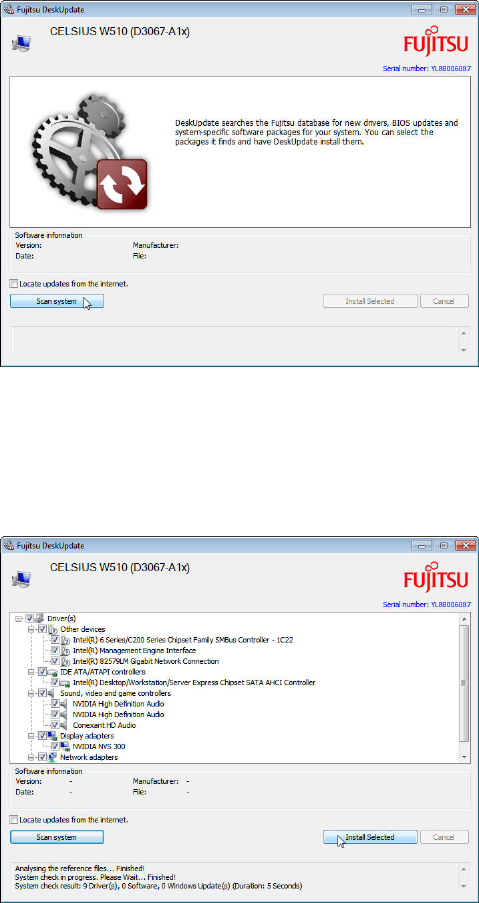
The following window appears.
Figure 4-35: Starting Scan for appropriate drivers
► Click the Scan system button to start the scan for missing drivers.
After a short time, the system has found appropriate missing drivers.
Figure 4-36: Starting missing drivers installation
► Click the Install Selected button to install the missing drivers.
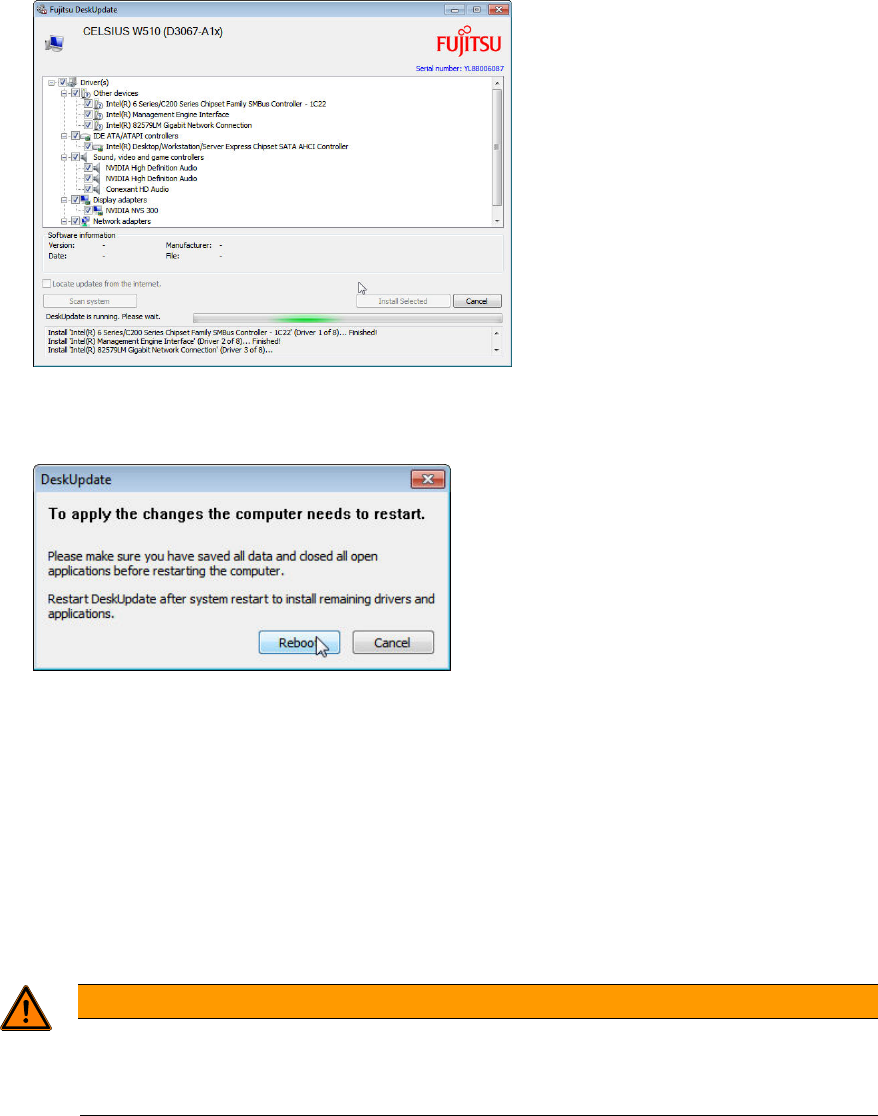
The driver installation may take some minutes. During the installation, the Install Selected button is
greyed-out.
41
Celsius W510 with Windows 7 10/2011 Edition
Figure 4-37: DeskUpdate installing drivers
After driver installation, the following window will appear.
Figure 4-38: Reboot message
► Ensure that you’ve saved all unwritten data.
► Click the Reboot button to reboot your computer.
The driver installation is completed.
► Before you continue preparing the system with Support Media, ensure you check the
configuration (accounts, network, etc.) as described in the document “Required Steps before
using Support Media”.
WARNING
Check the Configuration before installing any Software
Please ensure that your account and network configuration is appropriate before
installing any software.
42