00197184-01_IM_Celsius_W510_Windows7_EN.pdf - 第32页
Celsius W510 with Win dows 7 10/2011 Edition After you’ve deleted all partitions from the firs t hard disk, your window should loo k like this. Figure 4-17: Empty Disk 0 selected ► Ensure you’ve selected the empty Disk 0…
Celsius W510 with Windows 7 10/2011 Edition
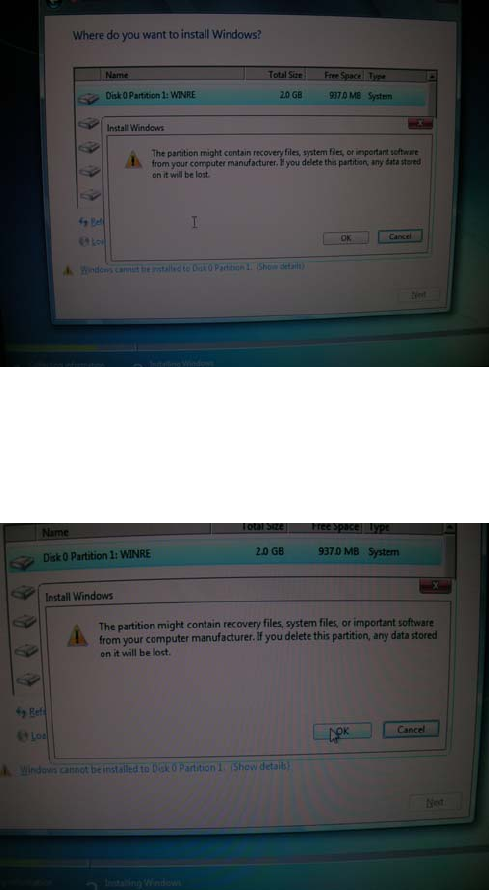
Figure 4-15: Confirm delete message
► Verify you’ve selected the correct partition and the appropriate disk (Disk 0) and backed up all
important data before proceeding.
Figure 4-16: Accepting partition deletion
► Click the OK button to confirm deletion.
► Repeat these steps for all partitions on the first hard disk (Disk 0)
31
Celsius W510 with Windows 7 10/2011 Edition
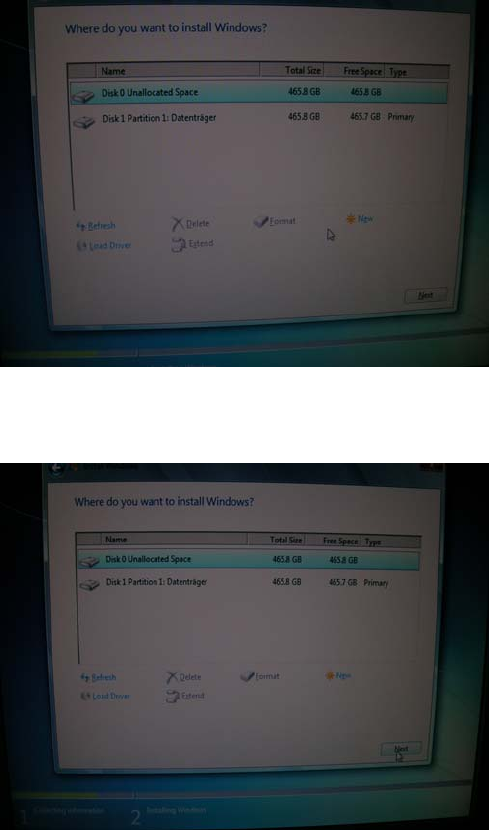
After you’ve deleted all partitions from the first hard disk, your window should look like this.
Figure 4-17: Empty Disk 0 selected
► Ensure you’ve selected the empty Disk 0 as shown in the screen above.
Figure 4-18: Clicking Next with empty Disk 0 selected
► Click the Next button to continue.
32
Celsius W510 with Windows 7 10/2011 Edition
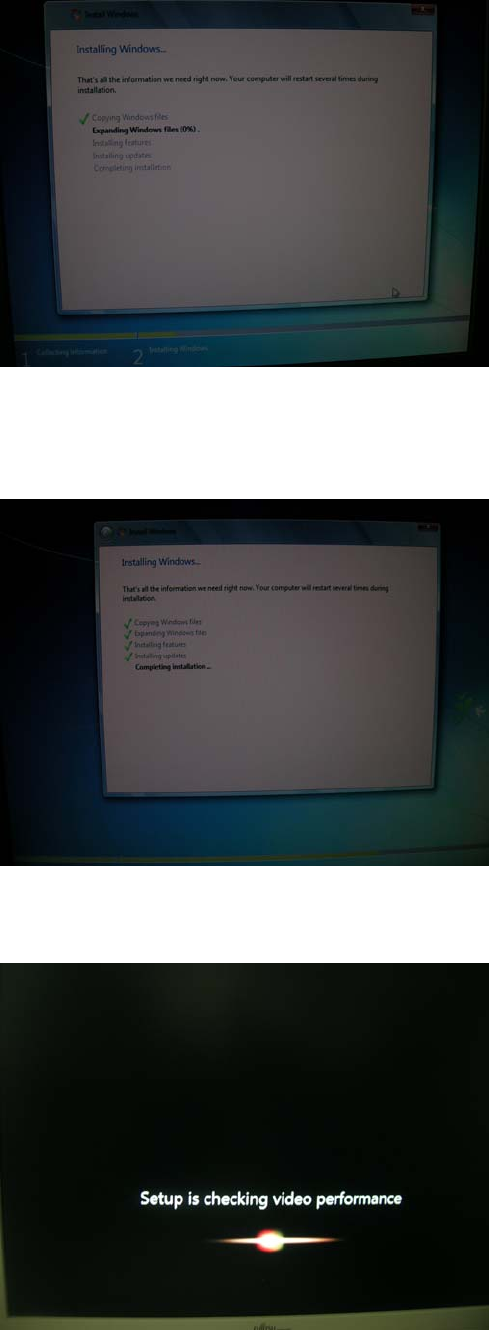
The installation will begin.
Figure 4-19: Installation begins
► Wait until the installation completes. This will take 15 minutes or more.
After a while you will see the installation completing as shown in the following picture.
Figure 4-20: Installation completes
The system may reboot multiple times.
Figure 4-21: Setup checking video performance
33