00197184-01_IM_Celsius_W510_Windows7_EN.pdf - 第26页
Celsius W510 with Win dows 7 10/2011 Edition After a couple of seconds, the following message appears. Figure 4-4: “Press any key” message ► Press any key to boot from the DVD. WARNING Ensure booted from DVD Assuming tha…
Celsius W510 with Windows 7 10/2011 Edition
NOTICE
Don’t use UEFI entry
If two DVD drive entries are shown, please don’t use the UEFI entry – this may break
compatibility with other hardware- related tools.
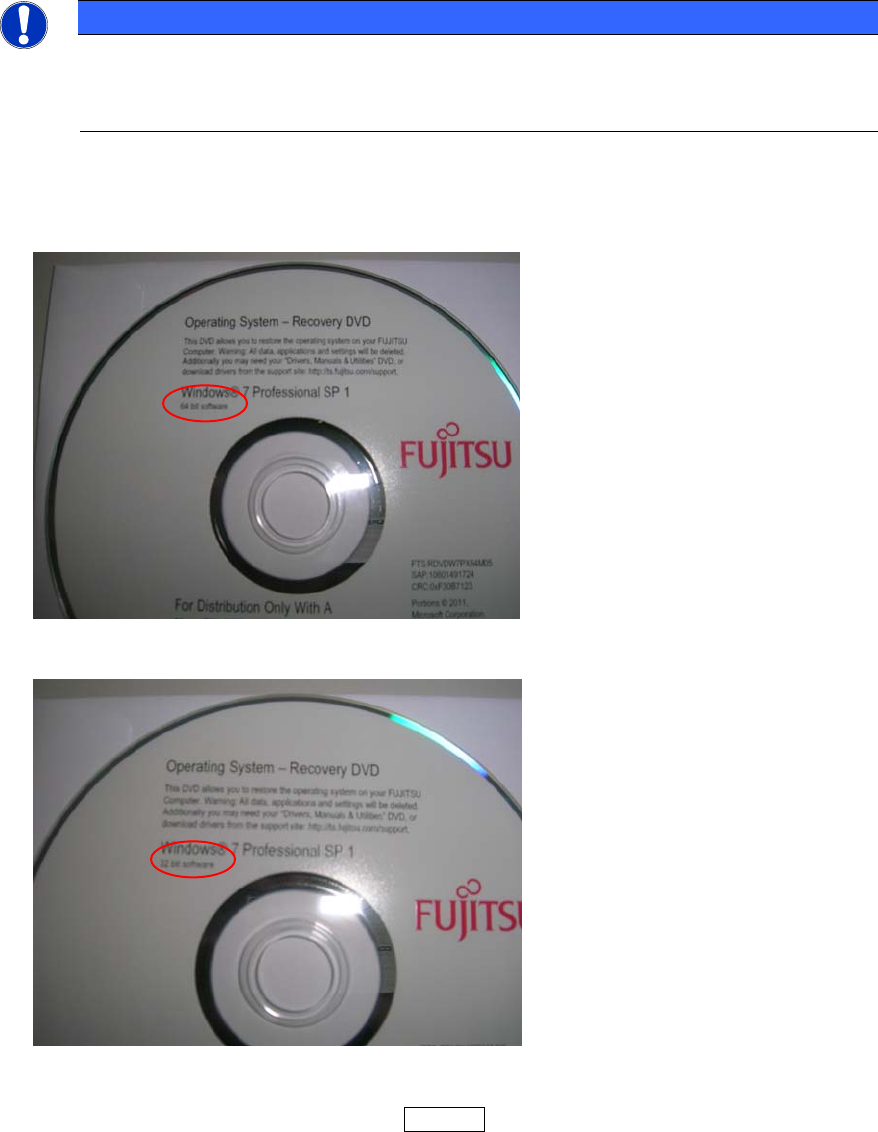
► Insert the appropriate Windows 7 DVD, depending on the architecture you decided to use.
The following pictures show you the different delivered versions of Windows 7.
Figure 4-2: Windows 7 Professional, 64 bit DVD
Figure 4-3: Windows 7 Professional, 32 bit DVD
► Insert the appropriate DVD and press the ENTER key.
25
Celsius W510 with Windows 7 10/2011 Edition
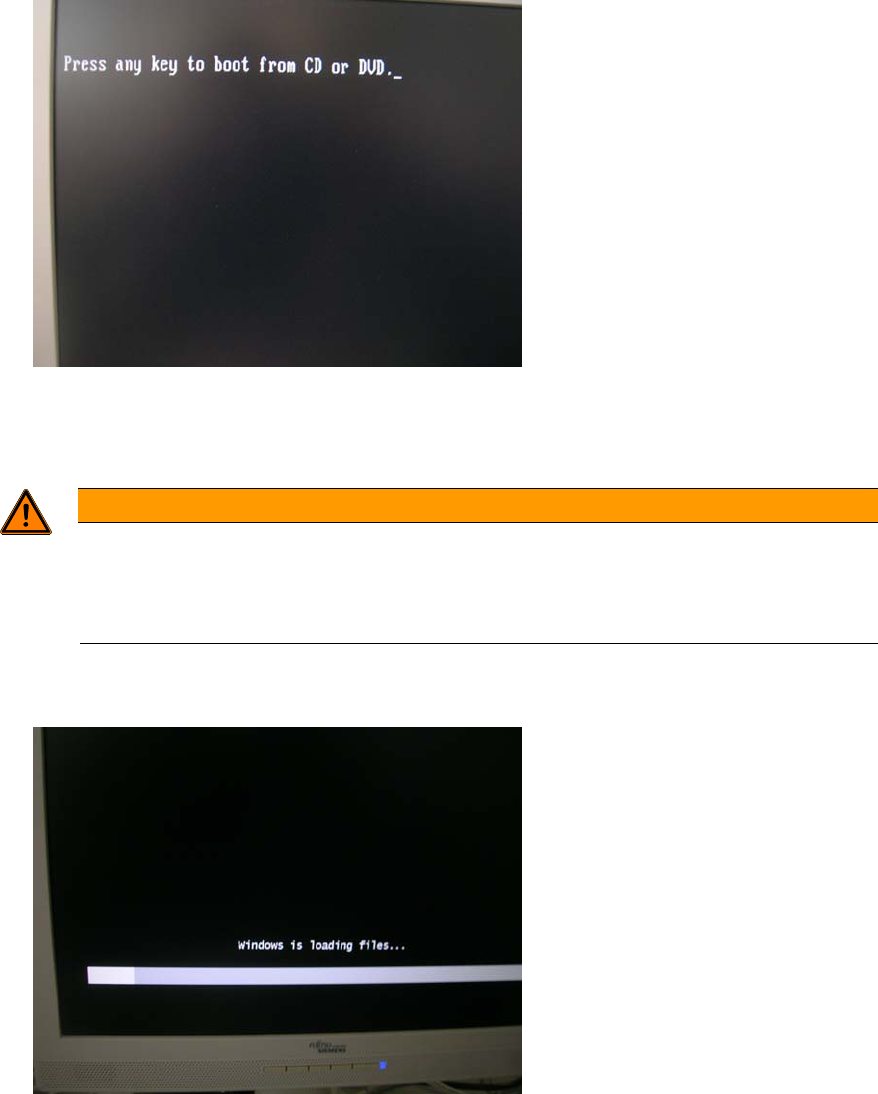
After a couple of seconds, the following message appears.
Figure 4-4: “Press any key” message
► Press any key to boot from the DVD.
WARNING
Ensure booted from DVD
Assuming that the hard disk already contains data / a previous installation, the Press any
key message should appear. Ensure you don’t confuse the DVD-based setup with the
pre-installed Windows Setup.
Windows will load some files from the DVD as shown in the following screenshot.
Figure 4-5: Windows is loading files
26
Celsius W510 with Windows 7 10/2011 Edition
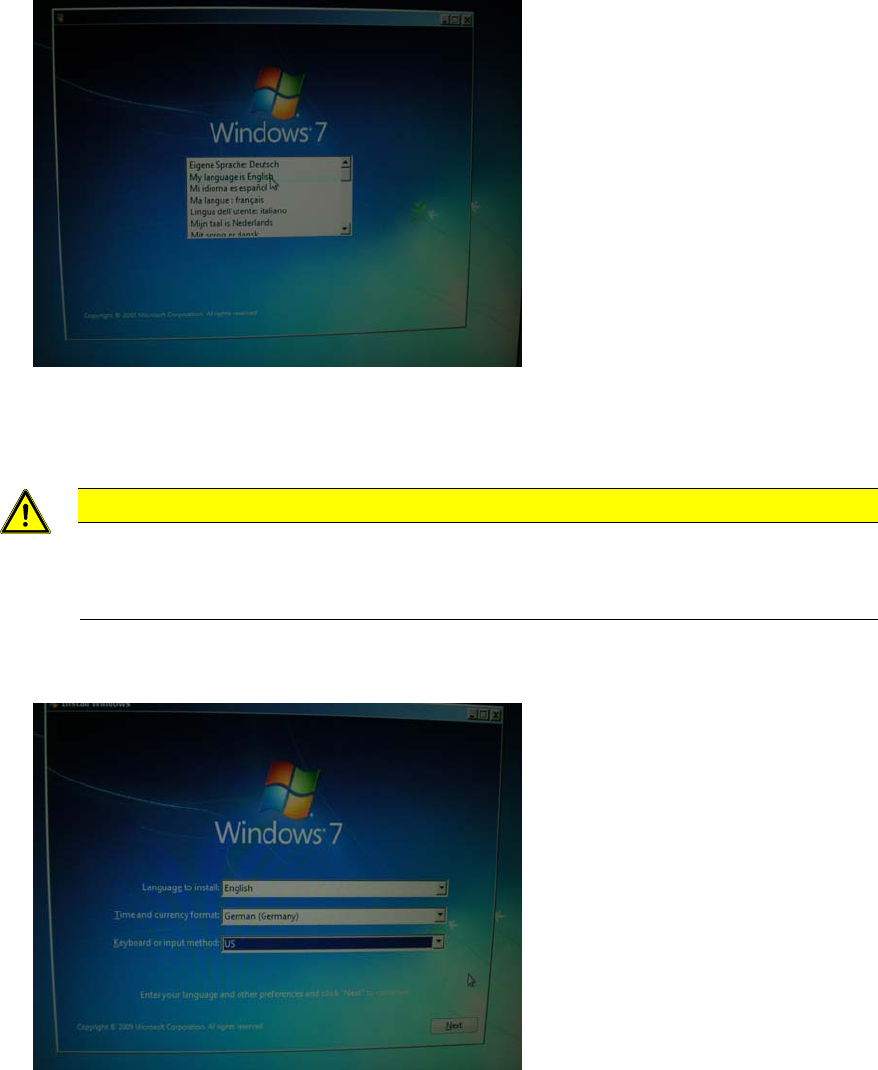
After a while, the following dialog will appear.
Figure 4-6: Language selection
► Select the My language is English entry.
CAUTION
Click carefully
After clicking at one entry in this step, you can’t go back! If you clicked at the wrong
entry, you have to power off the computer and restart the whole procedure again!
The following window appears.
Figure 4-7: Regional settings
► Select English besides Language to install.
► Select the appropriate time and currency format.
► Select the appropriate keyboard layout. For SIPLACE Line Computers, the default is US.
► Click the Next button to continue.
27