00195447-02_Installation_604_01_SP1_EN_DE.pdf - 第31页
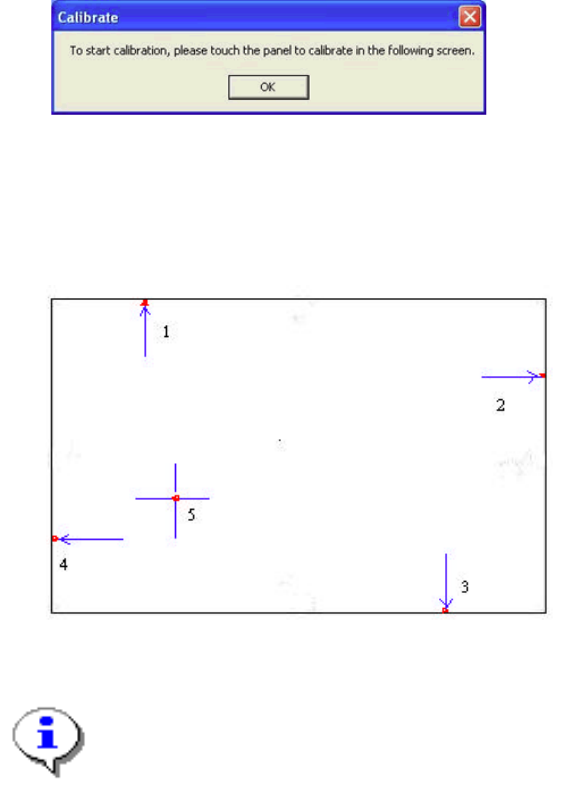
Installation Manual, Station Software Version 604.01 SP1 Issue 12/2007 Fig. 5-14: “Calibrate” dialog box → Acknowledge the dialog box by clicking on OK . → Touch the monitor you wish to calibrate wi th the pen supplied. …
Installation Manual, Station Software Version 604.01 SP1 Issue 12/2007
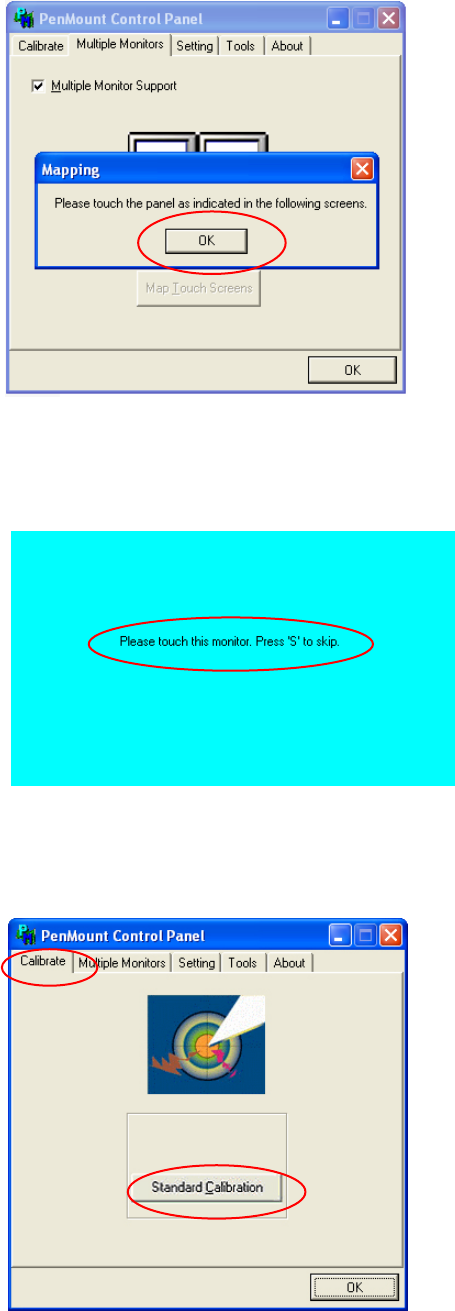
Fig. 5-11: PenMount Control Panel – "Mapping" dialog box
→ Acknowledge the “Mapping” dialog box by clicking on OK.
→ Touch the monitor showing Please touch this monitor with your finger.
Fig. 5-12: Mapping the touchscreens
The touchscreens are now mapped and the PenMount Control Panel is displayed again.
→ Open the Calibrate tab.
Fig. 5-13: PenMount Control Panel – Calibrate tab
→ Click the Standard Calibration button. The Calibrate dialog box opens.
30 of 47
Installation Manual, Station Software Version 604.01 SP1 Issue 12/2007
Fig. 5-14: “Calibrate” dialog box
→ Acknowledge the dialog box by clicking on OK.
→ Touch the monitor you wish to calibrate with the pen supplied. You are now prompted to Touch the
red square.
Fig. 5-15: Calibration marks
Notes:
Touch the calibration marks within 20 seconds, otherwise calibration is automatically
canceled.
Make sure that you are standing directly in front of the monitor.
Carry out calibration in the position (standing or seated) you normally adopt when working
at this screen.
Touch the calibration icon firmly and accurately with the pen.
Make sure that you to not inadvertently touch the screen with anything else.
→ Touch the red calibration marks with the pen in the numbered sequence shown.
→ Carry out the steps described above for the second screen as well.
→ Click OK in the PenMount Control Panel to close the program.
31 of 47
Installation Manual, Station Software Version 604.01 SP1 Issue 12/2007
5.5 Installing the SIPLACE software (Station Software 604.01 SP1)
Notes:
The installation requires approx. 30 minutes.
If a predecessor version of the station software is already installed on the station computer, it
need not be uninstalled before installing the new version; it can instead be removed during the
installation procedure (see section
5.5.3).
For uninstall manually the SIPLACE software see section 5.6.
→ Switch on the SIPLACE placement machine.
→ Log in to the station computer as Administrator.
(Keep the Shift key pressed as soon as the Windows XP logo appears)
→ Insert the installation CD in the drive. It is read automatically.
Note:
If autostart has been disabled for the drive, you must start the installation manually from
the Windows Explorer.
→ Open the Explorer and start "setup.exe" under drive E by double clicking it.
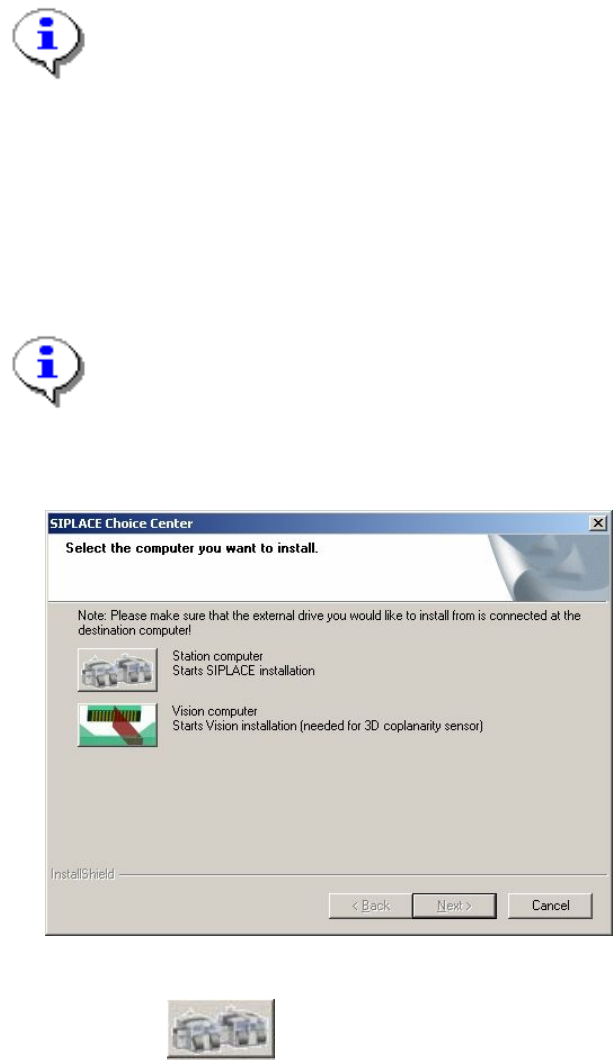
The "SIPLACE Choice Center" dialog box is opened.
Fig. 5-16: "SIPLACE Choice Center" dialog box
→ Click the "Station computer" button.
A check is carried out to determine whether a predecessor version of the 604.01 SP1 station software is
installed. If this is the case, the routine for uninstalling the predecessor version is called before actual
installation starts (see "Removing the program" in section
8).
Installation of the station software continues with the selection of the language.
32 of 47