00197696-01_IM_SIPLACE_Pro_12.0_EN.pdf - 第26页
Installation Manual 4 Installation of SIPLACE Pro and possible Setup Types SIPLACE Pro 12.0 Edition 12/2014 24 Ste p 2 This start s the user-controlled inst allation of SIPLACE Pro; you are pr ompted to select the instal…
4 Installation of SIPLACE Pro and possible Setup Types Installation Manual
Edition 12/2014 SIPLACE Pro 12.0
23
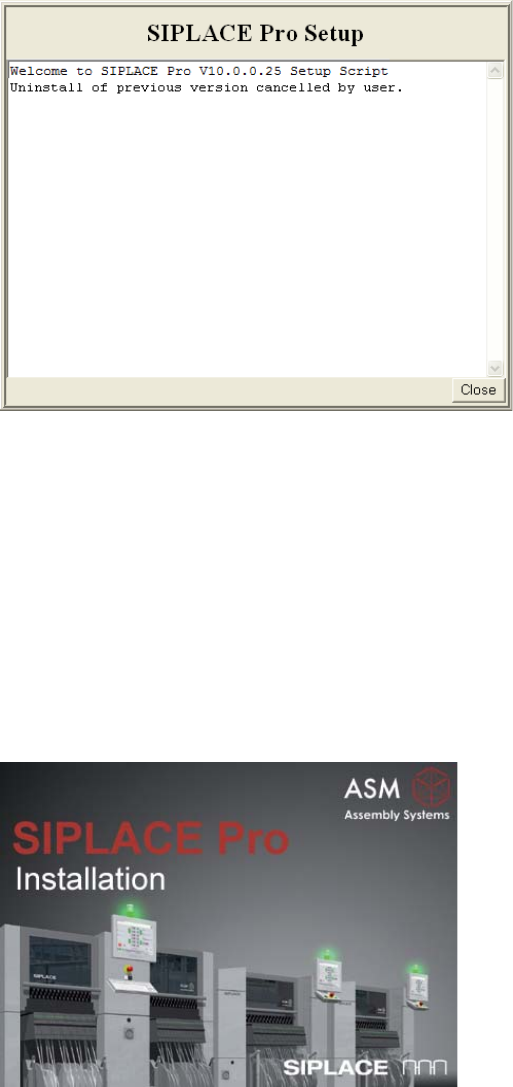
If you've cancelled Setup (or other errors occurred) during a step, a close button will be shown
after a short time as shown in the following picture:
4
Fig. 4.2 - 4 Example of "Cancel" dialog box
In this case, click the Close button to close the window and abort the Setup.
If you've met all conditions for upgrade, Setup will continue preparing your computer for
upgrade, which includes: 4
– Stopping SIPLACE Pro- related services and COM+ components
– Uninstalling previous version of SIPLACE Pro automatically
After preparation for upgrade has been completed, Setup will continue to start the user-controlled
installation of SIPLACE Pro.
4
Fig. 4.2 - 5 Start screen
Continue with Step 2 on page 24.
Installation Manual 4 Installation of SIPLACE Pro and possible Setup Types
SIPLACE Pro 12.0 Edition 12/2014
24
Step 2
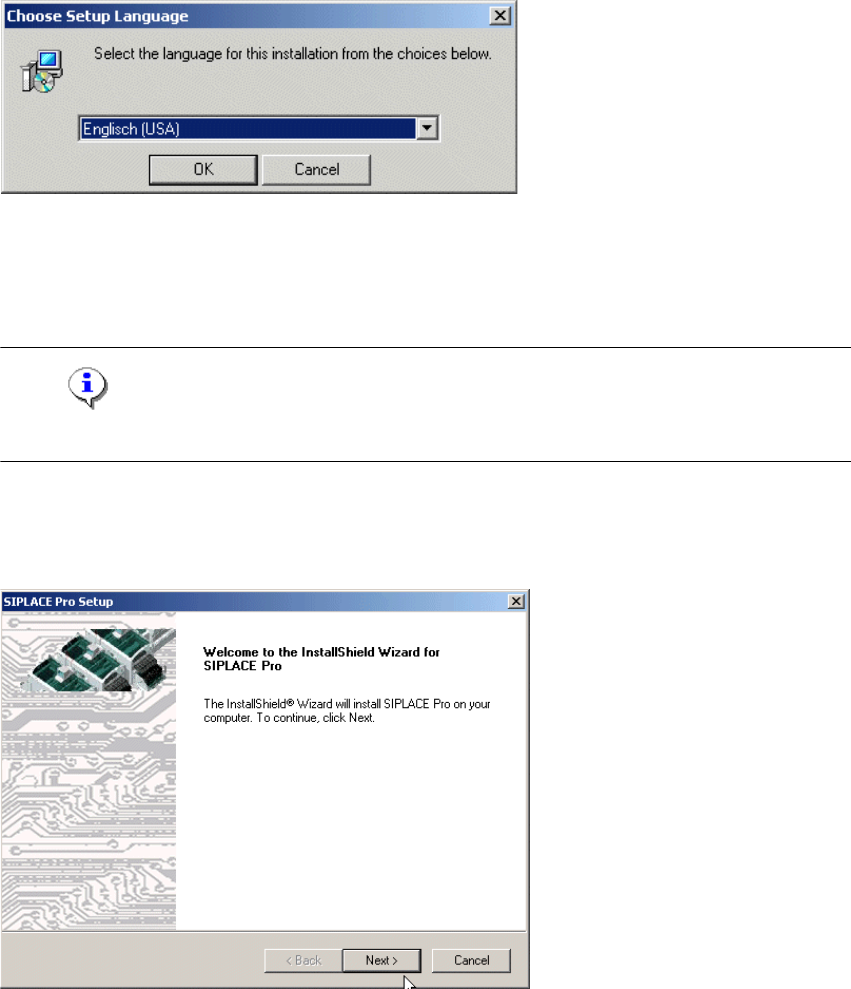
This starts the user-controlled installation of SIPLACE Pro; you are prompted to select the
installation language. 4
4
Fig. 4.2 - 6 "Choose Setup Language" dialog box
Select the language you want.
Click OK.
Note
This decision only relates to the language used during the installation routine! 4
Step 3
The InstallShield Wizard will guide you through the program setup process.
4
Fig. 4.2 - 7 InstallShield Wizard box for Siplace Pro
Click Next.
4 Installation of SIPLACE Pro and possible Setup Types Installation Manual
Edition 12/2014 SIPLACE Pro 12.0
25
Step 4
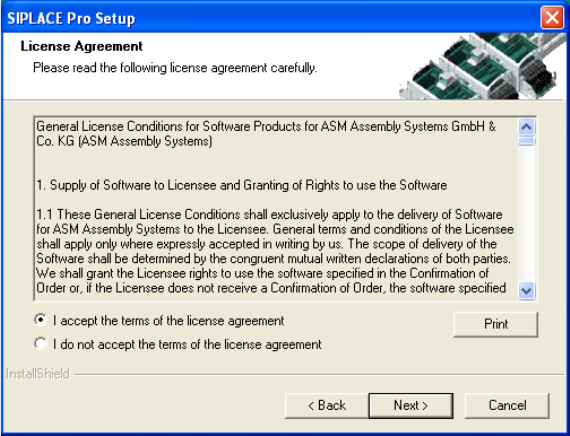
Read the license agreement relating to use of this software.
4
Fig. 4.2 - 8 "Software License Agreement" dialog box
Please make sure to accept the licence agreement.
Then click the Next button to continue with the installation routine.