00192419-02.pdf - 第23页
23 Click on Y es. T he dialog box closes a nd the progra m is shut down. This takes about one minute. The following box now app ears: Switch off the UP S and the monitor . Switching off the s t ations End all plac ement …
22
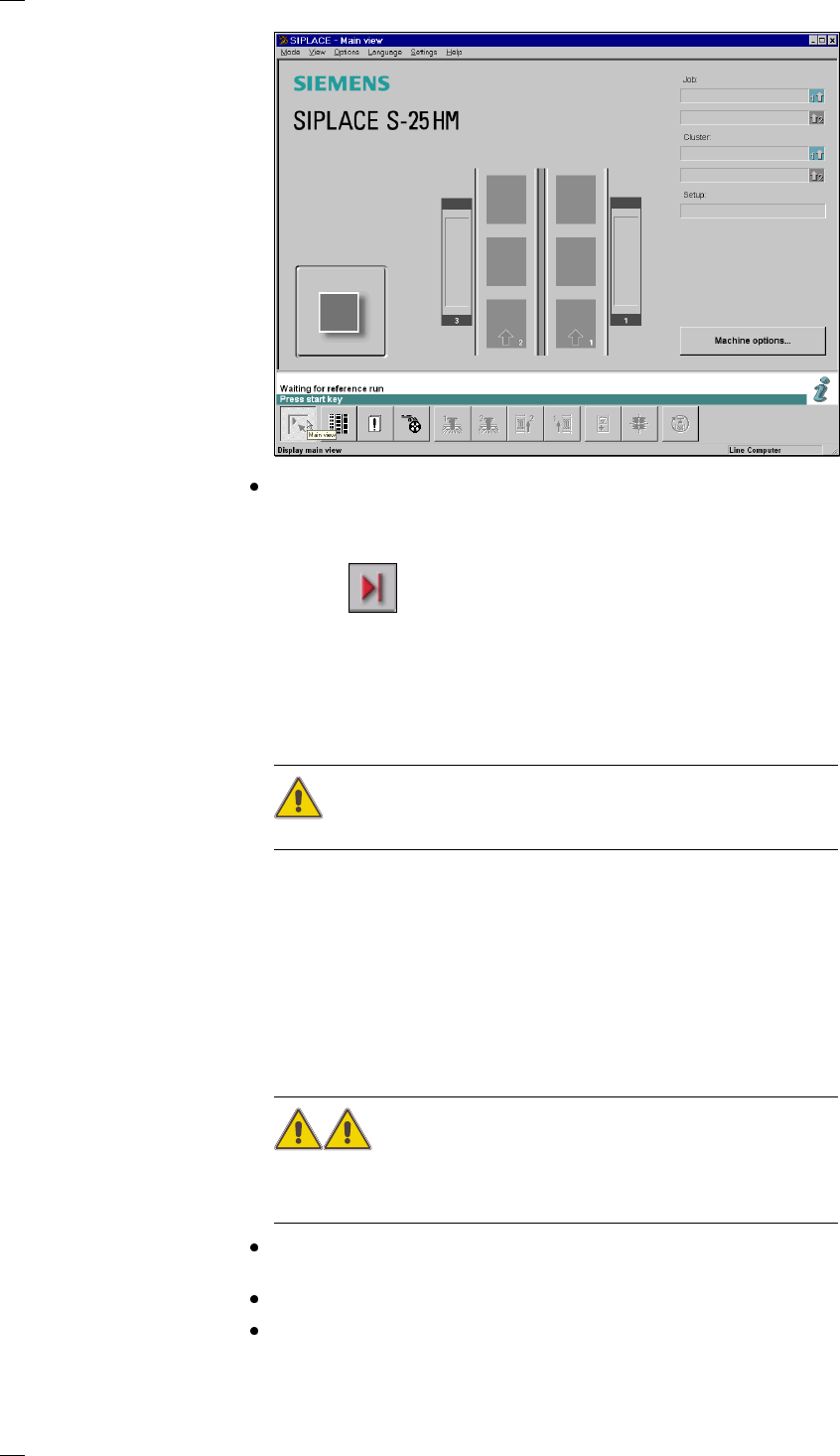
When the prompt appears on screen, press one of the white Start buttons
on the input/output side or on the left or right operating panel. The place-
ment system is ready for use again as soon as the reference point run has
ended.
This icon is displayed in the working area of the user interface.
Switching off the SIPLACE line
ATTENTION
Before you switch off the line make sure of the following:
– All placement and glueing operations must have been completed at the
stations.
– The Z-axes of all placement and glueing heads have to be in their top end
positions.
– No placement head should still be carrying components.
– All gantries must have moved to their waiting positions.
– The station computers are shut down safely.
Switching off the line computers
CAUTION
Never switch off the line computer simply by switching off the main switch.
Always shut down the operating system properly. If you fail to do so, you
may end up with considerable loss of data or corrupted programs.
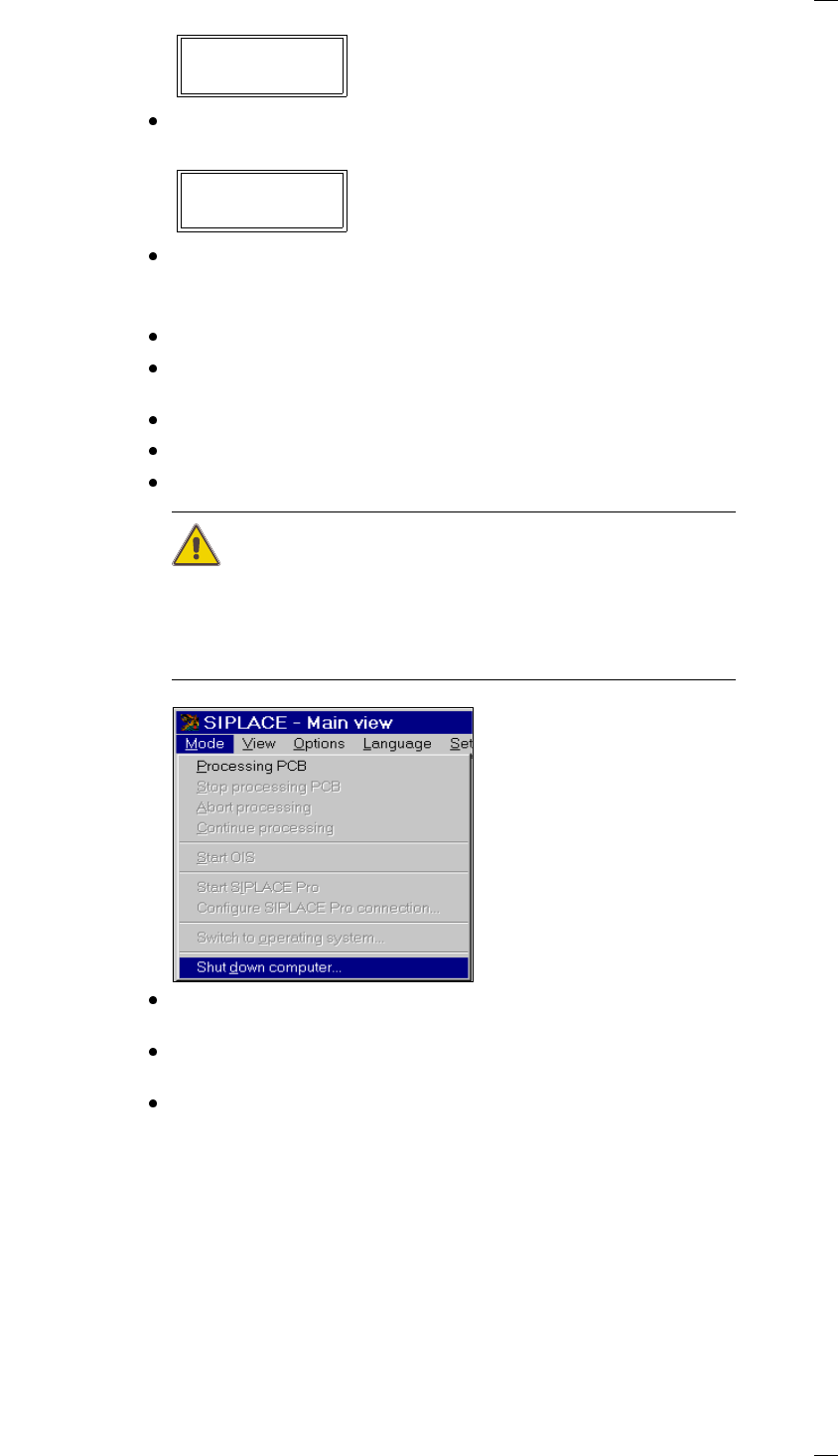
Position the mouse pointer at the top or bottom right-hand edge of the
screen. The pointer will become a cross.
Hold the left-hand mouse button down. The main menu will appear.
Still holding the mouse button down, move the pointer onto Shutdown then
release it. The following dialog box now appears on the screen.
23
Click on Yes. The dialog box closes and the program is shut down. This
takes about one minute. The following box now appears:
Switch off the UPS and the monitor.
Switching off the stations
End all placement operations.
Check that the Z-axes of all placement and glue application heads are in
their top end position.
Check whether there are still components on the placement heads.
Move all gantries into the standby position.
Switch off the placement system at the main switch.
CAUTION
If your machine does not have an uninterruptible power supply (UPS),
please note that:
You must NEVER switch the machine off at the main switch alone.
Always shut down the operating system correctly or you are likely to lose
data or corrupt the programs.
Click on the ‘Shut down computer’ option from the ‘Mode’ menu to shut
down the computer.
Click on OK to confirm the prompt. The operating system is then shut
down.
You can then switch the machine off at the main switch.
Really shut down ?
Yes No
Safe to power off
Press any key to reboot
24
Operator Guidance
’Main view’ menu (user level: ’operator’)
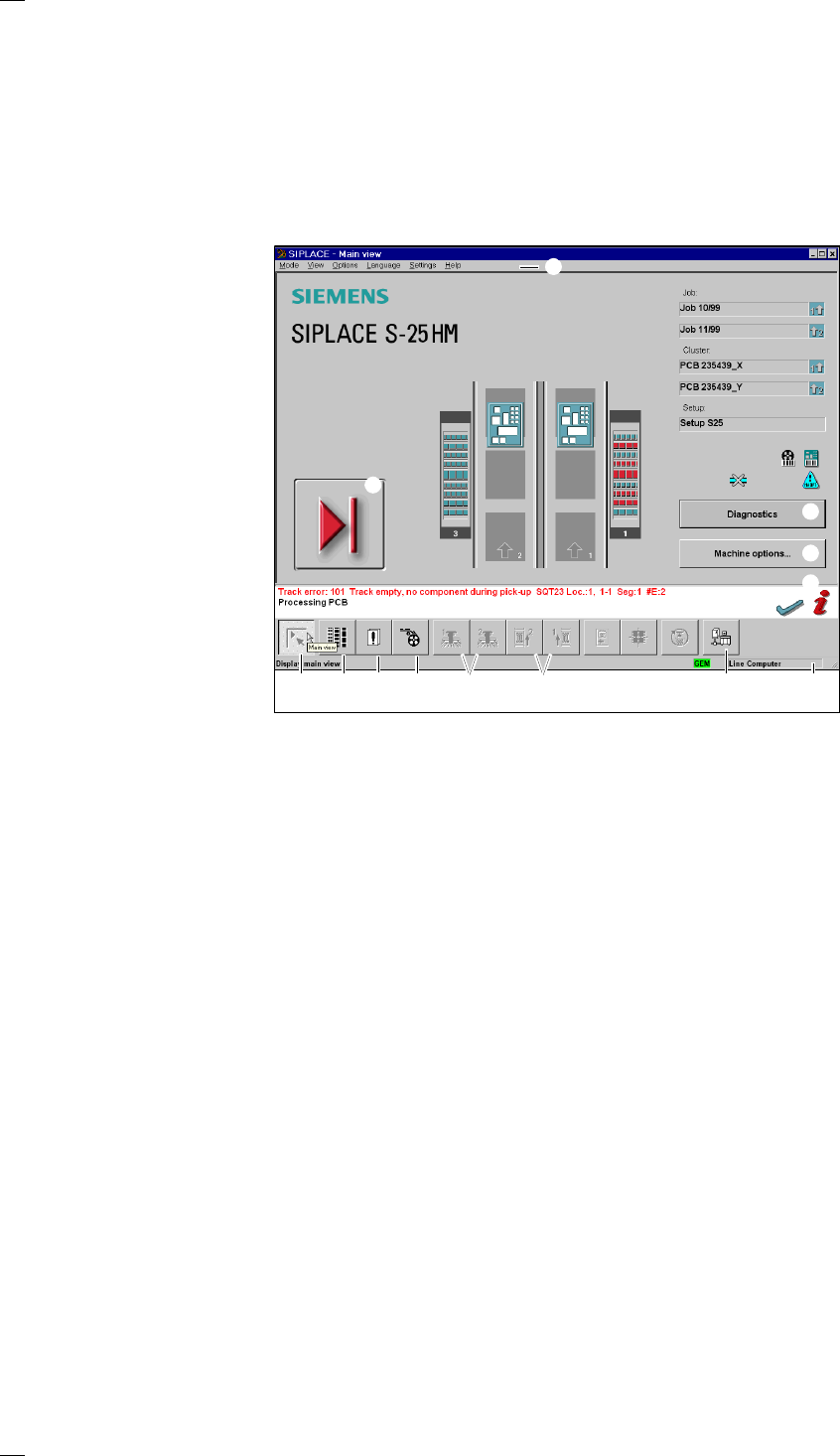
You can control the operation of the machine from the main view. All of the
menus and options accessible to the operator can be accessed from the
main view. Menus to which the operator has no access and options which
have not been activated are grayed out. You can jump directly back to the
main view at any time from a menu. If you have changed any settings, a
query box will be displayed asking you to save or discard the changes.
Buttons for controlling the placement system
a Computer start-up phase, Pause processing, Continue processing, Abort
processing (↑ ’Meaning of the icons’ section on page 14).
s ’Clear error’
Click on this button to clear the error display. The error will still appear in
the error list for reference purposes.
Buttons or icons for calling up menus for controlling the placement
system
d ’Error information’
If an error occurs, you can call up further information on the error in this
sub-menu.
f ’Diagnostics’ (option)
If an error occurs while a PCB is being processed, you can call up the
diagnostics program to help analyze and rectify the error.
g Machine options
h Display main view
j Display setup and component verification with barcode
k Display errors
l PCB feeders
; Single functions (SF) gantries 1 and 2
A Single functions (SF) PCB transport 1 and SF PCB transport 2 (you can-
not access the SF PCB transport 2 menu unless the twin conveyor option
has been installed.)
S GEM status, placement program and terminal service (option)
D Display of the machine‘s operating mode: line computer, GEM host, stand-
alone
F Menu line with pull-down menus
Via these pull-down menus you also have access to all of those functions
and options which you require for machine control.
a
d
f
s
h
g
kl
A
S
D
j
F
;