00197382-01_IM_SetupCenter6.0_EN.pdf - 第4页
Inhaltsverzeichnis 4 Installation Manual SIPLACE Setup Center 6.0 4.4.2 Settings in the Station Soft ware 78 4.4.3 Datalogic Scanner Configuration 78 4.4.3.1 Verify the Firmware Statu s for the Datalogic Scanner 78 4.4.3…
Inhaltsverzeichnis
Installation Manual SIPLACE Setup Center 6.0 3
Table of Contents
1 Introduction 5
1.1 Explanation of symbols 5
2 Navigation Guide for Installation 7
2.1 SIPLACE Setup Center 7
3 System Components and Configurations 9
3.1 System Components 9
3.1.1 Setup Center 9
3.1.2 Scanner System 9
3.1.2.1 Datalogic Scanner 9
3.1.2.2 Motorola / Symbol MC70/MC75 9
3.1.3 Forced Setup Verification 9
3.1.4 Docking Station X-Series and SX 10
3.2 System Configuration 10
3.2.1 SIPLACE Pro 10
3.2.2 Setup Center Database 10
3.2.3 Setup Center GUI 11
3.2.4 Forced Setup Verification 11
3.2.5 Docking Stations 11
3.2.6 Recommended Installation Scenarios 12
3.2.6.1 Local Database 12
3.2.6.2 Central Database 13
4Installation 15
4.1 Important Preparations 15
4.1.1 Operation System Installation 15
4.1.2 Database Installation 15
4.2 Hardware Installation 15
4.2.1 Safety Instructions 15
4.2.2 Datalogic Scanner’s Cradle BC-8030 (Narrowband) 16
4.2.2.1 Connect cradle via RS-232 17
4.2.2.2 Connect cradle via USB 19
4.2.3 Datalogic Scanner’s Cradle BC-8030-BT (Bluetooth) 23
4.2.3.1 Connect cradle via RS-232 23
4.2.3.2 Connect cradle via USB 24
4.2.4 Motorola MC70/MC75 1D/2D barcode scanner 26
4.2.4.1 System Requirements 26
4.2.4.2 Configurate WLAN on Scanner 26
4.2.4.3 MC70/MC75 Prerequisites installation 27
4.2.4.4 Setup Center Client Installation 33
4.2.5 Optional: Docking Station 36
4.2.5.1 Installing the CAN Card in the PC 36
4.2.5.2 Installing the CAN Bus driver and API 37
4.2.5.3 Installing Docking Station 40
4.2.5.4 Firmware download for docking station 45
4.3 Software Installation 46
4.3.1 Setup Center 46
4.3.1.1 General Settings 46
4.3.1.2 Individual Setup Types and Next Steps 52
4.3.1.3 Forced Setup Verification 72
4.4 Steps to Perform After Installation 78
4.4.1 SIPLACE Setup Center Database and Windows XP SP2 or higher 78
Inhaltsverzeichnis
4 Installation Manual SIPLACE Setup Center 6.0
4.4.2 Settings in the Station Software 78
4.4.3 Datalogic Scanner Configuration 78
4.4.3.1 Verify the Firmware Status for the Datalogic Scanner 78
4.4.3.2 Firmware Upgrade of Datalogic Scanner 79
4.4.4 Datalogic Scanner Connection 83
4.4.4.1 Narrowband Scanner 84
4.4.4.2 Bluetooth Scanner 87
4.4.5 Motorola / Symbol MC70/MC75 Scanner Configuration 88
4.4.5.1 Configurate Setup Center 88
4.4.5.2 Configure Setup Center Client 89
4.4.5.3 Establishing Connection 90
4.4.5.4 SIPLACE Scanner Config Tool 91
4.4.6 SIPLACE Setup Center Configuration 93
4.4.7 Settings on the SIPLACE Pro 93
4.4.8 Barcode Label Wizard 93
4.5 Troubleshooting 94
4.5.1 Relevant Files to Analyze Installation Problems 94
4.5.2 Conflicting old SIPLACE Setup Center Installations 94
4.5.3 Conflicts with old SIPLACE Setup Center Configurations 94
4.5.4 Remote Installation with Windows XP Clients 95
4.5.5 Conflicting Applications 95
5Modify 97
5.1 Modify Setup Center 97
5.2 Modify Forced Setup Center 97
6 Uninstalling 99
6.1 Backup Configuration Files 99
6.2 Uninstalling Setup Center GUI 99
6.3 Uninstalling Setup Center Database 100
6.3.1 Uninstalling SQL Server Express Installations 100
6.4 Uninstalling Forced Setup Verification 101
6.5 Optional: Uninstalling the SIE MultiThread API SIECA 132 Software Package 101
Introduction
Explanation of symbols
Installation Manual SIPLACE Setup Center 6.0 5
1
1 Introduction
Introduction
Please read chapters 2 through 4 before you install SIPLACE Setup Center. Chapter 5 describes the
installation sequence for SIPLACE Setup Center as well as the related setup types and important infor-
mation regarding the installation.
1.1
1.1 Explanation of symbols
Explanation of symbols
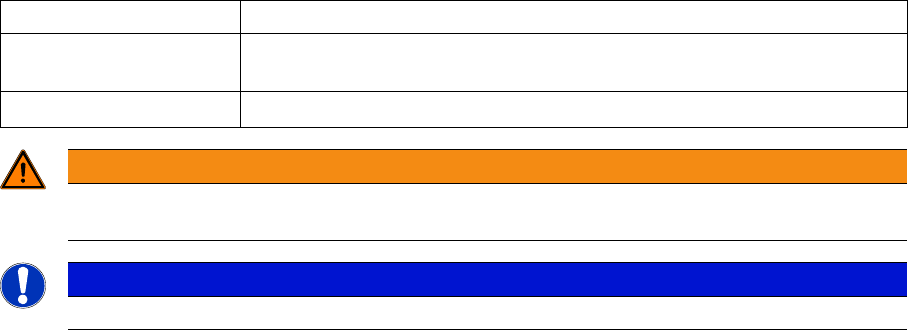
Various symbols and notes are used for making this document easier to read.
Words in bold These are dialog boxes and menu commands.
Step … An installation step includes all the actions relating to a specific dialog box.
An installation step may be composed of several actions.
► Requires an action (e.g. mouse click, open file)
WARNING
Corresponds to a warning. The information is critical to the success of the installation process.
The installation will be cancelled if you do not comply with the warning.
NOTICE
Explanatory information about the installation sequence.