00198051-02_IM_SetupCenter_8.1_EN.pdf - 第21页
Setup Center Application Installation General Settings Installation Manual SIPLACE Setup Center 8.1 21 Step 4 ► Enter your User Name and Company Name in the Cu stomer Information dialog bo x. Both boxes must be filled in…
Setup Center Application Installation
General Settings
20 Installation Manual SIPLACE Setup Center 8.1
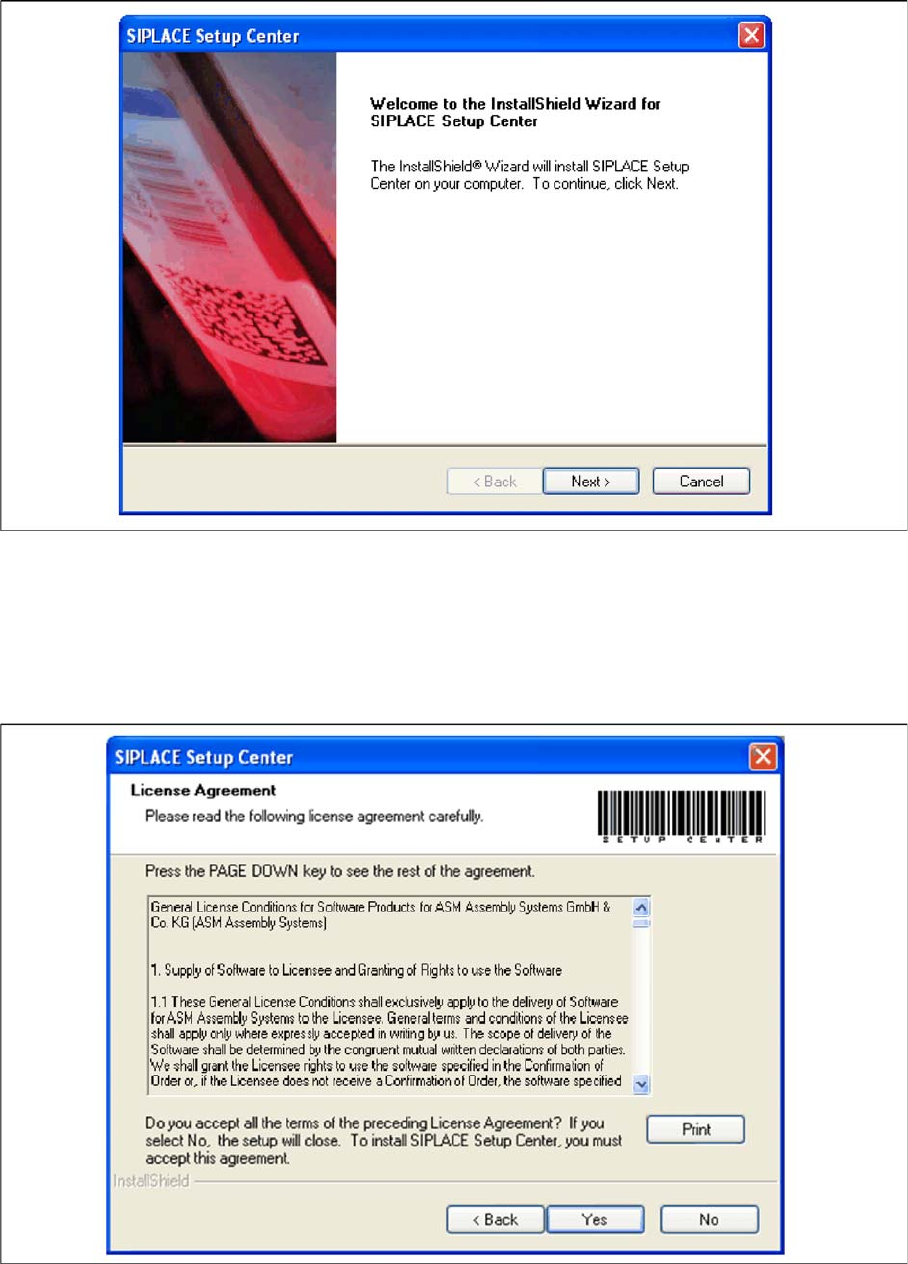
InstallShield Wizard box for SIPLACE Setup Center
► Click Next.
Step 3
► Read the license agreement of ASM Assembly Systems GmbH & Co. KG relating to use of this soft
-
ware.
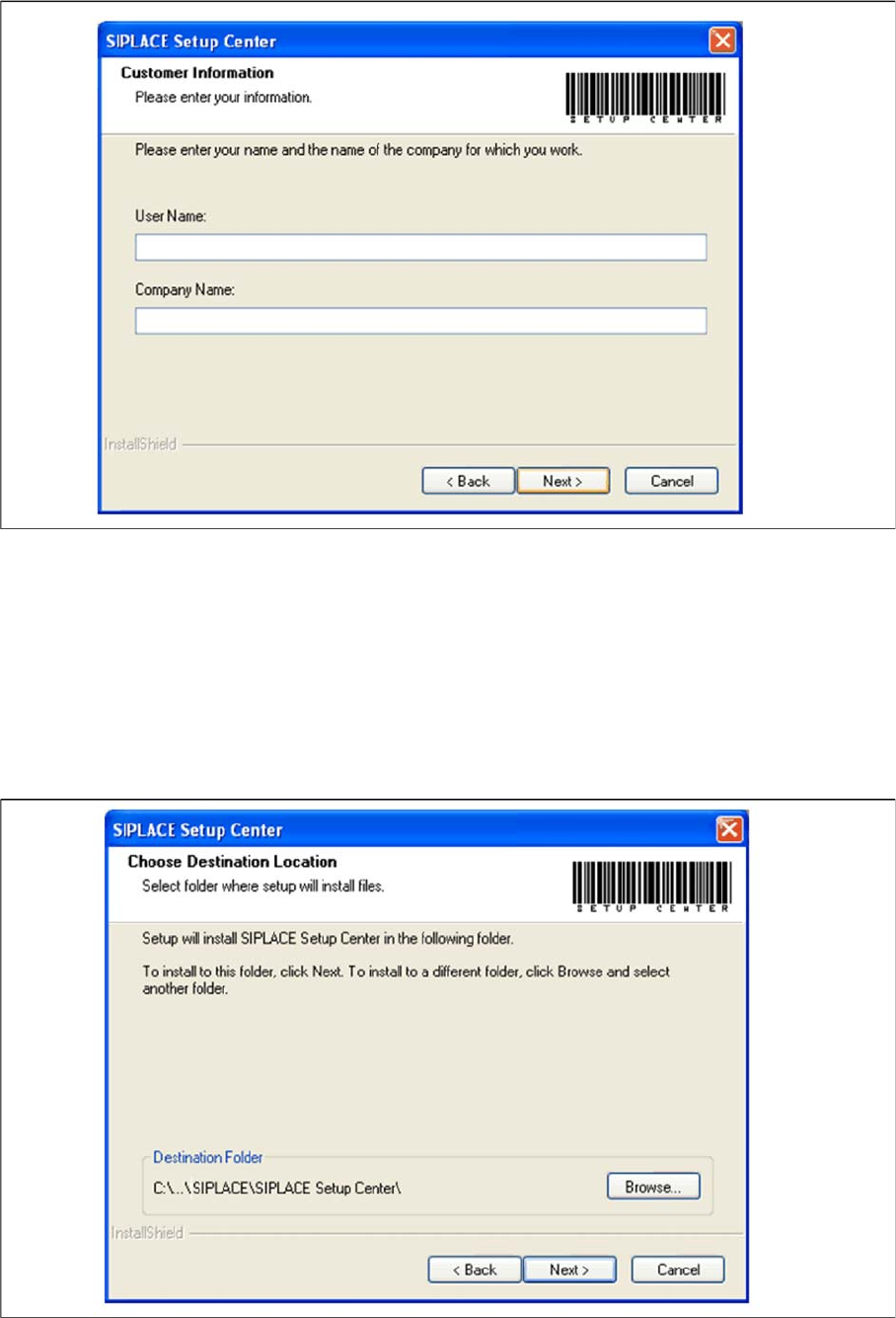
"Software License Agreement" dialog box
► The installation routine continues if you click the Yes button to accept the license agreement.
► Click No to cancel the installation.
► Click Print to print the License Agreement on the default printer of the PC.
Setup Center Application Installation
General Settings
Installation Manual SIPLACE Setup Center 8.1 21
Step 4
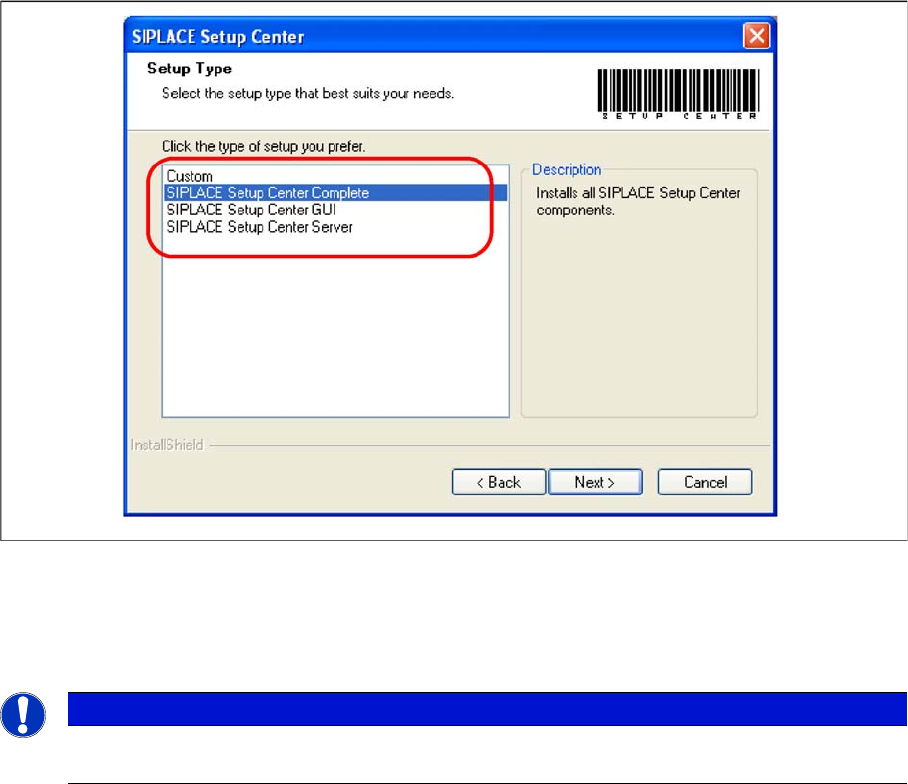
► Enter your User Name and Company Name in the Customer Information dialog box. Both boxes
must be filled in before the installation process can be continued.
"Customer Information" dialog box
► Click Next.
Step 5
► The Choose Destination Location dialog box prompts you to enter the name of the folder in which
SIPLACE Setup Center should be installed. The system suggests a default destination folder for you.
► However, you can click the Browse button to open a dialog box in which you can enter or select the
path you want to use. If the folder you specify does not exist, it is created after having accepted a
confirmation dialog.
"Choose Destination Location" dialog box
Setup Center Application Installation
Individual Setup Types and Next Steps 5.2.1 Setup Type – SIPLACE Setup Center Complete
22 Installation Manual SIPLACE Setup Center 8.1
► Click Next.
Step 6
► The Setup Type dialog box displays the SIPLACE Setup Center components you could choose for
installation.
"Setup Type" dialog box
► Select the setup type you want to install in the Setup Type dialog box.
► Click Next.
► If you select a type, a short description of the setup type in question appears in the Description box.
5.2
5.2 Individual Setup Types and Next Steps
Individual Setup Types and Next Steps
5.2.1
5.2.1 Setup Type – SIPLACE Setup Center Complete
Setup Type – SIPLACE Setup Center Complete
This setup type contains all SIPLACE Setup Center components for operating the system on a single
computer. It is used to install a Setup Center stand alone system.
The Setup detects weather SQL Server has already been installed.
Select this type to install all SIPLACE Setup Center system components (GUI, Database) on one com
-
pute. However, it is possible to integrate further clients on other computers.
Step 1
Run through the steps in chapter "General Settings".
NOTICE
After choosing a setup type which includes a database installation, the setup program immedi
-
ately checks if SQL server is installed on the computer.