00198051-02_IM_SetupCenter_8.1_EN.pdf - 第28页
Setup Center Application Installation Individual Setup Types and Next Steps 5.2.2 Setup Type – SIPLACE Setup Center GUI 28 Installation Manual SIPLACE Setup Center 8.1 ► Click Finish . 5.2.2 5 . 2 . 2 S e t u p T y p e –…
Setup Center Application Installation
5.2.1 Setup Type – SIPLACE Setup Center Complete Individual Setup Types and Next Steps
Installation Manual SIPLACE Setup Center 8.1 27
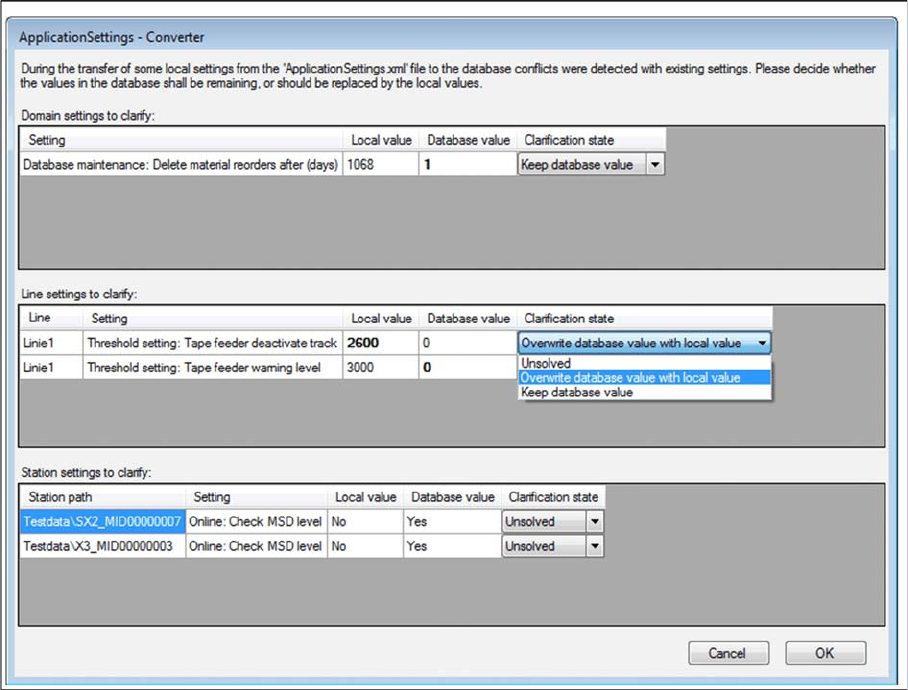
► Decide whether the values in the database shall remaining (Keep database value), or should be re
-
placed by the local values (Overwrite database value with local value).
► All settings must be solved to get the next step.
Step 6
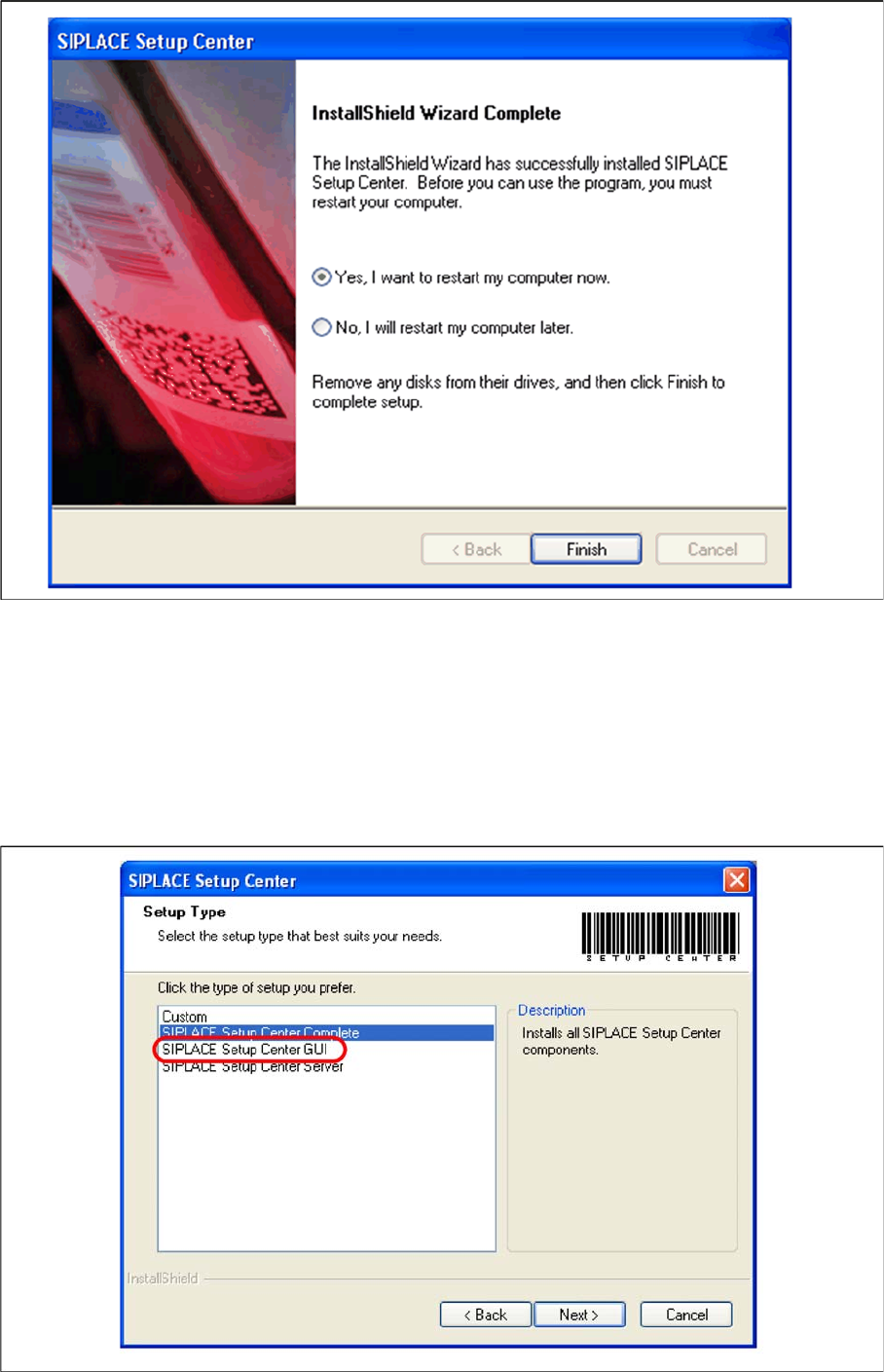
► The "Setup Complete" window appears if the installation has been completed successfully.
Setup Center Application Installation
Individual Setup Types and Next Steps 5.2.2 Setup Type – SIPLACE Setup Center GUI
28 Installation Manual SIPLACE Setup Center 8.1
► Click Finish.
5.2.2
5.2.2 Setup Type – SIPLACE Setup Center GUI
Setup Type – SIPLACE Setup Center GUI
This setup type will install the GUI application of SIPLACE Setup Center. It is used to setup up a client
system while the database is located on a remote system.
Step 1
► Run through the steps in chapter "General Settings".
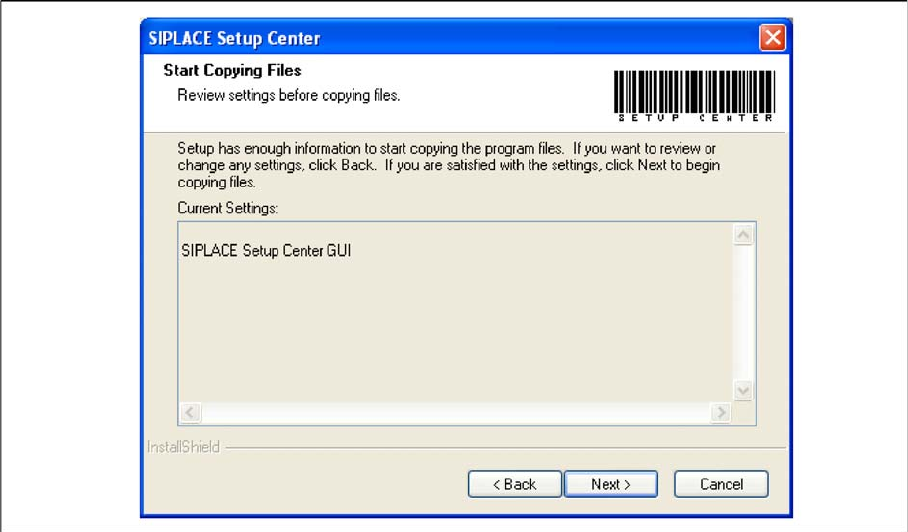
► Select the SIPLACE Setup Center GUI setup type.
Setup Center Application Installation
5.2.2 Setup Type – SIPLACE Setup Center GUI Individual Setup Types and Next Steps
Installation Manual SIPLACE Setup Center 8.1 29
► Click Next.
Step 2
► The Start Copying Files dialog box gives you a chance to check the information again, which you
have entered during the previous steps.
► Click Next if you accept all the information entered so far.
► If you want to alter one or more details, click the Back button until you get back to the dialog box in
question.
► There, enter your changes and click Next to continue as usual.
⇨ The installation routine starts.
Step 3 (Only when conflicts occur)
During the installation,settings are converted, some of which have been transferred from the local Appli
-
cationSettings.xml file to the database. This can lead to conflicts with existing settings. If conflicts were
detected, the Application Settings - Converter dialog appears.