SmartGUI Overview_1.5.0.12 Official Release (Dec 2021).pdf - 第33页
Copyright © ViT rox All Rights Reserved . Orientation Blue lead box: 1st lead Pink lead box: Last lead Light blue lead box: 2nd lead 1. Click “Edit” button in Lead Pitch setting. 2. Define “direction” of lead. 3. Put the…
Copyright © ViTrox All Rights Reserved.
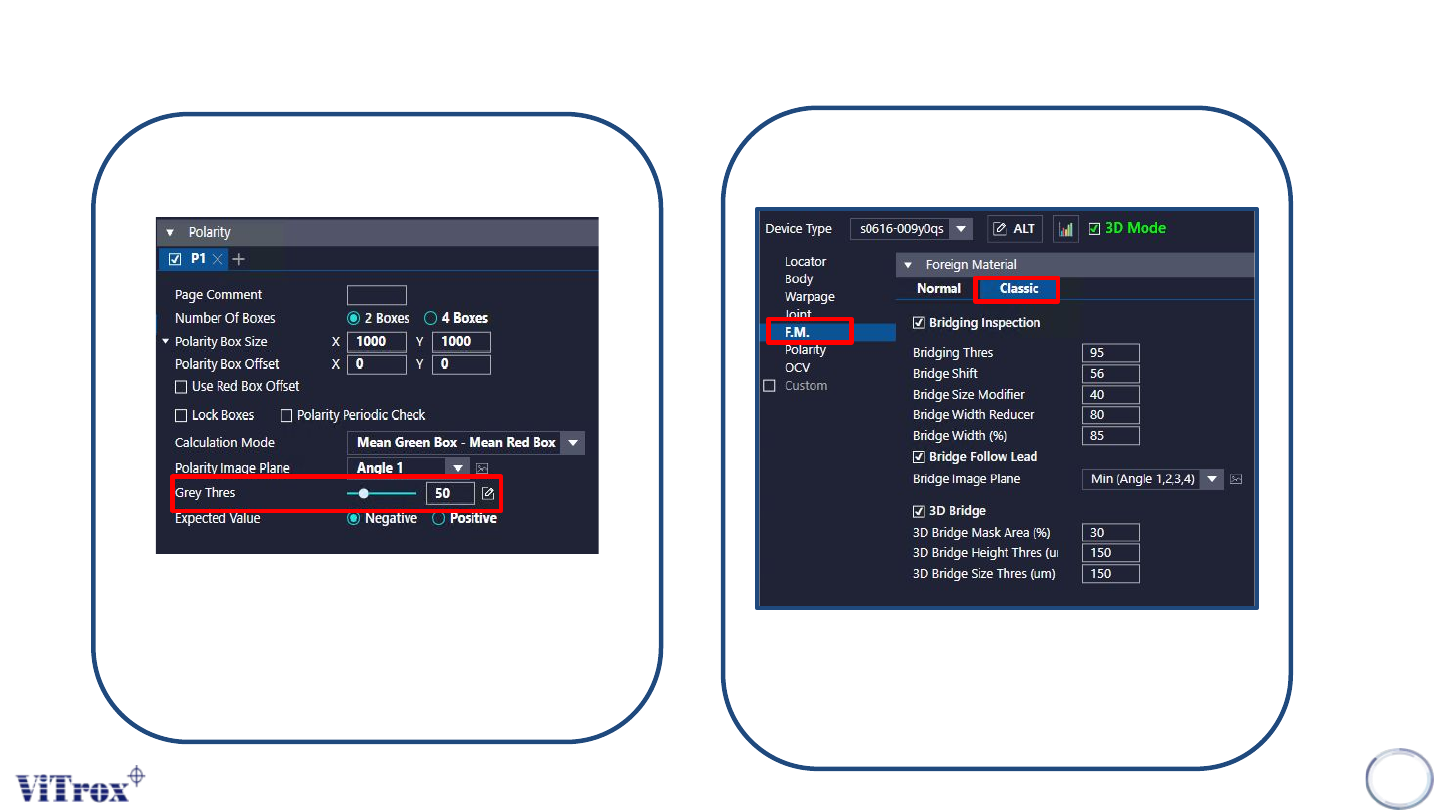
Parameters Changes in Smart GUI Settings
32
Polarity Threshold
S-type Bridging
Threshold in polarity no longer
need to place “-” symbol to
indicates minimum threshold.
Bridging tab in S-type move in
FM -> Classic in Smart GUI.
Copyright © ViTrox All Rights Reserved.
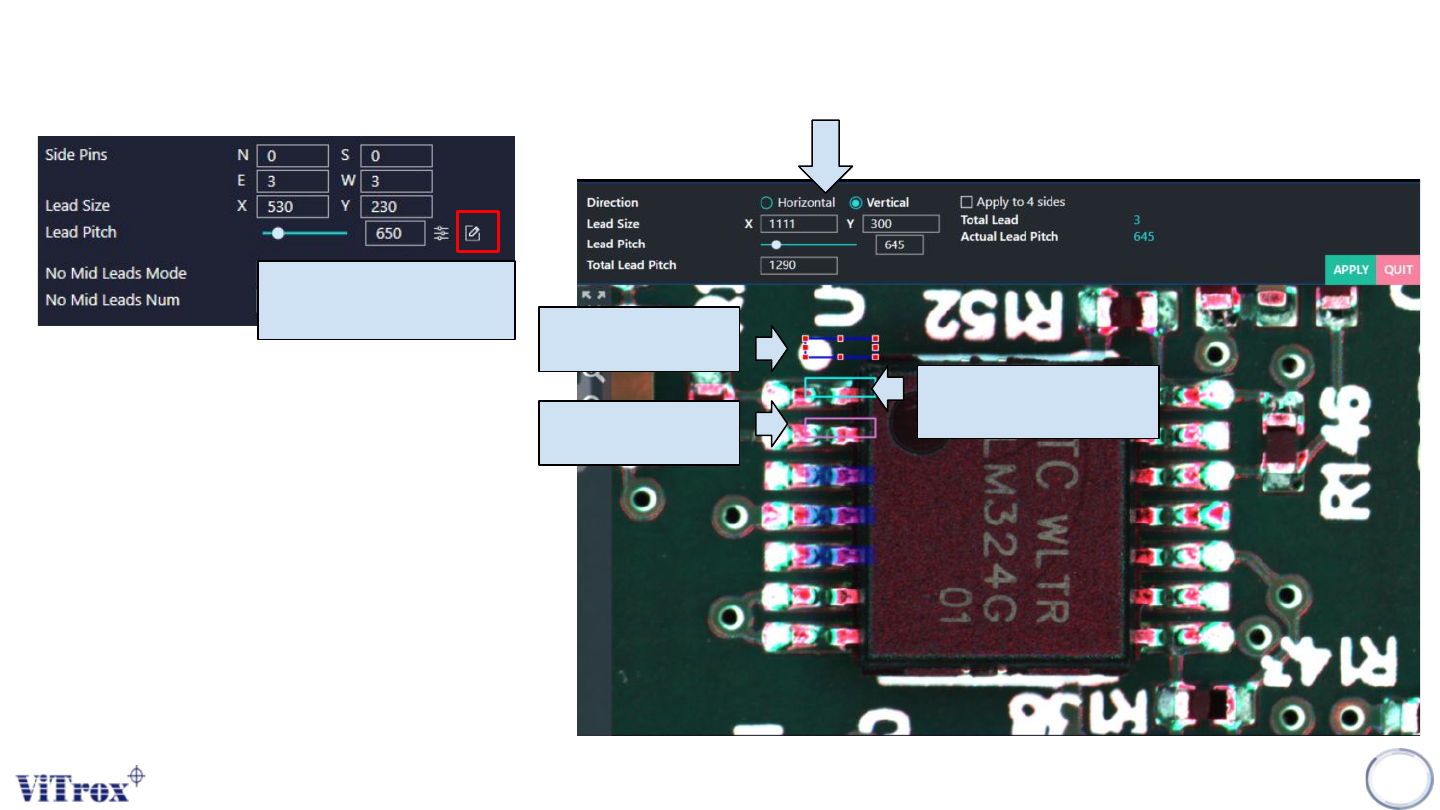
Orientation
Blue lead box:
1st lead
Pink lead box:
Last lead
Light blue lead box:
2nd lead
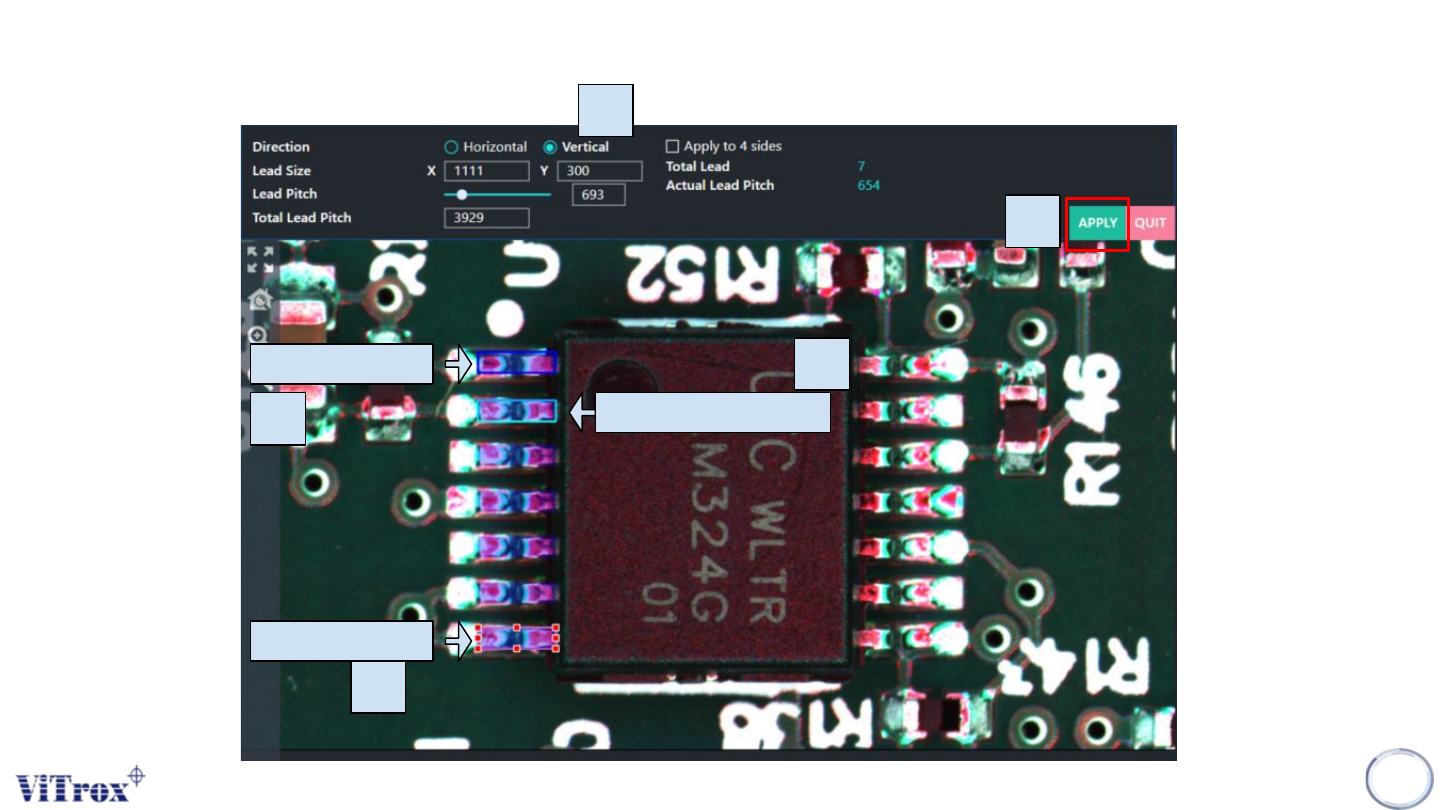
1. Click “Edit” button in Lead Pitch setting.
2. Define “direction” of lead.
3. Put the blue lead box at the first lead.
4. Put the light blue lead box at the
second lead.
5. Put the pink lead box at the last lead.
6. Click “Apply”.
7. Software will automatically calculate the
number of lead base on lead size &
lead pitch.
Edit to Auto Lead
Assignment Interface
S-Type Auto Lead Assignment
Copyright © ViTrox All Rights Reserved.
Blue lead box
Pink lead box
Light blue lead box
2
3
4
5
1
S-Type Auto Lead Assignment