00197700-02_IM_SetupCenter7.1_EN.pdf - 第62页
Barcode-Scanner Installation Datalogic Scanner 6.2.4 Datalogic Scanner Configuration 62 Installation Manual SIPLACE Setup Center 7.1 ► The installation routine continues if you click on the " I Agree " button t…
Barcode-Scanner Installation
6.2.4 Datalogic Scanner Configuration Datalogic Scanner
Installation Manual SIPLACE Setup Center 7.1 61
6.2.4
6.2.4 Datalogic Scanner Configuration
Datalogic Scanner Configuration
6.2.4.1
6.2.4.1 Verify the Firmware Status for the Datalogic Scanner
Verify the Firmware Status for the Datalogic Scanner
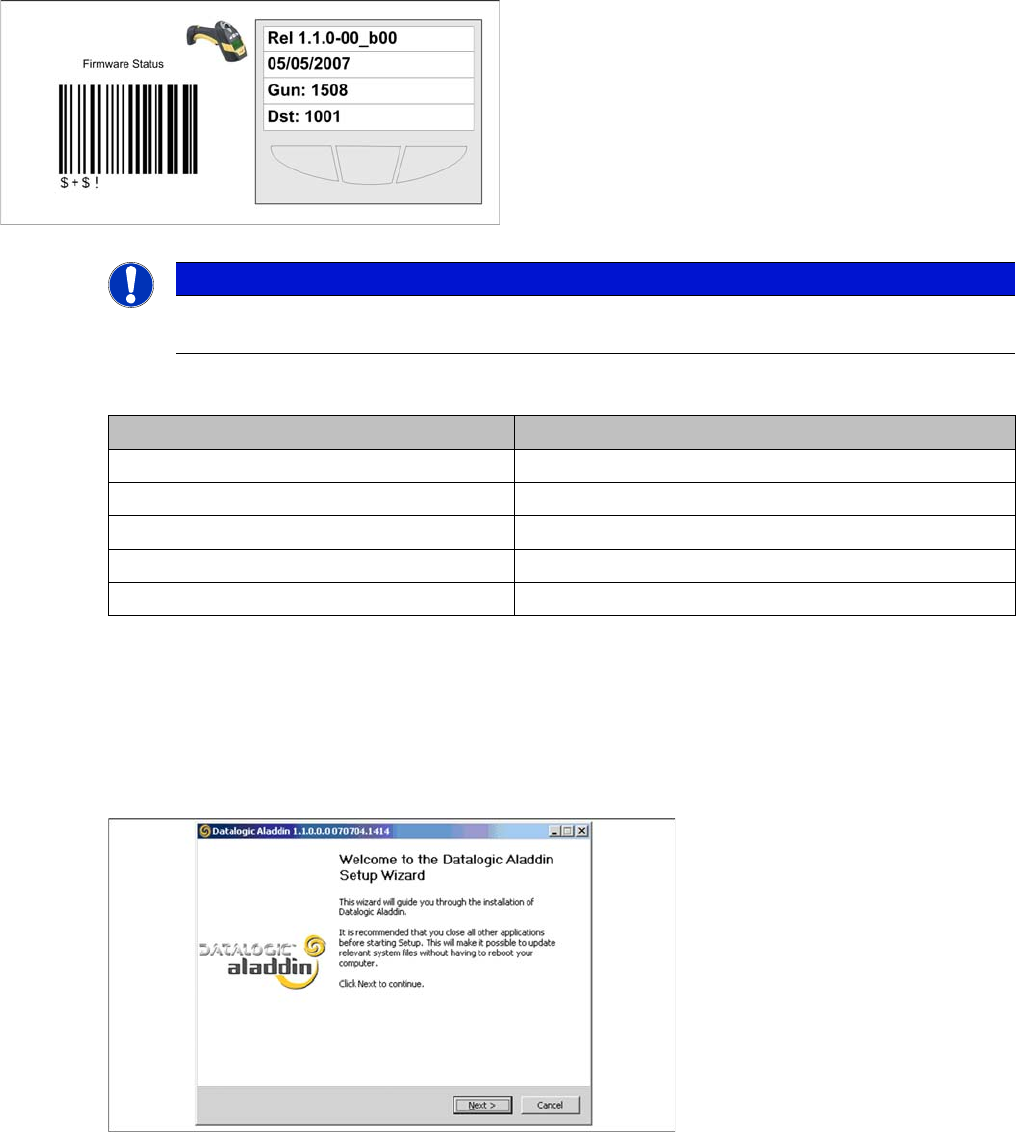
In case of problems with the Datalogic scanner, please check the Firmware version. If necessary, install
the current version with the "Datalogic Aladdin" tool.
The actual firmware versions are:
6.2.4.2
6.2.4.2 Firmware Upgrade of Datalogic Scanner
Firmware Upgrade of Datalogic Scanner
Installation of Datalogic Aladdin
In order to update a firmware version on a scanner the software "Datalogic Aladdin" need to be installed
on the computer, which is physically connected to the Datalogic OM30X0 cradle.
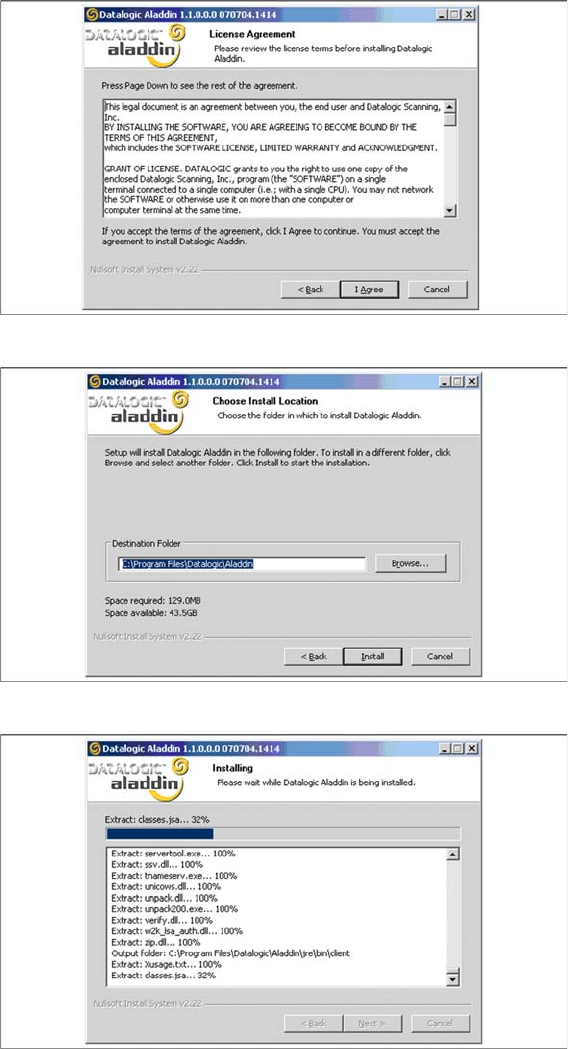
► Start the installation from the Support Media DVD : "\Updates\Firmware\Datalogic Aladdin".
► Click on Next to continue.
Key:
1. Line: Firmware version
2. Line: Release Date of firmware
3. Line: Address of the Scanner
4. Line: Address of the cradle
NOTICE
Please verify whether the actual firmware version is displayed on the Barcode Scanner. If not,
you should upgrade the firmware version for the Barcode Scanner.
Barcode Scanner Actual Firmware
Datalogic M131 1.1.0-00_b00
Datalogic M8300 2.0.1.00
Datalogic M8500 SS5403 1.00
Datalogic M8300BT SS5193 1.0.6
Datalogic M9500 Was not yet available at press date.
Barcode-Scanner Installation
Datalogic Scanner 6.2.4 Datalogic Scanner Configuration
62 Installation Manual SIPLACE Setup Center 7.1
► The installation routine continues if you click on the "I Agree" button to accept the license agreement.
► Choose the destination folder in which the software should be installed.
► Please wait until all files were installed. If the installation is completed, click on Next to continue.
Barcode-Scanner Installation
6.2.4 Datalogic Scanner Configuration Datalogic Scanner
Installation Manual SIPLACE Setup Center 7.1 63
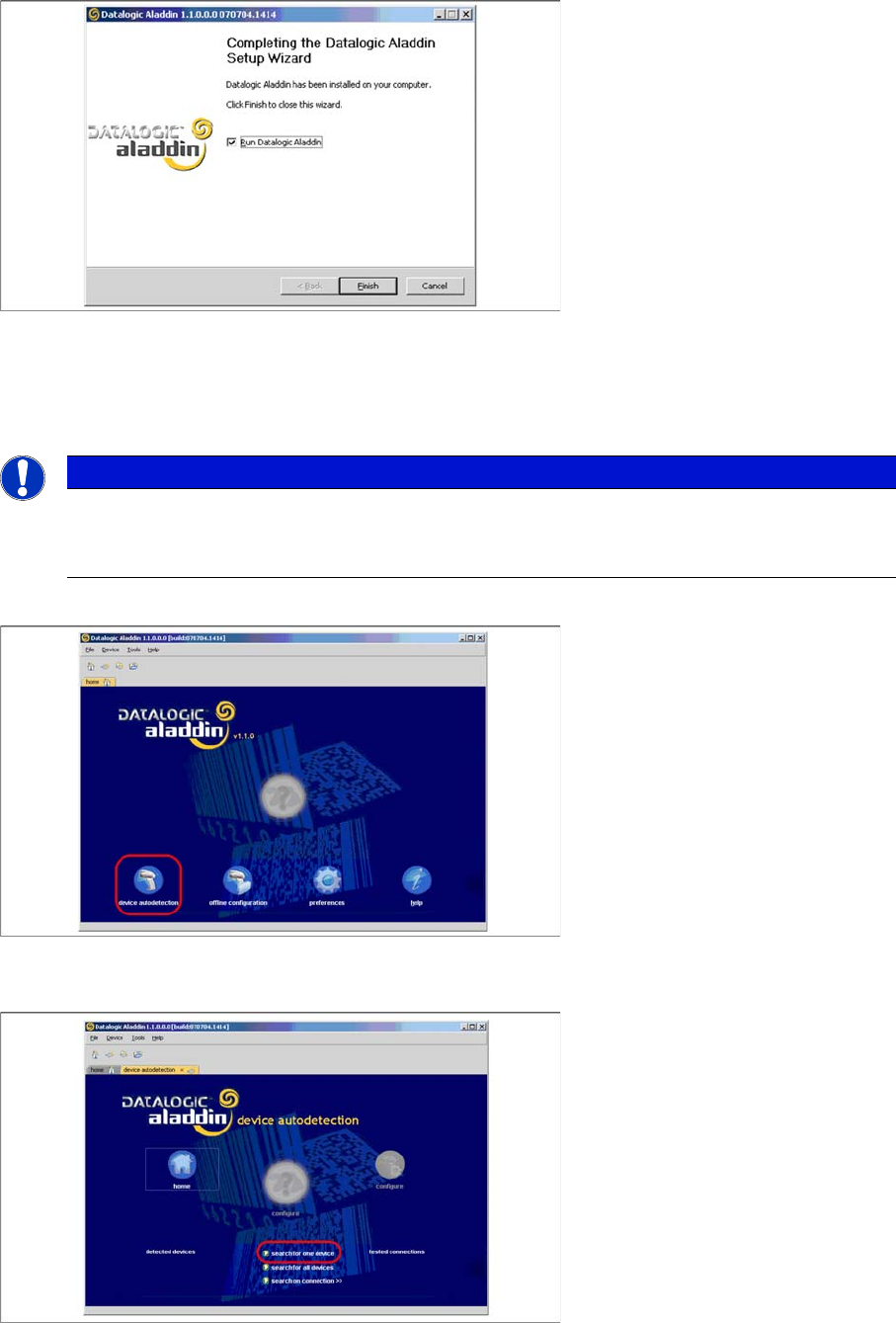
► Click on Finish.
► If the option "Run Datalogic Aladdin" was activated, the application starts now automatically.
Firmware upgrade
After "Datalogic Aladdin" was started, the following overview will be displayed.
► Select "device autodetection" to find out at which COM port the Datalogic OM30X0 cradle is con-
nected.
► Select "Search for one device" to start the search.
NOTICE
Please make sure that no applications such as SIPLACE Setup Center are accessing the serial
communication.
► Exit these applications before you continue.