00197700-02_IM_SetupCenter7.1_EN.pdf - 第78页
Barcode-Scanner Installation Motorola Scanner 6.3.5 Motorola / Symbol Scanner Configuration 78 Installation Manual SIPLACE Setup Center 7.1 ► Select "OK" to close t he window. The installation is now comple ted…
Barcode-Scanner Installation
6.3.4 Setup Center Client Installation Motorola Scanner
Installation Manual SIPLACE Setup Center 7.1 77
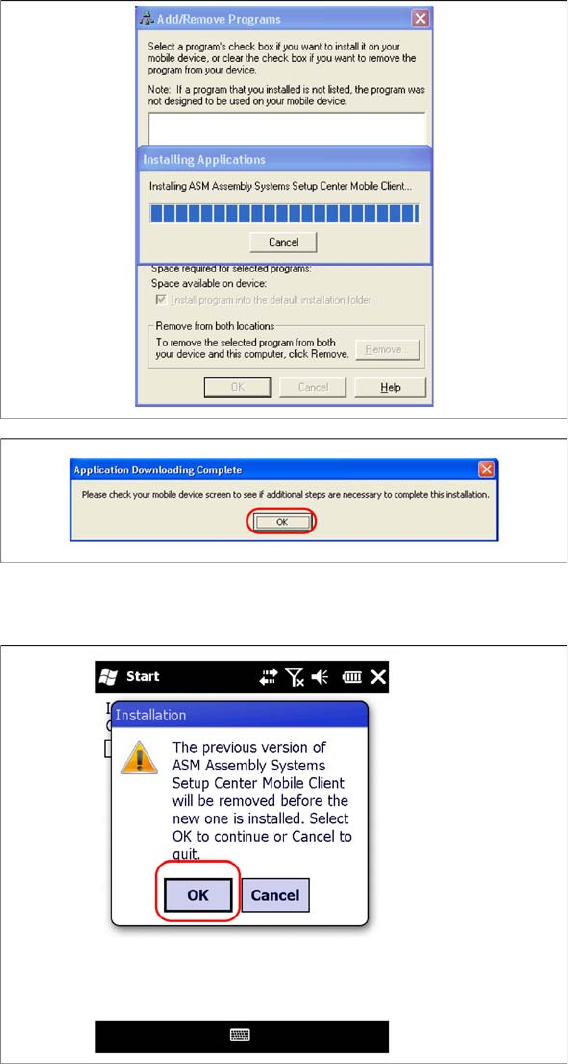
► After completion of the data transfer to the device click on "OK" to close the window.
The installation of the Setup Center Client is beginning.
► In case of a upgrade installation confirm the update of Setup Center Client with "OK".
Barcode-Scanner Installation
Motorola Scanner 6.3.5 Motorola / Symbol Scanner Configuration
78 Installation Manual SIPLACE Setup Center 7.1
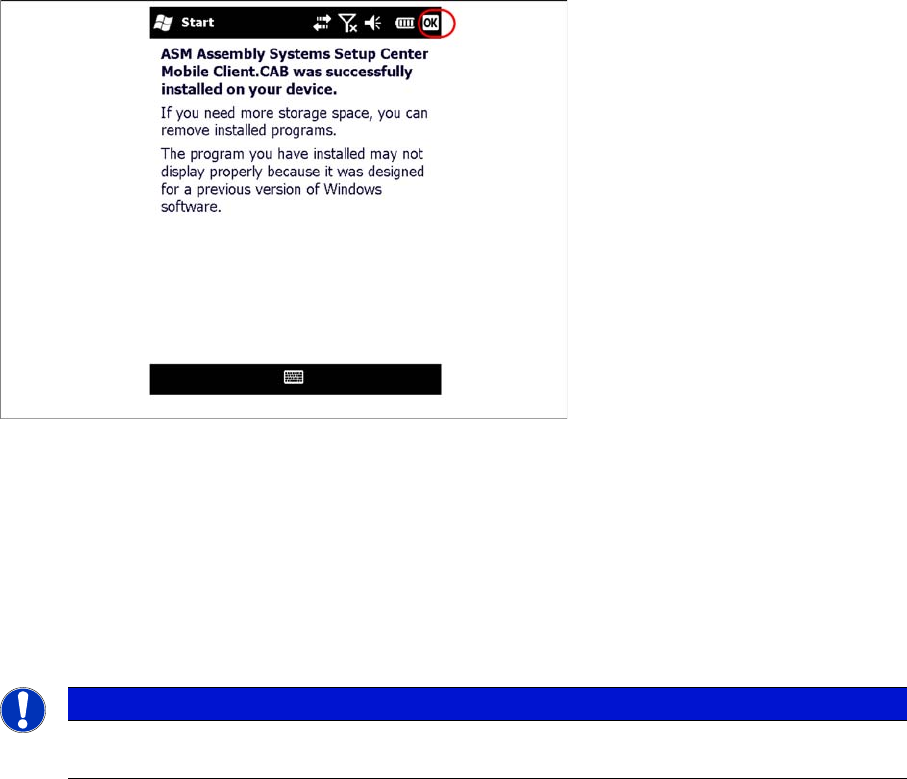
► Select "OK" to close the window. The installation is now completed. Please restart the device by
holding down the power key 5 seconds. After restart the Setup Center Client starts automatically and
you can start with the configuration of Setup Center and Client Software.
6.3.5
6.3.5 Motorola / Symbol Scanner Configuration
Motorola / Symbol Scanner Configuration
6.3.5.1
6.3.5.1 Configurate WLAN network
Configurate WLAN network
The communication between Setup Center and scanner is achieved by network connection (socket).
Setup Center takes the role of the server and the scanner that one of the client.
NOTICE
Please configurate the barcode scanner for the operation within WLAN network - as described
in document Installation Manual WLAN Infrastructure for SIPLACE (item no. 00197199-xx).
Barcode-Scanner Installation
6.3.5 Motorola / Symbol Scanner Configuration Motorola Scanner
Installation Manual SIPLACE Setup Center 7.1 79
6.3.5.2
6.3.5.2 Configure Setup Center Client
Configure Setup Center Client
Starting MC 70/MC75
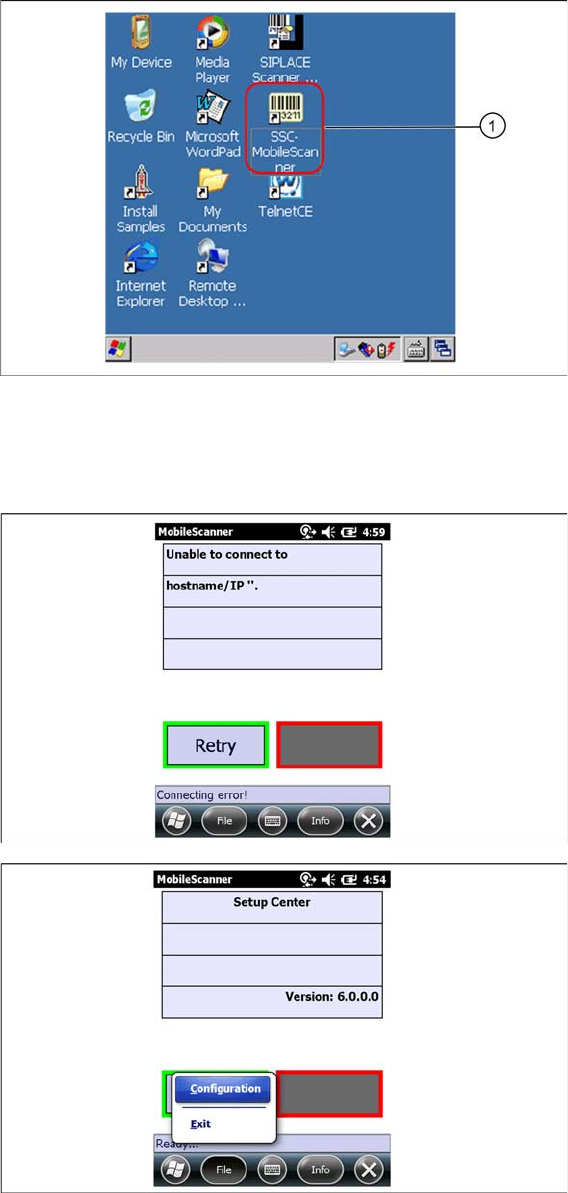
After the installation routine has restarted the scanner the Setup Center Client is started automatically
and the Mobile Scanner dialog appears.
MC 3090/MC 3190
For MC 3090/MC 31090 you must start the installation manually.
► Select SSC MobileScanner icon (1) to start installation.
⇨ The Mobile Scanner dialog appears.
Mobile Scanner dialog