00197700-02_IM_SetupCenter7.1_EN.pdf - 第63页
Barcode-Scanner Installation 6.2.4 Datalogic Scanner Configuration Datalogic Scanner Installation Manual SIPLACE Setup Center 7.1 63 ► Click on Fi nish . ► If the option " Run Datalogic Aladdin " was activated,…
Barcode-Scanner Installation
Datalogic Scanner 6.2.4 Datalogic Scanner Configuration
62 Installation Manual SIPLACE Setup Center 7.1
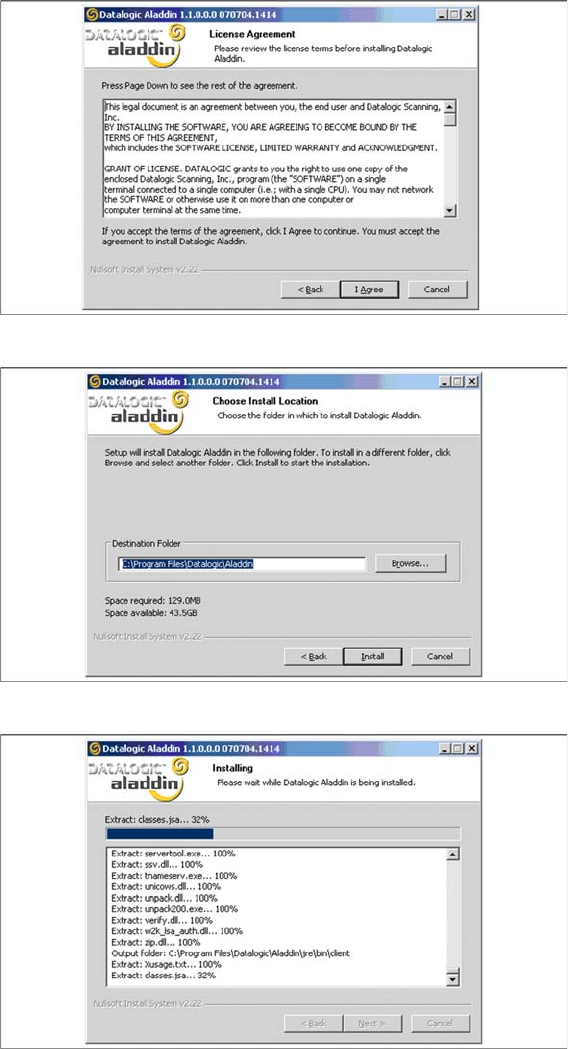
► The installation routine continues if you click on the "I Agree" button to accept the license agreement.
► Choose the destination folder in which the software should be installed.
► Please wait until all files were installed. If the installation is completed, click on Next to continue.
Barcode-Scanner Installation
6.2.4 Datalogic Scanner Configuration Datalogic Scanner
Installation Manual SIPLACE Setup Center 7.1 63
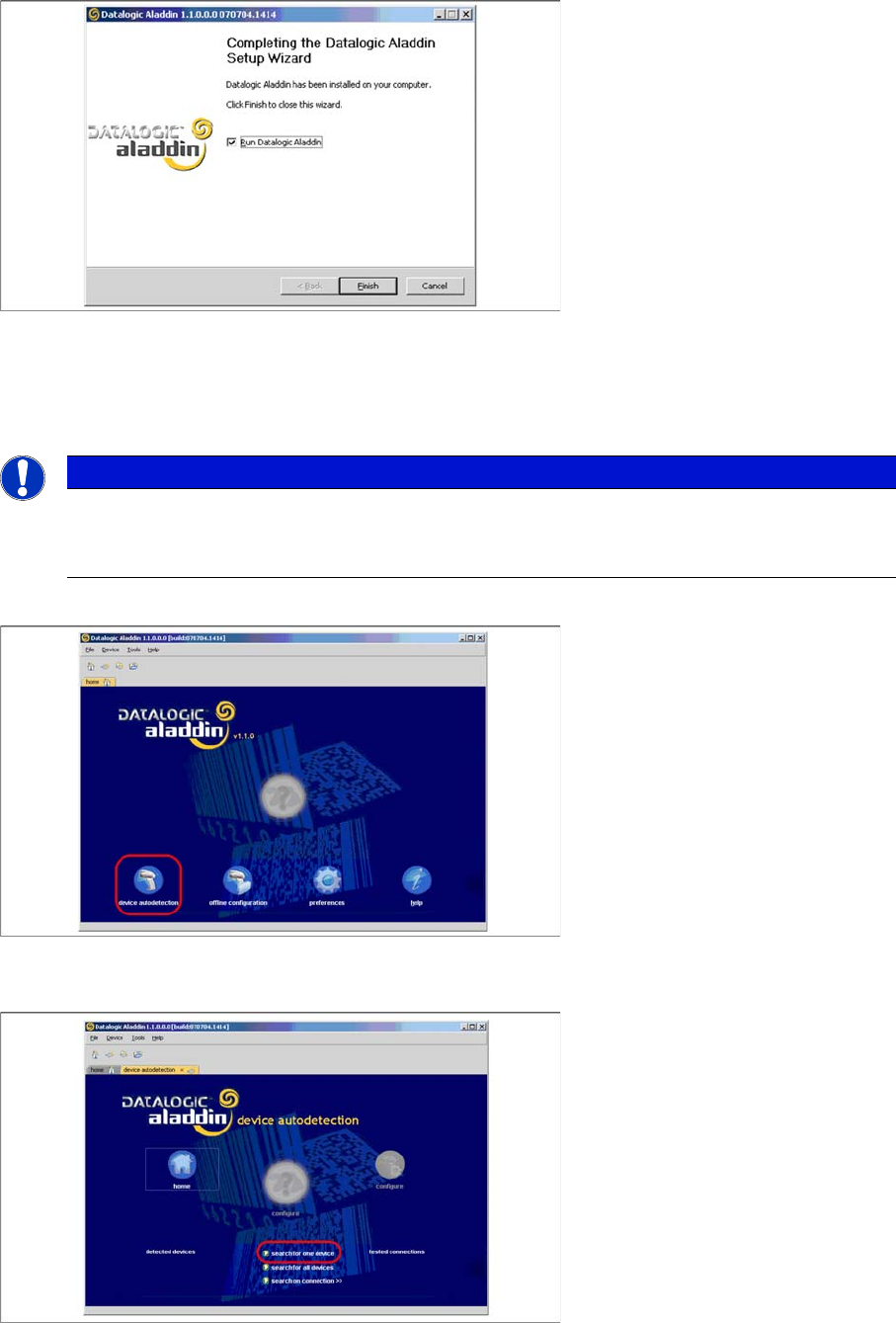
► Click on Finish.
► If the option "Run Datalogic Aladdin" was activated, the application starts now automatically.
Firmware upgrade
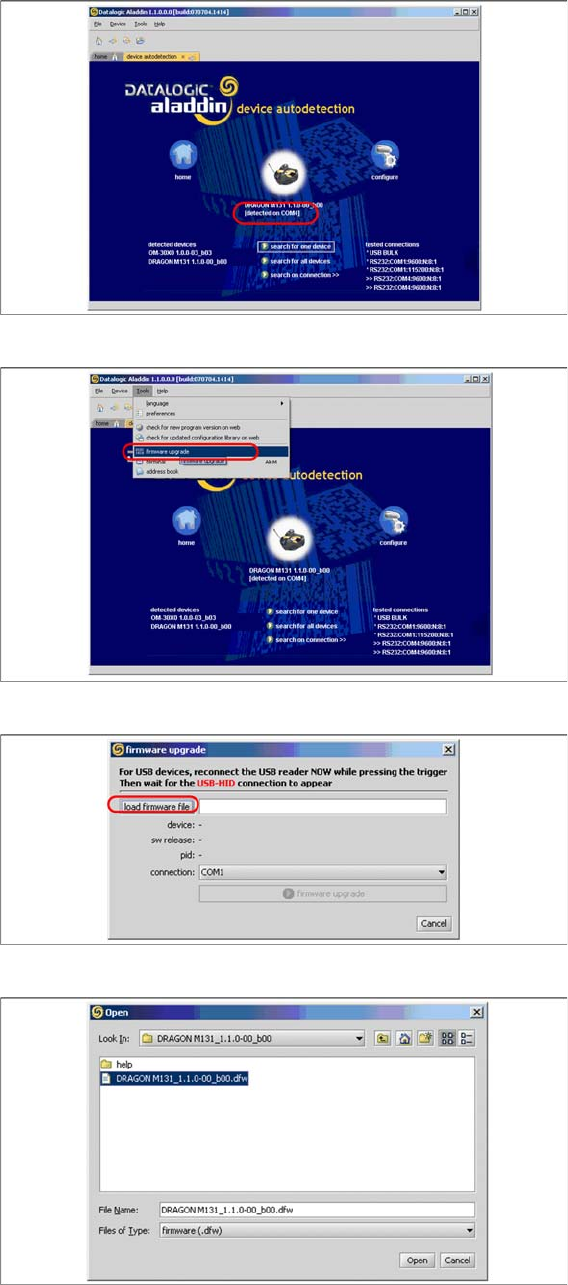
After "Datalogic Aladdin" was started, the following overview will be displayed.
► Select "device autodetection" to find out at which COM port the Datalogic OM30X0 cradle is con-
nected.
► Select "Search for one device" to start the search.
NOTICE
Please make sure that no applications such as SIPLACE Setup Center are accessing the serial
communication.
► Exit these applications before you continue.
Barcode-Scanner Installation
Datalogic Scanner 6.2.4 Datalogic Scanner Configuration
64 Installation Manual SIPLACE Setup Center 7.1
► The cradle is now detected.
► Select "firmware upgrade" from the menu "Tools".
► Select "load firmware file" in the dialog box.
► Open the folder where the firmware version 1.1.0-00_ b00 for the Datalogic Dragon M131 is stored
(standard path "C:\Program Files\Datalogic\Aladdin\resource\ConfigRepository\DRAGON
M131_1.1.0 00_ b00").