00196800-04_IM_SIPLACE_Explorer2.11_EN.pdf - 第27页
In st al la tio n an d Co nf ig ura t ion G ui de SIP LACE Ex pl ore r 3 I n st alli ng S IP LAC E Ex pl or e r Edi tion 10 /201 3 EN 3. 2 Up date Instal lat ion o f SIPL ACE E xplo rer 2. 11 27 3. 2 Update I ns t a lla …

3 Installing SIPLACE Explorer Installation and Configuration Guide SIPLACE Explorer
3.1 Initial Installation of SIPLACE Explorer 2.11 Edition 10/2013 EN
26
NOTE
You will need to specify the following information when installing Tomcat 5.5:
- Port number for Tomcat: By default, Tomcat is installed on port 8080. This means that your
users will access your website as follows:
http://yourServerName:8080/yourWebsite/index.jsp.
- Access data for the Tomcat administrator:
User name: admin
Password Policy: depending on the selected password policy, you need to enter a
password: MS128 or Siplace.1.
- Access data for the Tomcat website generator:
User name: deployer
Password Policy: depending on the selected password policy, you need to enter a
password: MS128 or Siplace.1.
This password is needed for website generation.
This login will automatically be used as default login for Line Configuration - Step 7 "Website
Generation". 3
NOTE
Before you install SIPLACE Explorer V2.11, make sure that Java 1.6 has been installed on
your computer. Install this software component via the support media DVD. 3
(3)SIPLACE Explorer V.2.11 options:
The options SIPLACE Traceability Option V2.0 and SIPLACE Maintenance Manager V1.0 are
not included in the SIPLACE Explorer V2.11 delivery package and must be ordered (installed)
separately. 3
(4)SIPLACE Explorer V.2.11 installation:
Proceed as described in “Installation of SIPLACE Explorer 2.11” on page 28. 3
Installation and Configuration Guide SIPLACE Explorer 3 Installing SIPLACE Explorer
Edition 10/2013 EN 3.2 Update Installation of SIPLACE Explorer 2.11
27
3.2 Update Installation of SIPLACE Explorer 2.11
To update from a previous version to SIPLACE Explorer V2.11, you must already have an
executable version of SIPLACE Explorer already installed on your system. 3
– Update from SIPLACE Explorer V2.0 - V2.10 to SIPLACE Explorer V2.11:
Uninstall the previous version with its components. For the installation, proceed as described
at “Initial Installation of SIPLACE Explorer 2.11” on page 23 3
NOTE
If you want to keep the existing line configurations and other settings, install the new version
of SIPLACE Explorer in the same folder as the previous version. See Fig. 3 - 6 SIPLACE
Explorer Setup - "Choose Folder" dialog box. 3
NOTE
If you have an English operating system, the Asian language files must be installed.
Otherwise SIPLACE Explorer can not display the tray menus correctly after you have set the
user interface to an Asian language. SIPLACE Explorer displays ???.
Proceed as described in “Adjusting the Regional Settings for Asian Languages” on page 39.3
After performing the update, you can also install additional SIPLACE Explorer options: 3
– SIPLACE Explorer V2.11 options:
The options SIPLACE Traceability Option 2.0 and SIPLACE Maintenance Manager V1.0 are
not included in the SIPLACE Explorer V2.11 delivery package and must be ordered (installed)
separately. 3
– SIPLACE Explorer V.2.11 installation:
Proceed as described in “Installation of SIPLACE Explorer 2.11” on page 28. 3
3 Installing SIPLACE Explorer Installation and Configuration Guide SIPLACE Explorer
3.3 Installation of SIPLACE Explorer 2.11 Edition 10/2013 EN
28
3.3 Installation of SIPLACE Explorer 2.11
NOTE
You must have Windows administrator privileges to perform installation. 3
Place the support media DVD in your DVD drive. Follow the instructions in the document
“Navigation Guide for the Installation Procedure of SIPLACE Software Systems”.
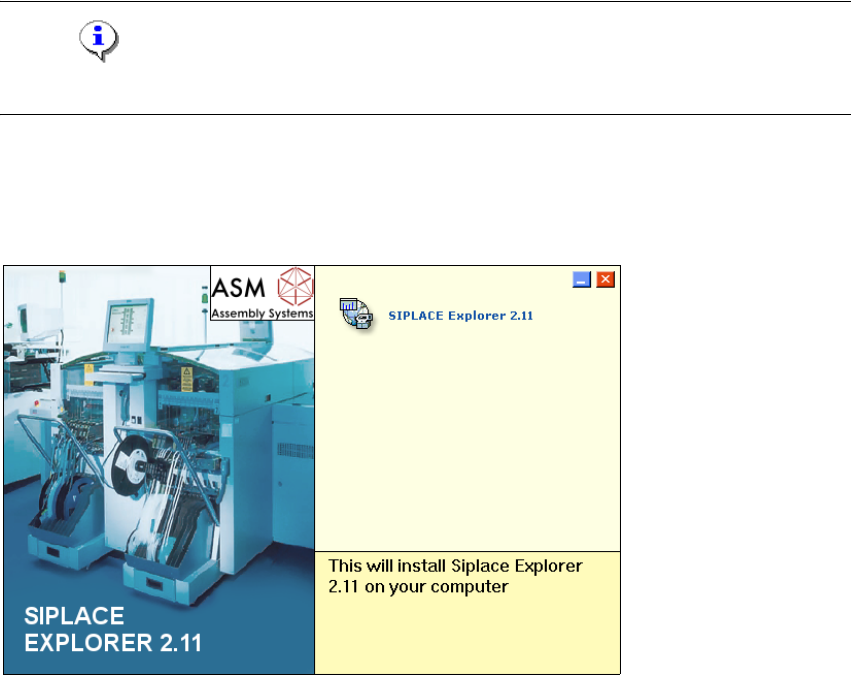
Place the SIPLACE Explorer CD in your CD-ROM drive. The Start screen will open.
3
Fig. 3 - 1 SIPLACE Explorer setup - Start screen
Select SIPLACE Explorer 2.11.
You will be guided through the SIPLACE Explorer installation procedure.