00196800-04_IM_SIPLACE_Explorer2.11_EN.pdf - 第42页
3 In stal ling S IP LACE Ex plore r Ins tall ati on and Con figu rati on Guid e SI PLA CE Exp lorer 3. 6 MS SQ L Serv e r Co nfi gu rat io n E d iti on 10 /2 01 3 E N 42 3 Fig . 3 - 19 MS SQL Ser ver Prop ertie s Selec…
Installation and Configuration Guide SIPLACE Explorer 3 Installing SIPLACE Explorer
Edition 10/2013 EN 3.6 MS SQL Server Configuration
41
3.5.2 Windows Server 2003 SP2 and Windows Server 2003 R2
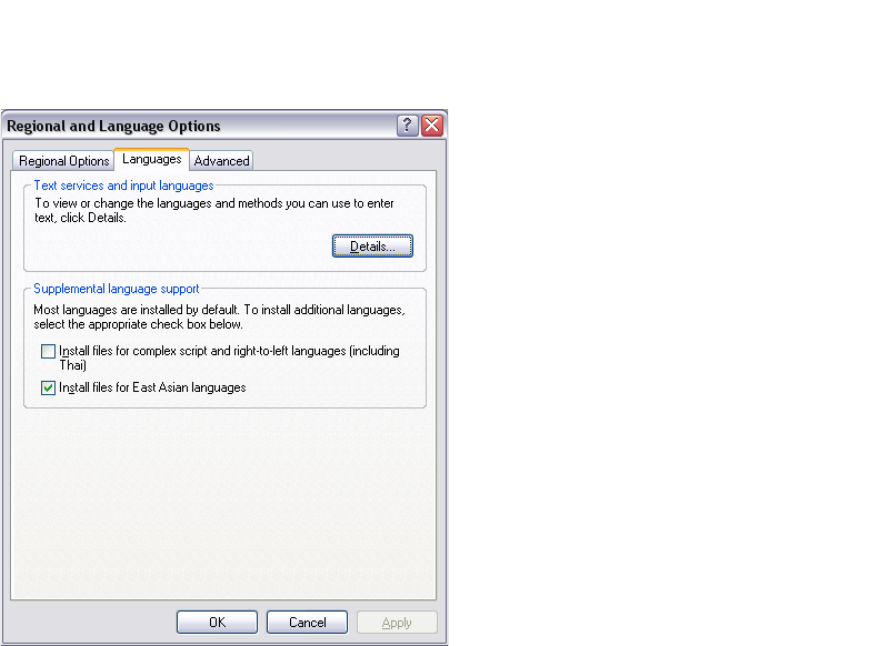
In the Windows menu, click Start Settings Control Panel Regional and language
Option.
Click the Languages tab.
3
Fig. 3 - 18 Regional Settings in Windows Server 2003 SP2 und Windows Server 2003 R2
Activate the Install files for East Asian languages check box.
Confirm with OK.
3.6 MS SQL Server Configuration
You can configure the system database with the Line Configuration. See “Step 5 - Configure
System Database” on page 57. 3
If you want to configure the maintenance of the system database it is required to configure the MS
SQL Server: 3
Start MS SQL Server Management Studio.
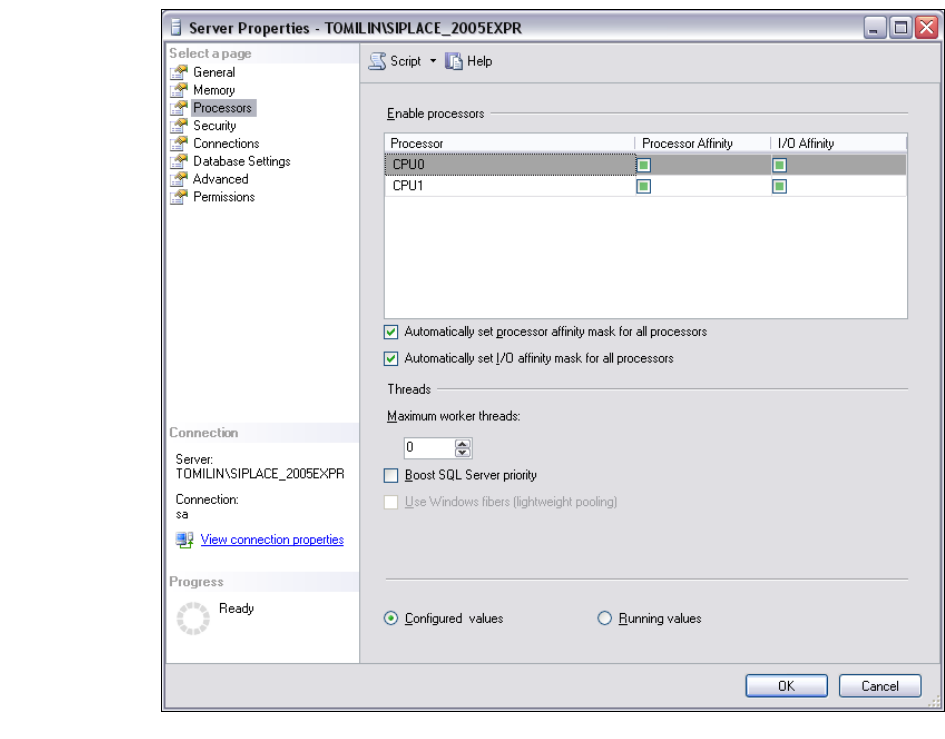
Open the Server Properties dialog box. Select the server instance which contains the
SIPLACE Explorer system database. Select Properties from the context menu. The Server
Properties dialog box will open:
3 Installing SIPLACE Explorer Installation and Configuration Guide SIPLACE Explorer
3.6 MS SQL Server Configuration Edition 10/2013 EN
42
3
Fig. 3 - 19 MS SQL Server Properties
Select Processors.
Enable the following check boxes:
– Automatically set processor affinity mask for all processors
– Automatically set I/O affinity mask for all processors
Confirm with OK.
Start the MS SQL Server again.
Installation and Configuration Guide SIPLACE Explorer 3 Installing SIPLACE Explorer
Edition 10/2013 EN 3.7 Tomcat Configuration
43
3.7 Tomcat Configuration
3.7.1 Using Windows 2003 Server
If you have installed Windows 2003 Server as your operating system, you will need to reconfigure
the web server (Tomcat) before using SIPLACE Explorer V2.11. This configuration will be done
via Internet Explorer. 3
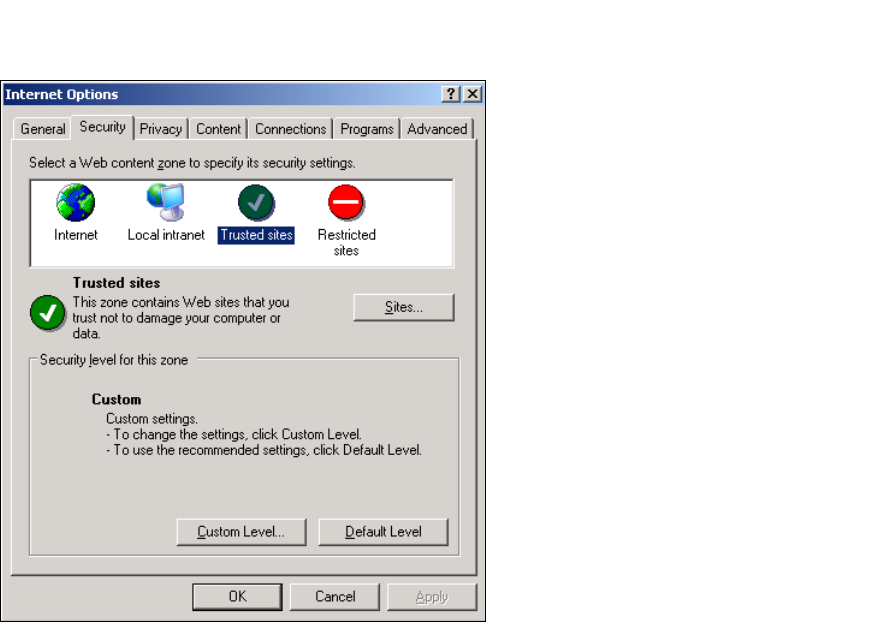
Select the menu Tools Options.
The Internet Options dialog box will open:
3
Fig. 3 - 20 Internet Options
Select the Security tab.
Click on the Trusted Sites icon and click on Sites.
The Trusted Sites dialog box will open: