00196800-04_IM_SIPLACE_Explorer2.11_EN.pdf - 第39页
In st al la tio n an d Co nf ig ura t ion G ui de SIP LACE Ex pl ore r 3 I n st alli ng S IP LAC E Ex pl or e r Edi tion 10 /201 3 EN 3. 5 Adjust ing the Reg iona l Set ting s for As ian Lang uage s 39 S IPLACE Exp lor…
3 Installing SIPLACE Explorer Installation and Configuration Guide SIPLACE Explorer
3.4 Starting SIPLACE Explorer Edition 10/2013 EN
38
– Language
–Exit
These additional applications and tools can also be started via the Programs SIPLACE
Explorer 2.11 menu in Windows. 3
3
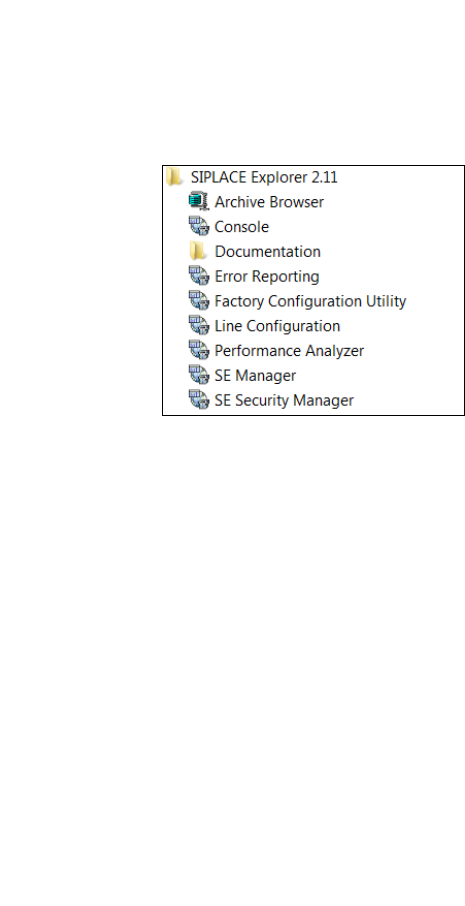
Fig. 3 - 15 RTE Windows Start menu
The following options are available: 3
– Archive Browser
–Console
– Documentation
– Error Reporting
– Factory Configuration Utility
– Line Configuration
– Modify-Uninstall
– Performance Analyzer
– SE Manager
– SE Security Manager
Installation and Configuration Guide SIPLACE Explorer 3 Installing SIPLACE Explorer
Edition 10/2013 EN 3.5 Adjusting the Regional Settings for Asian Languages
39
SIPLACE Explorer V.2.11 Factory Configuration Utility
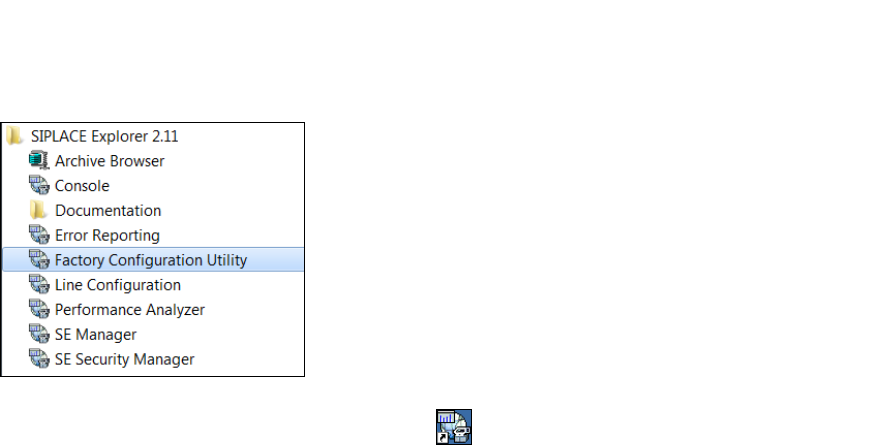
Start the Factory Configuration Utility via the Programs SIPLACE Explorer 2.11 Factory
Configuration Utility menu in Windows. 3
3
Fig. 3 - 16 Factory Configuration Utility Windows Start menu
Or click on the Factory Configuration Utility icon on your desktop.
3.5 Adjusting the Regional Settings for Asian Languages
If you have an English operating system, the Asian language files must be installed. Otherwise
SIPLACE Explorer can not display the tray menus correctly after you have set the user interface
to an Asian language. SIPLACE Explorer displays ???. 3
3 Installing SIPLACE Explorer Installation and Configuration Guide SIPLACE Explorer
3.5 Adjusting the Regional Settings for Asian Languages Edition 10/2013 EN
40
3.5.1 Windows XP
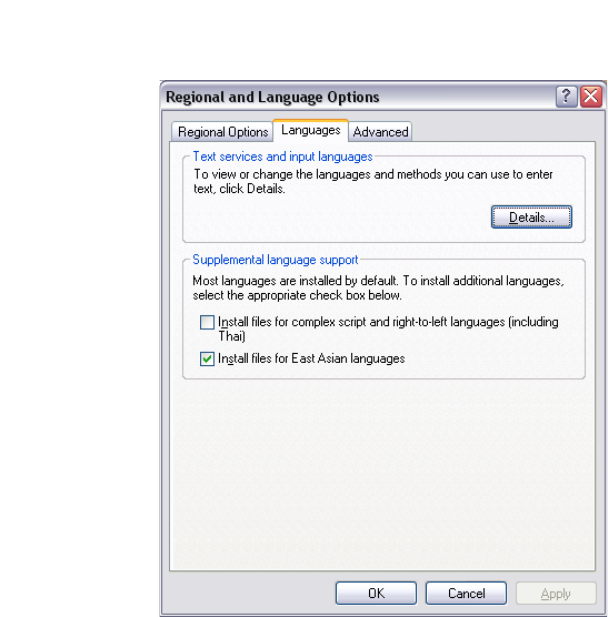
In the Windows menu, click Start Control Panel Regional and language Option.
Click the Languages tab.
3
Fig. 3 - 17 Regional Settings in Windows XP
Activate the Install files for East Asian languages check box.
Confirm with OK.