00196800-04_IM_SIPLACE_Explorer2.11_EN.pdf - 第38页
3 In stal ling S IP LACE Ex plore r Ins tall ati on and Con figu rati on Guid e SI PLA CE Exp lorer 3.4 S tartin g SIPLACE Exp lorer Ed iti on 10 /2 01 3 EN 38 – Language –E x i t Thes e additional applications and tools…
Installation and Configuration Guide SIPLACE Explorer 3 Installing SIPLACE Explorer
Edition 10/2013 EN 3.4 Starting SIPLACE Explorer
37
NOTE
After installing SIPLACE Explorer, reboot your system. This ensures that port 1099 is available for
the Java Runtime Environment. In rare cases, port 1099 may be used by another application. If
you start SIPLACE Explorer after the installation, without rebooting the system, the error message
"SIPLACE Explorer 2.11 runtime not found" would be shown in such cases. 3
3.4 Starting SIPLACE Explorer
SIPLACE Explorer can be started by selecting Programs SIPLACE Explorer 2.11 from the
Windows menu and will be loaded to correspond with your selected installation options.
SIPLACE Explorer V.2.11 Runtime Environment:
"Runtime Environment" runs as a Windows service and is automatically started whenever you
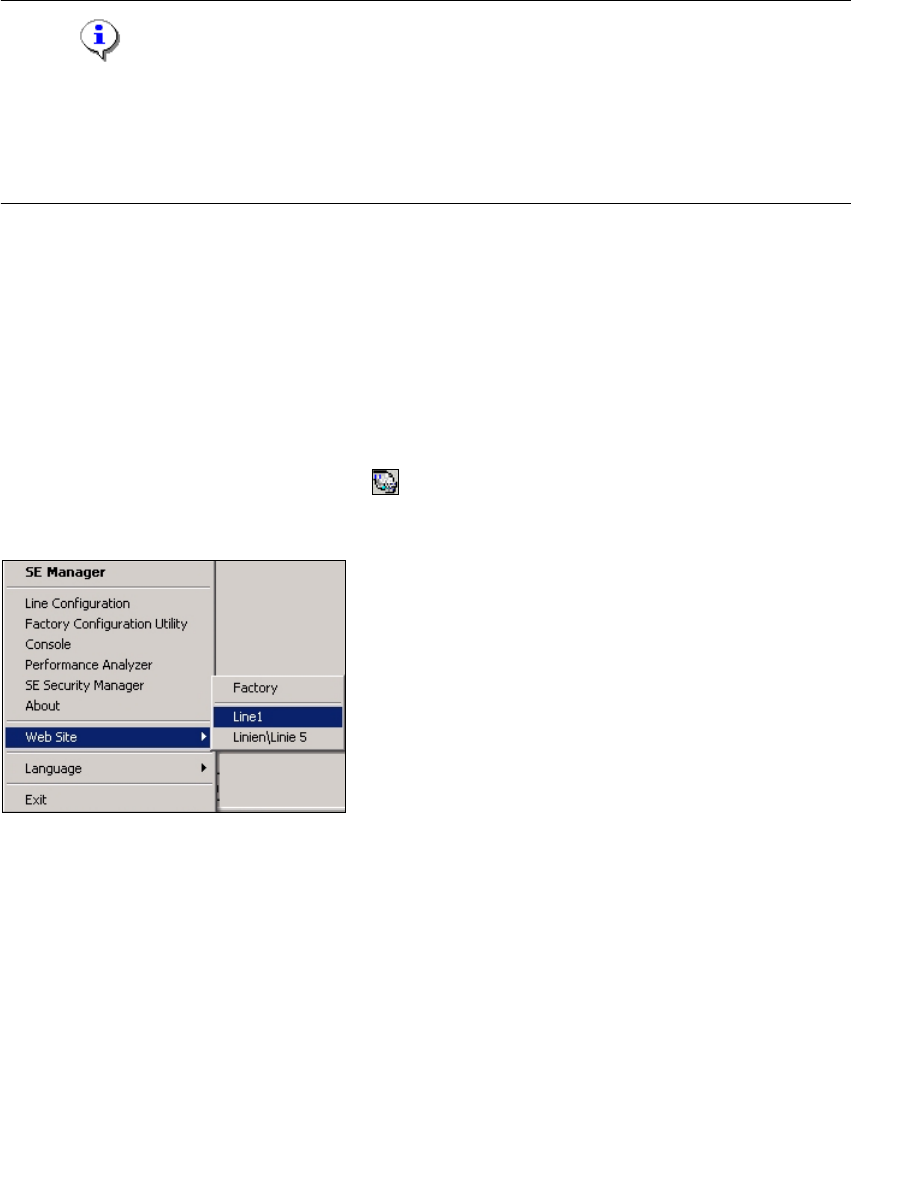
reboot your computer. You will see the icon in your console. Right-click with the mouse to
open other applications and tools. 3
3
Fig. 3 - 14 RTE Windows Start menu
The following options are available: 3
– SE Manager
– Line Configuration
– Factory Configuration Utility
–Console
– Performance Analyzer
– SE Security Manager
– About
– Website:
Wit this menu, you can open the websites as well as the factory website.
3 Installing SIPLACE Explorer Installation and Configuration Guide SIPLACE Explorer
3.4 Starting SIPLACE Explorer Edition 10/2013 EN
38
– Language
–Exit
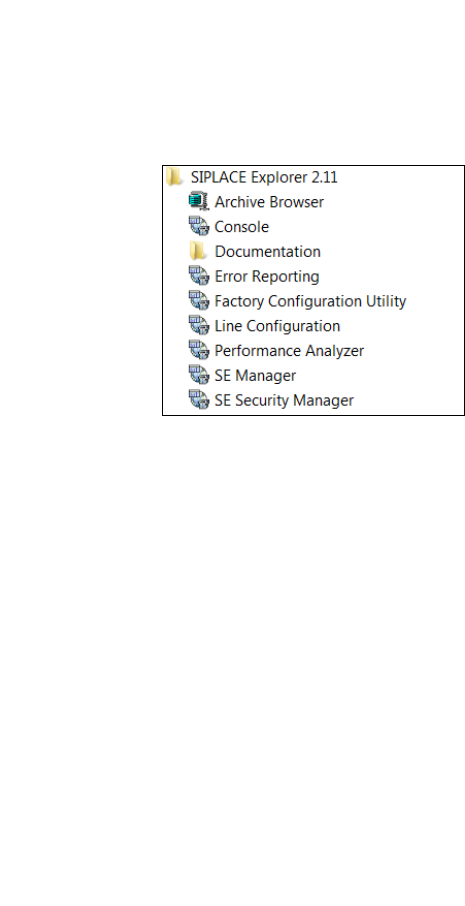
These additional applications and tools can also be started via the Programs SIPLACE
Explorer 2.11 menu in Windows. 3
3
Fig. 3 - 15 RTE Windows Start menu
The following options are available: 3
– Archive Browser
–Console
– Documentation
– Error Reporting
– Factory Configuration Utility
– Line Configuration
– Modify-Uninstall
– Performance Analyzer
– SE Manager
– SE Security Manager
Installation and Configuration Guide SIPLACE Explorer 3 Installing SIPLACE Explorer
Edition 10/2013 EN 3.5 Adjusting the Regional Settings for Asian Languages
39
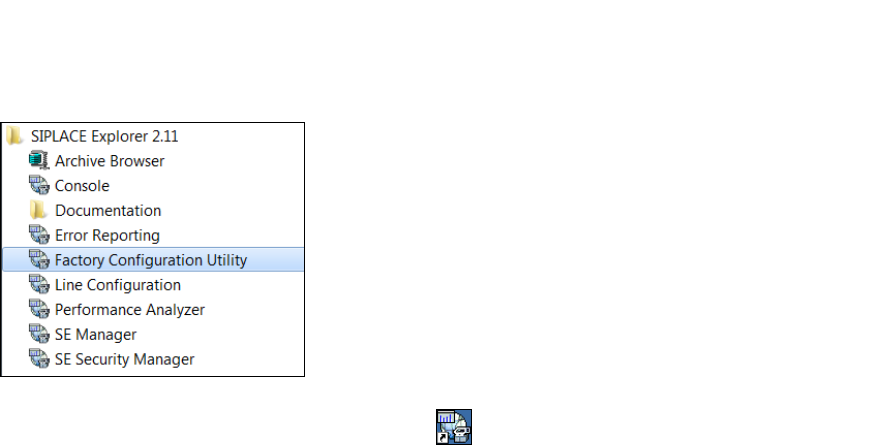
SIPLACE Explorer V.2.11 Factory Configuration Utility
Start the Factory Configuration Utility via the Programs SIPLACE Explorer 2.11 Factory
Configuration Utility menu in Windows. 3
3
Fig. 3 - 16 Factory Configuration Utility Windows Start menu
Or click on the Factory Configuration Utility icon on your desktop.
3.5 Adjusting the Regional Settings for Asian Languages
If you have an English operating system, the Asian language files must be installed. Otherwise
SIPLACE Explorer can not display the tray menus correctly after you have set the user interface
to an Asian language. SIPLACE Explorer displays ???. 3