00196800-04_IM_SIPLACE_Explorer2.11_EN.pdf - 第36页
3 In stal ling S IP LACE Ex plore r Ins tall ati on and Con figu rati on Guid e SI PLA CE Exp lorer 3. 3 I nst a ll ati on of SI PLA CE Ex pl ore r 2 .1 1 Ed iti on 10 /2 01 3 EN 36 3 F ig. 3 - 1 2 S IP LA CE E xp lo rer…
Installation and Configuration Guide SIPLACE Explorer 3 Installing SIPLACE Explorer
Edition 10/2013 EN 3.3 Installation of SIPLACE Explorer 2.11
35
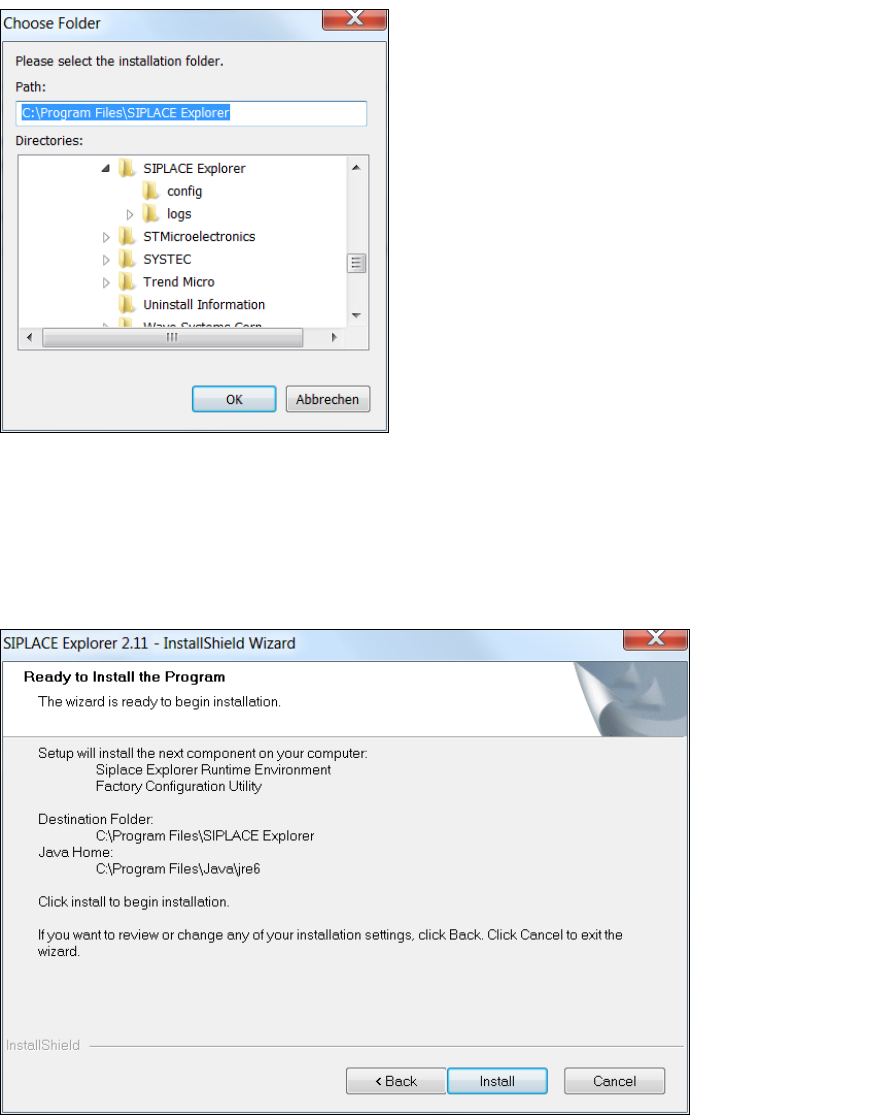
The Choose Folder dialog box will open to locate the desired folder.
3
Fig. 3 - 10 SIPLACE Explorer Setup - 'choose folder' dialog box
Specify the required folder and click on OK, to confirm your choice. You will return to the Import
Line Configuration dialog box, where the folder will be shown.
To accept the destination folder, click on Next in the Import Line Configuration window.
The Ready to Install the Program dialog box will open.
3
Fig. 3 - 11 SIPLACE Explorer setup - 'ready to install' dialog box
Click on the Install button, to begin the actual installation of SIPLACE Explorer V2.11.
3 Installing SIPLACE Explorer Installation and Configuration Guide SIPLACE Explorer
3.3 Installation of SIPLACE Explorer 2.11 Edition 10/2013 EN
36
3
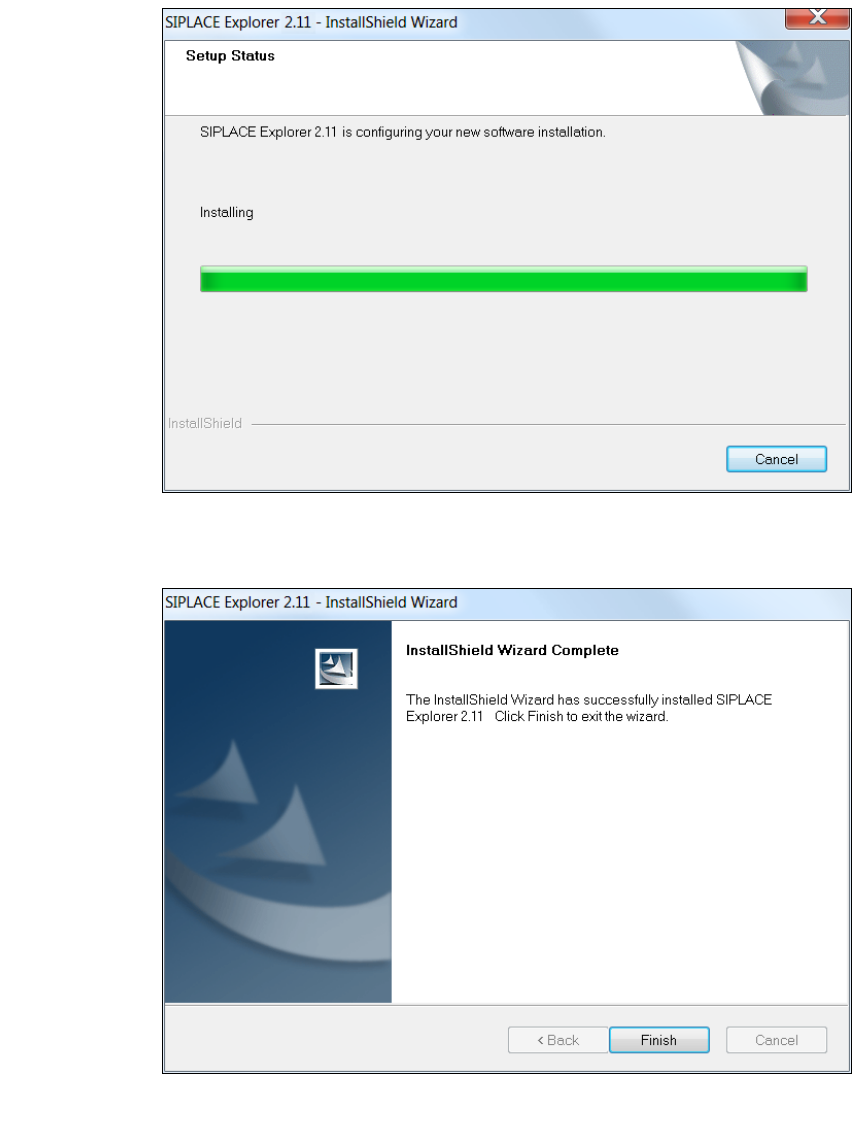
Fig. 3 - 12 SIPLACE Explorer setup - setup status
Once the installation procedure has finished, the following dialog box will open.
3
Fig. 3 - 13 SIPLACE Explorer setup - installation complete
Click on Finish. After you have rebooted your computer, SIPLACE Explorer will be available
for use. Follow the instructions at “Starting SIPLACE Explorer” on page 37.
Installation and Configuration Guide SIPLACE Explorer 3 Installing SIPLACE Explorer
Edition 10/2013 EN 3.4 Starting SIPLACE Explorer
37
NOTE
After installing SIPLACE Explorer, reboot your system. This ensures that port 1099 is available for
the Java Runtime Environment. In rare cases, port 1099 may be used by another application. If
you start SIPLACE Explorer after the installation, without rebooting the system, the error message
"SIPLACE Explorer 2.11 runtime not found" would be shown in such cases. 3
3.4 Starting SIPLACE Explorer
SIPLACE Explorer can be started by selecting Programs SIPLACE Explorer 2.11 from the
Windows menu and will be loaded to correspond with your selected installation options.
SIPLACE Explorer V.2.11 Runtime Environment:
"Runtime Environment" runs as a Windows service and is automatically started whenever you
reboot your computer. You will see the icon in your console. Right-click with the mouse to
open other applications and tools. 3
3
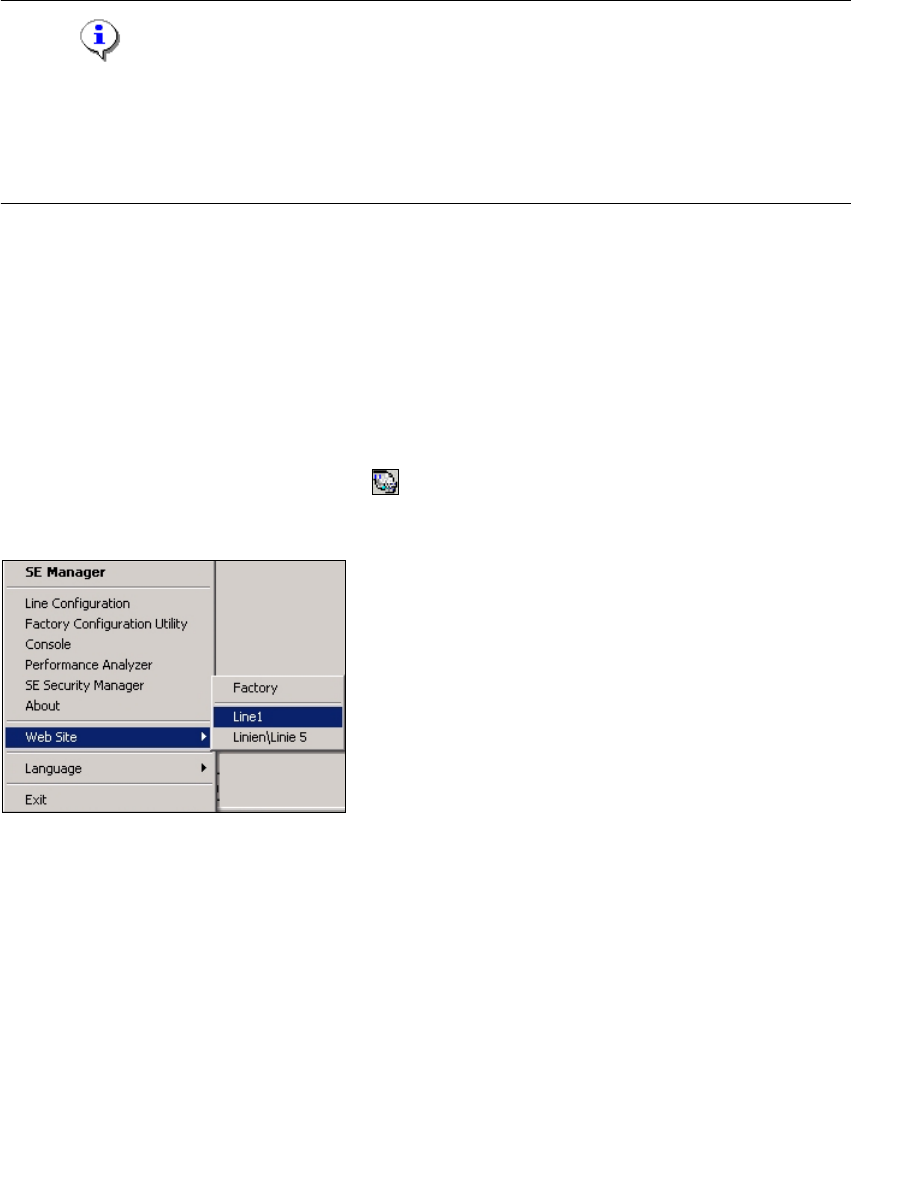
Fig. 3 - 14 RTE Windows Start menu
The following options are available: 3
– SE Manager
– Line Configuration
– Factory Configuration Utility
–Console
– Performance Analyzer
– SE Security Manager
– About
– Website:
Wit this menu, you can open the websites as well as the factory website.