00196800-04_IM_SIPLACE_Explorer2.11_EN.pdf - 第40页
3 In stal ling S IP LACE Ex plore r Ins tall ati on and Con figu rati on Guid e SI PLA CE Exp lorer 3. 5 A dj us tin g th e Re gi on al Se tt i ngs f o r As ia n L an g ua ge s Ed iti on 10 /2 01 3 EN 40 3.5. 1 Windows X…
Installation and Configuration Guide SIPLACE Explorer 3 Installing SIPLACE Explorer
Edition 10/2013 EN 3.5 Adjusting the Regional Settings for Asian Languages
39
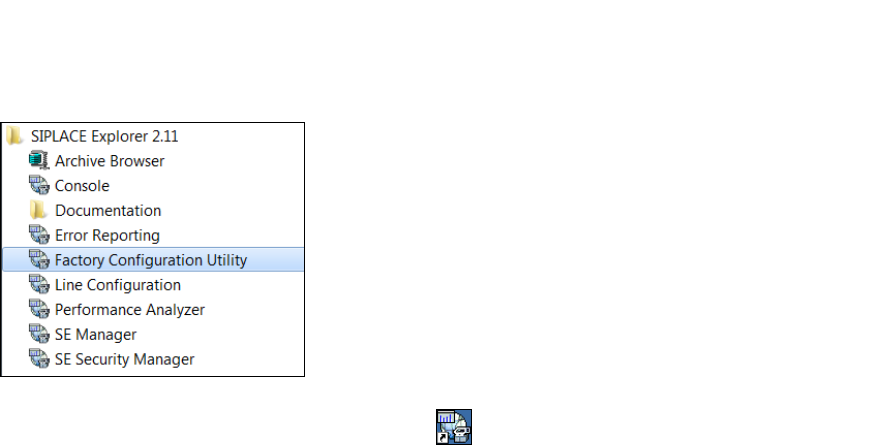
SIPLACE Explorer V.2.11 Factory Configuration Utility
Start the Factory Configuration Utility via the Programs SIPLACE Explorer 2.11 Factory
Configuration Utility menu in Windows. 3
3
Fig. 3 - 16 Factory Configuration Utility Windows Start menu
Or click on the Factory Configuration Utility icon on your desktop.
3.5 Adjusting the Regional Settings for Asian Languages
If you have an English operating system, the Asian language files must be installed. Otherwise
SIPLACE Explorer can not display the tray menus correctly after you have set the user interface
to an Asian language. SIPLACE Explorer displays ???. 3
3 Installing SIPLACE Explorer Installation and Configuration Guide SIPLACE Explorer
3.5 Adjusting the Regional Settings for Asian Languages Edition 10/2013 EN
40
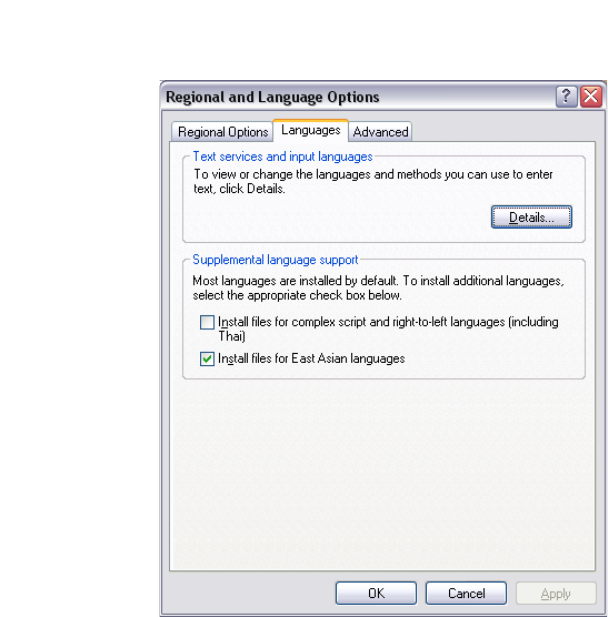
3.5.1 Windows XP
In the Windows menu, click Start Control Panel Regional and language Option.
Click the Languages tab.
3
Fig. 3 - 17 Regional Settings in Windows XP
Activate the Install files for East Asian languages check box.
Confirm with OK.
Installation and Configuration Guide SIPLACE Explorer 3 Installing SIPLACE Explorer
Edition 10/2013 EN 3.6 MS SQL Server Configuration
41
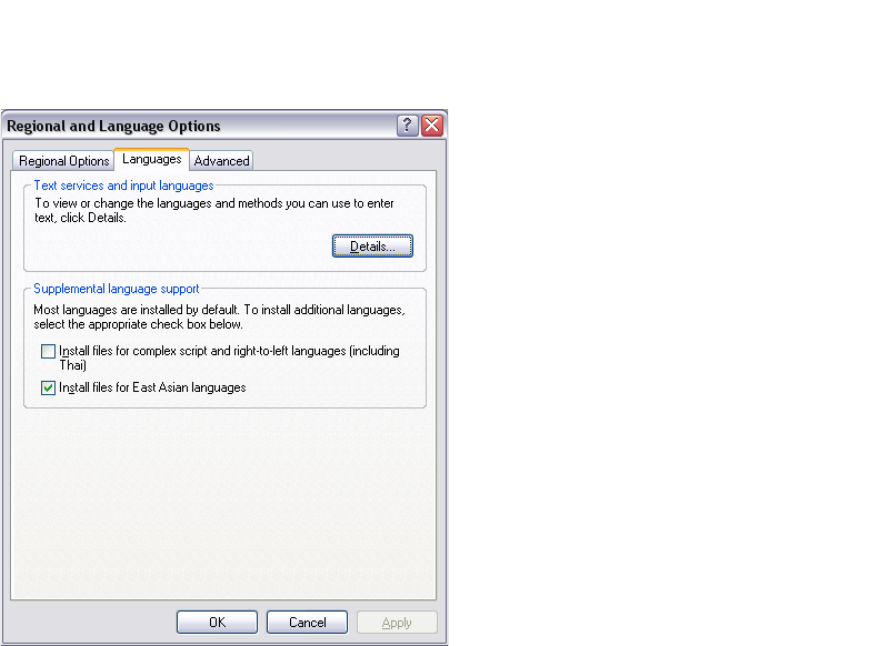
3.5.2 Windows Server 2003 SP2 and Windows Server 2003 R2
In the Windows menu, click Start Settings Control Panel Regional and language
Option.
Click the Languages tab.
3
Fig. 3 - 18 Regional Settings in Windows Server 2003 SP2 und Windows Server 2003 R2
Activate the Install files for East Asian languages check box.
Confirm with OK.
3.6 MS SQL Server Configuration
You can configure the system database with the Line Configuration. See “Step 5 - Configure
System Database” on page 57. 3
If you want to configure the maintenance of the system database it is required to configure the MS
SQL Server: 3
Start MS SQL Server Management Studio.
Open the Server Properties dialog box. Select the server instance which contains the
SIPLACE Explorer system database. Select Properties from the context menu. The Server
Properties dialog box will open: