00196743-01 - Install Guide SIPLACE Explorer 2.7_en.pdf - 第44页
3 In st alli ng SIPLA CE Expl ore r Ins ta llat i on and Con fi gur ati on Gu id e SI PLA CE Exp lo rer 3. 4 MS S QL Serv e r Co nfi gurat io n Ed ition 03 /201 0 EN 44 → S IPLA CE Exp lor er V .2 .7 F actor y Conf igura…
Installation and Configuration Guide SIPLACE Explorer 3 Installing SIPLACE Explorer
Edition 03/2010 EN 3.3 Starting SIPLACE Explorer
43
– Language
–Exit
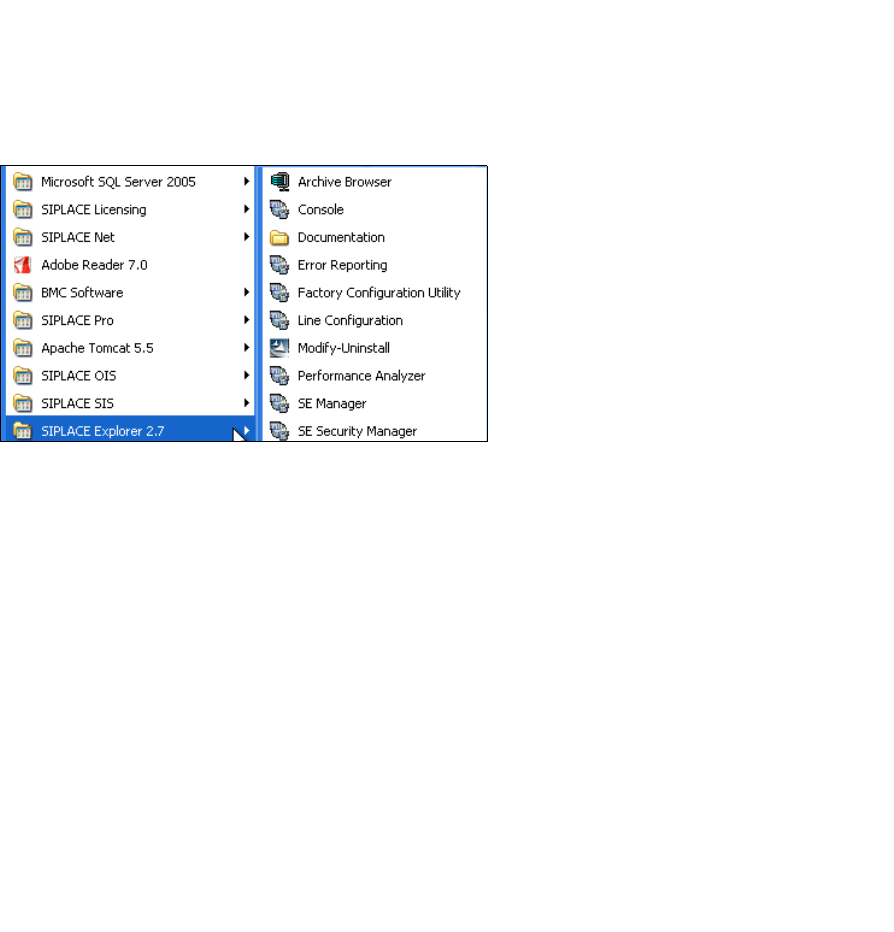
These additional applications and tools can also be started via the Programs → SIPLACE
Explorer 2.7 menu in Windows. 3
3
Fig. 3 - 22 RTE Windows Start menu
The following options are available: 3
–Archive Browser
–Console
– Documentation
– Error Reporting
– Factory Configuration Utility
– Line Configuration
– Modify-Uninstall
– Performance Analyzer
– SE Manager
– SE Security Manager
3 Installing SIPLACE Explorer Installation and Configuration Guide SIPLACE Explorer
3.4 MS SQL Server Configuration Edition 03/2010 EN
44
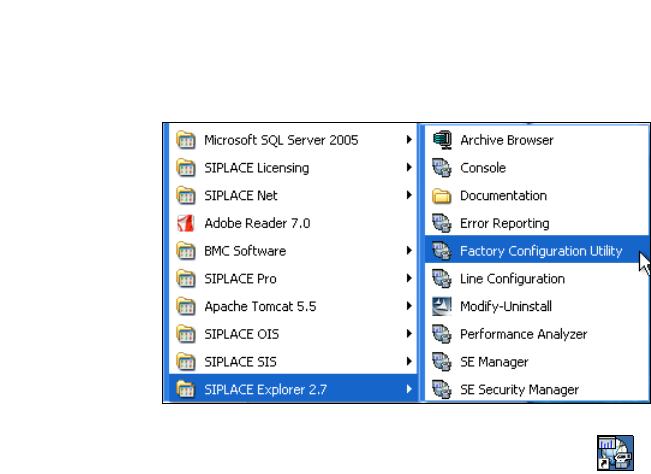
→ SIPLACE Explorer V.2.7 Factory Configuration Utility
Start the Factory Configuration Utility via the Programs → SIPLACE Explorer 2.7 → Factory
Configuration Utility menu in Windows. 3
3
Fig. 3 - 23 Factory Configuration Utility Windows Start menu
→ Or click on the Factory Configuration Utility icon on your desktop.
3.4 MS SQL Server Configuration
You can configure the system database with the Line Configuration. See “Step 5 - Configure
System Database” on page 59. 3
If you want to configure the maintenance of the system database it is required to configure the MS
SQL Server: 3
→ Start MS SQL Server Management Studio.
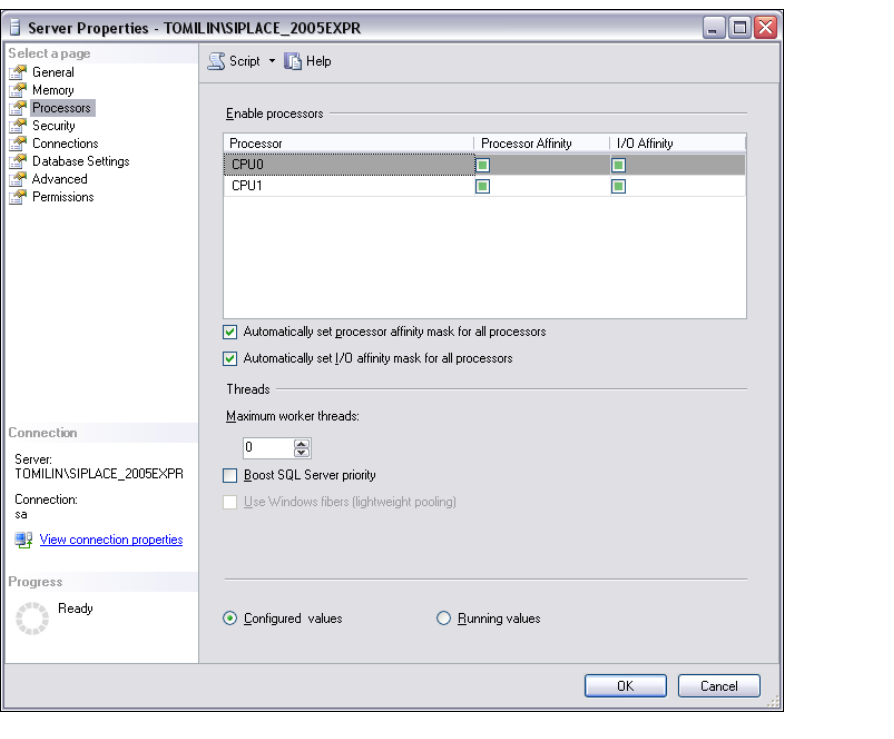
→ Open the Server Properties dialog box. Select the server instance which contains the
SIPLACE Explorer system database. Select Properties from the context menu. The Server
Properties dialog box will open:
Installation and Configuration Guide SIPLACE Explorer 3 Installing SIPLACE Explorer
Edition 03/2010 EN 3.4 MS SQL Server Configuration
45
3
Fig. 3 - 24 MS SQL Server Properties
→ Select Processors.
→ Enable the following check boxes:
– Automatically set processor affinity mask for all processors
– Automatically set I/O affinity mask for all processors
→ Confirm with OK.
→ Start the MS SQL Server again.