00196743-01 - Install Guide SIPLACE Explorer 2.7_en.pdf - 第53页
Ins ta llat i on and Con fi gur ati on Gu id e SI PLA CE Exp lo rer 4 Co nfig ur ati o n Edi tio n 03/201 0 E N 4.1 St anda rd Moni to ring App lica tio n ( SMA ) 53 NOTE If the Selec t SQ L Server i n st a nce dialog bo…
4 Configuration Installation and Configuration Guide SIPLACE Explorer
4.1 Standard Monitoring Application (SMA) Edition 03/2010 EN
52
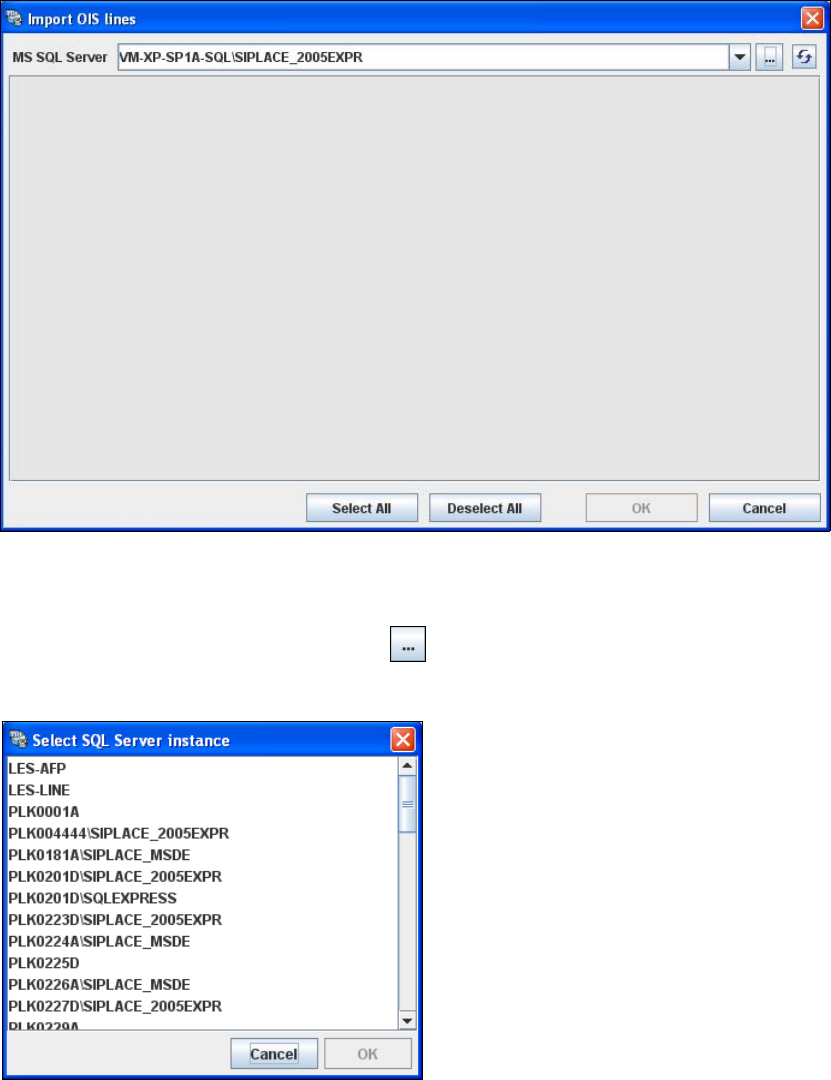
→ The Import OIS Lines dialog box will open.
4
Fig. 4 - 3 Step 1: import OIS lines
→ The SQL server instance is automatically adopted from the OIS and the SIPLACE Explorer
database. This is shown in the MS SQL Server text box.
→ Click on the Browse for SQL instances icon. All SQL server instances available will be
shown in the Select SQL Server instance dialog box.
4
Fig. 4 - 4 Step 1: Select SQL Server instance
→ Select the required SQL server instance and confirm with OK. You will be taken back to the
Import OIS Lines dialog box.
Installation and Configuration Guide SIPLACE Explorer 4 Configuration
Edition 03/2010 EN 4.1 Standard Monitoring Application (SMA)
53
NOTE
If the Select SQL Server instance dialog box shows no entries, you need to specify the SQL
server instance manually. 4
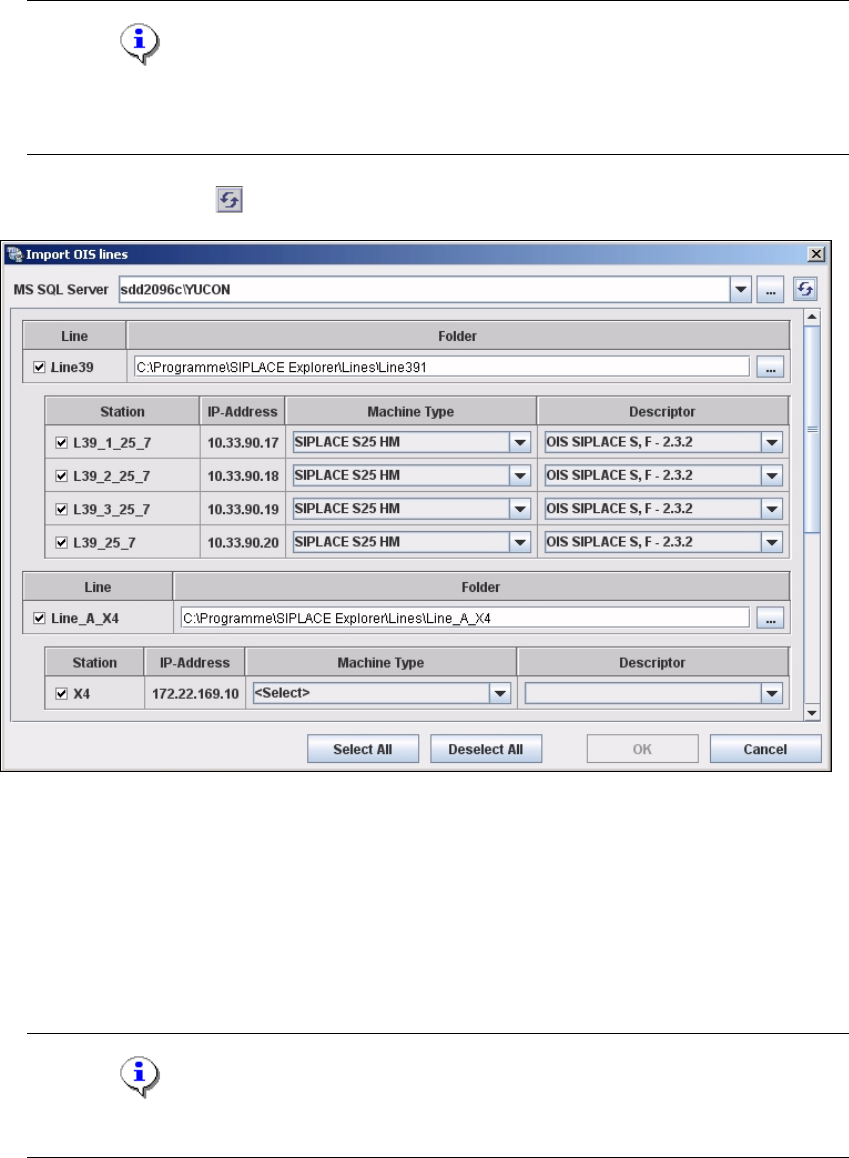
→ Click on the Refresh icon. All production lines available for import from OIS will be shown.
4
Fig. 4 - 5 Step 1: Import OIS lines
→ The values for every station at Machine Type will be initialized with default values. These
values are imported of the SIS database. This is only possible, if a download of the recipe has
been performed before.
→ If at Machine Type the value <Select> is displayed you need to select the relevant machine
type for each station and production line. The corresponding OIS descriptor will then be
automatically displayed in the Descriptor field.
NOTE
It is assumed that the machine types are known for each production line. 4
→ Once you have entered all settings, confirm your choice with OK.
4 Configuration Installation and Configuration Guide SIPLACE Explorer
4.1 Standard Monitoring Application (SMA) Edition 03/2010 EN
54
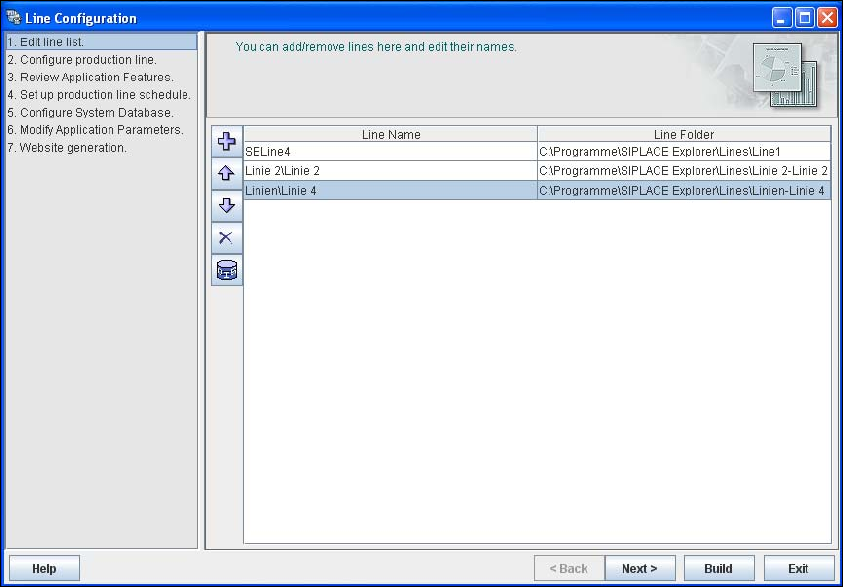
→ The added production lines will be shown in the Line Configuration - Edit Line List dialog
box.
4
Fig. 4 - 6 Step 1: edit line list
→ The OIS line name will be automatically used as production line name.
→ You can modify the production line name and the line folder at which the configured monitoring
application is to be stored for this production line. A *.gms file with the configuration settings
for the corresponding monitoring application will then be saved at the specified path.
→ Click on Next to continue with the next step.