00196800-02_InstallGuide_EN.pdf - 第44页
3 In stal ling SIPLA CE Ex plore r Ins tall ati on and Confi gurat ion Guid e SIPL ACE Exp lor er 3. 6 MS SQ L Serv e r Co nfi gu rat io n Ed iti on 06 /2 01 1 EN 44 3 Fig . 3 - 19 MS SQL Ser ver Pr oper ties Sel e ct …
Installation and Configuration Guide SIPLACE Explorer 3 Installing SIPLACE Explorer
Edition 06/2011 EN 3.6 MS SQL Server Configuration
43
3.5.2 Windows Server 2003 SP2 and Windows Server 2003 R2
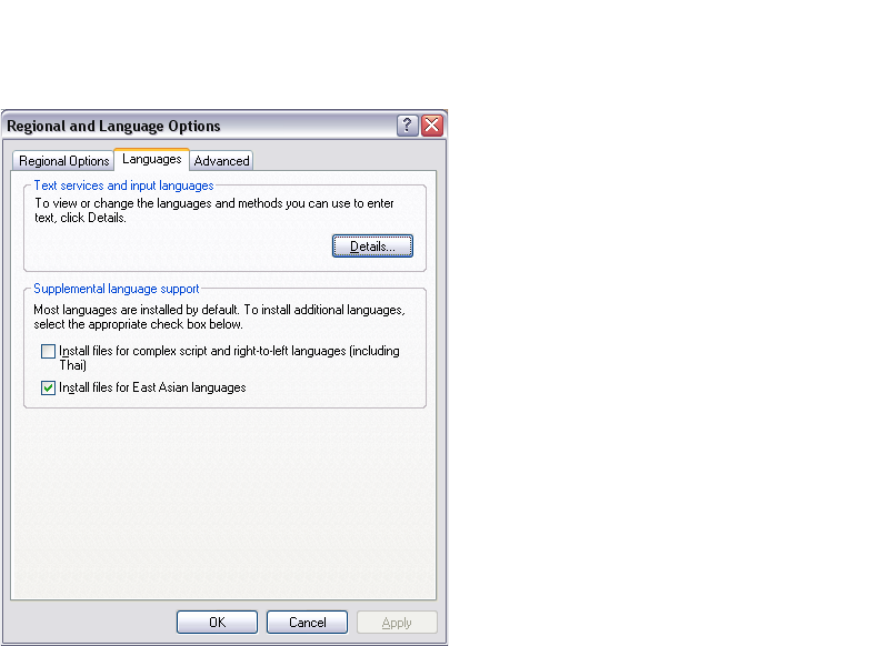
In the Windows menu, click Start Settings Control Panel Regional and language
Option.
Click the Languages tab.
3
Fig. 3 - 18 Regional Settings in Windows Server 2003 SP2 und Windows Server 2003 R2
Activate the Install files for East Asian languages check box.
Confirm with OK.
3.6 MS SQL Server Configuration
You can configure the system database with the Line Configuration. See “Step 5 - Configure
System Database” on page 59. 3
If you want to configure the maintenance of the system database it is required to configure the MS
SQL Server: 3
Start MS SQL Server Management Studio.
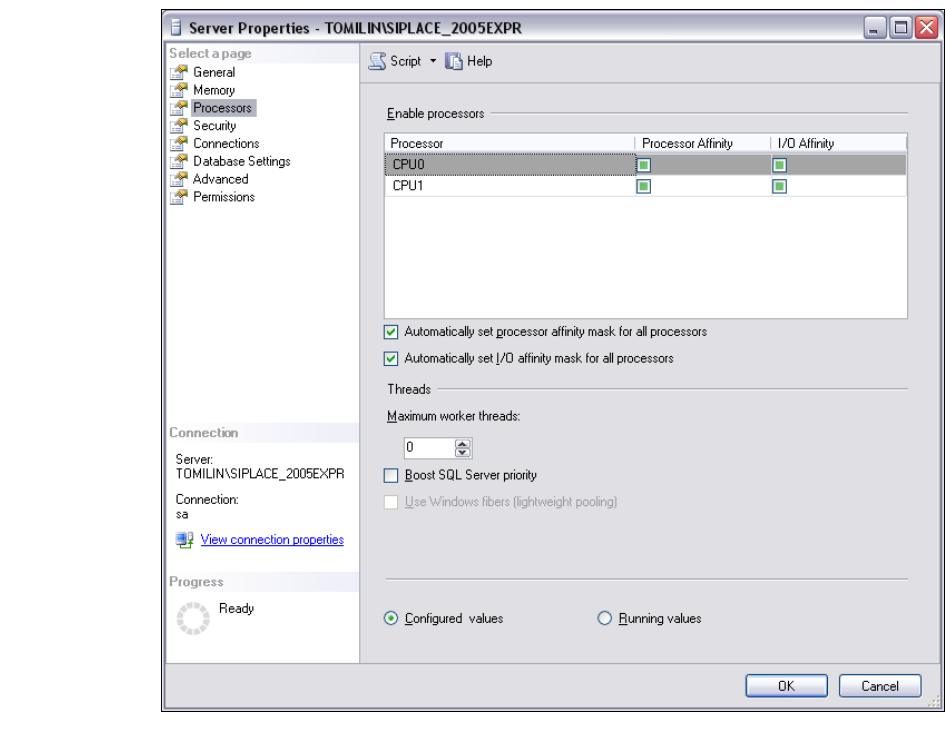
Open the Server Properties dialog box. Select the server instance which contains the
SIPLACE Explorer system database. Select Properties from the context menu. The Server
Properties dialog box will open:
3 Installing SIPLACE Explorer Installation and Configuration Guide SIPLACE Explorer
3.6 MS SQL Server Configuration Edition 06/2011 EN
44
3
Fig. 3 - 19 MS SQL Server Properties
Select Processors.
Enable the following check boxes:
– Automatically set processor affinity mask for all processors
– Automatically set I/O affinity mask for all processors
Confirm with OK.
Start the MS SQL Server again.
Installation and Configuration Guide SIPLACE Explorer 3 Installing SIPLACE Explorer
Edition 06/2011 EN 3.7 Tomcat Configuration
45
3.7 Tomcat Configuration
3.7.1 Using Windows 2003 Server
If you have installed Windows 2003 Server as your operating system, you will need to reconfigure
the web server (Tomcat) before using SIPLACE Explorer V2.9. This configuration will be done via
Internet Explorer. 3
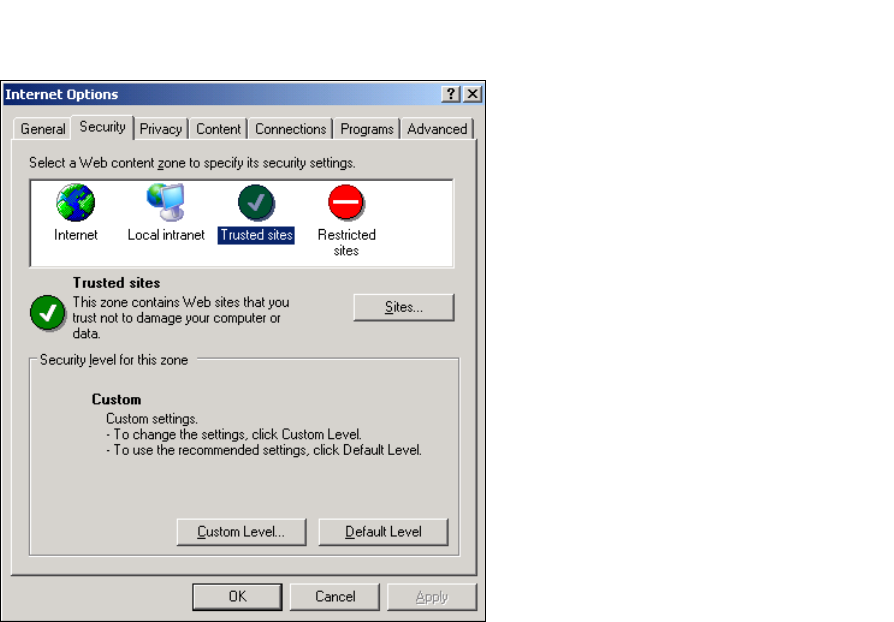
Select the menu Tools Options.
The Internet Options dialog box will open:
3
Fig. 3 - 20 Internet Options
Select the Security tab.
Click on the Trusted Sites icon and click on Sites.
The Trusted Sites dialog box will open: