00196800-02_InstallGuide_EN.pdf - 第95页
Ins tall ati on and Con figu rati on Gu ide S IPLA CE Exp lor er 4 Co nfig ura tio n Edi tio n 01/201 1 EN 4.3 D ataba se Sett ing s 95 – S te p 2 - Per for m Co nfi gur ati on T es t At S tep 2 you c an cha nge your s…
4 Configuration Installation and Configuration Guide SIPLACE Explorer
4.3 Database Settings Edition 01/2011 EN
94
4
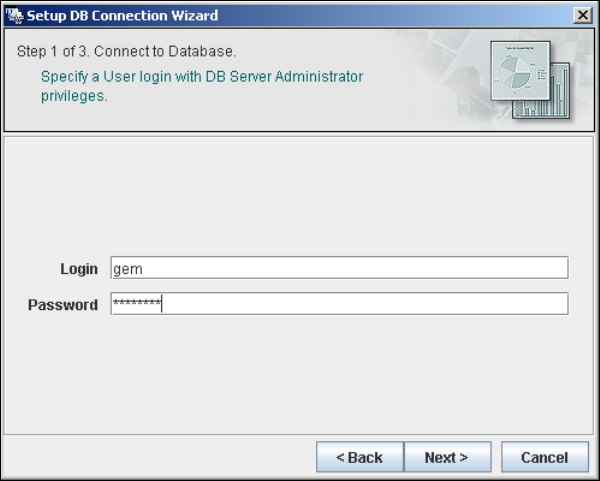
Fig. 4 - 58 Step 1- database connection wizard
At this point, the wizard will connect to the MS SQL Server and run tests to identify whether
the specified database, login and user roles exist. You will see a list of changes that the
wizard will undertake, in order to perform setup and configure the system database. 4
Installation and Configuration Guide SIPLACE Explorer 4 Configuration
Edition 01/2011 EN 4.3 Database Settings
95
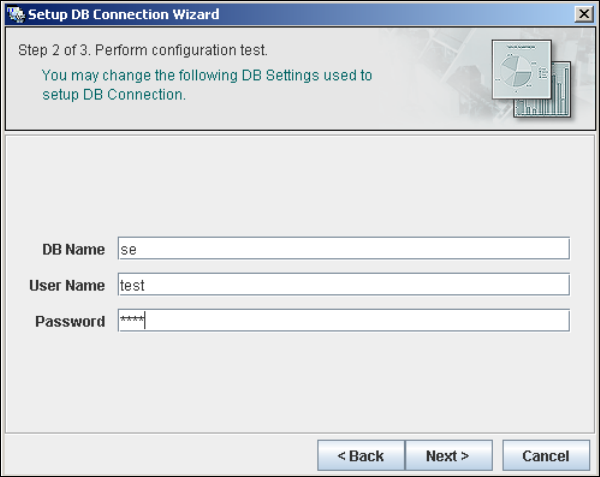
– Step 2 - Perform Configuration Test
At Step 2 you can change your settings. This is also where you define the name of the SE
system database for the line and where you specify the user (and corresponding password)
who is to have access to this database.
4
Fig. 4 - 59 Step 2- database connection wizard
Once you have made and checked all entries, click on Next to continue.
4 Configuration Installation and Configuration Guide SIPLACE Explorer
4.3 Database Settings Edition 01/2011 EN
96
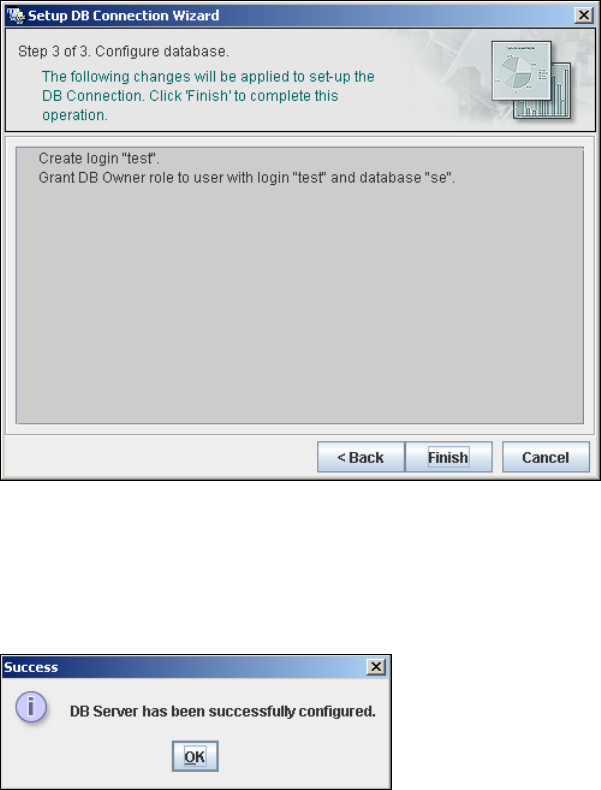
– Step 3- Configure Database
Step 3 takes your modifications from Step 2 and uses them to configure the database
connection.
4
Fig. 4 - 60 Step 3 database connection wizard
Click on Finish and the wizard will carry out the required configuration. The DB settings are
now correctly specified for your project. and the database and set user will be created.
You will receive a success message.
4
Fig. 4 - 61 Step 3 database connection wizard
Click OK. You can now configure your system database.
4