00196800-02_InstallGuide_EN.pdf - 第80页
4 Co nfi gura tio n Ins tall ati on and Con figu rati on Gu ide S IPLA CE Exp lorer 4. 2 C on fig uri ng th e Fa ct or y Co nfi gu rat ion U t il ity E d iti on 01 /2 01 1 E N 80 4. 2.3 Fac tor y Cal enda r This is where…
Installation and Configuration Guide SIPLACE Explorer 4 Configuration
Edition 01/2011 EN 4.2 Configuring the Factory Configuration Utility
79
4
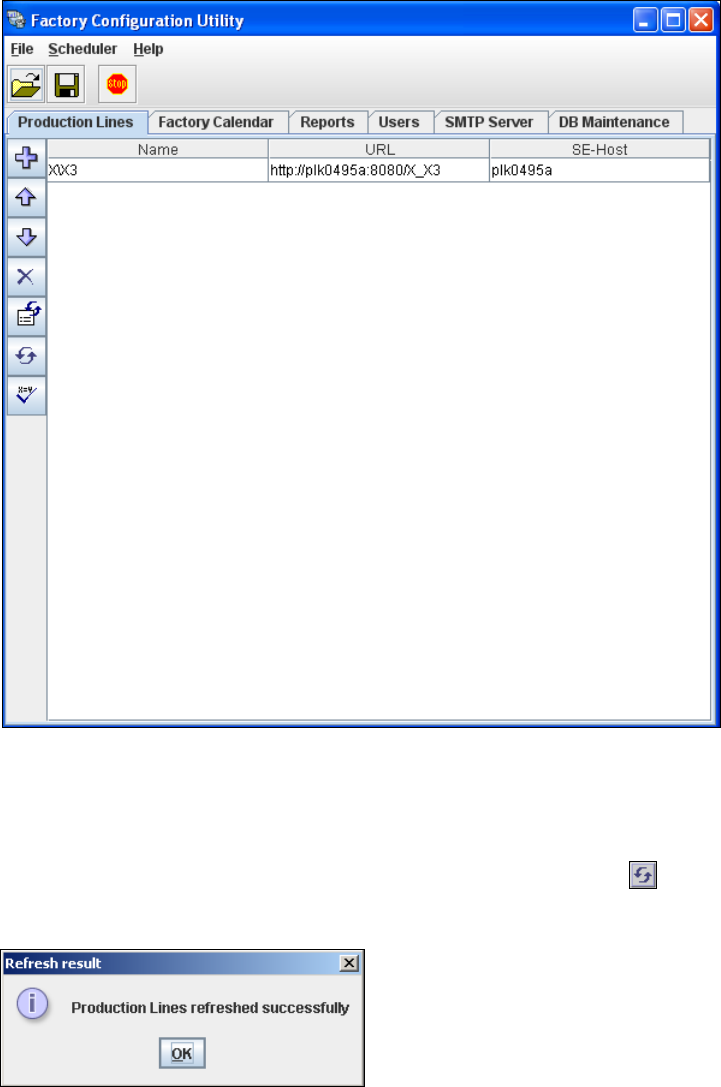
Fig. 4 - 41 Factory Configuration Utility - production lines
After the data for the selected production line has been transferred, the line name, line URL
and host name can no longer be changed.
If you have made changes to the other tabs, you will need to synchronize this data with the
data in the SIPLACE Explorer host, by clicking on the Refresh lines icon. If the data have
been successfully synchronized, you will see the following information box:
4
Fig. 4 - 42 Factory Configuration Utility - refresh result
4 Configuration Installation and Configuration Guide SIPLACE Explorer
4.2 Configuring the Factory Configuration Utility Edition 01/2011 EN
80
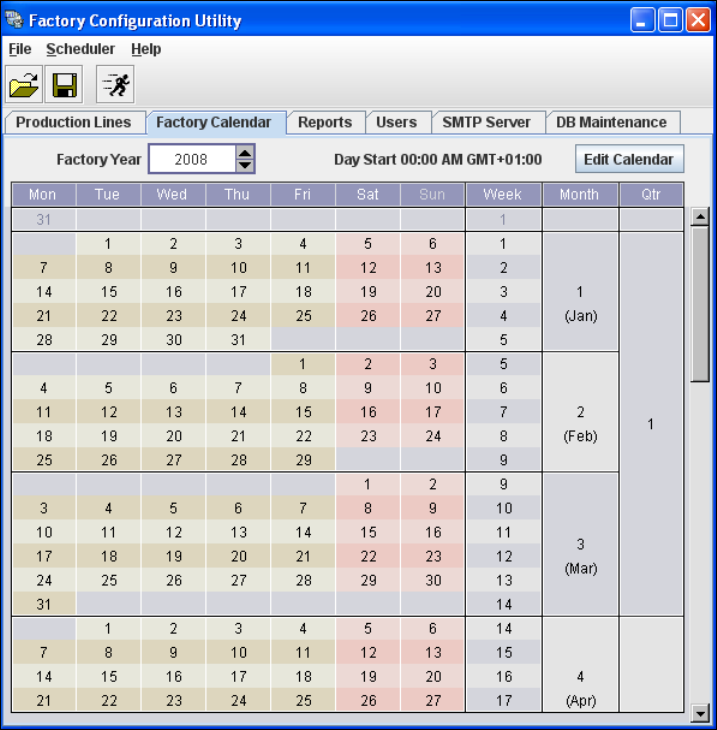
4.2.3 Factory Calendar
This is where you can create a calendar with details of working times e.g. on which day the work-
ing week begins, at which time a shift begins etc. 4
Select the Factory Calendar tab.
4
Fig. 4 - 43 Factory Configuration Utility - factory calendar
Installation and Configuration Guide SIPLACE Explorer 4 Configuration
Edition 01/2011 EN 4.2 Configuring the Factory Configuration Utility
81
4.2.4 Reports
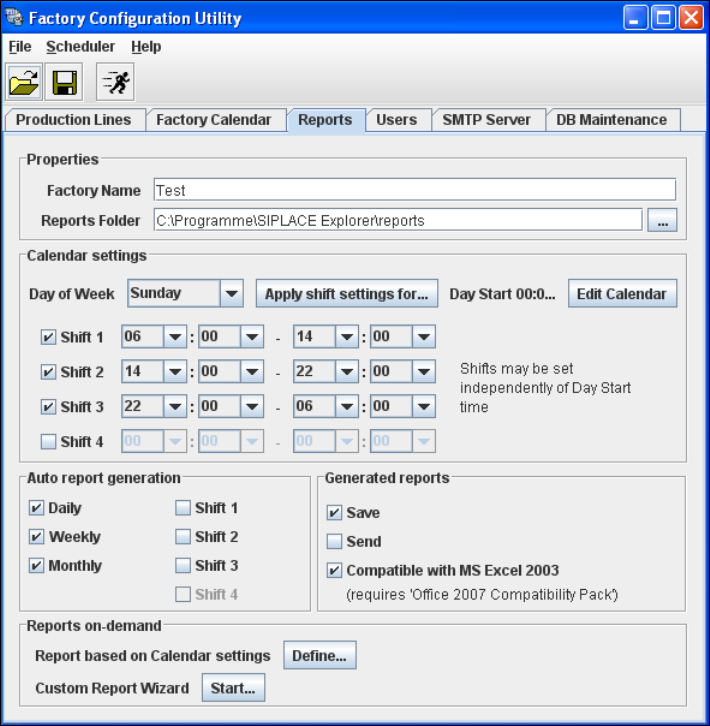
This is where you can define a schedule for the management and generation of factory reports.
You can specify the intervals at which factory reports are to be generated, where they are to be
saved to etc. 4
These reports can be automatically sent via e-mail. The e-mail addresses can be specified in the
Users tab. The necessary information about report type etc. can be defined on the factory web-
site. 4
Select the Reports tab.
4
Fig. 4 - 44 Factory Configuration Utility - reports
Proceed to Reports on-demand and click on the Start button. A wizard with 4 steps will open.
Use this wizard to generate the reports and send or save them.