00196800-02_InstallGuide_EN.pdf - 第83页
Ins tall ati on and Con figu rati on Gu ide S IPLA CE Exp lor er 4 Co nfig ura tio n Edi tio n 01/ 2011 E N 4.2 Co nfi gurin g the F acto ry Con fig urati on Uti lit y 83 4. 2.5. 1 How to Use the U ser Mana gement Sele…

4 Configuration Installation and Configuration Guide SIPLACE Explorer
4.2 Configuring the Factory Configuration Utility Edition 01/2011 EN
82
4.2.5 User Management
The User Management function is used to define the users and their duties/privileges for each pro-
duction line. 4
The following user privileges are available in the Factory Configuration Utility: 4
– Access Factory Website
The user has read privileges for the SIPLACE Explorer factory website.
– Configure Line Host
The user may start all SIPLACE Explorer Runtime Environment tools.
– Monitor Production Line
The user has read privileges for the SIPLACE Explorer production lines.
– Edit Logbook entries
The user may edit the logbook for certain SIPLACE Explorer production line websites.
– Modify Application settings
The user may edit the SMA settings for certain production lines.
NOTE
Only users with Configure Line Host privileges can start the SE Runtime Environment tools, such
as Line Configuration, SE Manager, Performance Analyzer, etc. Furthermore, the Use Factory-
based security option must be enabled in the SE Security Manager. For details of the relevant
settings in the SE Security Manager, please refer to the Getting Started for SIPLACE Explorer
2.9. 4
Installation and Configuration Guide SIPLACE Explorer 4 Configuration
Edition 01/2011 EN 4.2 Configuring the Factory Configuration Utility
83
4.2.5.1 How to Use the User Management
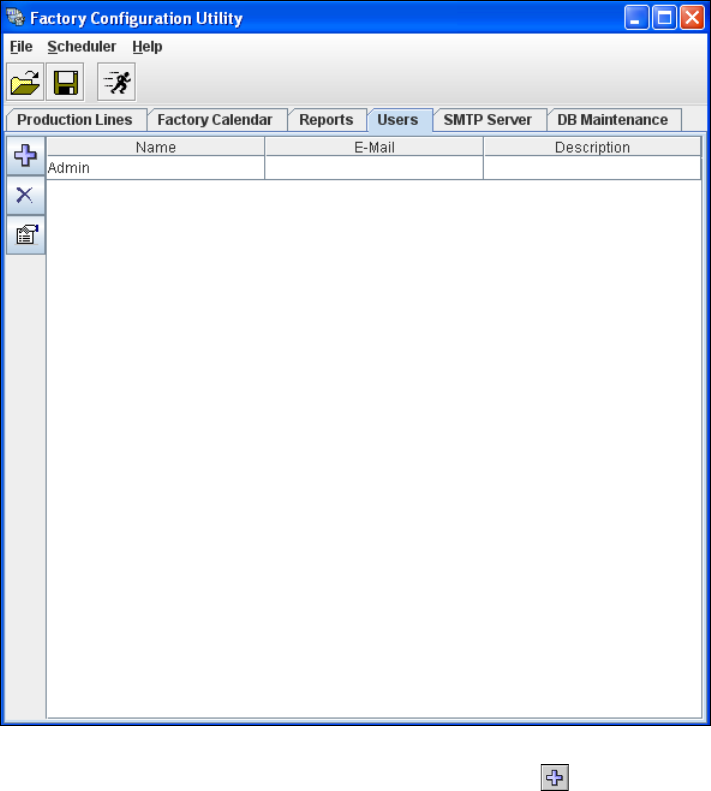
Select the Users tab.
4
Fig. 4 - 45 Factory Configuration Utility - users
Now add the individual users by clicking on the Add User icon.
4 Configuration Installation and Configuration Guide SIPLACE Explorer
4.2 Configuring the Factory Configuration Utility Edition 01/2011 EN
84
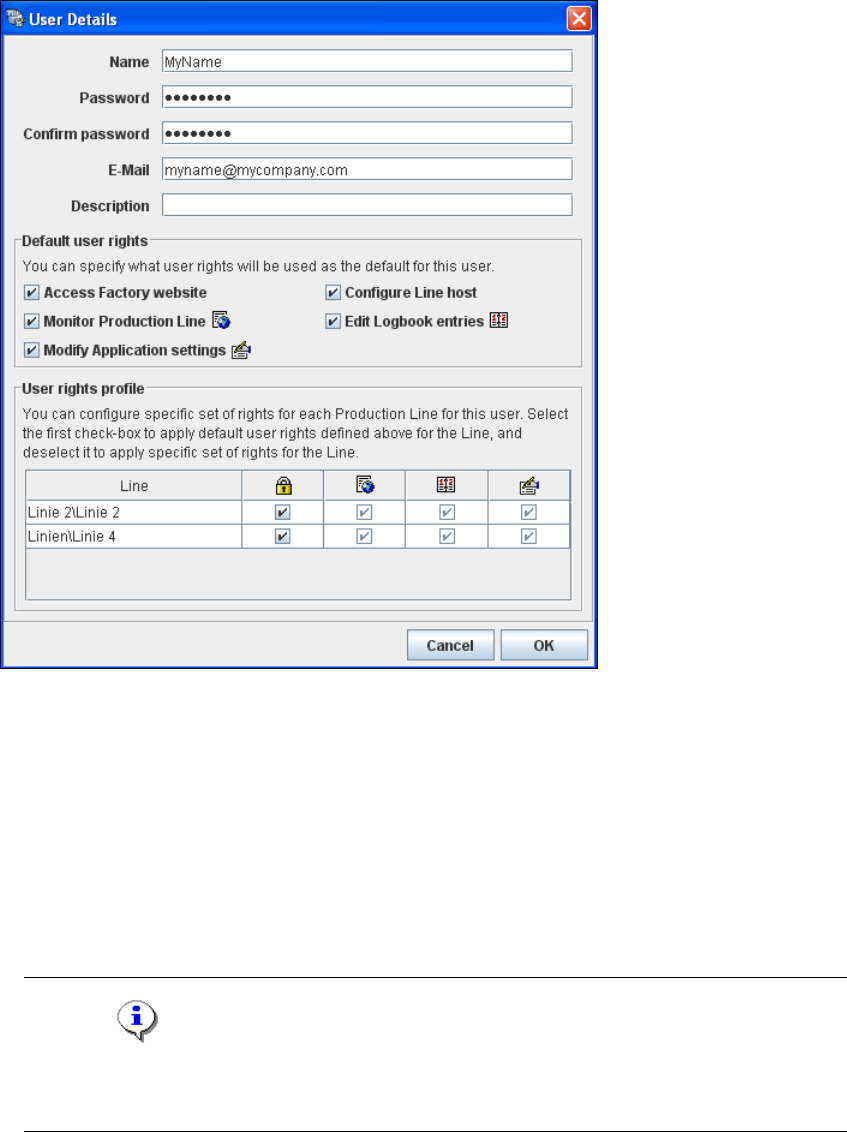
The User Details dialog box will open. Enter the user-specific details such as access data and
user privileges here. 4
4
Fig. 4 - 46 Factory Configuration Utility - user details
Enter the user name in the Login field.
Enter the user login password in the Password field.
In the Confirm Password field, reenter (confirm) the password you specified in the Password
field.
Enter the user's e-mail address in the E-Mail field. The generated reports will be sent to this e-
mail address.
Enter a user description e.g. administrator in the Description field.
NOTE
If you define the default users "Admin" and "Operator" from Runtime Environment in this
Description field, these default users will become invalid in the Runtime Environment. 4