00196800-02_InstallGuide_EN.pdf - 第71页
Ins tall ati on and Con figu rati on Gu ide S IPLA CE Exp lor er 4 Co nfig ura tio n Edi tio n 01/ 2011 E N 4.2 Co nfi gurin g the F acto ry Con fig urati on Uti lit y 71 4.2 Conf iguri ng the Factory Confi gurat ion Ut …
4 Configuration Installation and Configuration Guide SIPLACE Explorer
4.1 Standard Monitoring Application (SMA) Edition 01/2011 EN
70
4
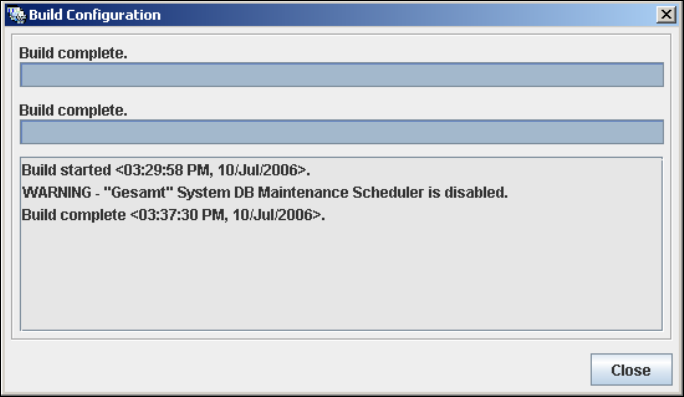
Fig. 4 - 28 Build configuration
At this point, the application is generated automatically and is loaded into SIPLACE Explorer.4
Once the website has been fully generated, click on Close. The SMA has been completed.
Click on the Exit button in the Line Configuration - Website Generation dialog box.
Installation and Configuration Guide SIPLACE Explorer 4 Configuration
Edition 01/2011 EN 4.2 Configuring the Factory Configuration Utility
71
4.2 Configuring the Factory Configuration Utility
4.2.1 Starting the SIPLACE Factory Configuration Utility
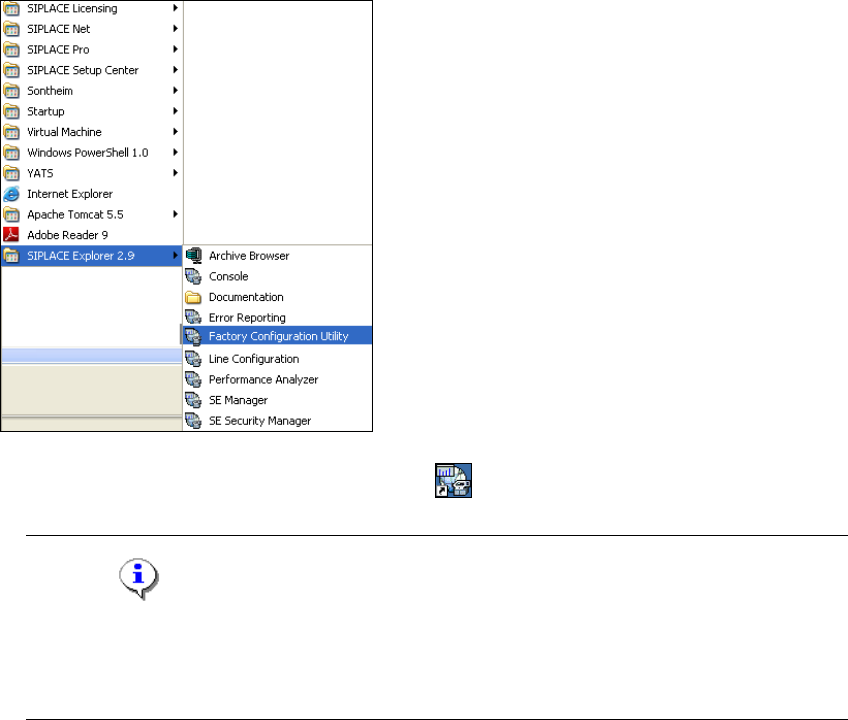
Start the SIPLACE Factory Configuration Utility via the Programs SIPLACE Explorer
2.9 Factory Configuration Utility menu in Windows.
4
Fig. 4 - 29 RTE Windows Start menu
Or click on the Factory Configuration Utility icon on your desktop.
NOTE
Access to the Runtime Environment tools is restricted or permitted as required, by using the
SE Security Manager. For details of the relevant settings in the SE Security Manager, refer
to the Getting Started for SIPLACE Explorer 2.9. 4
4 Configuration Installation and Configuration Guide SIPLACE Explorer
4.2 Configuring the Factory Configuration Utility Edition 01/2011 EN
72
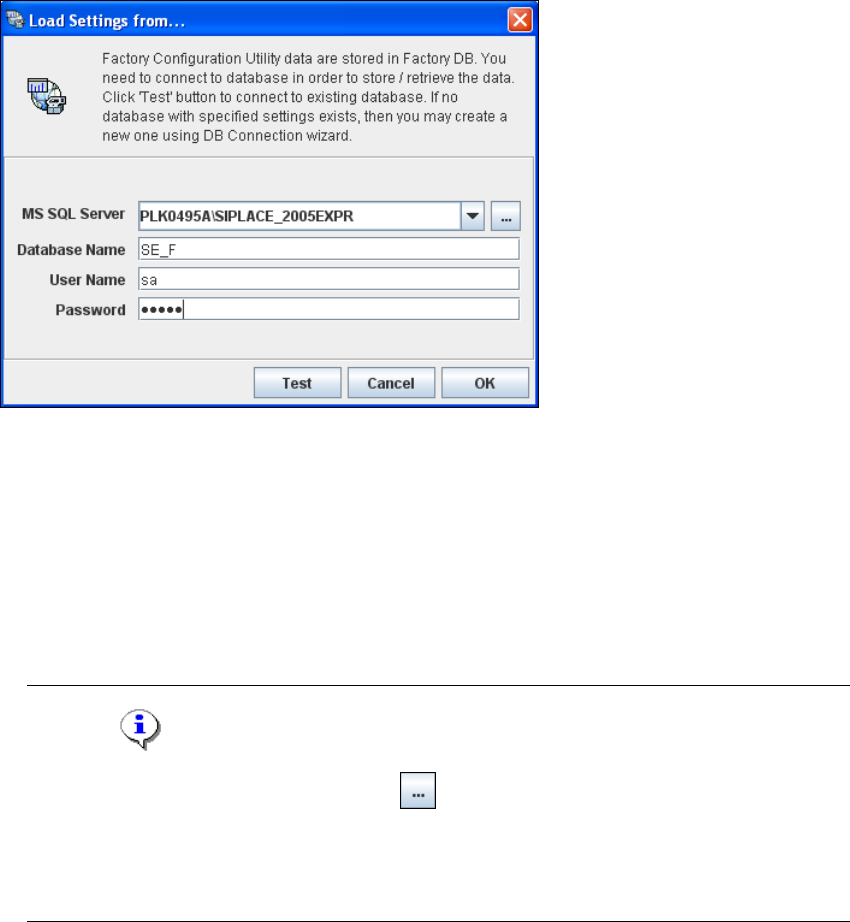
The Load settings from... dialog box will open. You need to establish a connection to the
factory database, before data can be called up.
4
Fig. 4 - 30 Loading settings
Enter the following information:
– MS SQL Server
– Database name
– Database user
– DB password
NOTE
Click on the Browse for SQL instances icon. All SQL server instances available will be
shown in the Select SQL Server instance dialog box.
If the Select SQL Server instance dialog box shows no entries, you need to specify the SQL
server instance manually in the MS SQL Server field. 4
After entering the database access parameters, we strongly recommend that you check the
connection to the database. Click Test to check whether the connection to the database can
be established.