00196800-02_InstallGuide_EN.pdf - 第76页
4 Co nfi gura tio n Ins tall ati on and Con figu rati on Gu ide S IPLA CE Exp lorer 4. 2 C on fig uri ng th e Fa ct or y Co nfi gu rat ion U t il ity E d iti on 01 /2 01 1 E N 76 4.2. 2 Configuring Product ion Lines The …
Installation and Configuration Guide SIPLACE Explorer 4 Configuration
Edition 01/2011 EN 4.2 Configuring the Factory Configuration Utility
75
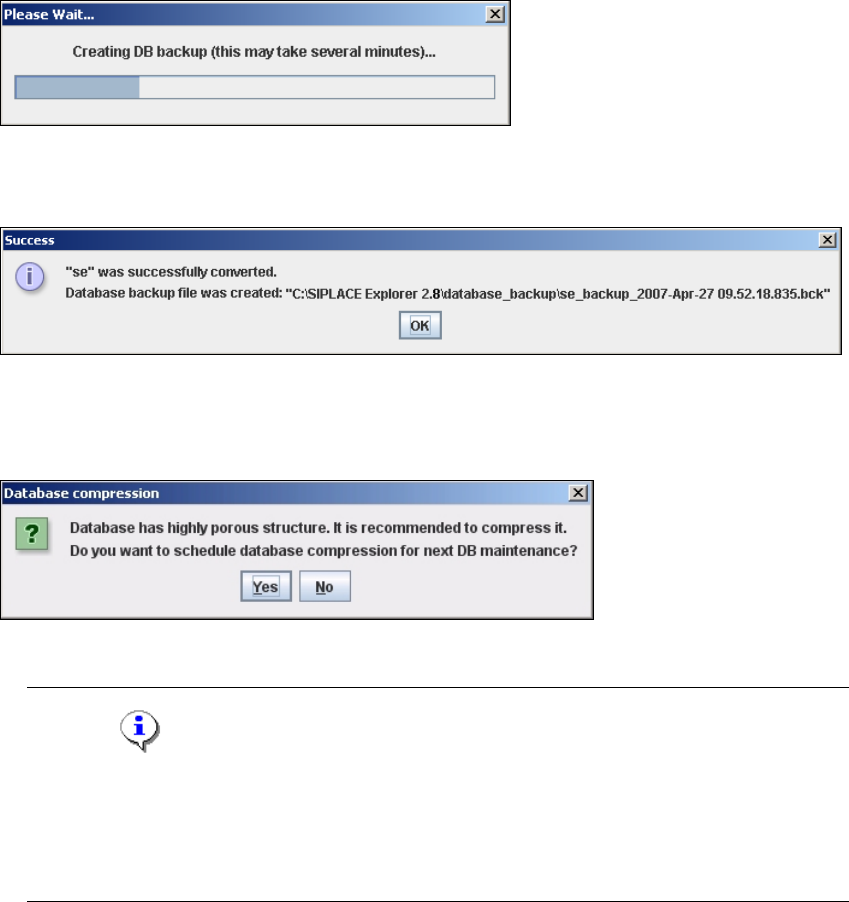
Confirm your choice with OK. The database will be converted. This may take up to one
hour. The conversion time depends on the size of the database.
4
Fig. 4 - 35 DB backup
After successful conversion of the database, the following information window will open:
4
Fig. 4 - 36 Success
Dependent of the database size, you can compress the database, the following information
window will open:
4
Fig. 4 - 37 Database compression
NOTE
We recommend activating this DB compression step, when the user has restored the
SIPLACE Explorer factory database or has moved the raw database files to another disk or
to another computer.
With the DB compression it is possible to avoid extended access times of the websites. 4
Click Yes, to compress the database at next DB maintenance.
Click OK. The Factory Configuration Utility dialog box will open.

4 Configuration Installation and Configuration Guide SIPLACE Explorer
4.2 Configuring the Factory Configuration Utility Edition 01/2011 EN
76
4.2.2 Configuring Production Lines
The SIPLACE Explorer Factory Configuration Utility can be used to add production lines to an ex-
isting list of lines to be monitored. This is performed by calling up the relevant production line data
from the SIPLACE Explorer host. A list of the lines already configured in SIPLACE Explorer will
be provided via the connection to the SIPLACE Explorer host. 4
If you have already configured a production line with the Line Configuration and generated a web-
site, the configured production line will automatically be added to the Factory Configuration Utility
and to the factory website. 4
NOTE
We do not recommend that you change the production line data in SIPLACE Explorer Factory
Configuration Utility. If you do so, you must also adjust/synchronize this data in the SIPLACE
Explorer host. 4
After editing the data in the Factory Configuration Utility, save the modified data in the factory da-
tabase in which all Factory Configuration Utility data are stored. During data backup, data is sent
between the SIPLACE Explorer line host and the factory host. To be more exact, the sequence of
transfer is from the SIPLACE Explorer factory host to the line host and from the SIPLACE Explorer
line host to the SIPLACE Explorer factory host. 4
Transfer of data from SIPLACE Explorer factory host to SIPLACE Explorer line host: 4
– Factory Calendar
– Factory database settings
– Central user management, with e-mail accounts
Transfer of data from SIPLACE Explorer line host to SIPLACE Explorer factory host: 4
– Line names
– Line URLs
Installation and Configuration Guide SIPLACE Explorer 4 Configuration
Edition 01/2011 EN 4.2 Configuring the Factory Configuration Utility
77
4.2.2.1 How to Configure Production Lines and Their Properties
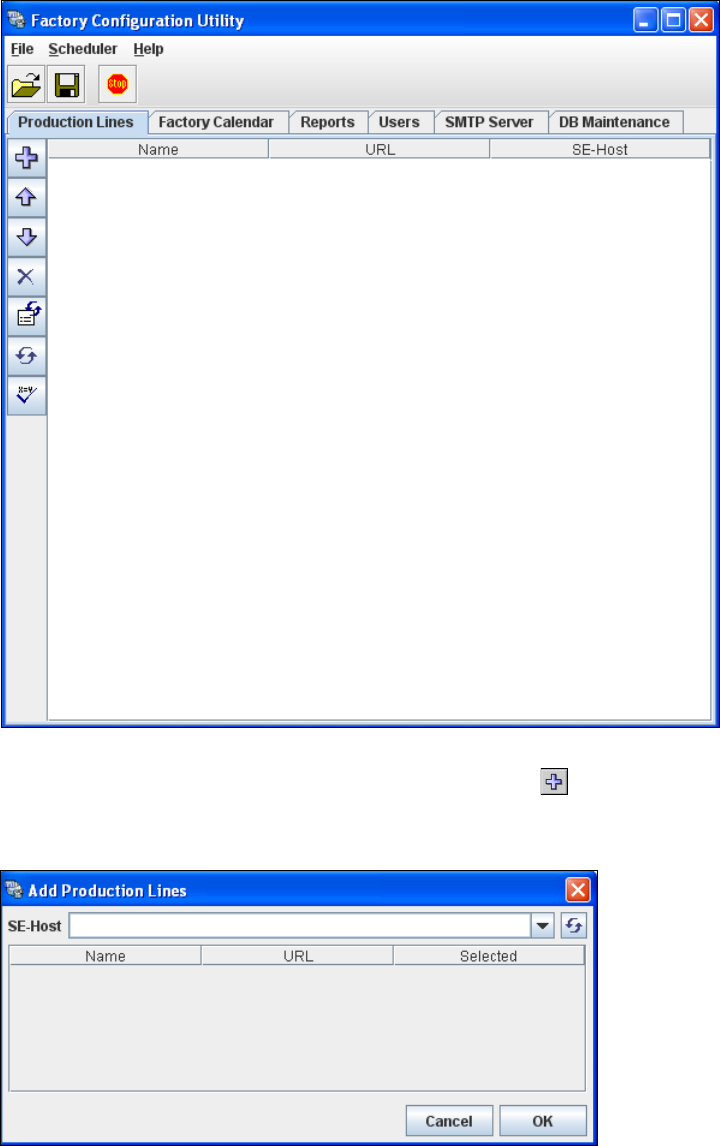
Select the Production Lines tab.
4
Fig. 4 - 38 Factory Configuration Utility - production lines
Now add the production lines by clicking on the Add Line icon.
The Add Production Lines dialog box will open: 4
4
Fig. 4 - 39 Factory configuration utility - add production lines