00196800-02_InstallGuide_EN.pdf - 第78页
4 Co nfi gura tio n Ins tall ati on and Con figu rati on Gu ide S IPLA CE Exp lorer 4. 2 C on fig uri ng th e Fa ct or y Co nfi gu rat ion U t il ity E d iti on 01 /2 01 1 E N 78 Enter the nam e or IP a ddress of the S…
Installation and Configuration Guide SIPLACE Explorer 4 Configuration
Edition 01/2011 EN 4.2 Configuring the Factory Configuration Utility
77
4.2.2.1 How to Configure Production Lines and Their Properties
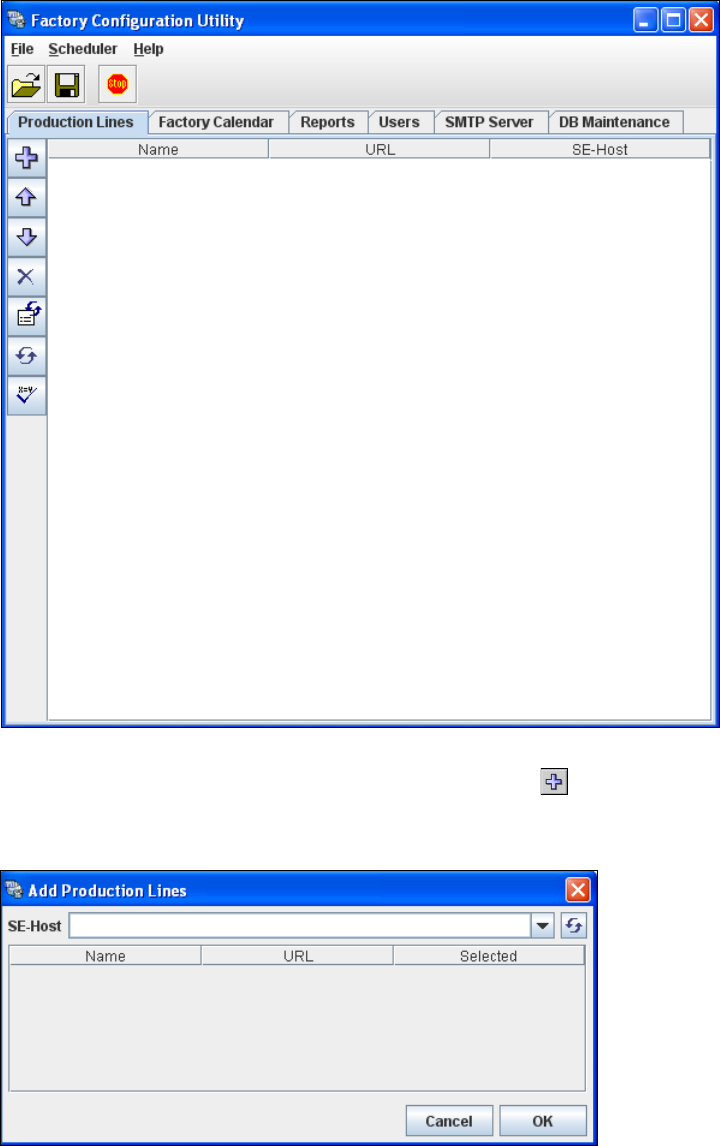
Select the Production Lines tab.
4
Fig. 4 - 38 Factory Configuration Utility - production lines
Now add the production lines by clicking on the Add Line icon.
The Add Production Lines dialog box will open: 4
4
Fig. 4 - 39 Factory configuration utility - add production lines
4 Configuration Installation and Configuration Guide SIPLACE Explorer
4.2 Configuring the Factory Configuration Utility Edition 01/2011 EN
78
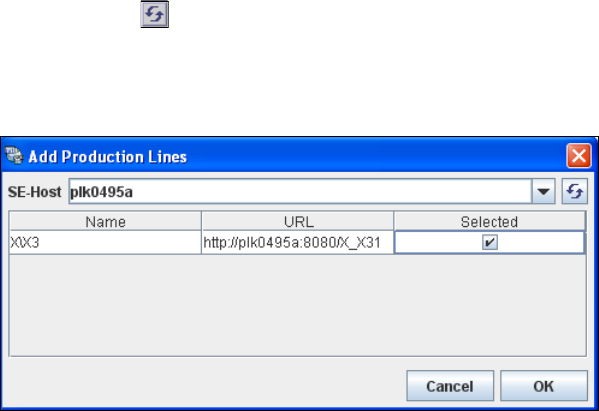
Enter the name or IP address of the SIPLACE Explorer host in the SE-Host field and click on
the Refresh icon.
If a connection to the specified host can be established, a list of all available production lines
will be shown. The Name and URL will be shown for each line. 4
4
Fig. 4 - 40 Factory configuration utility - add production lines
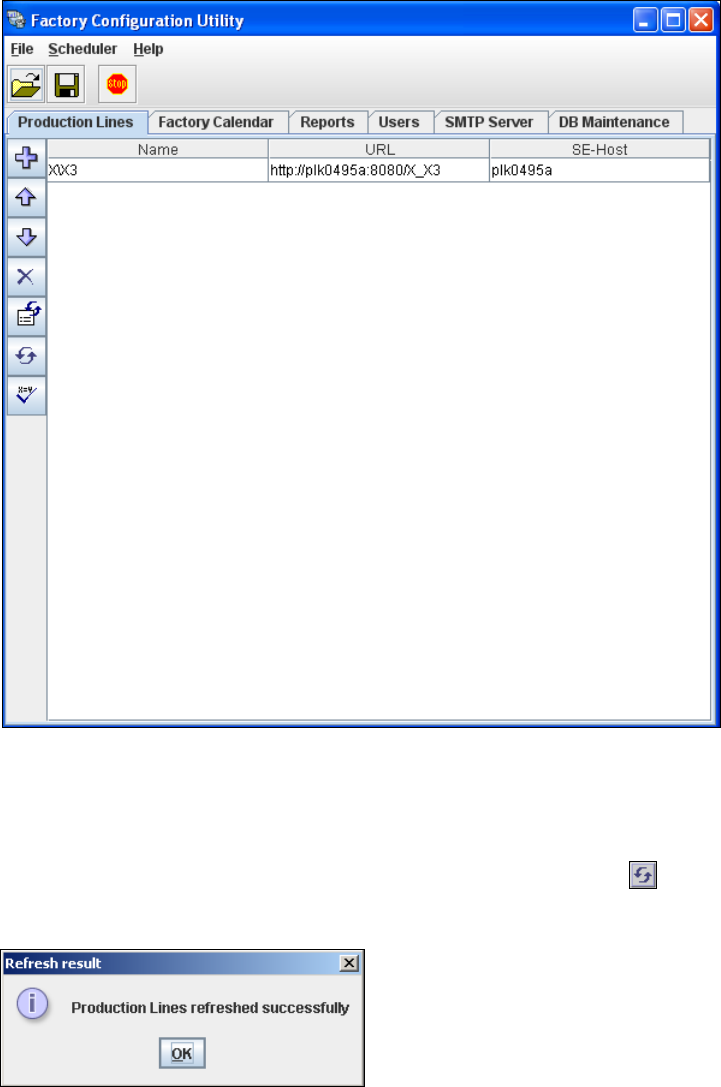
Now select the required production lines by enabling the relevant checkbox(es) in the Selected
column.
Confirm your choice with OK.
The selected production lines will be added to the list and shown in the Factory Configuration
Utility dialog box. 4
Installation and Configuration Guide SIPLACE Explorer 4 Configuration
Edition 01/2011 EN 4.2 Configuring the Factory Configuration Utility
79
4
Fig. 4 - 41 Factory Configuration Utility - production lines
After the data for the selected production line has been transferred, the line name, line URL
and host name can no longer be changed.
If you have made changes to the other tabs, you will need to synchronize this data with the
data in the SIPLACE Explorer host, by clicking on the Refresh lines icon. If the data have
been successfully synchronized, you will see the following information box:
4
Fig. 4 - 42 Factory Configuration Utility - refresh result