00197961-01_UM_JTF-MW_on_SIPLACE_E_en_FINAL.pdf - 第36页
Setting up and Commissioning Configuration of SIPLACE JTF-MW in SIPLACE Pro 36 User Manual JTF-MW on SIPLACE E 4.7.1 4 . 7 . 1 S I P L A C E J T F - M W in S I P L A C E P r o – F e e d e r T r e e V ie w SIPLACE JTF-MW …
Setting up and Commissioning
Configuration of SIPLACE JTF-MW in SIPLACE Pro
User Manual JTF-MW on SIPLACE E 35
4.6.2
4.6.2 Connecting the JTF-MW to the Machine
Connecting the JTF-MW to the Machine
The SIPLACE JTF-MW powers up and initializes. After that, you can operate the SIPLCE JTF-MW via
its control panel (see "5.2 Controls and Displays on the Feeder Control Panel" [ ➙ 41]).
After the COT has been loaded, the control is transferred to the station software and you can operate
the SIPLACE JTF-MW via the station software (see "5.5 Operating the JEDEC Tray Feeder in the Station
Software (SW708)" [ ➙ 46]).
The stop button and the reset button on the control panel are still available.
4.7
4.7 Configuration of SIPLACE JTF-MW in SIPLACE Pro
Configuration of SIPLACE JTF-MW in SIPLACE Pro
SIPLACE JTF-MW feeders are available from SIPLACE Pro 12.0.
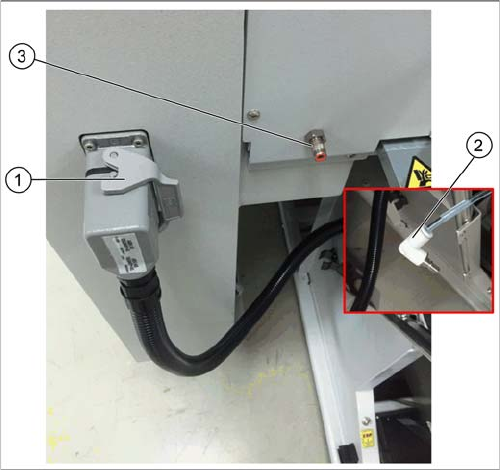
Connecting the JTF-MW
► Connect the power cable of the SIPLACE JTF-MW to
the Harting connector at the host machine (1).
► Connect the pneumatic tube from the SIPLACE
JTF-MW (2) to the coupling at the host machine (3).
Setting up and Commissioning
Configuration of SIPLACE JTF-MW in SIPLACE Pro
36 User Manual JTF-MW on SIPLACE E
4.7.1
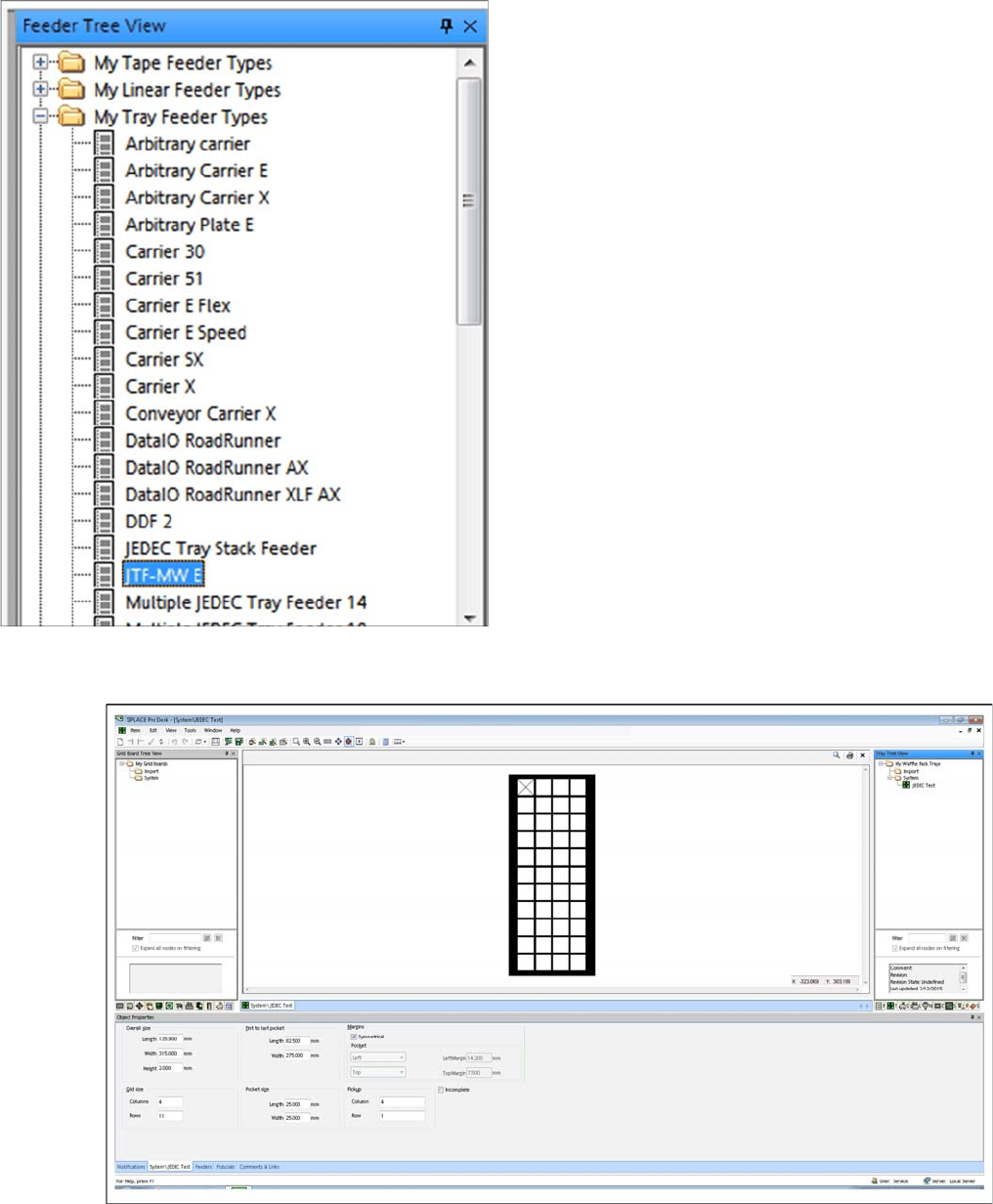
4.7.1 SIPLACE JTF-MW in SIPLACE Pro – Feeder Tree View
SIPLACE JTF-MW in SIPLACE Pro – Feeder Tree View
4.7.2
4.7.2 JEDEC Tray Description – Tray Tree View
JEDEC Tray Description – Tray Tree View
► Define one JEDEC tray with dimensions that comply with the JEDEC tray standard.
In the Feeder Tree View, the SIPLACE JTF-MW is dis-
played as JTF-MW E (Multiple JEDEC tray feeder with 15
levels).
Setting up and Commissioning
Configuration of SIPLACE JTF-MW in SIPLACE Pro
User Manual JTF-MW on SIPLACE E 37
► For the dimensions, refer to the data sheet of the manufacturer.
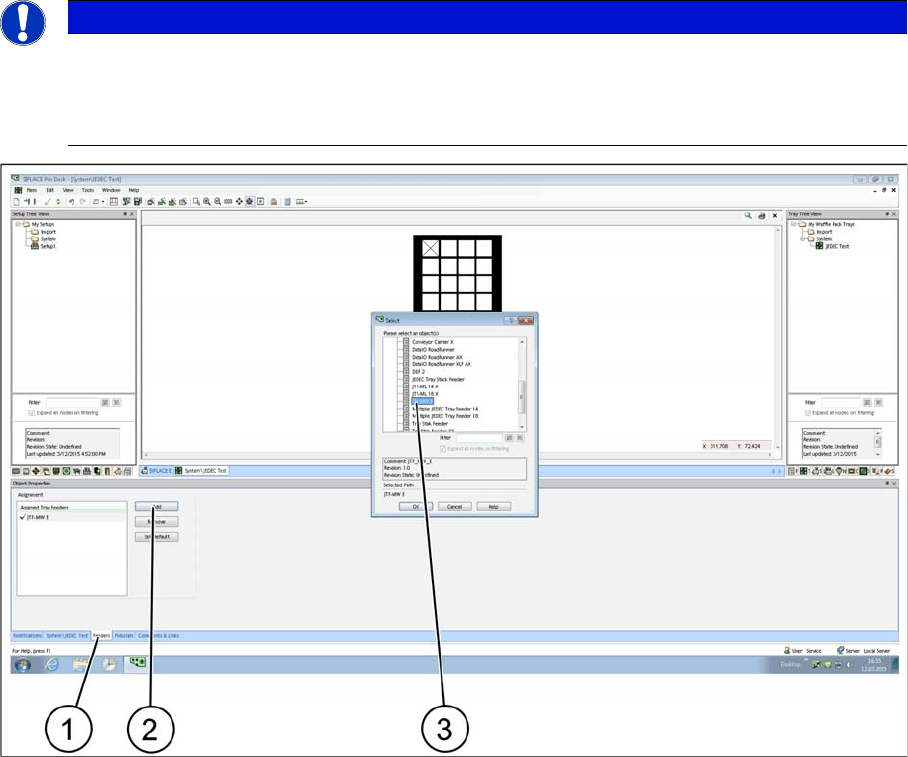
► After defining a JEDEC tray you must assign it to a feeder. Select the relevant SIPLACE JTF feeder
type.
► Select the Feeder tab (1).
► Select Add to add a feeder or Remove to remove a feeder (2).
► Select the relevant SIPLACE JTF feeder(s) (multiple selection is possible) and confirm with OK. As-
signed SIPLACE JTF feeders (3) are displayed in the Assignment window.
4.7.3
4.7.3 Assignment of JEDEC Tray to the Component Shape – Component Shape Tree View
Assignment of JEDEC Tray to the Component Shape – Component Shape Tree View
To be able to place a component with the SIPLACE JTF-S, SIPLACE JTF-M later on, you must assign
a JEDEC tray to the component shape.
NOTICE
JEDEC tray standard
In order to be used in a SIPLACE JTF-S, SIPLACE JTF-M feeder, the dimensions must comply
exactly with the JEDEC tray standard. In the example, a JEDEC tray with the name JEDEC
Test was defined.