00195700-02_Install_701_02_EN_DE.pdf - 第17页
Installation Manual, Station Software Version 701.02 07/2008 Edition 4.3 Automatic BIOS settings on the machine computer and the V ision computer A setup CD must first be created to automatically ma ke the BIOS settings …

Installation Manual, Station Software Version 701.02 07/2008 Edition
4.2 Automatic BIOS update on the machine computer and the Vision
computer
Note:
The SIPLACE Version 701.02 software was tested with version V05.01.09 of the BIOS
and released for this version. If this version of the BIOS is not installed on your machine
computer or Vision computer, you should update the BIOS.
A setup CD must first be created to automatically update the BIOS on the machine computer or Vision
computer. To do this, you require a computer running Windows XP that is fitted with a CD-RW drive.
The image file necessary for creating the CD (see the following table) is in the "BIOS-Images" folder of the
CD for version 701.02 of the software.
Machine computer / Vision computer
Computer type
BIOS settings / ISO image
SIMATIC Box PC 627 CPU627_BIOS_Update.iso
Table 4-1: File for creating the setup CD for updating the BIOS on the machine computer and the Vision computer
4.2.1 Creating the setup CD
→ Insert an empty writable CD-R in the CD ROM drive on any computer.
→ Insert the CD for version 701.02 of the software in the CD ROM drive.
→ In the Windows Explorer, open the "BIOS-Images" folder on the CD.
→ Open the image file (see the table above) using the installed CD writing program and follow the
instructions on screen.
→ Once the CD has been written, remove the CDs from the drives.
4.2.2 Updating the BIOS on the machine computer and the Vision computer
Note:
Before you start work, ensure that the CD-ROM drive is set as the first boot device in the
BIOS to allow the computer to be booted from CD.
→ Insert the CD you have created in the drive on the machine computer or Vision computer and boot
from the CD by switching the machine on.
The BIOS is now updated automatically.
→ After the settings have been made, remove the CD from the drive and switch the machine off again.
16 of 38

Installation Manual, Station Software Version 701.02 07/2008 Edition
4.3 Automatic BIOS settings on the machine computer and the Vision
computer
A setup CD must first be created to automatically make the BIOS settings on the machine computer or
Vision computer. To do this, you require a computer running Windows XP that is fitted with a CD-RW drive.
The image file necessary for creating the CD (see the following table) is in the "BIOS-Images" folder of the
CD for version 701.02 of the software.
Machine computer / Vision computer
Computer type
BIOS settings / ISO image
SIMATIC Box PC 627 CPU627_BIOS_Settings.iso
Table 4-2: File required for creating the Setup CD for making the BIOS settings on the machine computer and Vision computer
4.3.1 Creating the setup CD
→ Insert an empty writable CD-R in the CD ROM drive on any computer.
→ Insert the CD for version 701.02 of the software in the CD ROM drive.
→ In the Windows Explorer, open the "BIOS-Images" folder on the CD.
→ Open the image file for the relevant computer type (see the table above) using the installed CD writing
program and follow the instructions on screen.
→ Once the CD has been written, remove the CDs from the drives.
4.3.2 Making the BIOS settings on the machine computer and the Vision computer
Note:
Before you start work, ensure that the CD-ROM drive is set as the first boot device in the
BIOS to allow the computer to be booted from CD.
→ Insert the CD you have created in the drive on the machine computer or Vision computer and boot
from the CD by switching the machine on.
The BIOS settings are now made automatically.
→ After the settings have been made, remove the CD from the drive and switch the machine off again.
17 of 38
Installation Manual, Station Software Version 701.02 07/2008 Edition
4.4 Preparations for installing the software
4.4.1 Requirements
Requirements for installing the SIPLACE software and the Vision computer software:
- The Windows XP Professional operating system with Service Pack 2 and all current hotfixes
(Windows XP Hotfixes CD) must be installed on the machine computer and the Vision computer (see
the Installation Manual for the Windows XP operating system, item number 00194575-xx).
The default Windows display settings must be changed and the touchscreen must be calibrated. You
must be logged on as the Administrator
in order to be able to carry out this work.
4.4.2 Changing the display settings
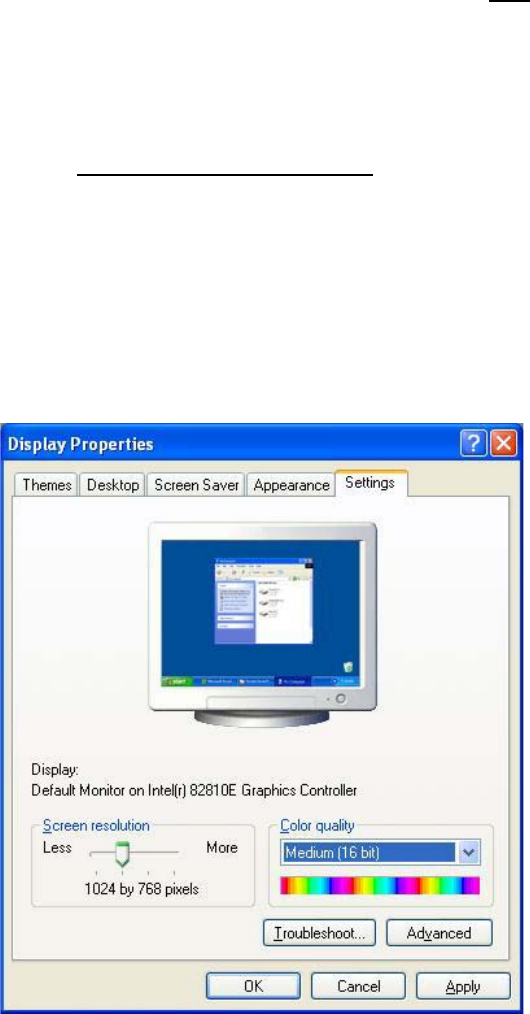
→ Choose Start Æ Settings Æ Control Panel Æ Display.
→ Click the Settings tab.
→ Set the "Screen resolution" slider to "1024 by 768 pixels".
Fig. 4-1: Screen settings
→ Confirm the settings by clicking OK.
18 of 38