00195700-02_Install_701_02_EN_DE.pdf - 第24页
Installation Manual, Station Software Version 701.02 07/2008 Edition 4.5.1 Language selection → Select the language to be used during installation. You can choose between German (Germany) and English (United States) . Fi…
Installation Manual, Station Software Version 701.02 07/2008 Edition
4.5 Installing the SIPLACE software (Station Software 701.02)
Notes:
The installation requires approx. 30 minutes.
5.
For information on manually uninstalling the SIPLACE software, see chapter
→ Switch on the SIPLACE placement machine.
→ Log in to the machine computer as Administrator.
(Keep the Shift key pressed as soon as the Windows XP logo appears)
→ Insert the installation CD in the drive. It is read in automatically.
Note:
If autostart has been disabled for the drive, you must start the installation manually from
the Windows Explorer.
→ Open the Explorer and start "setup.exe" under drive E by double clicking it.
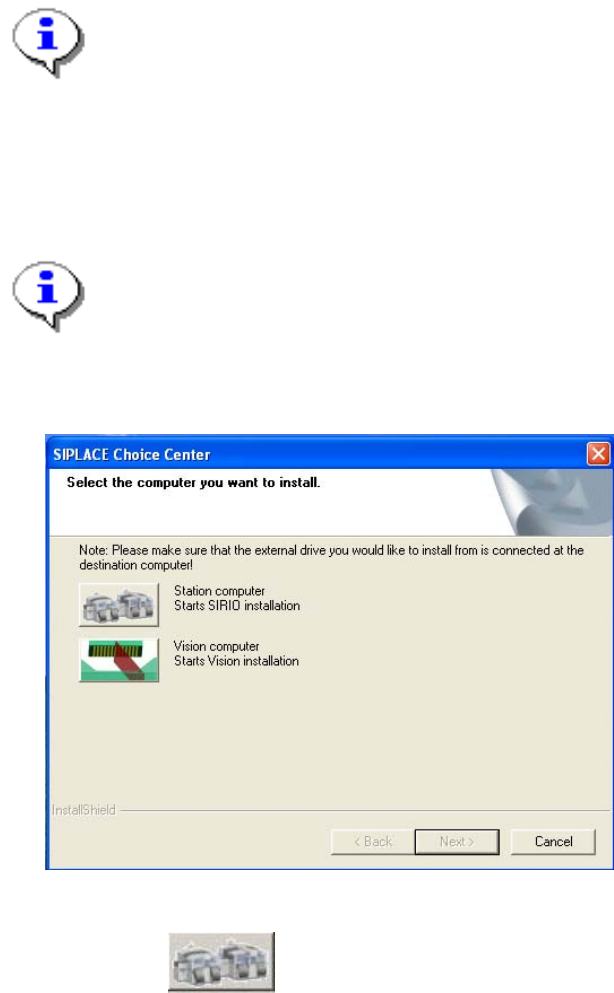
The "SIPLACE Choice Center" dialog box is opened.
Fig. 4-9: "SIPLACE Choice Center" dialog box
→ Click the "Station computer" button.
Installation of the station software continues with the selection of the language.
23 of 38
Installation Manual, Station Software Version 701.02 07/2008 Edition
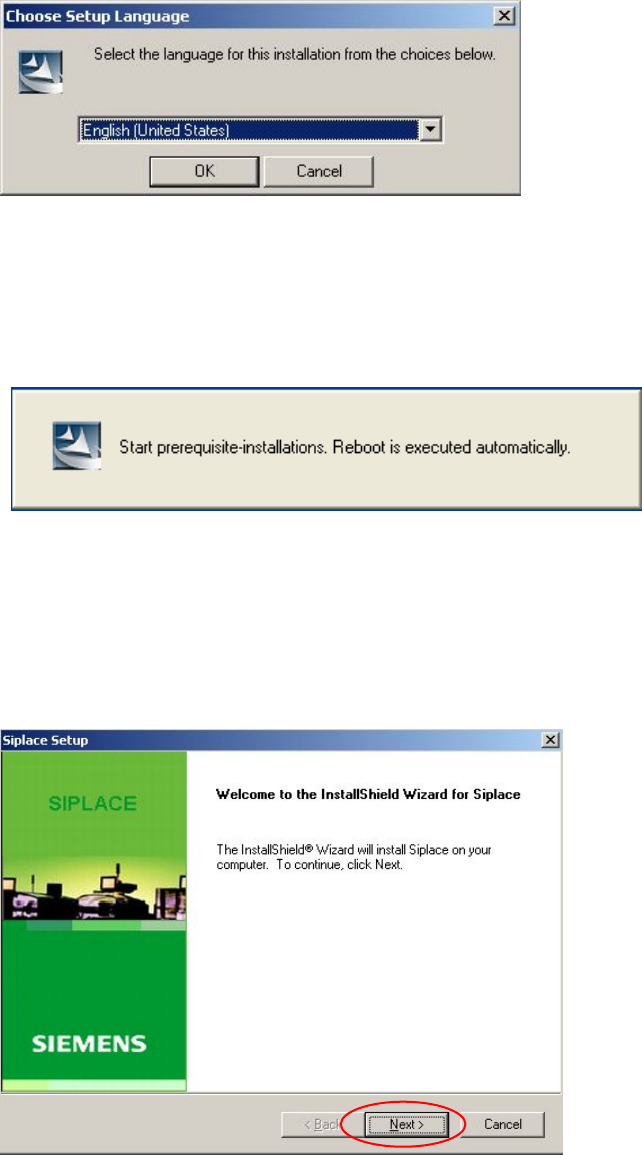
4.5.1 Language selection
→ Select the language to be used during installation.
You can choose between German (Germany) and English (United States).
Fig. 4-10: Language selection
→ Click the OK button.
4.5.2 Installing the system files
The necessary system files are installed if they are not already on the machine computer. The machine
computer is rebooted automatically after installation. You are automatically logged in as administrator.
Installation of the station software continues with the welcome screen.
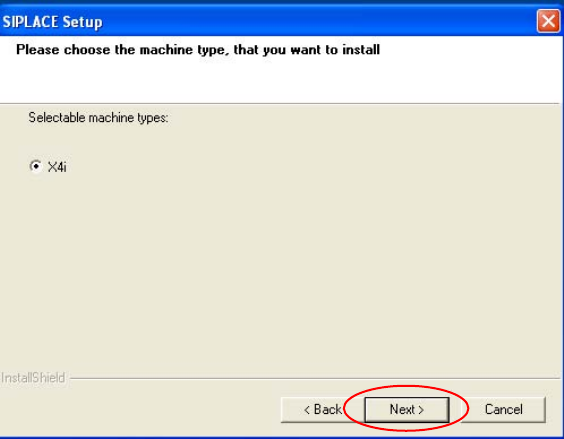
4.5.3 Welcome screen
Fig. 4-11 Welcome screen
→ Click the Next button.
24 of 38
Installation Manual, Station Software Version 701.02 07/2008 Edition
4.5.4 Selecting the machine type
Fig. 4-12 Selecting the machine type
→ Select the option for the machine type for which the software is to be configured.
→ Click the Next button.
25 of 38