TR7500E_Manual_en_v28.pdf - 第74页
C h a p t e r 2 M a nu a l B a r i n t r o d u ce T R 7500 U S E R M A N U AL 67 S t e p 4. W h e n s y s t e m s t a r t s t o i n s p e c t , t h e f o ll o w i ng b a r c o d e r e a d i ng wi n d o w w i l l b e d i …
Chapter 2 Manual Bar introduce
TR7500 USER MANUAL
66
Barcode is triggered automatically according to the number of barcodes. Time
for every trigger is about 2 seconds. Since it’s the independent accident for every
scanning, the barcode scanner will read the same barcode twice or more when
the scanner reads the same barcode.
l First In First Out- means the data on the barcode first read will first be sent out,
while [Last In First Out] means the data last read will first be sent out. [Output
By Barcode Position] means it depends on the barcode position, data near the
Scanner will first be sent out.
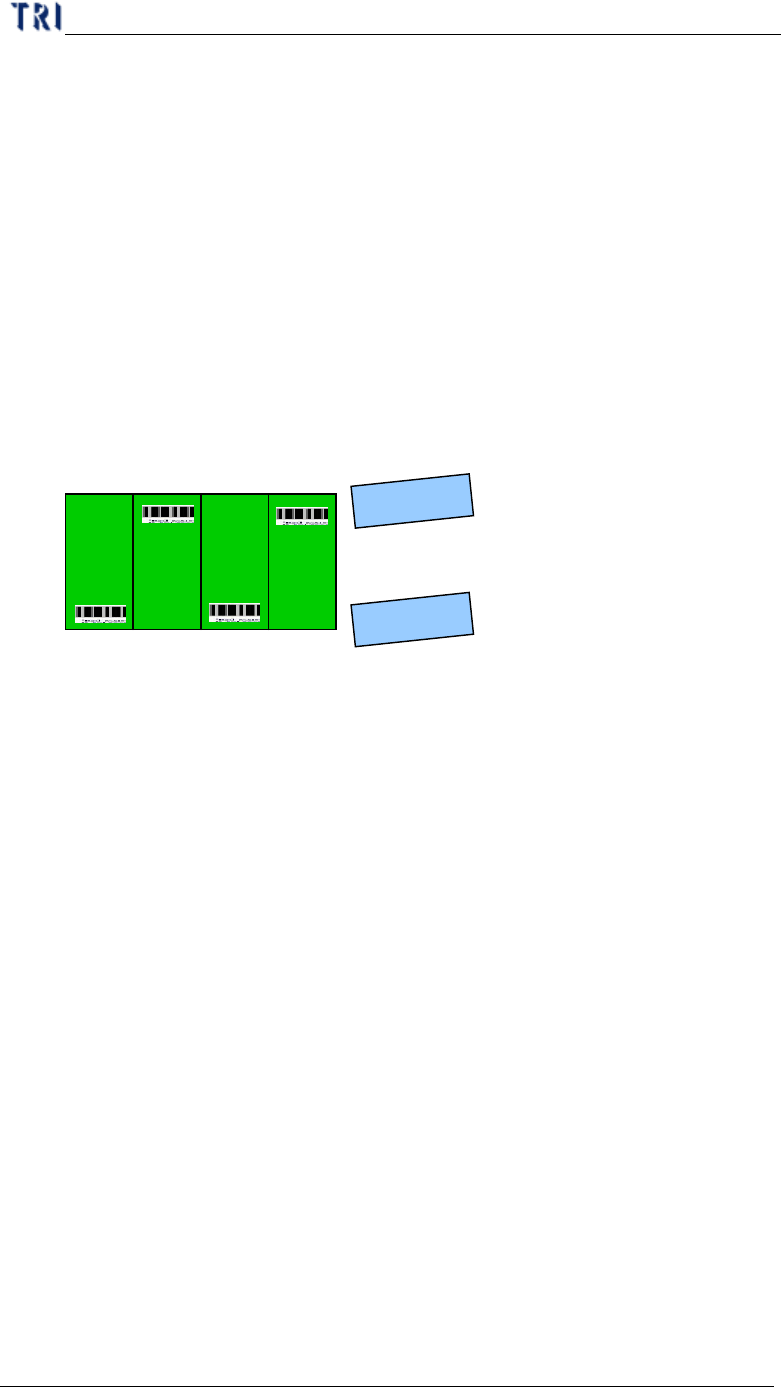
l Interlace Output- For dual scanner; if the barcodes are to be read in sequence as
shown in the following figure, you have to select it.
3.3.1.4 Handy Barcode Scanner Setting
Step1. Need a cable that one terminal is the USB connector and another is RS232
connector. The USB connector has to be connected with main PC and the
RS232 connector has to be connected with Handy Barcode. In addition,
there is another power cable have to be connected for Handy Barcode.
Step2. Set the COM Port to [COM6].
Step3. Select [Check Barcode].
Scanner0
Scanner1
1
2
3
4
Board in direction à
Chapter 2 Manual Bar introduce
TR7500 USER MANUAL
67
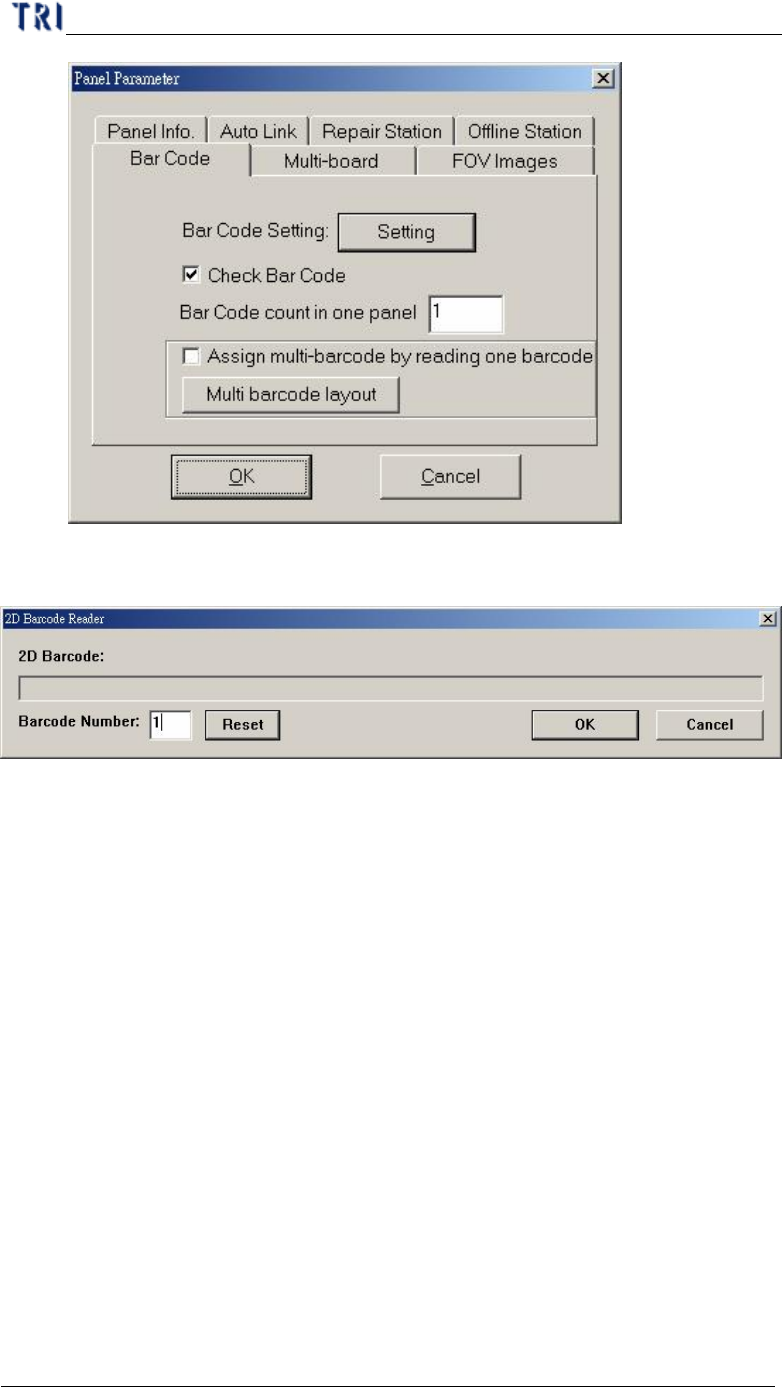
Step4. When system starts to inspect, the following barcode reading window will
be displayed.
Step5. When the total number of barcode is more than 1, you have to set the
number in [Barcode Number] field. Then press [Reset] to finish the setting.
3.3.2. MultiBoard
Chapter 2 Manual Bar introduce
TR7500 USER MANUAL
68
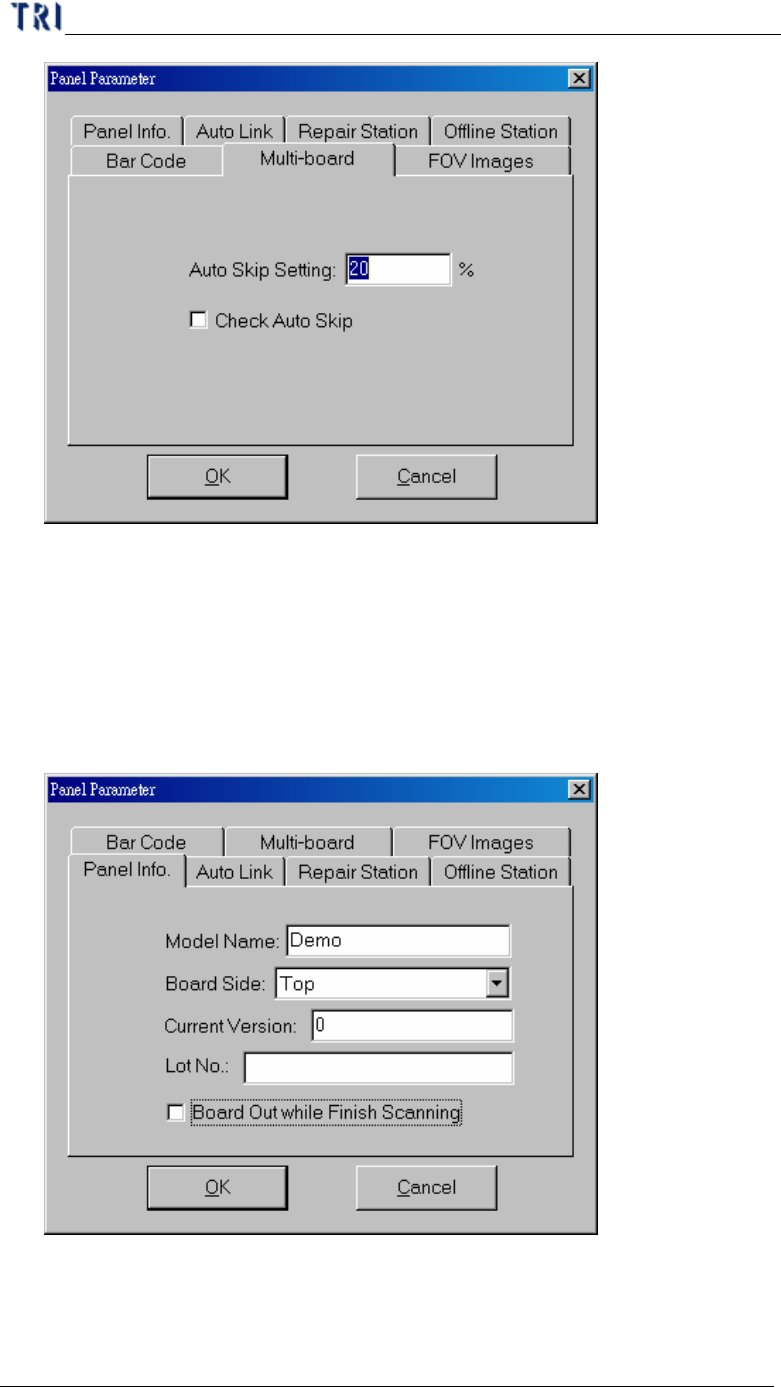
l Auto Skip Setting – Setting the skip ratio. If the ratio of failed points for a panel
is higher than the setting, the panel will be regarded as invalid board. This value
should be set greater in a situation that there are many components and smaller in
a situation that there are few components
l Check Auto Skip – Enable auto skip function.
3.3.3. Panel Info
l Model Name – The same as original AOI file name. When you change the
project name, it isn’t changed.
l Board Side – Setting Board is Top or Bottom side.