00198374-01_UG_OSC_Package_DE_EN.pdf - 第59页
4 Working with the OSC Features 4.2 Stereo Measurement for THT Pins Bedienungsanleitung OSC Package User Guide OSC-Paket - 06/2017 59 ► With the Set illumination option you may check the illumination setting. Normally, t…
4 Working with the OSC Features
4.2 Stereo Measurement for THT Pins
58 Bedienungsanleitung OSC Package User Guide OSC-Paket - 06/2017
Step 3: SIPLACE Pro
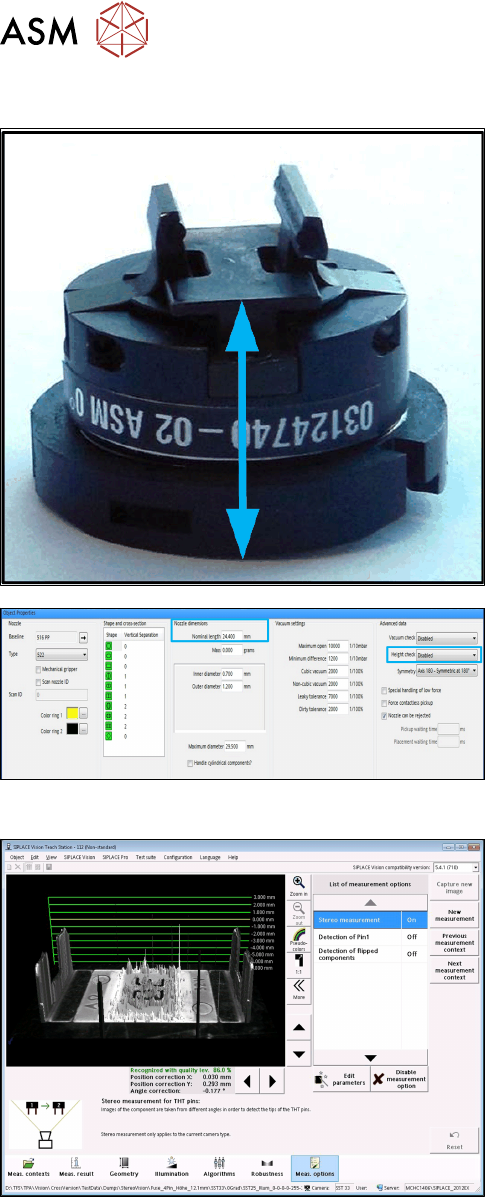
Setting parameters for the nozzle gripper
► In the Nozzle Editor, disable the Height check
height reference run under Custom Nozzle –
Advanced Data.
► Set the Nominal length from the nozzle bottom to
the component touchdown point under Nozzle
dimensions.
Step 4: SIPLACE Vision
► Enable the Stereo Measurement option in the
Component shape wizard in the Meas. options.
4 Working with the OSC Features
4.2 Stereo Measurement for THT Pins
Bedienungsanleitung OSC Package User Guide OSC-Paket - 06/2017 59
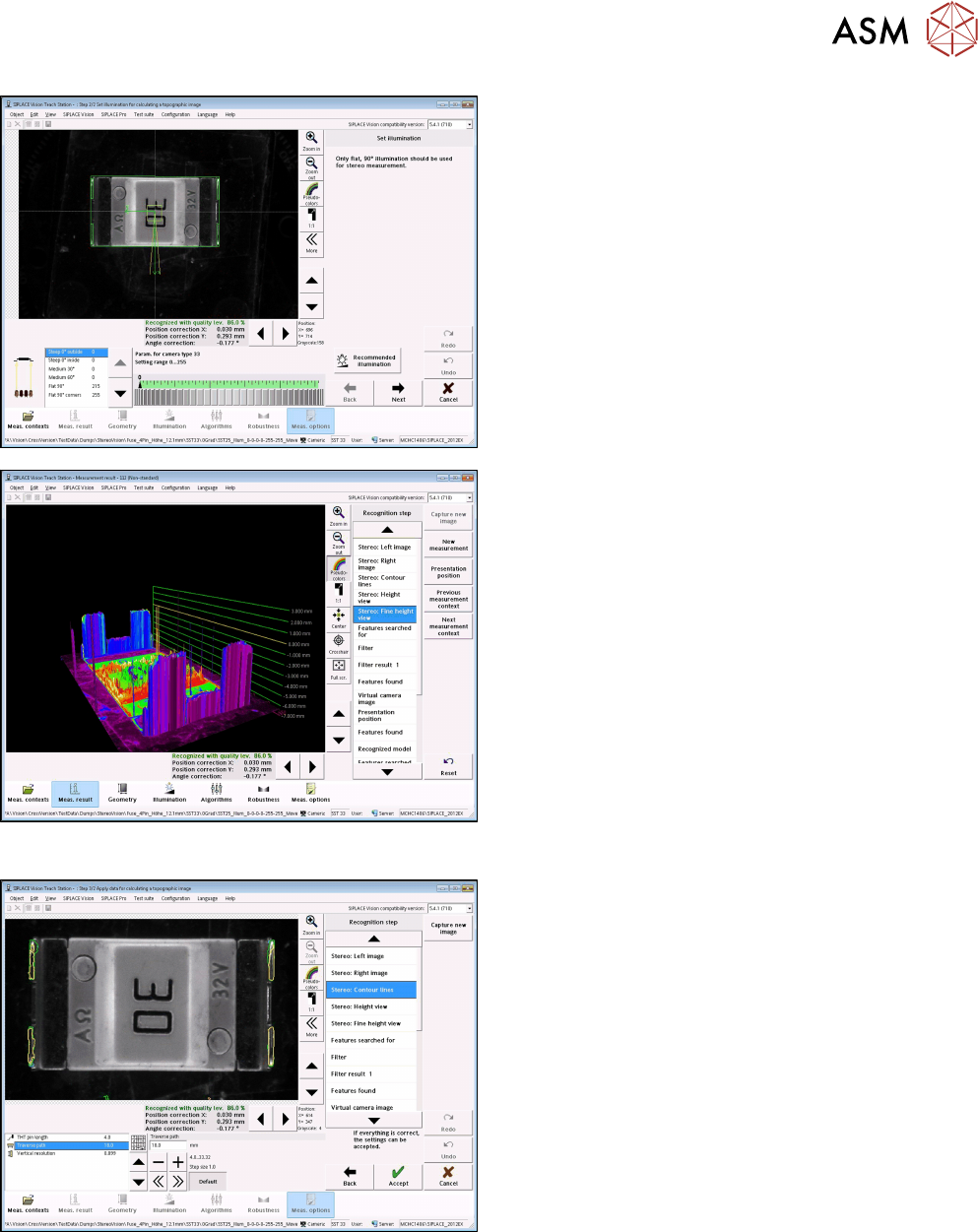
► With the Set illumination option you may check
the illumination setting.
Normally, the pre-set values should not be
changed!
► Under Stereo: Fine Height View you may check
the result of the stereo measurement.
Ensure that the THT pins are in the focal plane
(yellow height line)
This is the case, if component height (overall
height) and nozzle height have been defined
correctly.
Step 5: SIPLACE Vision
► If necessary, change the traverse path to modify
the vertical resolution.
► Under Stereo: Contour lines the measured height
lines are displayed in the 2D images.
This allows you to verify that exactly the THT pin
tips have been detected at the focal plane.
4 Working with the OSC Features
4.3 Customer-specific Pattern Features
60 Bedienungsanleitung OSC Package User Guide OSC-Paket - 06/2017
4.3 Customer-specific Pattern Features
Odd shape components do not always have a shape or other structures such as leads which can
be used for identifying the component center and its orientation.
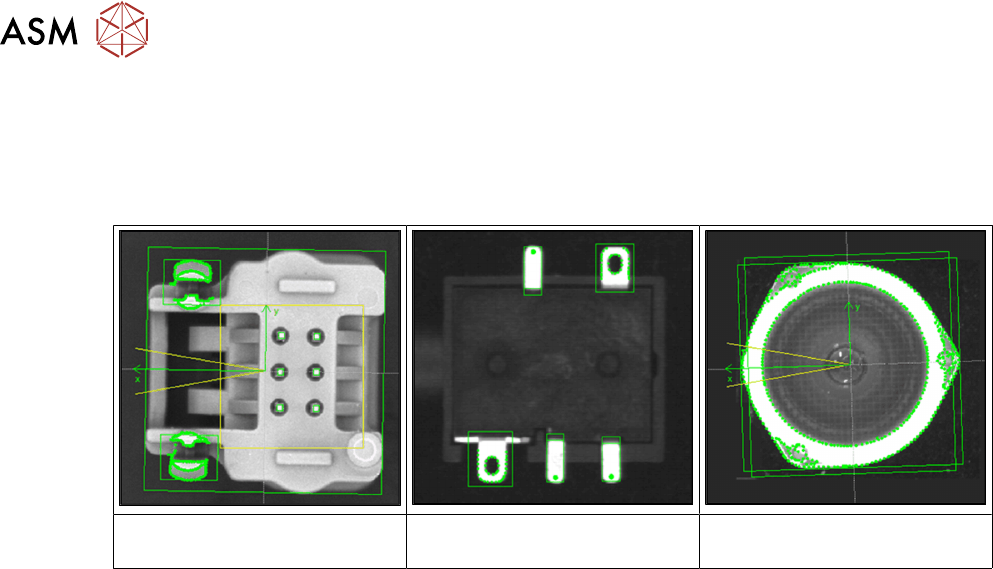
Examples
Component with board locks Specially shaped leads Component with curved shape,
e.g. lenses
The new Pattern Feature lead group type allows the user to describe arbitrary abstract patterns on
a component. These patterns can only be created and changed in the SIPLACE Vision Editor
during teaching at the station. This type of lead group can be renamed or deleted but not created,
edited or copied in SIPLACE Pro.
The camera captures an image of the component and the user can now simply draw a frame
around single features or attributes and mark them for the Vision system. A special algorithm will
then extract a model out of the marked areas which can be used to later measure and align all
components of the same type. Structures that are not needed can be deleted easily.