00195489_Install_IIS_manual.pdf - 第11页
Manual Installation of Internet Information Server Edition 04/2007 US Note: With Windows Vista there is a new featu re called “User Account C ontrol” introduced, which controls access to functions that r equire permissio…
Manual Installation of Internet Information Server Edition 04/2007 US
3.3 Installation of Internet Information Server on Windows Vista
Please follow the instructions below for the manual installation of Internet Information Server (IIS) on
Windows Vista.
Note:
Close all other applications before you start with the installation of Internet Information
Server.
You may need your operating system media during installation. This installation also
requires administrative privileges.
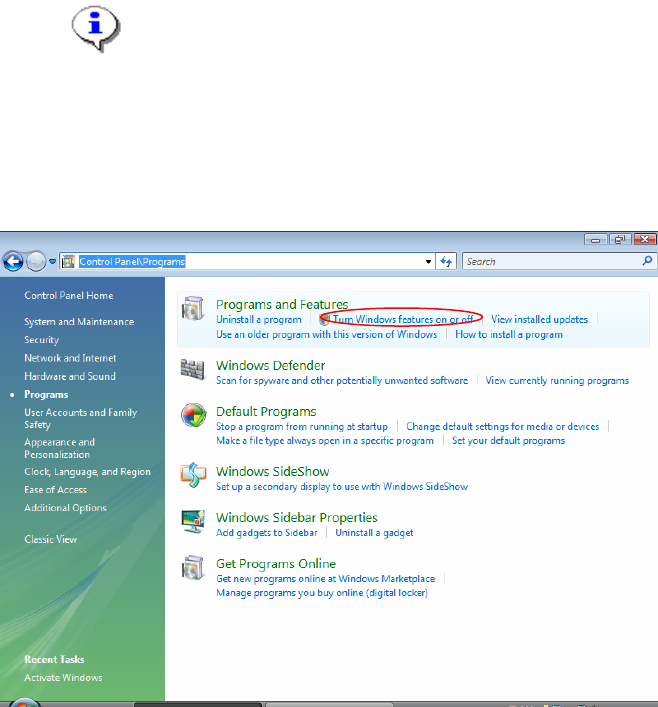
→ Click on windows main menu Start Æ Control Panel Æ Programs.
The following window opens:
Fig. 3-10: Control Panel - Programs
→ Click on “Turn Windows features on or off”.
10/18
Manual Installation of Internet Information Server Edition 04/2007 US
Note:
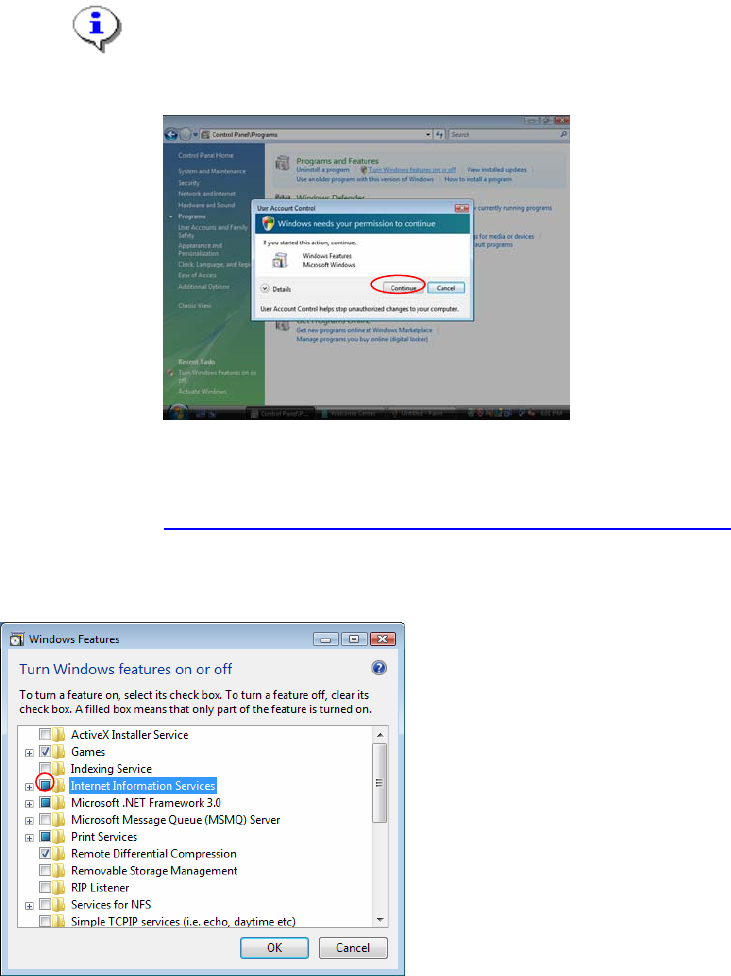
With Windows Vista there is a new feature called “User Account Control” introduced,
which controls access to functions that require permissions above the default user. If you
see warning messages between the described steps you have to acknowledge them
before proceeding.
Fig. 3-11: Vista User Account Control
More information on this feature:
http://technet.microsoft.com/en-us/windowsvista/aa905108.aspx
After a few seconds, the following window appears:
Fig. 3-12: The "Windows Features” selection window
→ Select the checkbox besides “Internet Information Services”.
→ Expand the “Internet Information Services” group by clicking on the plus symbol beside.
11/18
Manual Installation of Internet Information Server Edition 04/2007 US
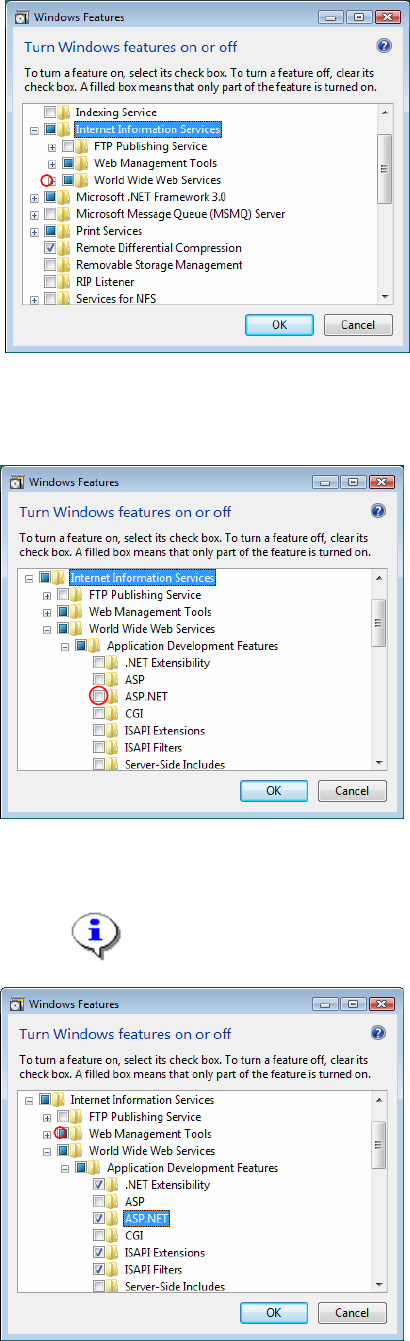
Fig. 3-14: The "Windows Features” selection window – Internet Information Services expanded
→ Expand the groups “World Wide Web Services” and the appearing “Application Development
Features” by clicking on their plus symbol.
Fig. 3-15: The "Windows Features” selection window – expanded to Application Development Features
→ Select the feature “ASP.NET” by clicking on its checkbox.
12/18
Note:
Selecting this feature enables ASP.NET 2.0 support for IIS.
Fig. 3-16: The "Windows Features” selection window –ASP.NET selected