00195489_Install_IIS_manual.pdf - 第6页
Manual Installation of Internet Information Server Edition 04/2007 US 3 Inst allation 3.1 Inst allation of Internet Inform ation Server on Windows Server 2003 Please follow the instructions below for t he manual in stall…
Manual Installation of Internet Information Server Edition 04/2007 US
5/18
1 Introduction
Some SIPLACE software systems, like SIPLACE FACTS or SIPLACE OIB make use of Microsoft
Internet Information Server (IIS) to provide web server functionality.
2 Scope of delivery
This document describes the manual procedure to install the Microsoft Internet Information Server
(IIS) with default settings for usage of SIPLACE software products for computer systems. Further
customization (e.g. modification of IIS settings) will be done by the specific product installations.
Manual Installation of Internet Information Server Edition 04/2007 US
3 Installation
3.1 Installation of Internet Information Server on Windows Server 2003
Please follow the instructions below for the manual installation of Internet Information Server (IIS) on
Windows Server 2003.
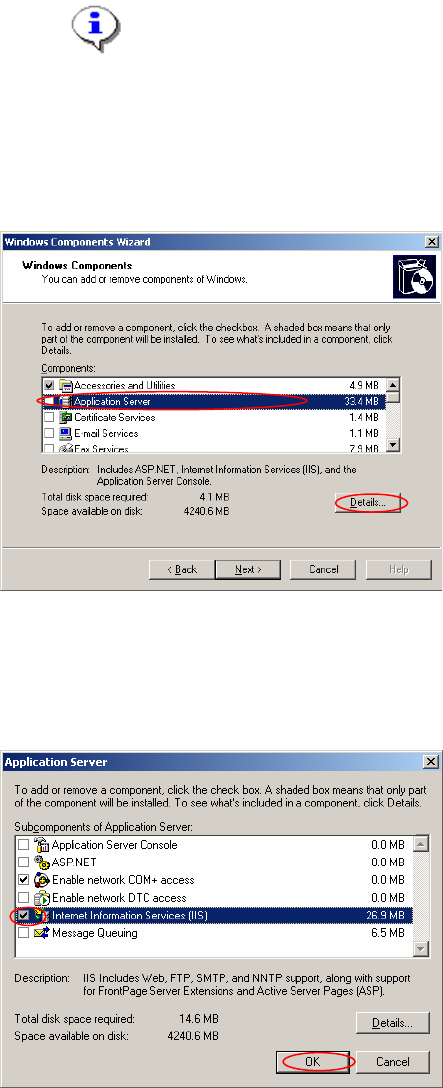
Note:
Close all other applications before you start with the installation of Internet Information
Server.
You may need your operating system media during installation. This installation also
requires administrative privileges.
→ Click on windows main menu Start Æ Control Panel Æ Add Or Remove Programs Æ Windows
Components
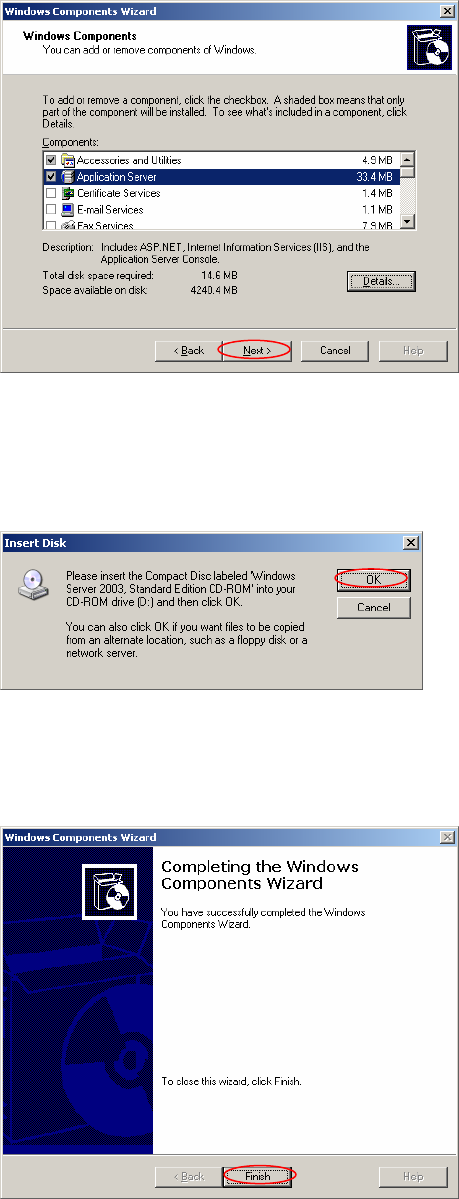
After few seconds the windows components wizard opens:
Fig. 3-1: The "Windows Components Wizard”
→ Click on the line “Application Server” (do not select/deselect the checkbox!).
→ Click on the Details… button.
The following dialog appears:
Fig. 3-2: The "Application Server” dialog
6/18
Manual Installation of Internet Information Server Edition 04/2007 US
→ Activate the check box for “Internet Information Services (IIS)” .
→ Click on the OK button.
Now the previous dialog looks like this:
Fig. 3-3: The "Windows Components Wizard” after selection of IIS
→ Click on the Next > button.
Please wait until the wizard has installed the selected components.
7/18
During the installation, the following dialog may appear when files to copy are not available:
Fig. 3-4: The "Insert Disk” dialog during installation
→ Insert your Operating System Installation media into the mentioned drive.
→ Click on the OK button if the dialog does not disappear automatically.
After a successful installation the following window appears:
Fig. 3-5: “Windows Components Wizard” after successful installation
→ Click on the Finish button.