00195489_Install_IIS_manual.pdf - 第7页
Manual Installation of Internet Information Server Edition 04/2007 US → Activate the check box for “Internet Information Services (IIS)” . → Click on the OK button. Now the previous dialog lo oks like this: Fig. 3-3: The…
Manual Installation of Internet Information Server Edition 04/2007 US
3 Installation
3.1 Installation of Internet Information Server on Windows Server 2003
Please follow the instructions below for the manual installation of Internet Information Server (IIS) on
Windows Server 2003.
Note:
Close all other applications before you start with the installation of Internet Information
Server.
You may need your operating system media during installation. This installation also
requires administrative privileges.
→ Click on windows main menu Start Æ Control Panel Æ Add Or Remove Programs Æ Windows
Components
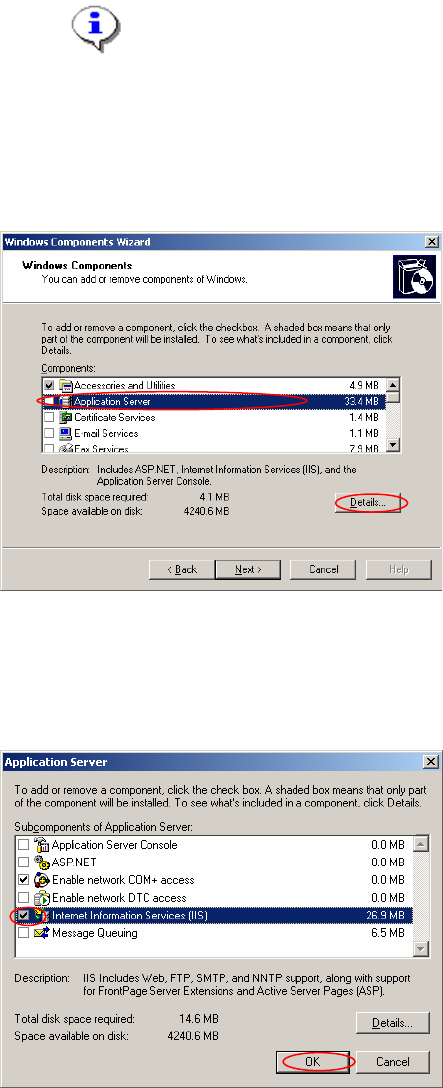
After few seconds the windows components wizard opens:
Fig. 3-1: The "Windows Components Wizard”
→ Click on the line “Application Server” (do not select/deselect the checkbox!).
→ Click on the Details… button.
The following dialog appears:
Fig. 3-2: The "Application Server” dialog
6/18
Manual Installation of Internet Information Server Edition 04/2007 US
→ Activate the check box for “Internet Information Services (IIS)” .
→ Click on the OK button.
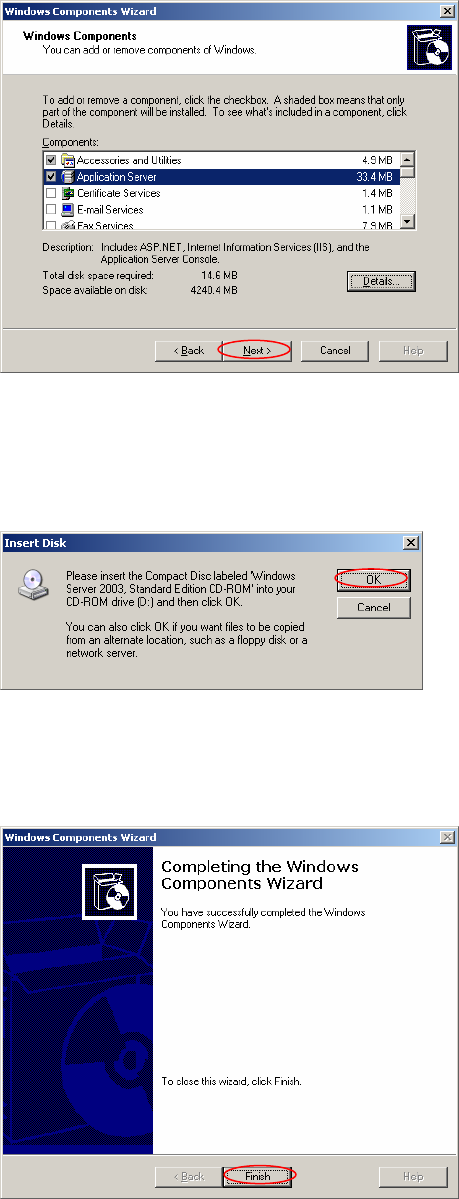
Now the previous dialog looks like this:
Fig. 3-3: The "Windows Components Wizard” after selection of IIS
→ Click on the Next > button.
Please wait until the wizard has installed the selected components.
7/18
During the installation, the following dialog may appear when files to copy are not available:
Fig. 3-4: The "Insert Disk” dialog during installation
→ Insert your Operating System Installation media into the mentioned drive.
→ Click on the OK button if the dialog does not disappear automatically.
After a successful installation the following window appears:
Fig. 3-5: “Windows Components Wizard” after successful installation
→ Click on the Finish button.
Manual Installation of Internet Information Server Edition 04/2007 US
3.2 Installation of Internet Information Server on Windows XP
Professional
Please follow the instructions below for the manual installation of Internet Information Server (IIS) on
Windows XP.
Note:
Close all other applications before you start with the installation of Internet Information
Server.
You may need your operating system media during installation. This installation also
requires administrative privileges.
→ Click on windows main menu Start Æ Control Panel Æ Add Or Remove Programs Æ Windows
Components.
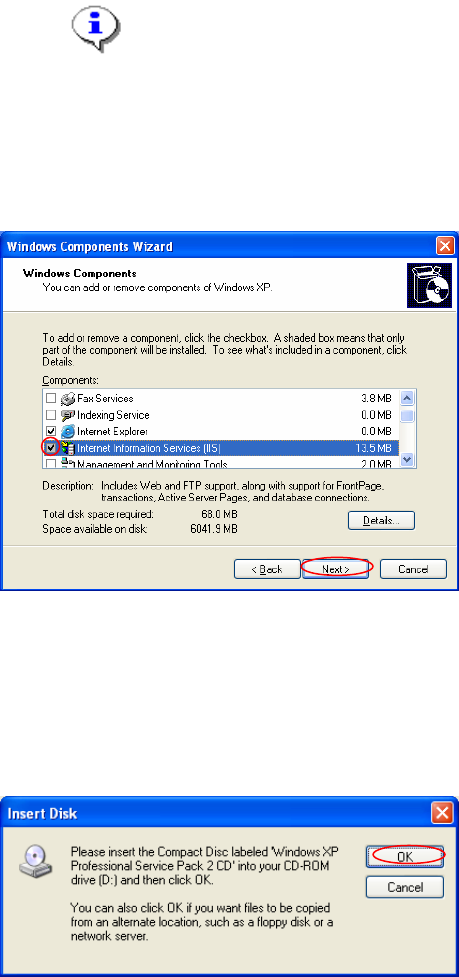
After a few seconds the windows components wizard opens:
Fig. 3-6: The "Windows Components Wizard”
→ Scroll down and activate the checkbox for “Internet Information Services (IIS)”
→ Click on the Next > button.
8/18
Please wait until the wizard has installed the selected components.
During the installation, the following dialog may appear when files to copy are not available:
Fig. 3-8: The "Insert Disk” dialog during installation
→ Insert your Operating System Installation media into the mentioned drive.
→ Click on the OK button if the dialog does not disappear automatically.