00195489_Install_IIS_manual.pdf - 第13页
Manual Installation of Internet Information Server Edition 04/2007 US Now you have to activate IIS 6 management com patibility: → Expand the group “Web Management Tools” in side the group “Intern et Information Servi ces…
Manual Installation of Internet Information Server Edition 04/2007 US
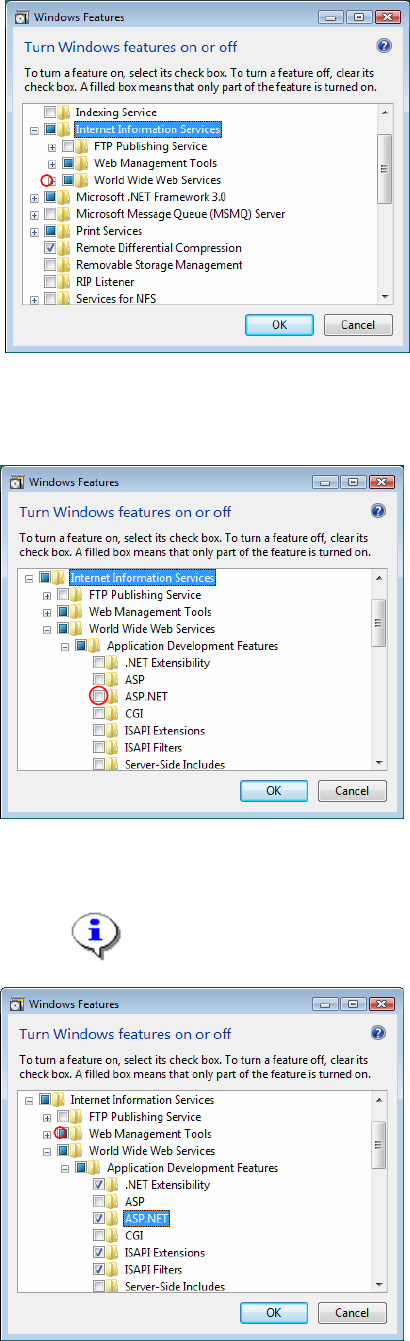
Fig. 3-14: The "Windows Features” selection window – Internet Information Services expanded
→ Expand the groups “World Wide Web Services” and the appearing “Application Development
Features” by clicking on their plus symbol.
Fig. 3-15: The "Windows Features” selection window – expanded to Application Development Features
→ Select the feature “ASP.NET” by clicking on its checkbox.
12/18
Note:
Selecting this feature enables ASP.NET 2.0 support for IIS.
Fig. 3-16: The "Windows Features” selection window –ASP.NET selected
Manual Installation of Internet Information Server Edition 04/2007 US
Now you have to activate IIS 6 management compatibility:
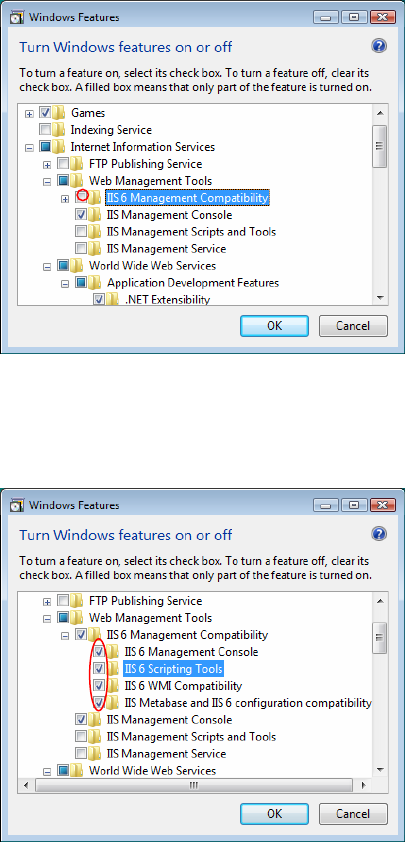
→ Expand the group “Web Management Tools” inside the group “Internet Information Services” by
clicking on its plus symbol.
The following window appears:
Fig. 3-17: The "Windows Features” selection window – IIS 6 Management Compatibility
→ Expand the group “IIS 6 Management Compatibility” by clicking on its plus symbol.
The following window appears:
Fig. 3-18: The "Windows Features” selection window –IIS 6 Management Compatibility expanded
→ Select all sub features of “IIS 6 Management Compatibility”
→ Click on the OK button.
Please wait until the wizard has installed the selected features.
After successful installation the wizard disappears.
13/18
Manual Installation of Internet Information Server Edition 04/2007 US
3.4 ASP.Net Support for Internet Information Server
This chapter describes the activation of ASP.Net Support for Internet Information Server (IIS) on Windows
Server 2003 and Windows XP Professional. This setting is only available if you have Microsoft .Net
Framework installed.
Please follow the instructions below for the manual activation of ASP.Net
→ Click on windows main menu Start Æ Control Panel Æ Administrative Tools Æ “Internet
Information Services (IIS) Manager”.
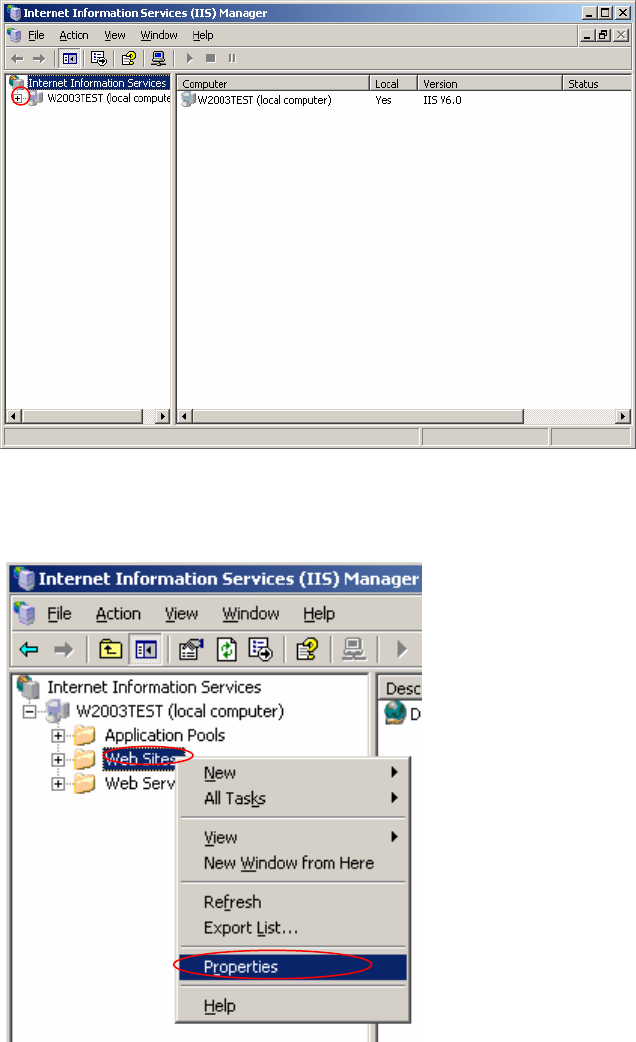
The Internet Information Services (IIS) Manager opens.
Fig. 3-20: Internet Information Services (IIS) Manager
→ Expand the left tree view by clicking on plus symbol of the first item.
The following window appears:
Fig. 3-21: Internet Information Services (IIS) Manager – expanded view
→ Select the group “Web Sites” by clicking on it.
14/18