ISM-1100_INM.pdf - 第18页
Quick reference handbook Barcode Reader software Quick reference handbook Barcode Reader software rev_6 Edition 06/2017 - Reproduction forbidden Page 18 - “Extraction options” button: by cl icking this button, a new wind…
Quick reference handbook Barcode Reader software
Quick reference handbook Barcode Reader software rev_6 Edition 06/2017 - Reproduction
forbidden
Page 17
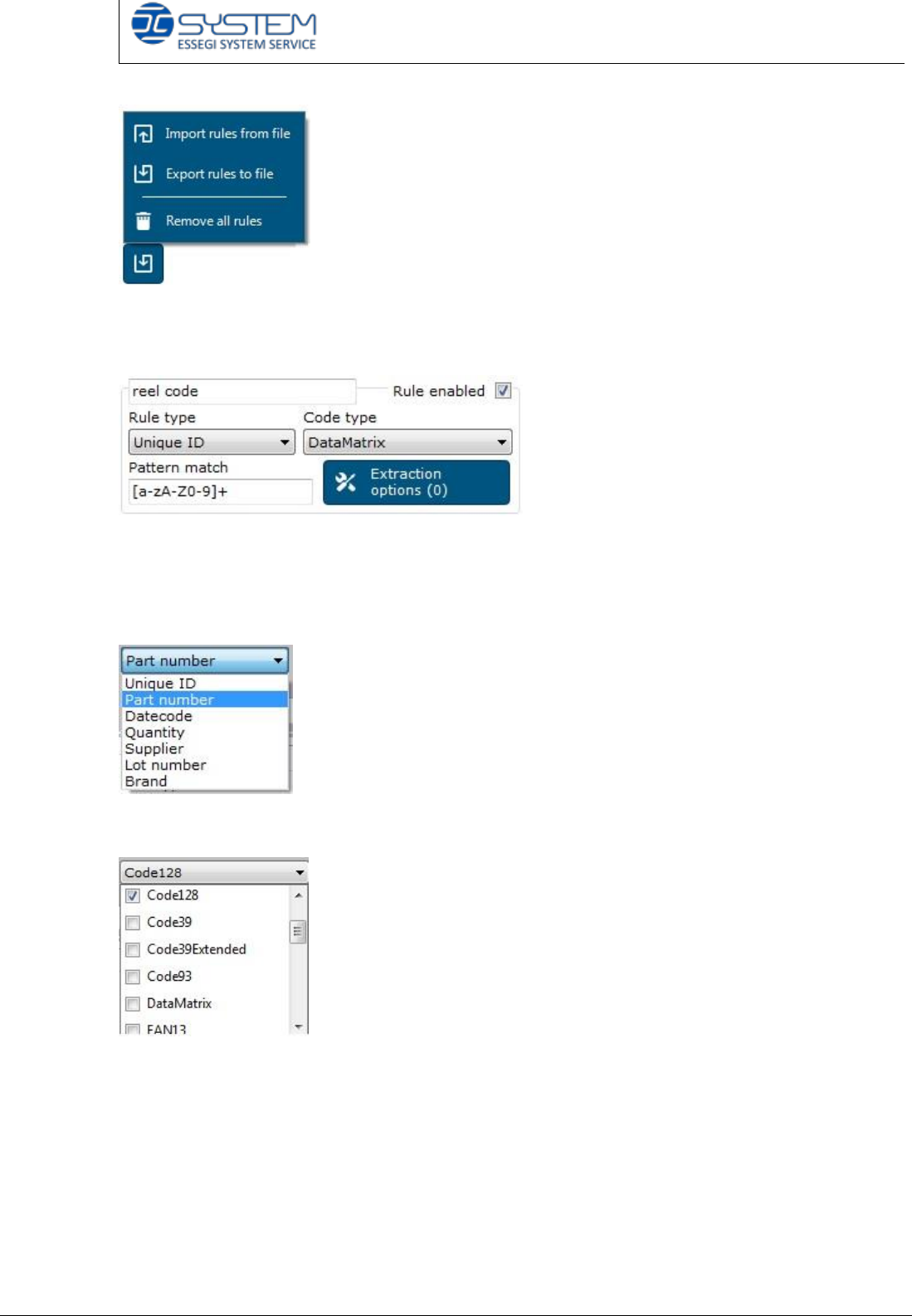
There is the possibility to export or import created rules or delete them. If you
create a rule, you can choose the network path where saving the file called
rules.dat.
When you create a rule, you have to fill in the following fields:
- Name field: you have to type a name for the rule you are creating.
- Rule type: you can associate the rule to a specific information included into the
following drop-down menu.
- Code type: you have to select the type of code to read by the following drop-
down menu.
- Pattern match: this is a regular expression to validate the barcodes found.
A technician can create by himself the regular expression and in case of need,
Storage Solution customer service department is always available.
Quick reference handbook Barcode Reader software
Quick reference handbook Barcode Reader software rev_6 Edition 06/2017 - Reproduction
forbidden
Page 18
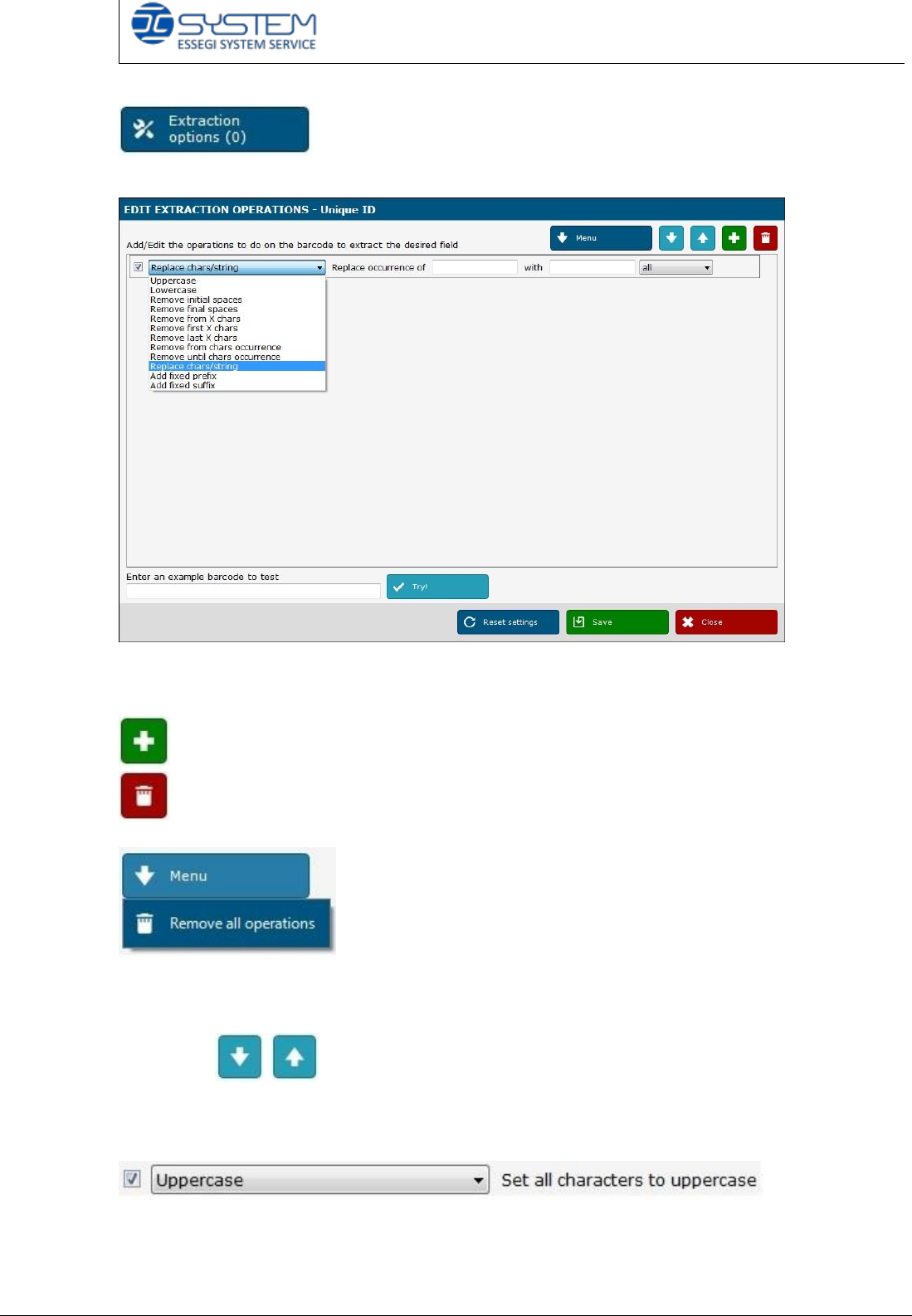
- “Extraction options” button: by clicking this button, a new window will appear.
This window is very important because you can decide how display the extracted
code.
You can create a new rule to read the code.
You can delete a created rule.
If you need to delete all already created extraction operations, you can select
Menu/Remove all operations instead of deleting every single rule.
By clicking , you can decide which extraction operations rule apply
first.
You can select the following extraction operation rules:
This rule allows you to find a code and in presence of lowercase letters, extract it
in uppercase letters e.g. barcode reader reads 050123a and extracts 050123A.
Quick reference handbook Barcode Reader software
Quick reference handbook Barcode Reader software rev_6 Edition 06/2017 - Reproduction
forbidden
Page 19
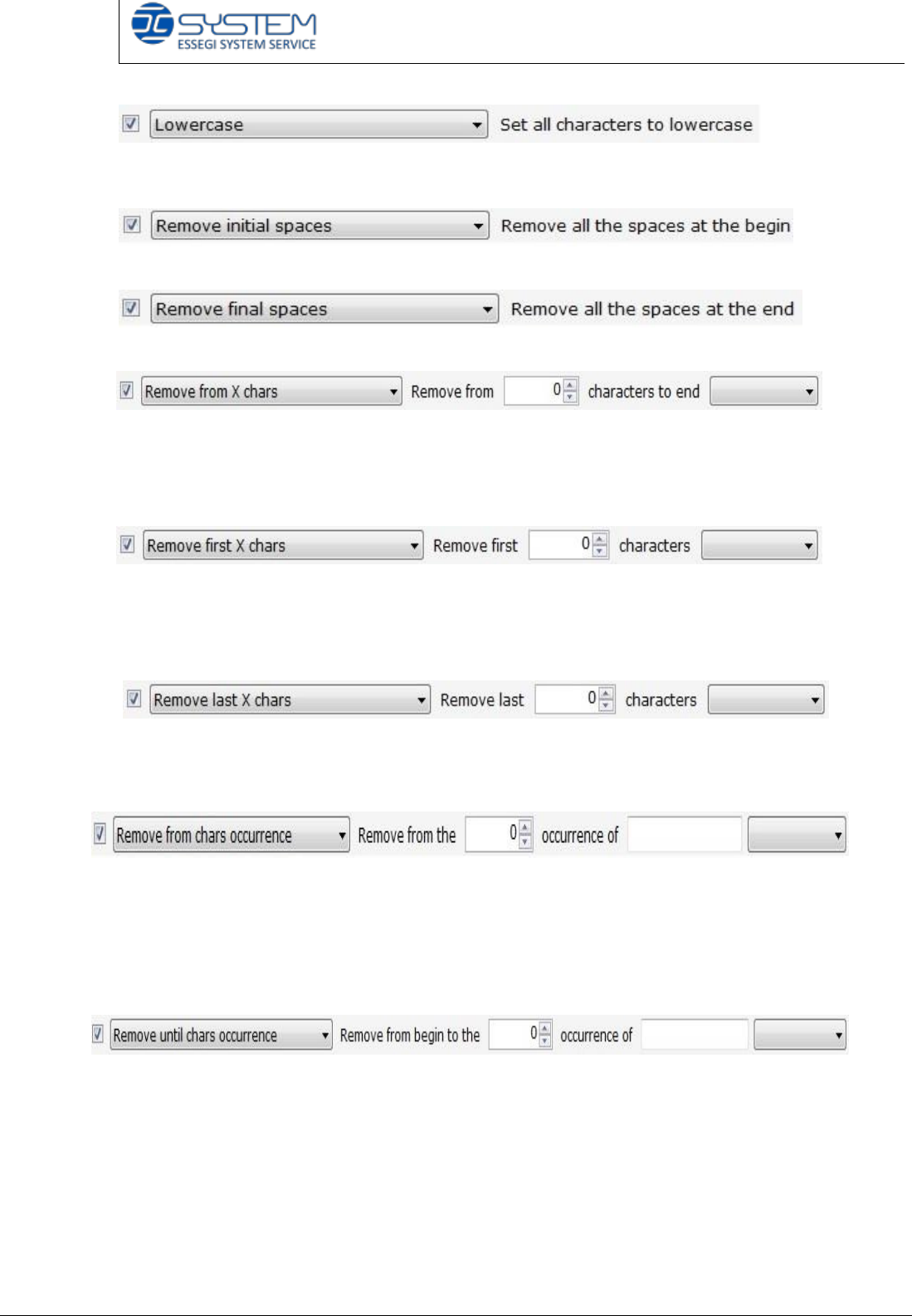
This rule allows you to find a code and in presence of uppercase letters, extract it
in lowercase letters e.g. barcode reader reads 050123A and extracts 050123a.
This rule does not consider spaces before the code.
This rule does not consider spaces at the end of the code.
It is possible to remove one or more characters of a code starting from a specified
position (included or excluded from the deletion) to the end. E.g. if you select
“remove from 3 excluded”, the barcode reader reads 050123 and extracts only
050.
It is possible to remove one or more characters of a code starting from the
beginning of the code (included or excluded from the deletion). E.g. if you select
“remove first 3 excluded”, the barcode reader reads 050123 and extracts only
0123.
It is possible to remove one or more characters of a code starting from the end of
the code (included or excluded from the deletion). E.g. if you select “remove last
3 excluded”, the barcode reader reads 050123 and extracts only 0501.
It is possible to remove one or more characters of a code when it finds a specified
character (included or excluded from the deletion). E.g. if you select “remove
from “2” occurrence of “0” included, the barcode reader reads 050123 and
extracts only 05 because when the barcode reader finds the second “0” from the
beginning, it does not consider anymore the other characters.
It is possible to remove one or more characters of a code starting from the
beginning until a specified character (included or excluded from the deletion). E.g.
if you select “remove from “2” occurrence of “0” included, the barcode reader
reads 050123 and extracts only 123 because when the barcode reader finds the
second “0” from the beginning, it does not consider anymore the characters
inserted before.