ISM-1100_INM.pdf - 第20页
Quick reference handbook Barcode Reader software Quick reference handbook Barcode Reader software rev_6 Edition 06/2017 - Reproduction forbidden Page 20 It is possible to cha nge one or more characters inside a co de wit…
Quick reference handbook Barcode Reader software
Quick reference handbook Barcode Reader software rev_6 Edition 06/2017 - Reproduction
forbidden
Page 19
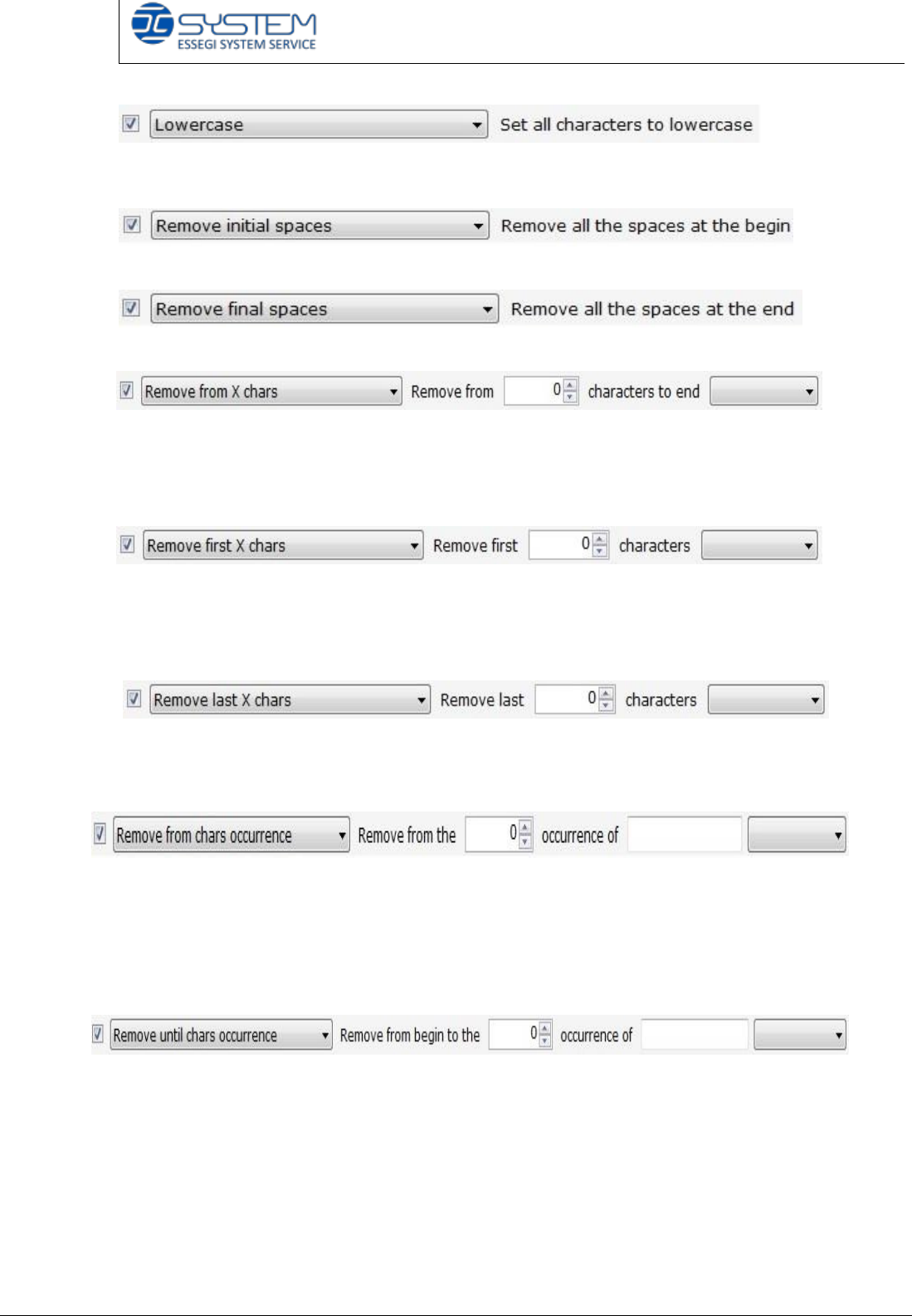
This rule allows you to find a code and in presence of uppercase letters, extract it
in lowercase letters e.g. barcode reader reads 050123A and extracts 050123a.
This rule does not consider spaces before the code.
This rule does not consider spaces at the end of the code.
It is possible to remove one or more characters of a code starting from a specified
position (included or excluded from the deletion) to the end. E.g. if you select
“remove from 3 excluded”, the barcode reader reads 050123 and extracts only
050.
It is possible to remove one or more characters of a code starting from the
beginning of the code (included or excluded from the deletion). E.g. if you select
“remove first 3 excluded”, the barcode reader reads 050123 and extracts only
0123.
It is possible to remove one or more characters of a code starting from the end of
the code (included or excluded from the deletion). E.g. if you select “remove last
3 excluded”, the barcode reader reads 050123 and extracts only 0501.
It is possible to remove one or more characters of a code when it finds a specified
character (included or excluded from the deletion). E.g. if you select “remove
from “2” occurrence of “0” included, the barcode reader reads 050123 and
extracts only 05 because when the barcode reader finds the second “0” from the
beginning, it does not consider anymore the other characters.
It is possible to remove one or more characters of a code starting from the
beginning until a specified character (included or excluded from the deletion). E.g.
if you select “remove from “2” occurrence of “0” included, the barcode reader
reads 050123 and extracts only 123 because when the barcode reader finds the
second “0” from the beginning, it does not consider anymore the characters
inserted before.
Quick reference handbook Barcode Reader software
Quick reference handbook Barcode Reader software rev_6 Edition 06/2017 - Reproduction
forbidden
Page 20
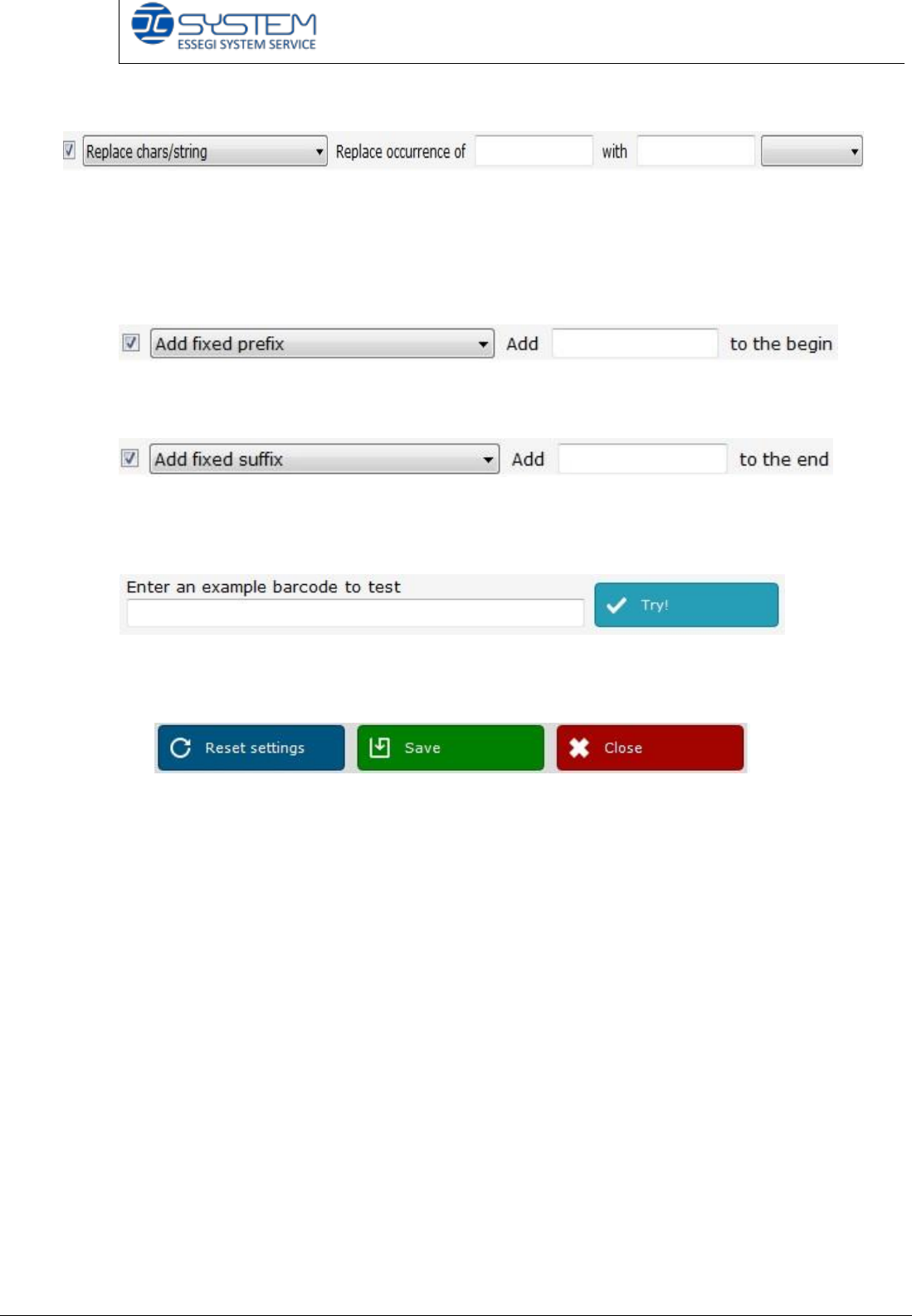
It is possible to change one or more characters inside a code with another
character. In this case, the drop-down menu allows you to select “only the first”
character or “all”. E.g. if you select “replace occurrence of “0” with “A” and “only
first”, the barcode reader reads 050123 and extracts A50123; if you select “all”, it
extracts A5A123.
This rule allows you to insert a prefix. E.g. if you type “TEST”, the barcode reader
reads 050123 and extracts TEST050123.
This rule allows you to insert a suffix. E.g. if you type “TEST”, the barcode reader
reads 050123 and extracts 050123TEST.
To check if a rule is correctly set, you can type the code into the field and click
“Try”: in this case, you can see the result of the extraction operation.
You can save the created parameters or reset the settings.
Pay attention: the parameters are normally already set up. It is always possible to
change them but you have to call the customer service department.
Quick reference handbook Barcode Reader software
Quick reference handbook Barcode Reader software rev_6 Edition 06/2017 - Reproduction
forbidden
Page 21
BARCODE AND COLOUR SETTINGS FOR ISM1100/2000 MACHINE
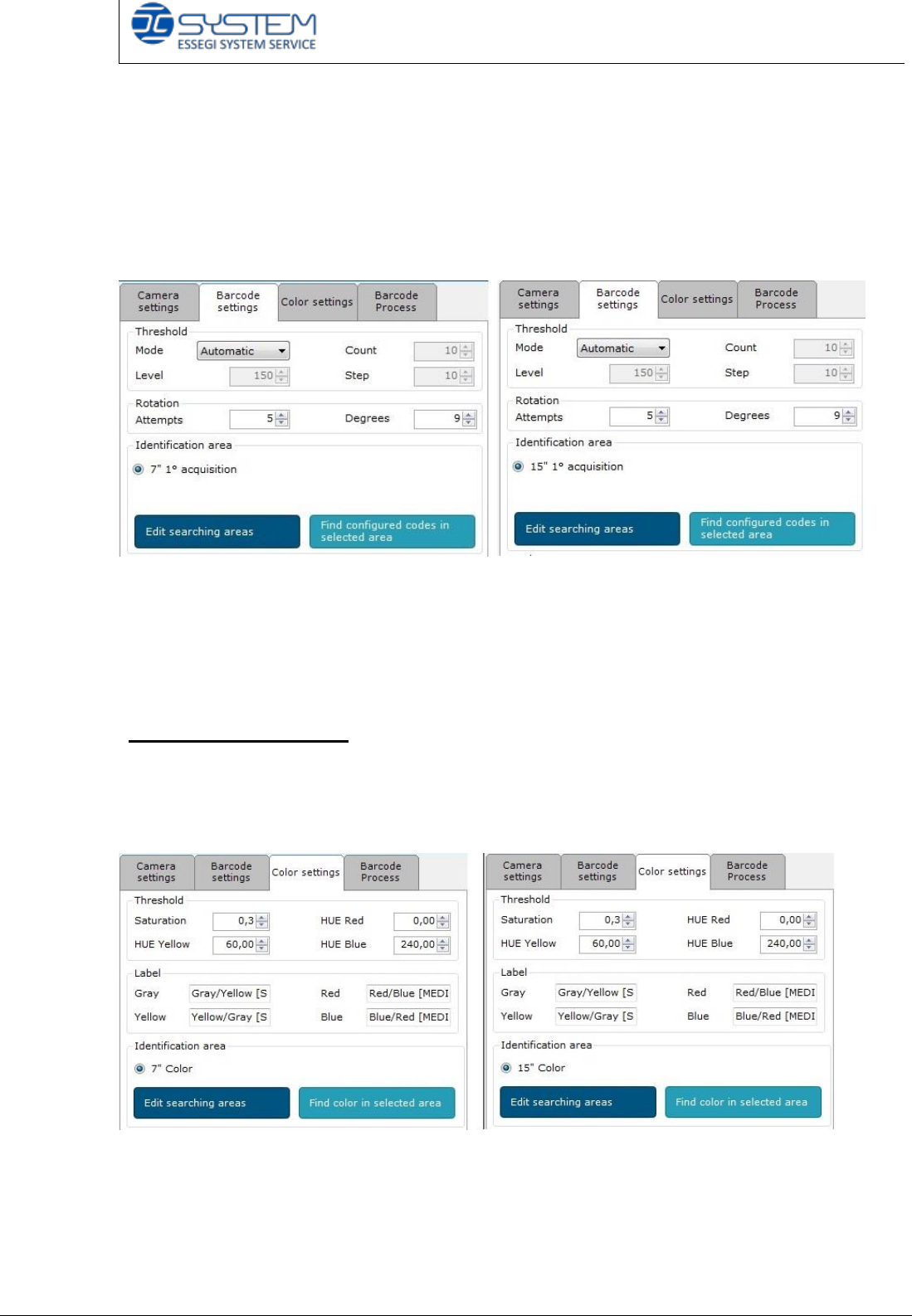
The “barcode settings” tab in the ISM1100/2000 machine is just a little different
from “barcode settings” for Ultraflex machine because the ISM1100/2000
machines can read only 1 reel at a time.
For this reason, the technician can find only the “7” 1° acquisition” instead of 7” A
and 7”B options inside the “7” configuration”
Opening the “15” configuration”, into the “Barcode settings” there is the button
“15” 1° acquisition”
To change the area configurations, the technician must click on “Edit searching
areas” and make the same procedure indicated for Ultraflex machine.
“COLOUR SETTINGS” tab
This tab is present only in the ISM1100/2000 machines because in the Ultraflex
machine there is the RUGOSITY IDENT. SETTINGS TAB in place of “COLOUR
SETTINGS”.
In the
THRESHOLD
session, it is possible to set the right colour parameters to
recognize the colour of the case.
Saturation: if the camera recognizes a saturation below 30%, the case will be
detected as grey. This value can be modified only by the technical Department.